In this post we will look at how to create a branch in GitHub.
In previous posts, we:
- Installed Git on Windows using SCM
- Signed up for GitHub
- Installed GitHub Desktop for Windows
- Cloned a Repository from GitHub. We now have a local repo in Windows
- Made changes and committed to our local Master
- Published our changes to GitHub
In this post, we will create a new Branch, Commit and Revert changes, merge into Master, and publish the branch up to GitHub.
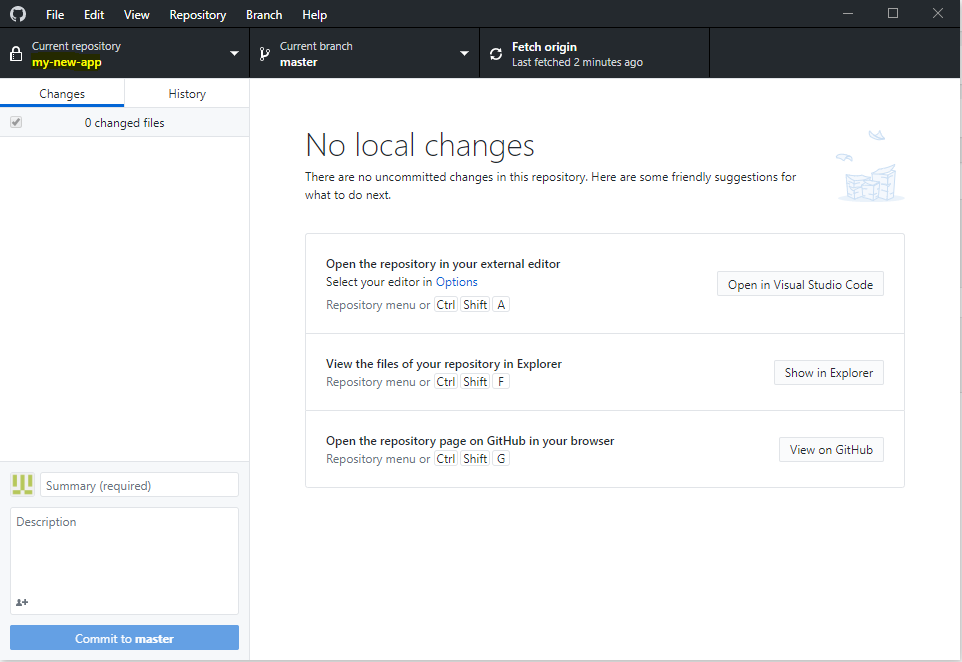
First, open GitHub Desktop. Note the current repository is my-new-app:
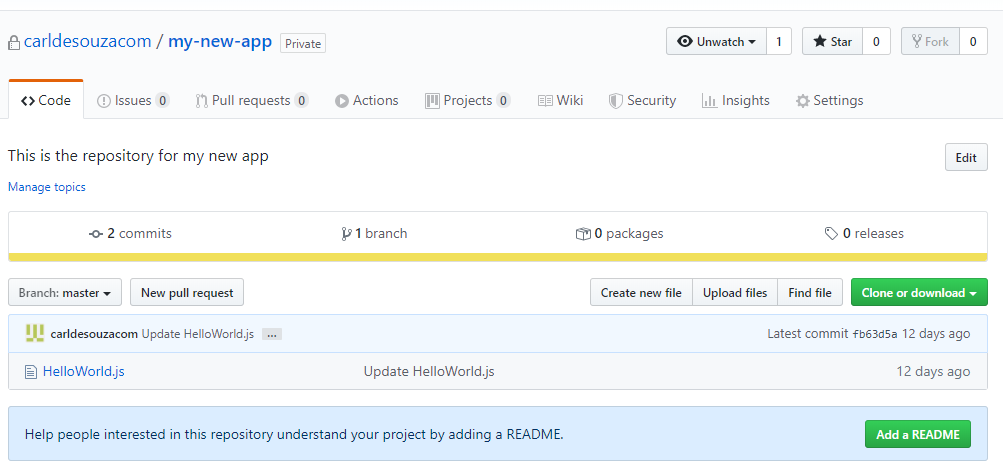
This is synced with our GitHub repository:
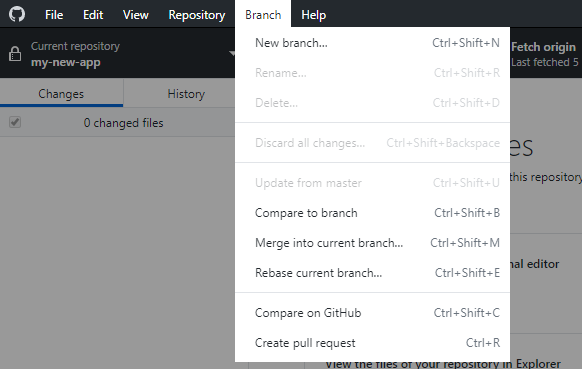
Now let’s create a local branch called my-new-app-lb:
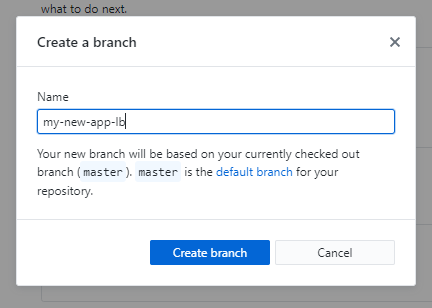
Provide a name and click Create Branch:
We now have a current repository as my-new-app and current branch as my-new-branch:
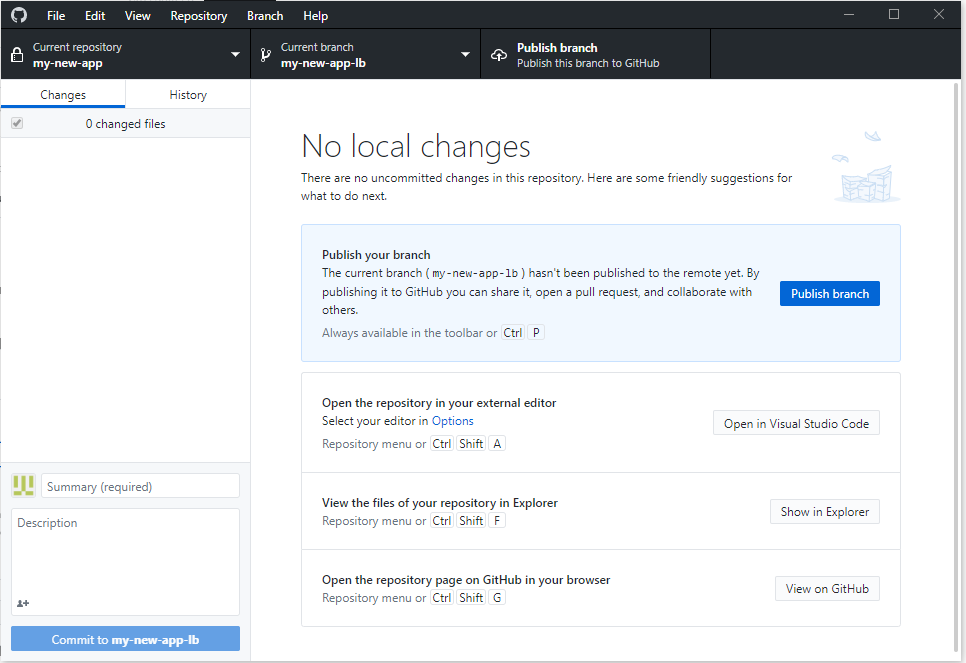
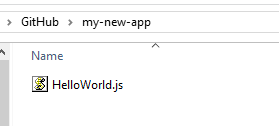
If we click Open in Windows Explorer, we see we are pointing to the my-new-app folder:
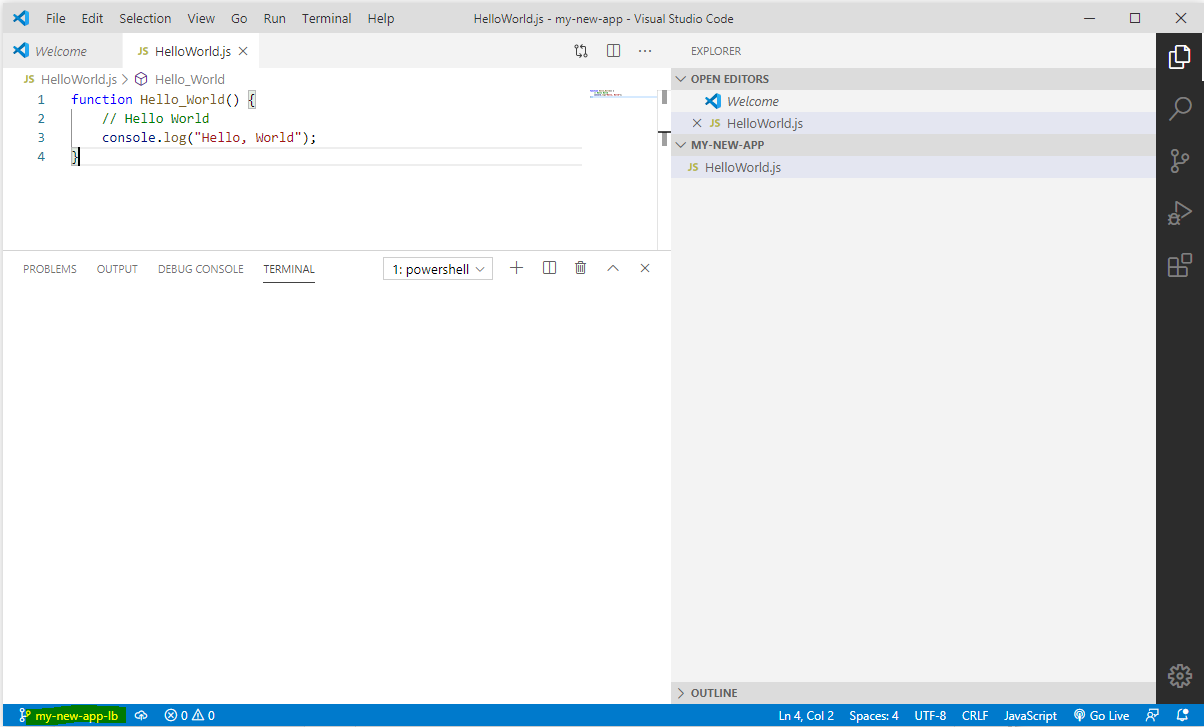
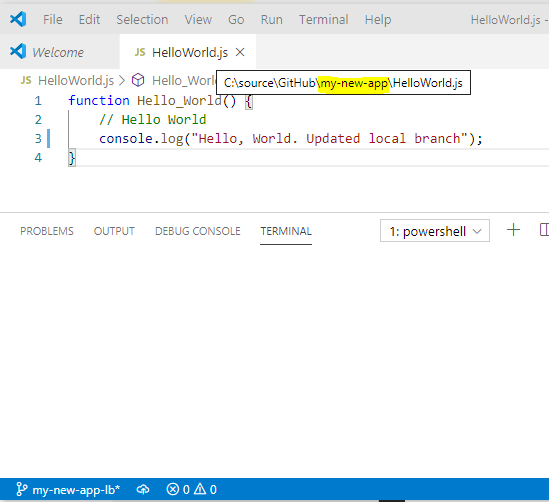
Let’s open this in VS Code. We see it knows we are in the local branch:
Let’s update the file:
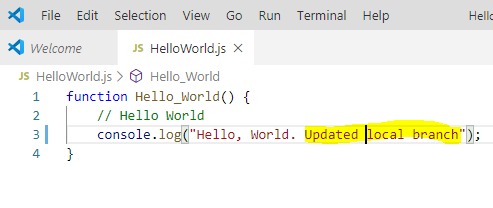
We are updating the original:
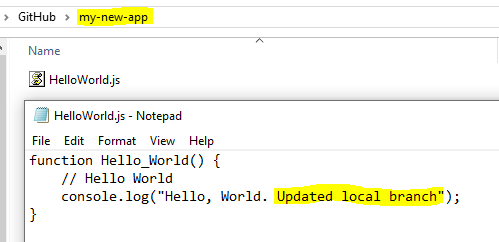
And in Notepad we see the local file has been updated:
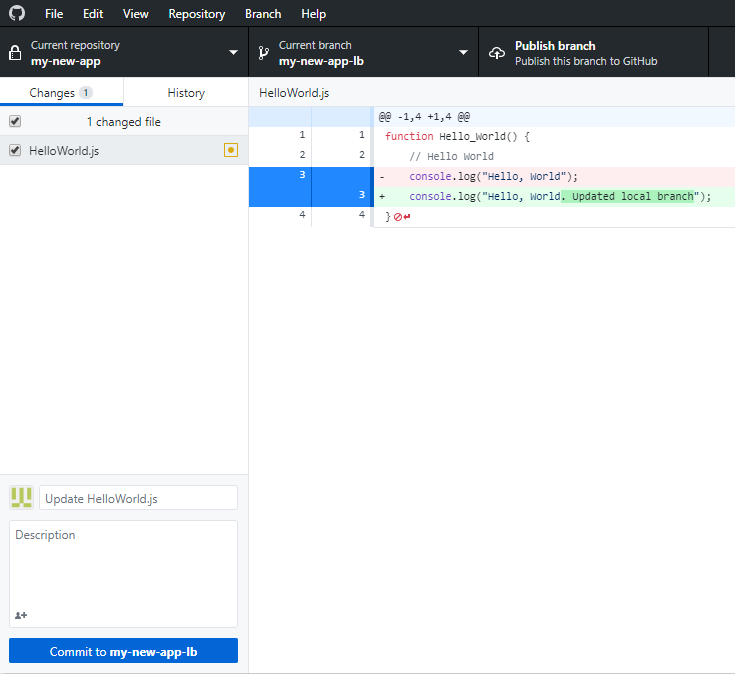
And we see the changes:
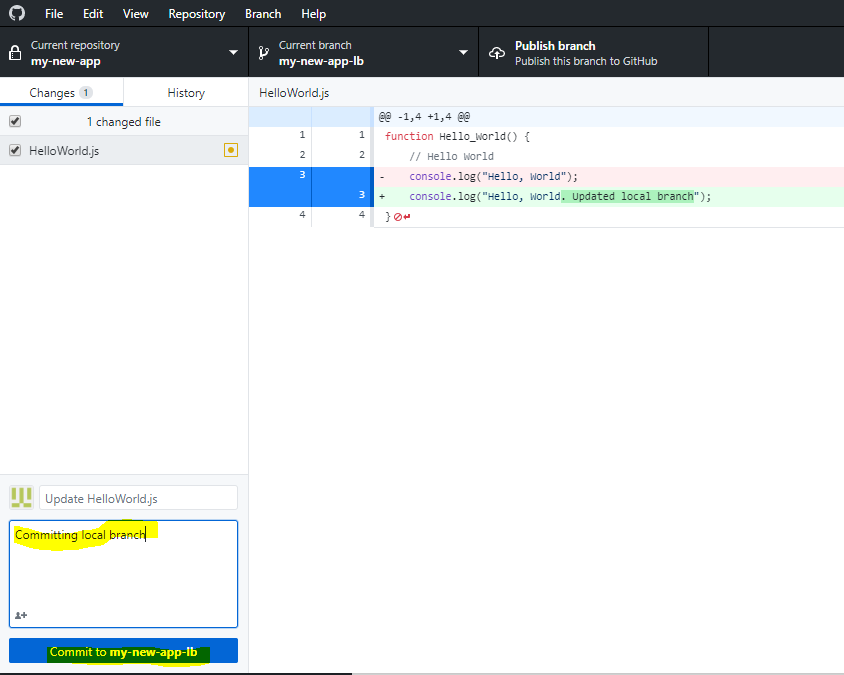
Let’s commit the local branch:
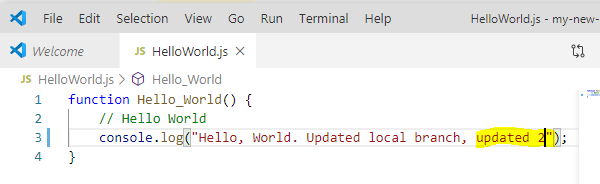
Let’s make another change.
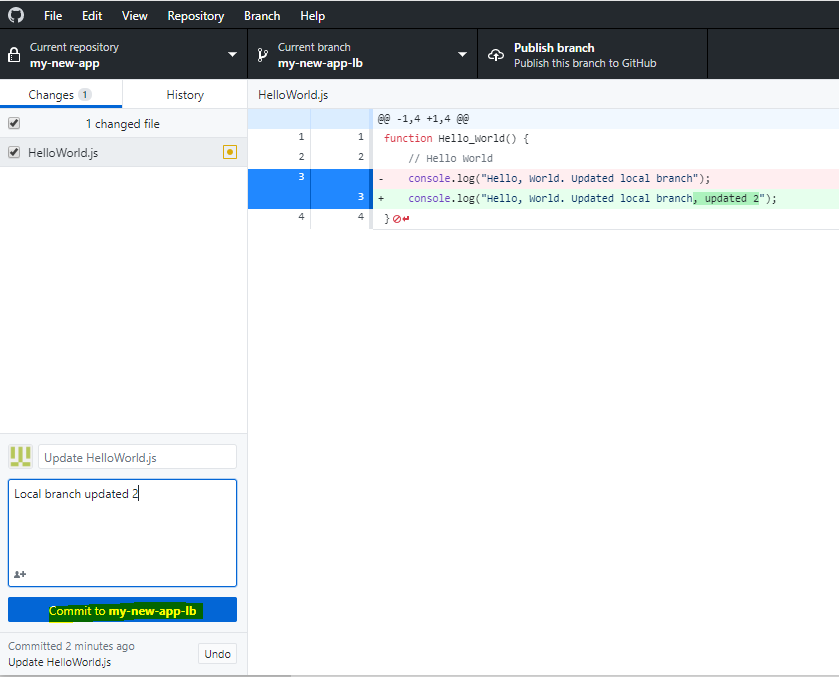
And commit to local branch:
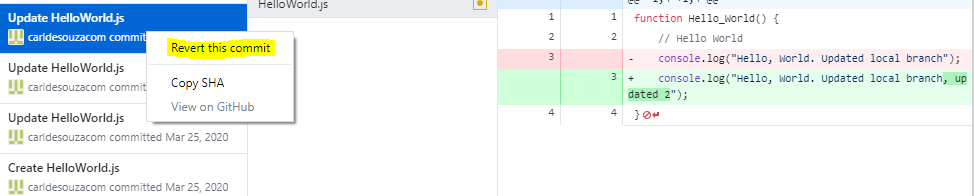
Now let’s say we want to revert to before the Update 2 was made. We can go to
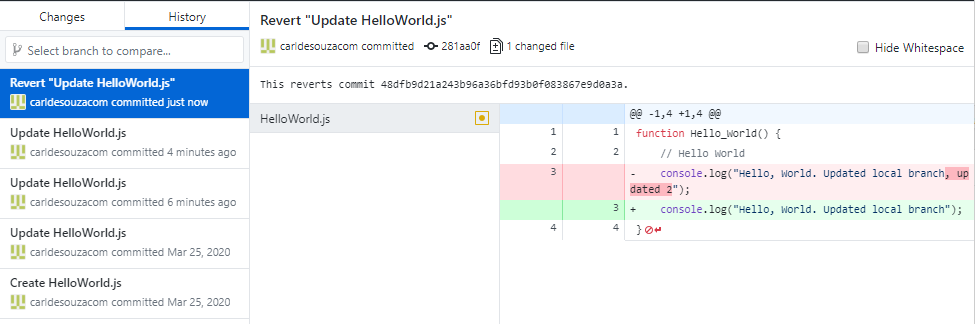
We see the change is reverted:
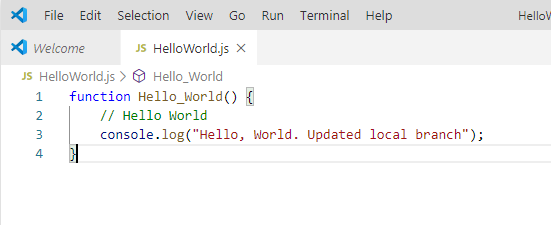
Now if we switch the current branch to Master, and open in VS Code, we see the original version:
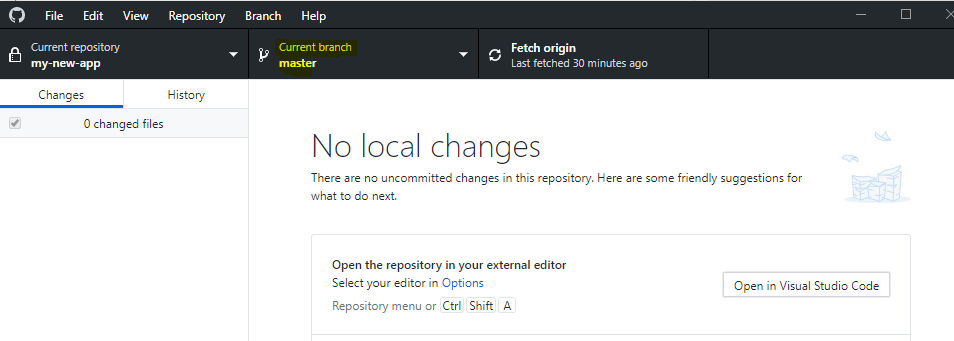
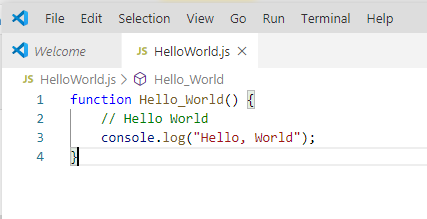
And switching back to the my-new-app-lb branch will show us the updated code.
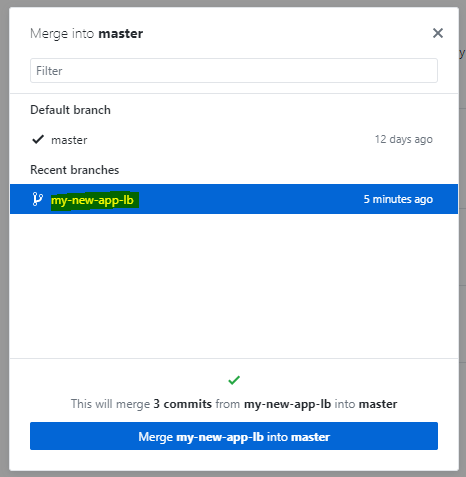
Now let’s merge this into the Master branch. Go to Master and select Merge into Current Branch:
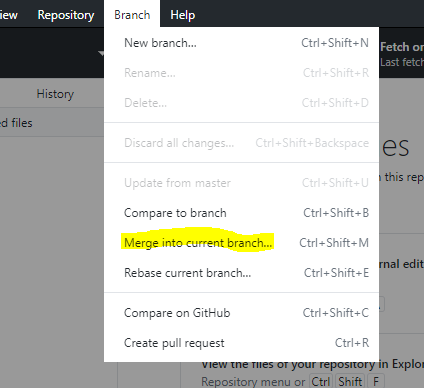
Select the branch. We see we are merging into Master, and there are 3 commits:
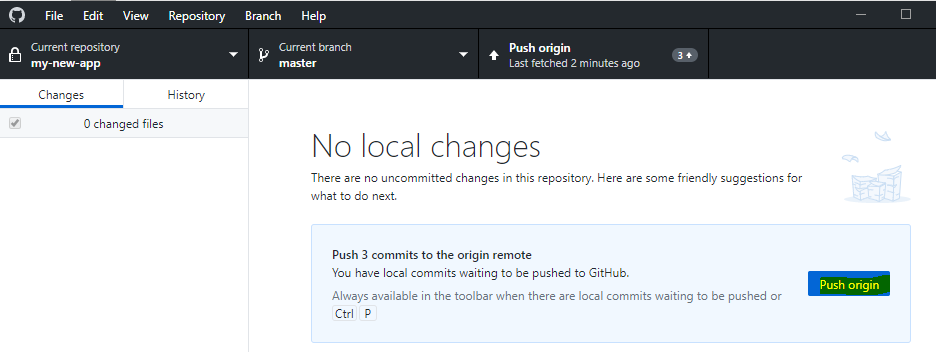
We now see below, where we can push up to GitHub. Let’s hold on that:
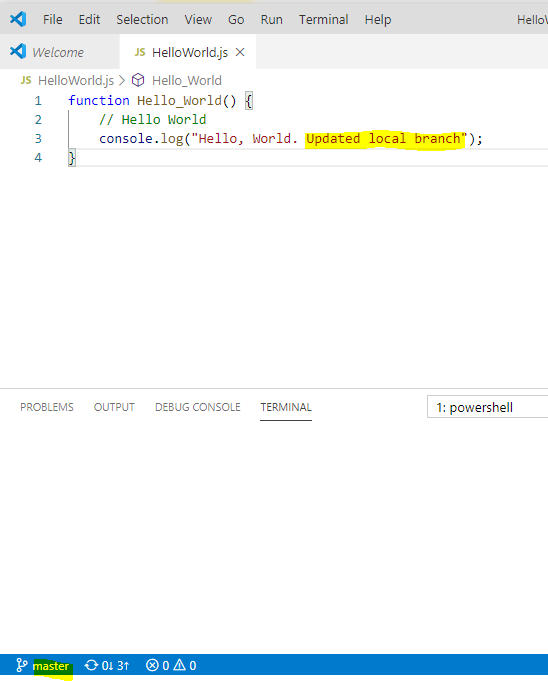
And the Master now shows the updated code:
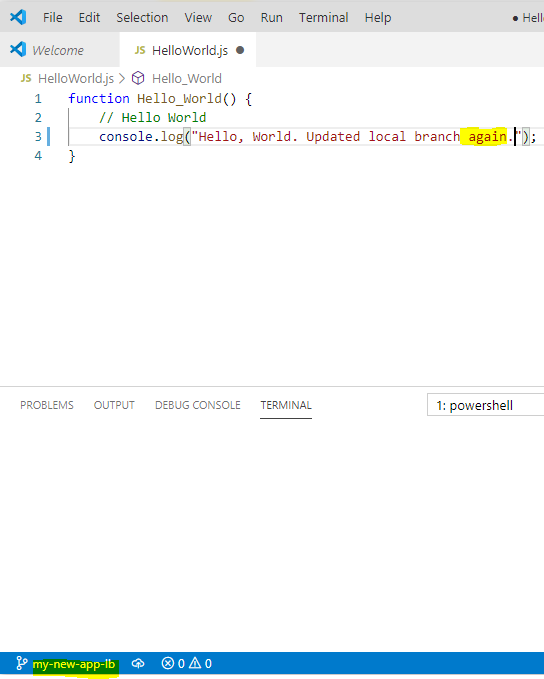
Let’s go back to our branch and make another change.
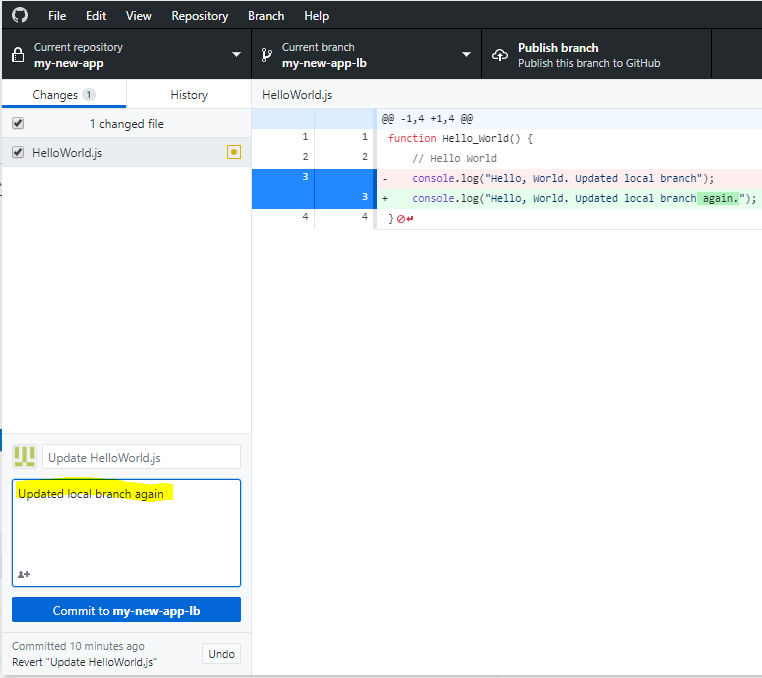
Now click Commit to my-new-app-lb again:
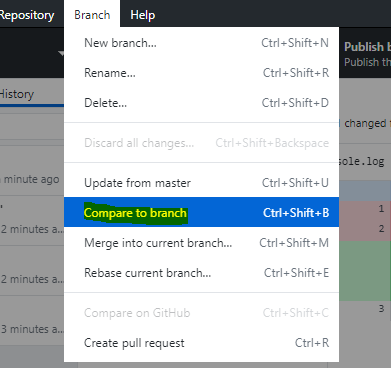
Select Branch->Compare to branch:
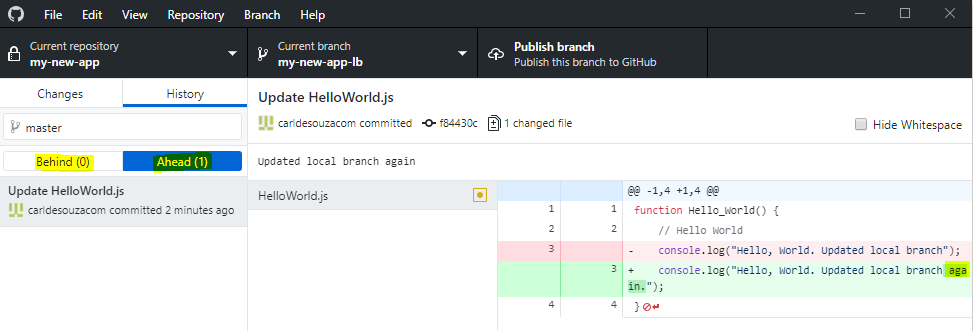
We see we are ahead in changes:
Publish and Pull Request
Let’s create a pull request in GitHub:
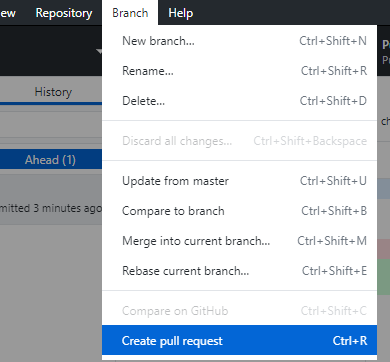
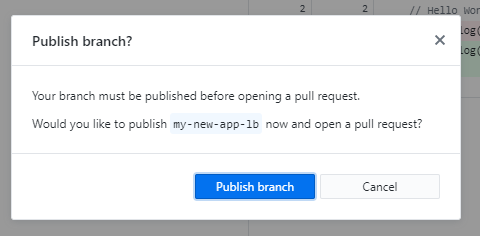
In order to do this, we need to publish this branch. Click Publish:
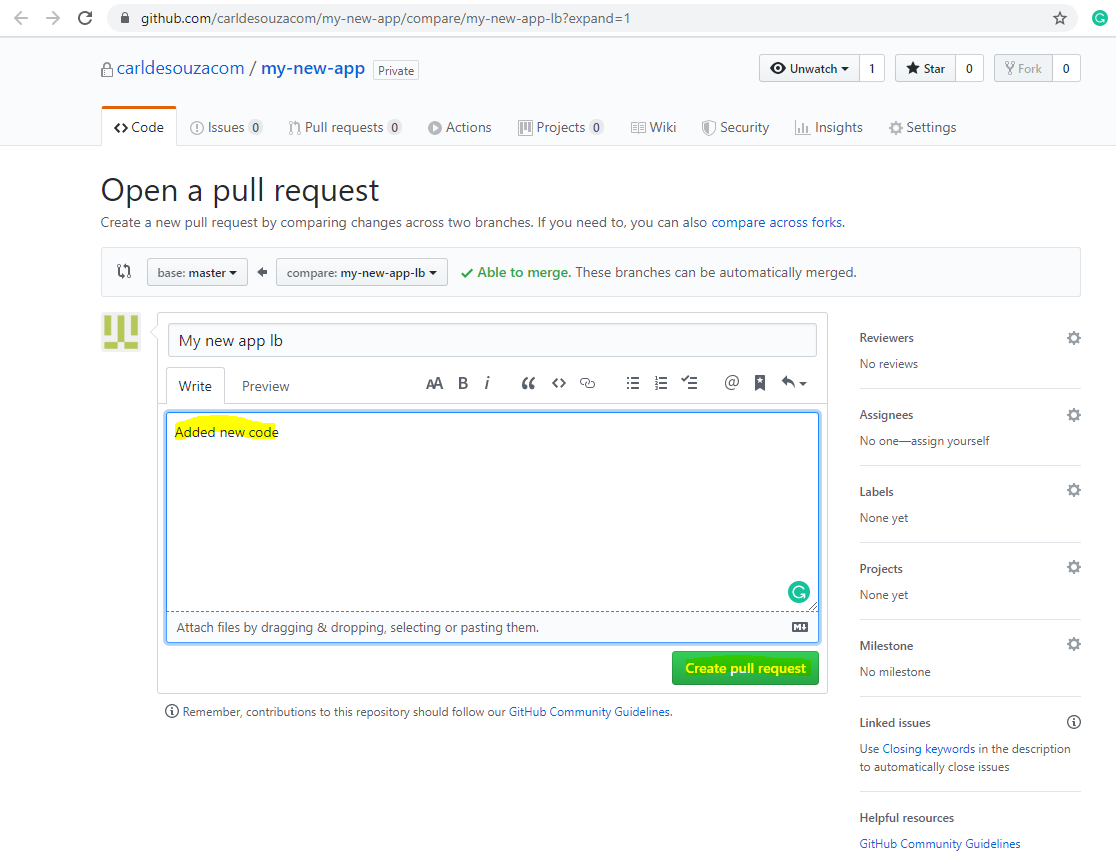
This takes us to GitHub. We can create our pull request:
We now see the pull request come through: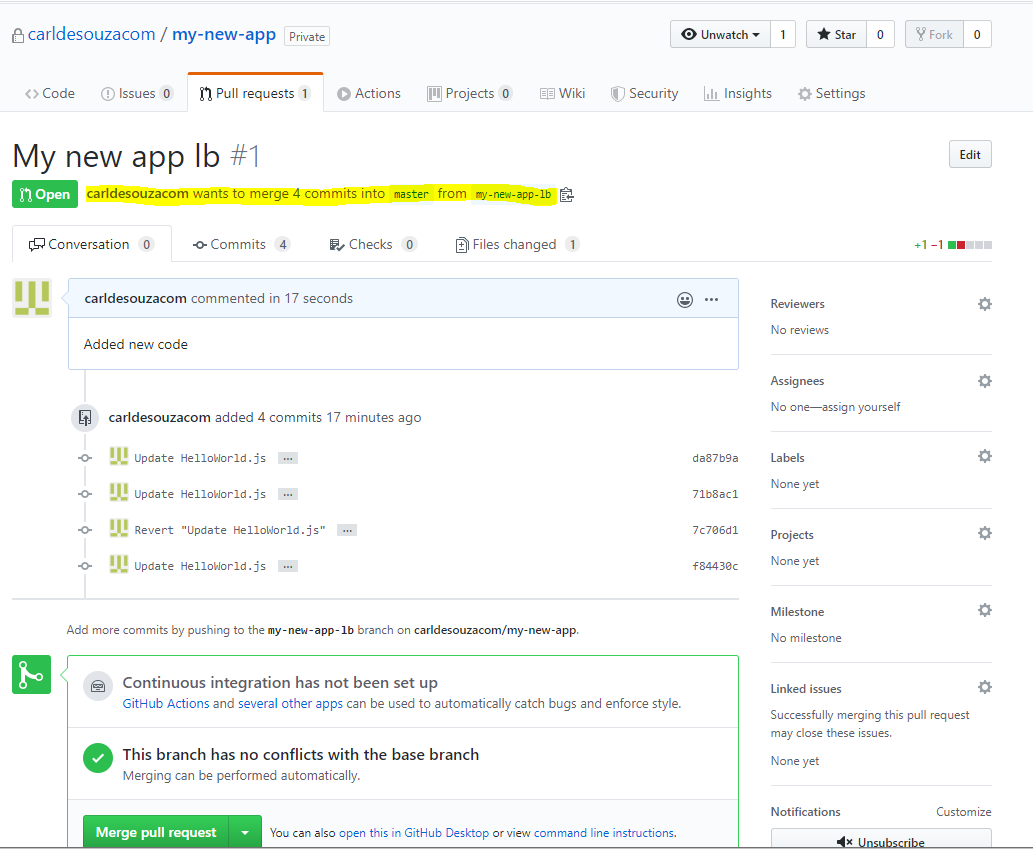
Select to review:
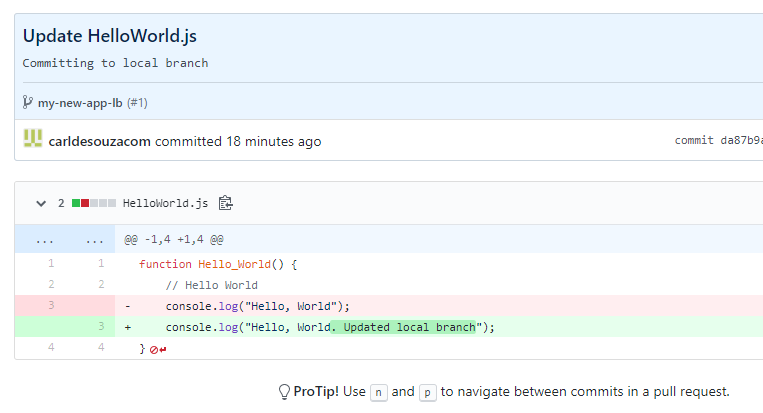
Add a comment:
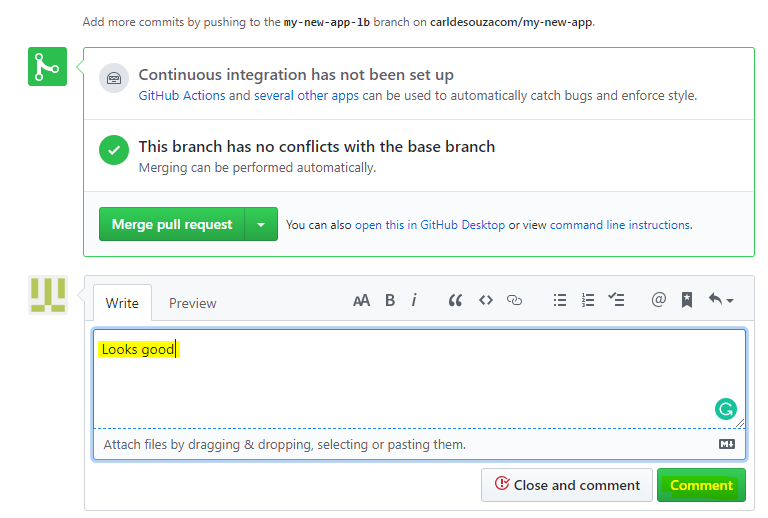
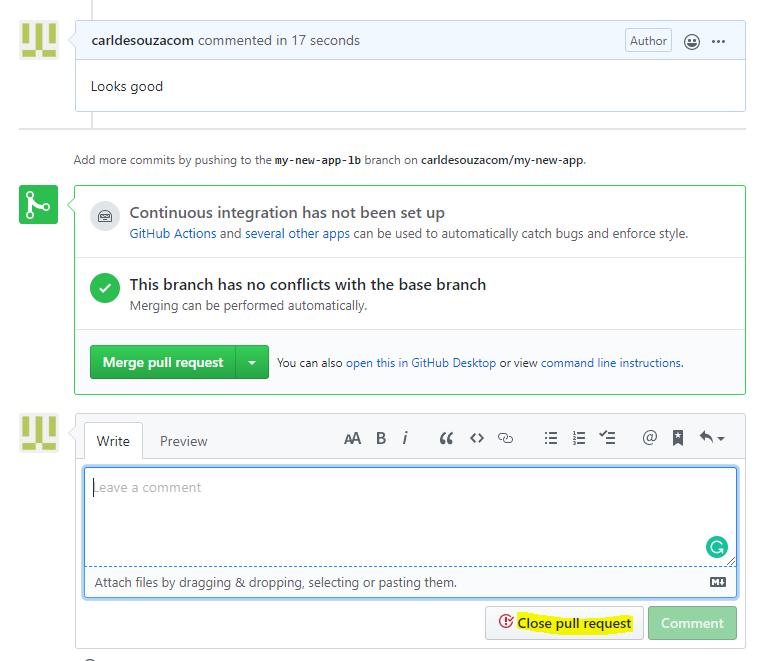
Close the pull request:
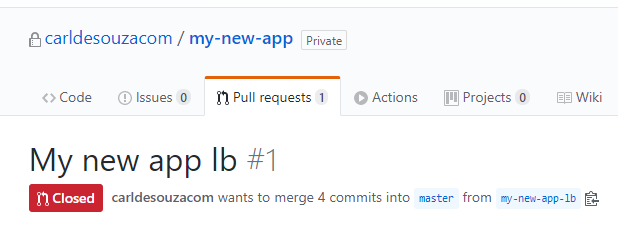
It now shows as Closed:
Change the branch:
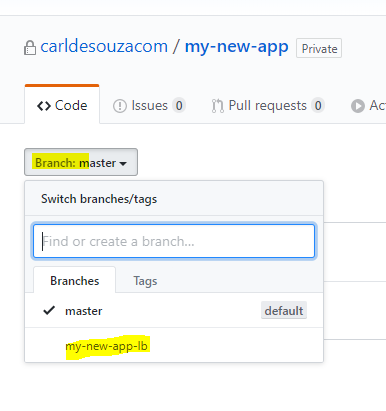
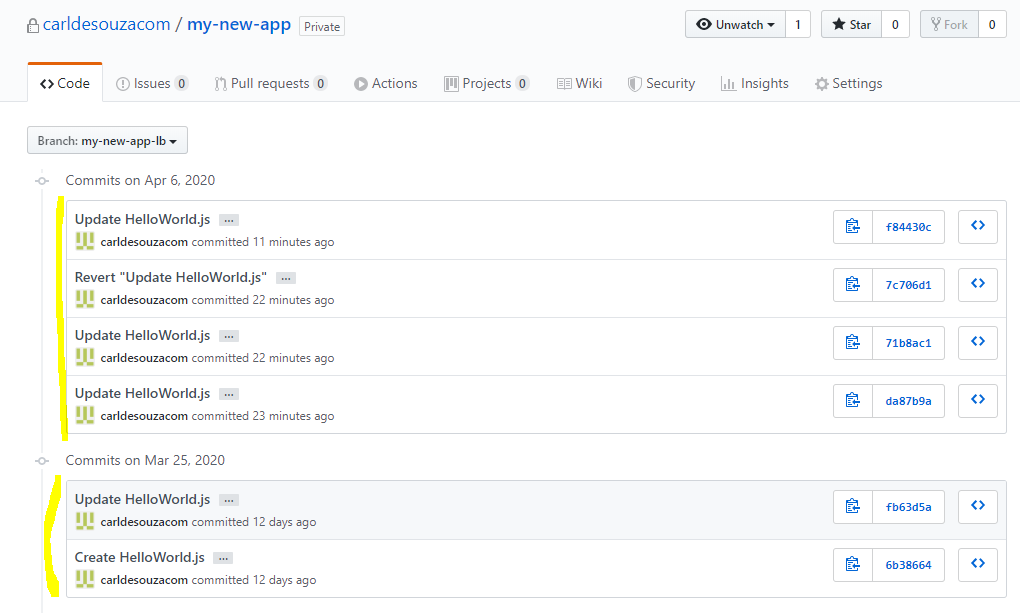
We see the new commits and the original Master commits:
I AM SPENDING MORE TIME THESE DAYS CREATING YOUTUBE VIDEOS TO HELP PEOPLE LEARN THE MICROSOFT POWER PLATFORM.
IF YOU WOULD LIKE TO SEE HOW I BUILD APPS, OR FIND SOMETHING USEFUL READING MY BLOG, I WOULD REALLY APPRECIATE YOU SUBSCRIBING TO MY YOUTUBE CHANNEL.
THANK YOU, AND LET'S KEEP LEARNING TOGETHER.
CARL