In this post, we will go through the setup process for Omnichannel for Customer Service in a Dynamics 365 org.
Head to the Power Platform Admin Center at https://admin.powerplatform.microsoft.com and select the Omnichannel for Customer Service app:
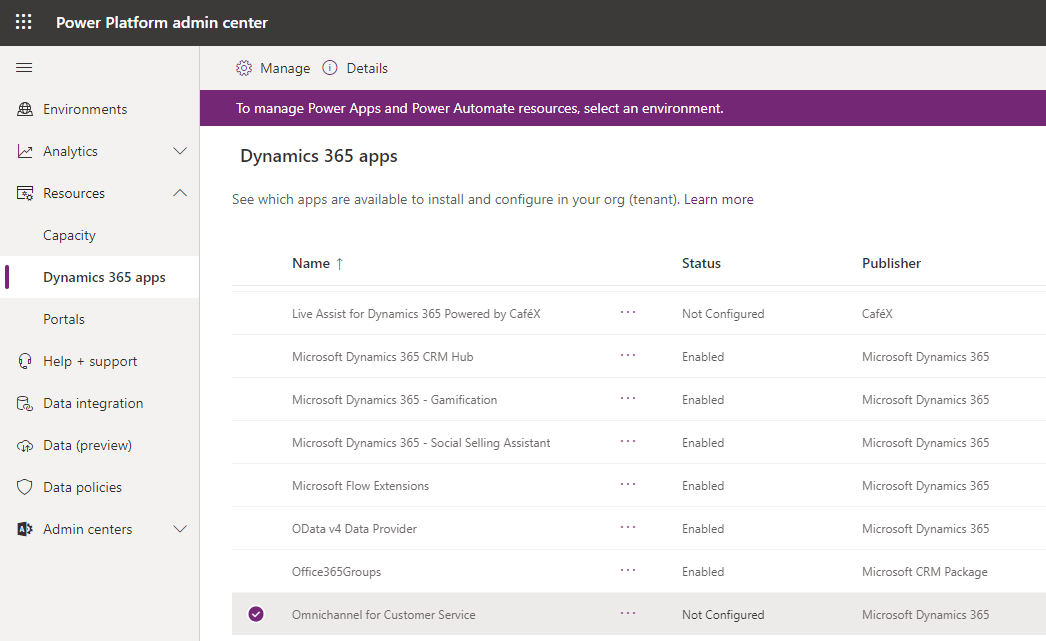
Select Manage:

You should see the provisioning page below:
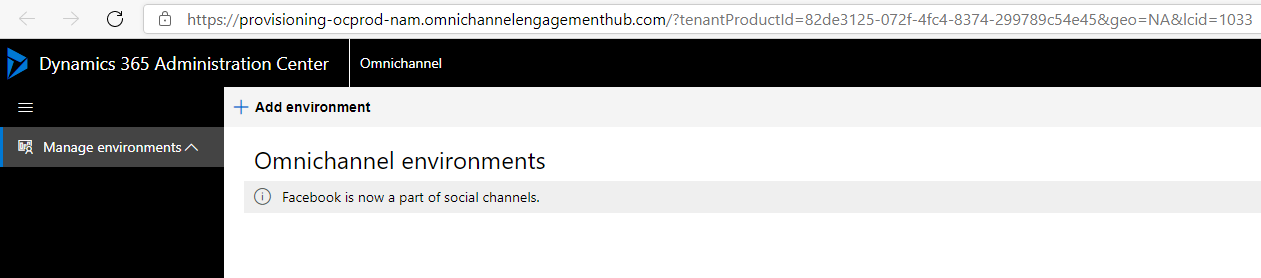
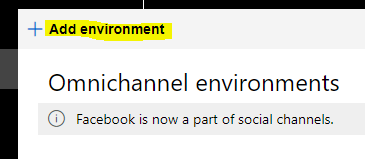
Click Add Environment:
Select an environment and click Next:
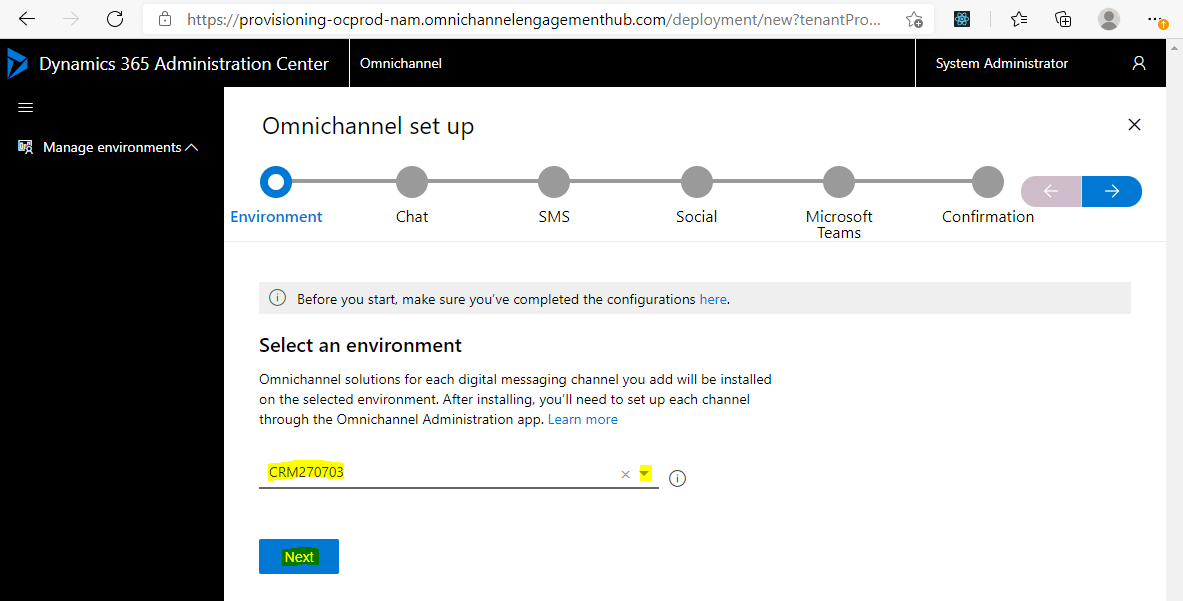
Select if you want to add Chat and click Next:
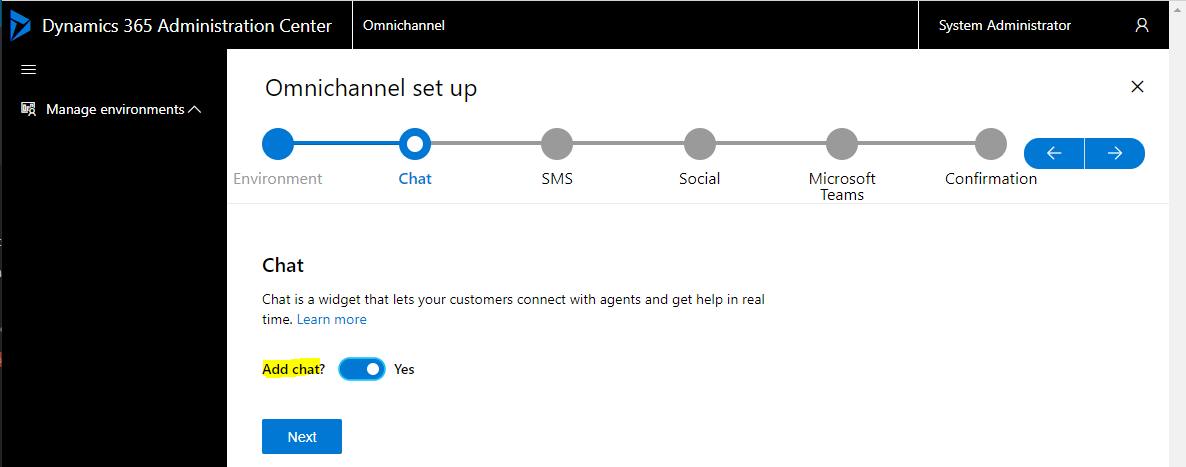
Select if you want to add SMS and click Next:
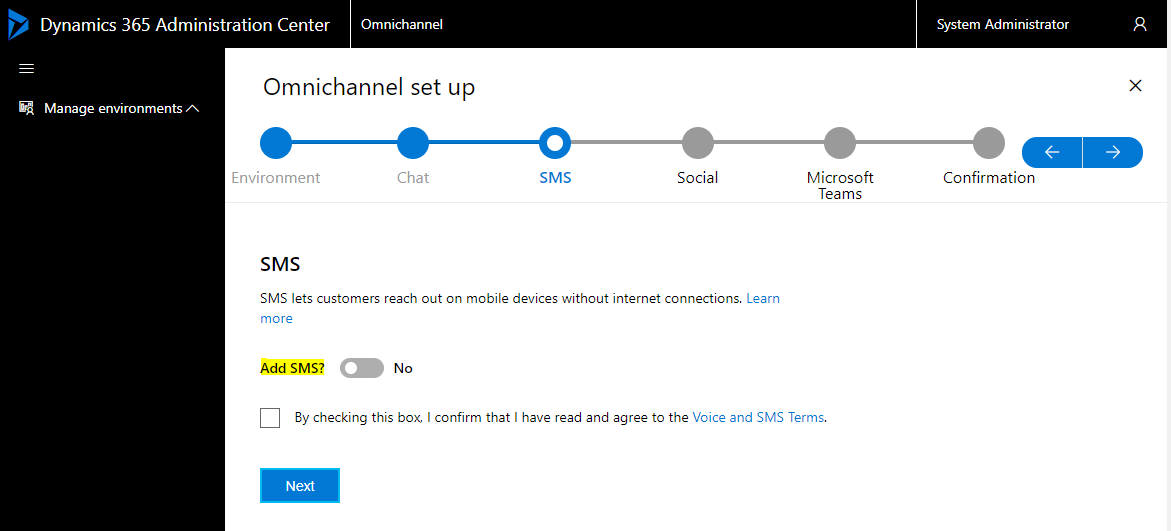
Select if you want to add Social and click Next:
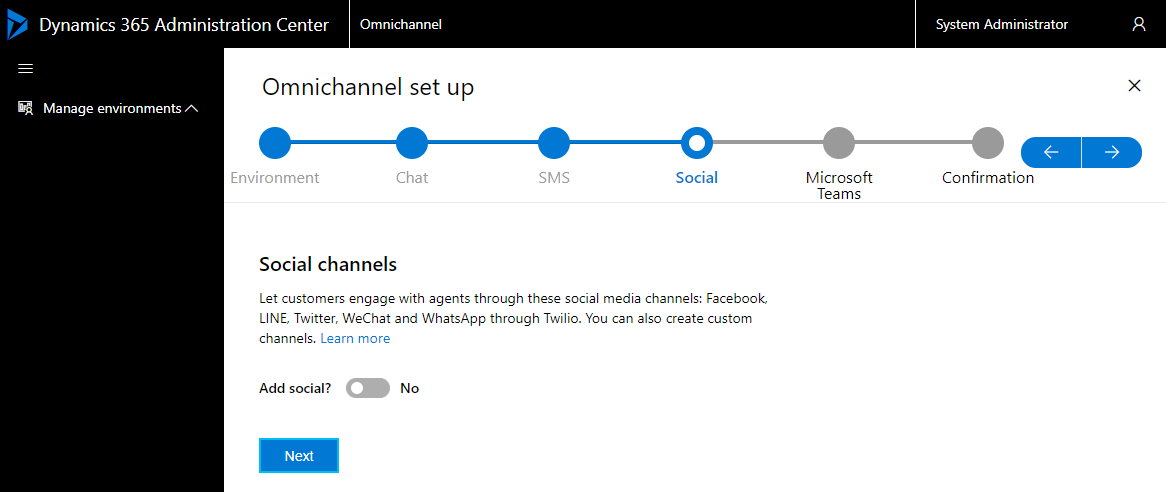
Select if you want to add Microsoft Teams and click Next:
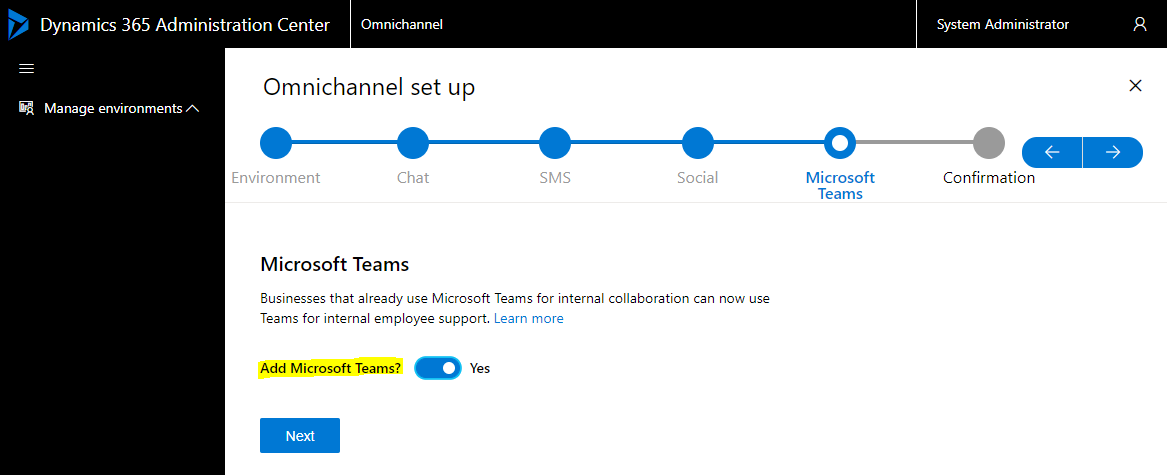
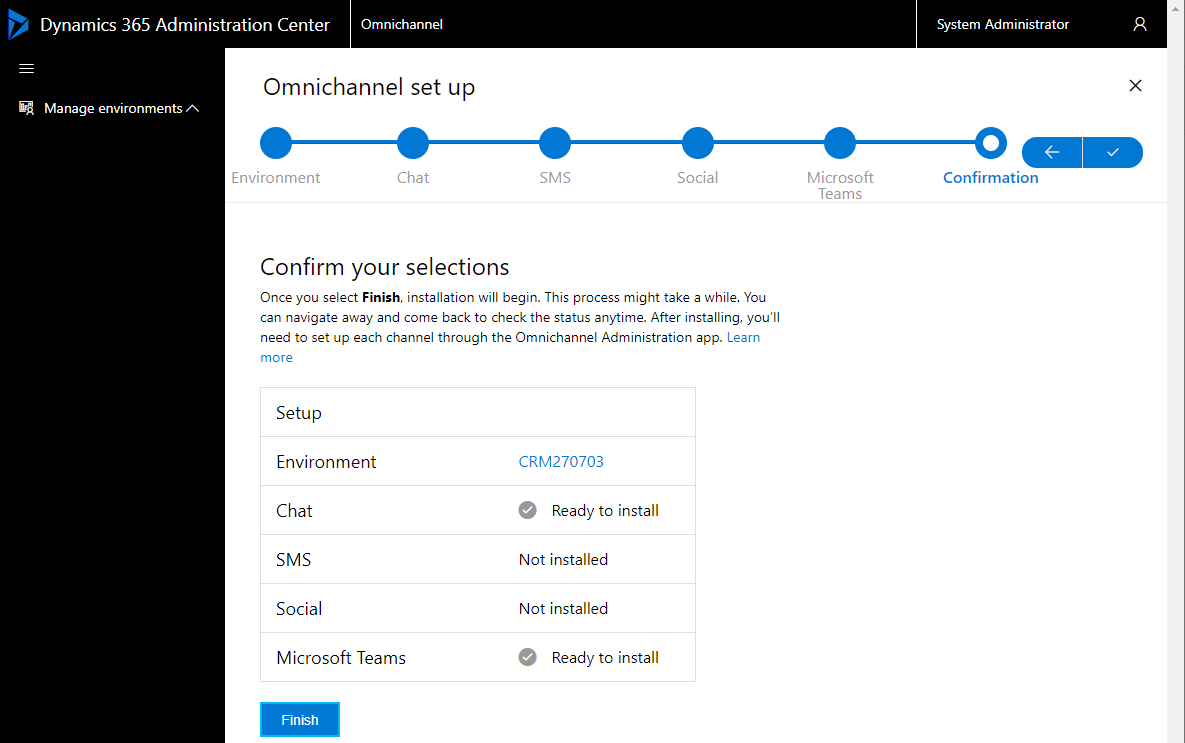
Click Finish to install:
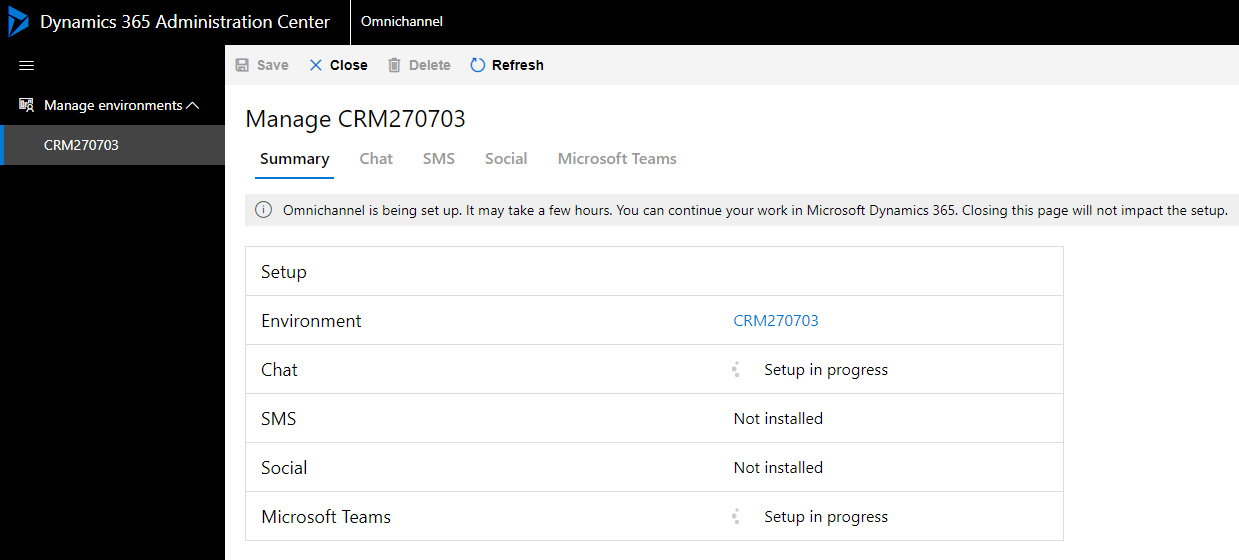
You should see “Omnichannel is being set up. It may take a few hours. You can continue your work in Microsoft Dynamics 365. Closing this page will not impact the setup”:
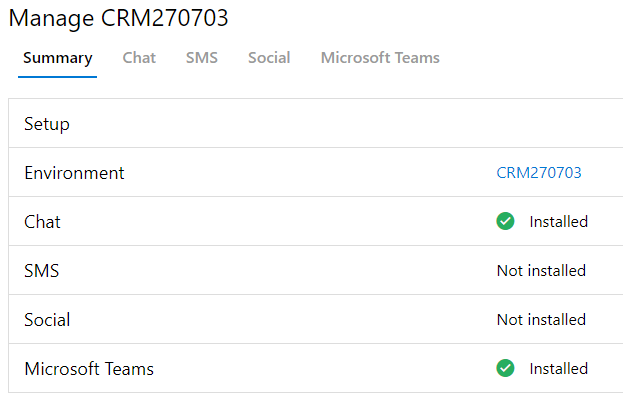
Once complete, you will see:
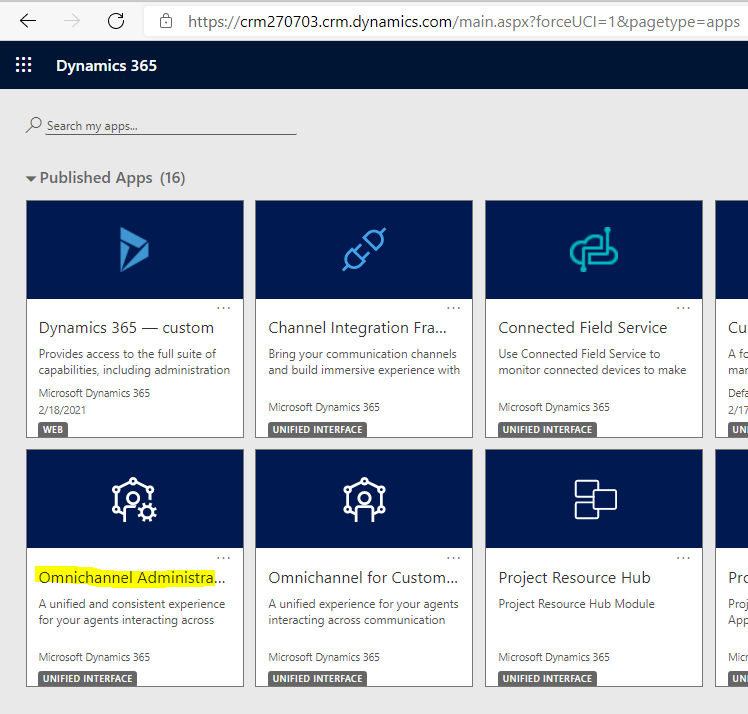
You can now head over to yourorg/apps and select the Omnichannel Administration app:
We will go through the configuration process in another post.

Explore AI, agents & Microsoft technology.
I share practical ideas, tutorials, and videos about AI, AI agents, Microsoft technologies, and the Power Platform.
Subscribe on YouTube →