In this post, we will look at how to beautify a JavaScript file in Visual Studio Code using the Beautify extension.
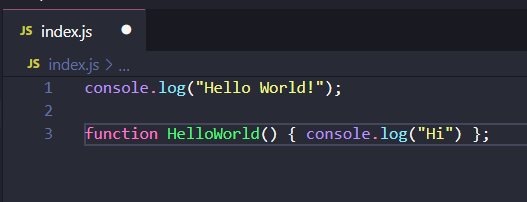
First, let’s create a really simple JavaScript file. We can see the function is on one line:
Search for and select Beautify:
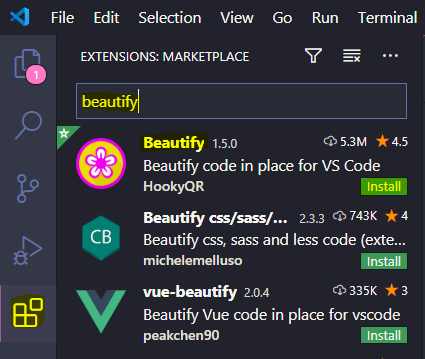
Click Install:

Now, select CTRL + SHIFT + P or the View menu to bring up the Command Palette:
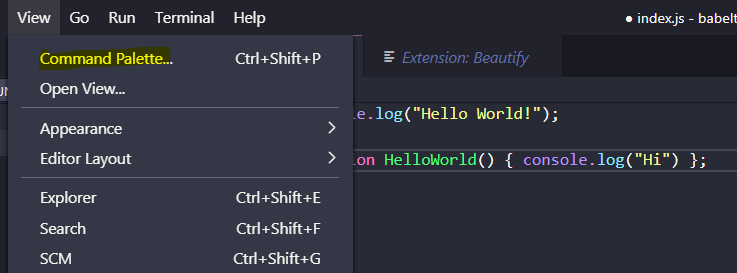
Search for Beautify and you will see:
- Beautify File
- Beautify Selection

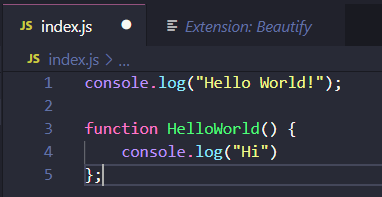
On selecting this, our code is now beautified, with the function being displayed across multiple lines:
You can also configure this to run automatically when saving a file. To do this, go to File->Preferences->Settings:
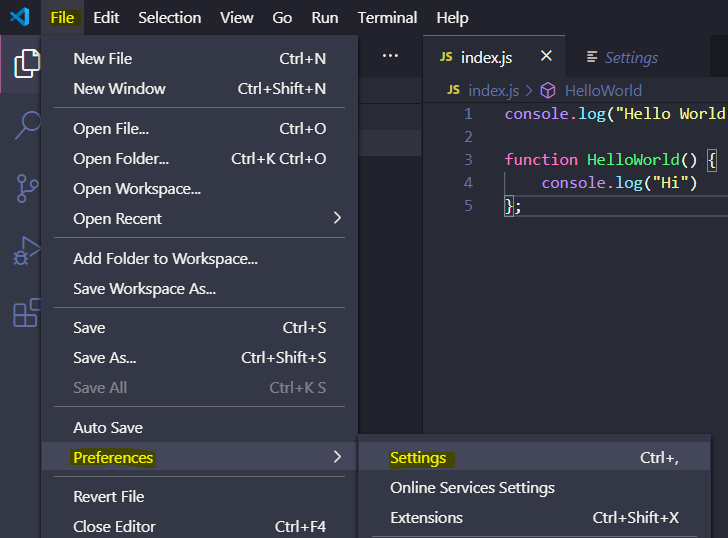
Under Text Editor, select Format On Save.
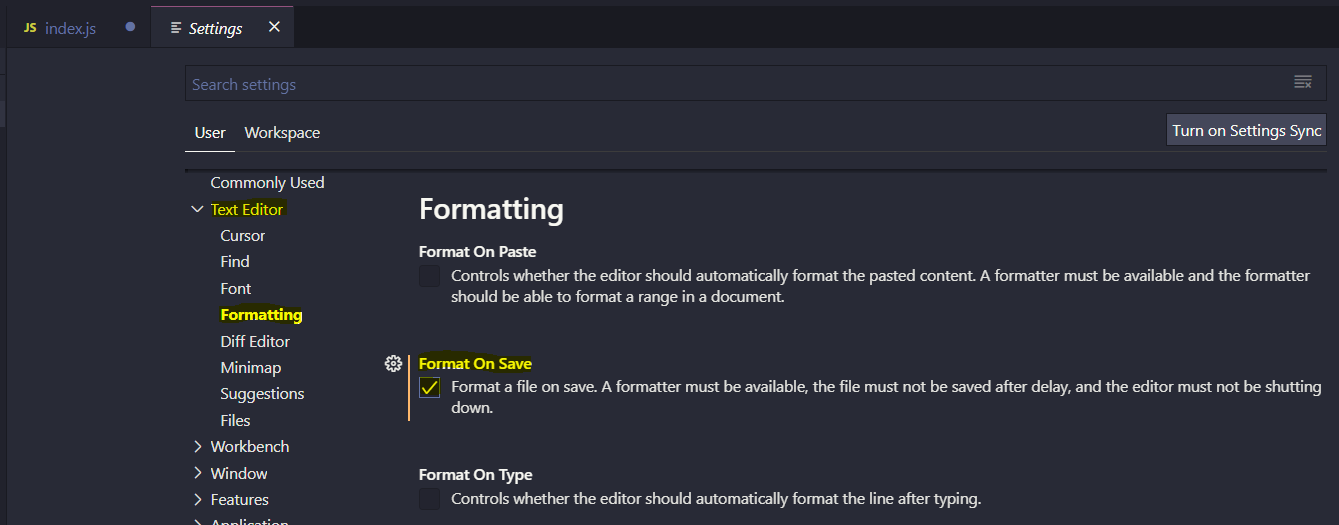
Now when saving a file, it will be beautified.

Explore AI, agents & Microsoft technology.
I share practical ideas, tutorials, and videos about AI, AI agents, Microsoft technologies, and the Power Platform.
Subscribe on YouTube →
This extension is deprecated as it is no longer being maintained.
I believe everyone is using the 2nd Beautify in your screenshot.
Name: Beautify css/sass/scss/less
Id: michelemelluso.code-beautifier
Description: Beautify css, sass and less code (extension for Visual Studio Code)
Version: 2.3.3
Publisher: michelemelluso
VS Marketplace Link: https://marketplace.visualstudio.com/items?itemName=michelemelluso.code-beautifier