In this post, we will look at how to hide and show various elements of a Dynamics 365 model-driven Power App form, including the header and footer, using JavaScript.
First, let’s take a look at the elements of a form based on the formContext. The formContext provides us with a headerSection and a footerSection. The header is then divided into 3 parts, header command bar, header body, and header tab navigator:
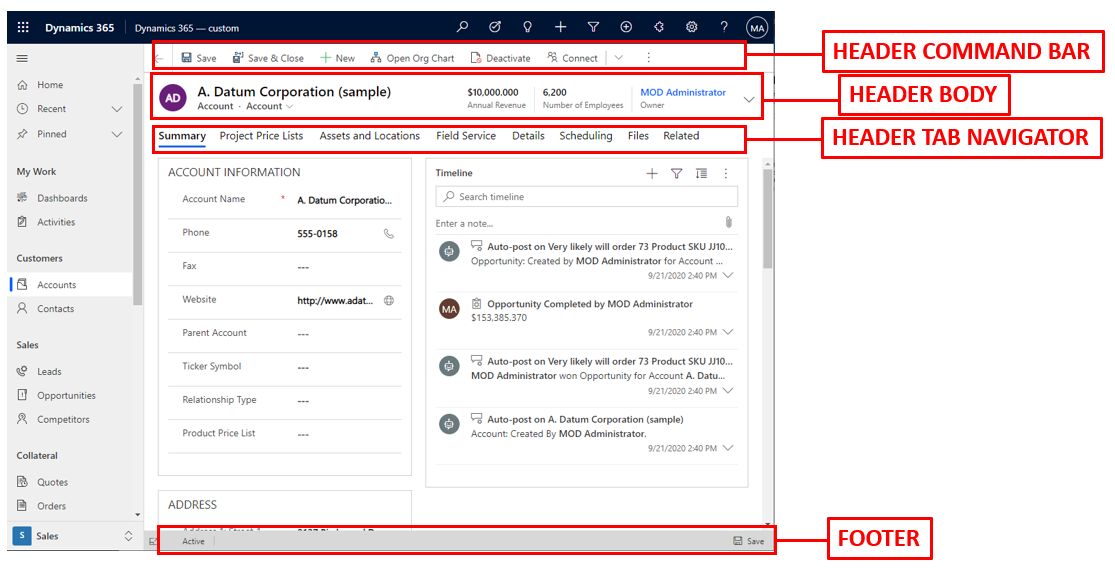
Let’s hide and show each one using JavaScript.
Header Command Bar
Hide: formContext.ui.headerSection.setCommandBarVisible(false);
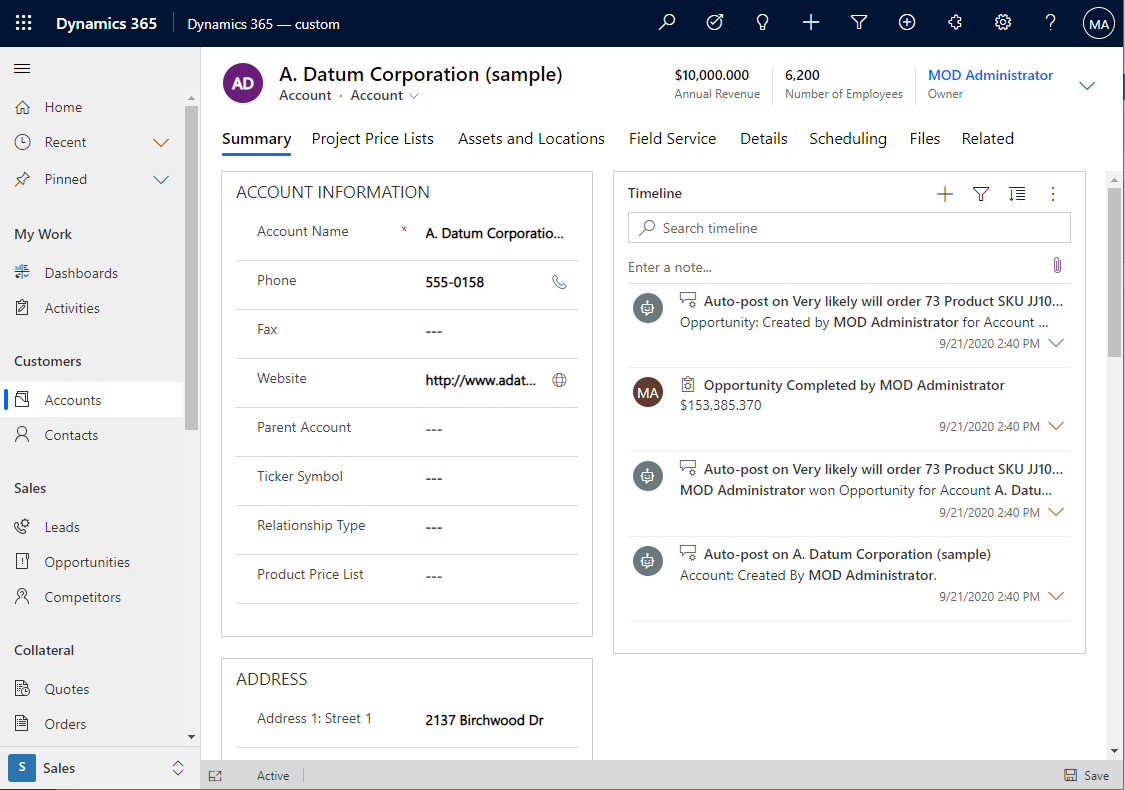
Show: formContext.ui.headerSection.setCommandBarVisible(true);

Header Body
Hide: formContext.ui.headerSection.setBodyVisible(false);
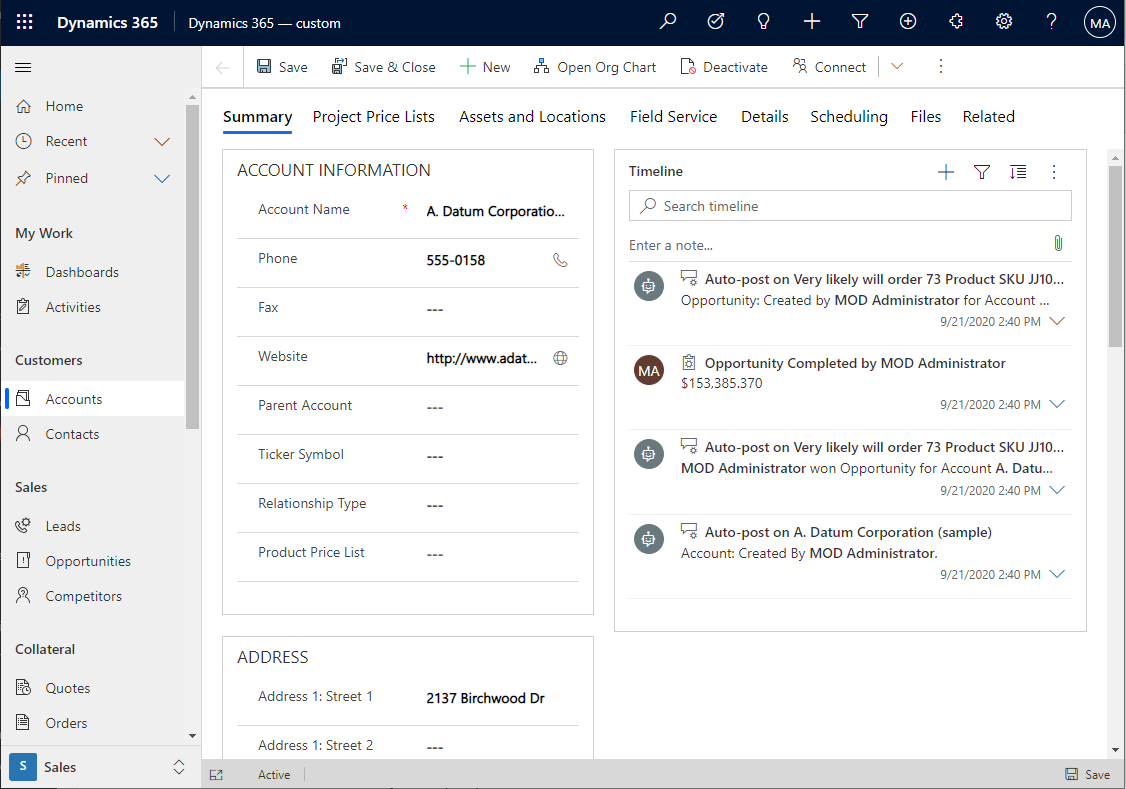
Show: formContext.ui.headerSection.setBodyVisible(true);

Header Tab Navigator
Hide: formContext.ui.headerSection.setTabNavigatorVisible(false);
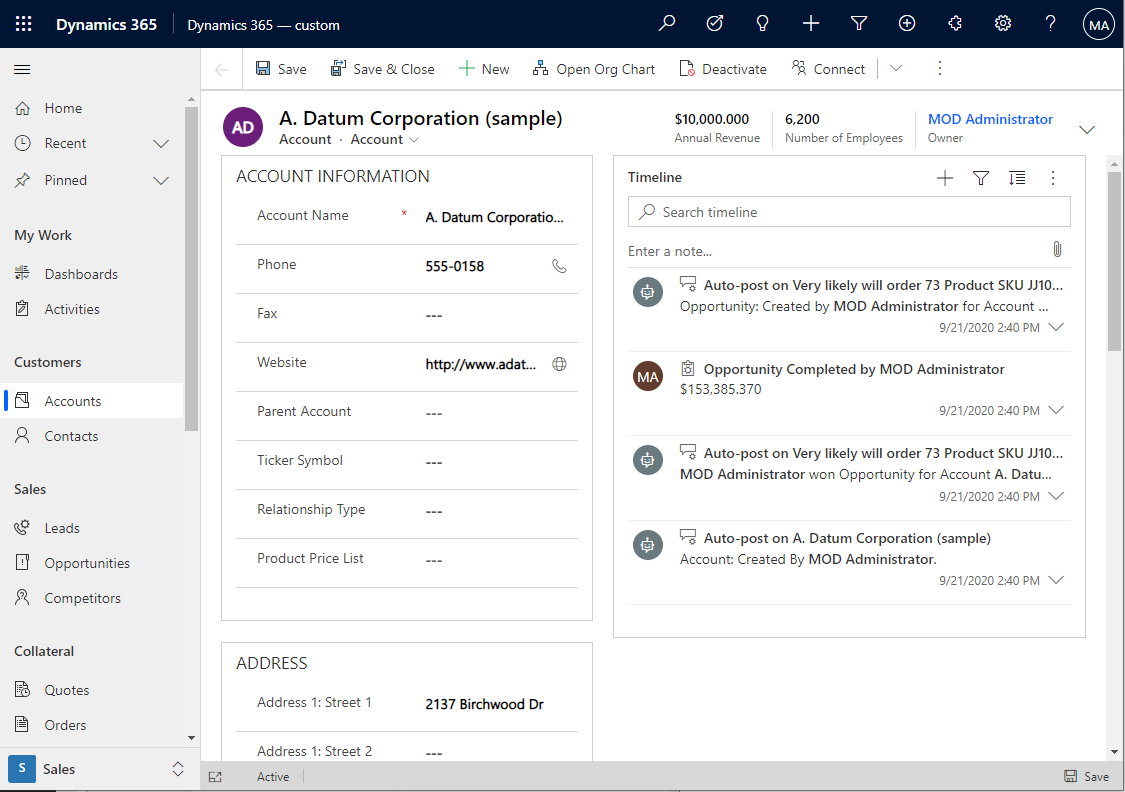
Show: formContext.ui.headerSection.setTabNavigatorVisible(true);

Footer
Hide: formContext.ui.footerSection.setVisible(false);
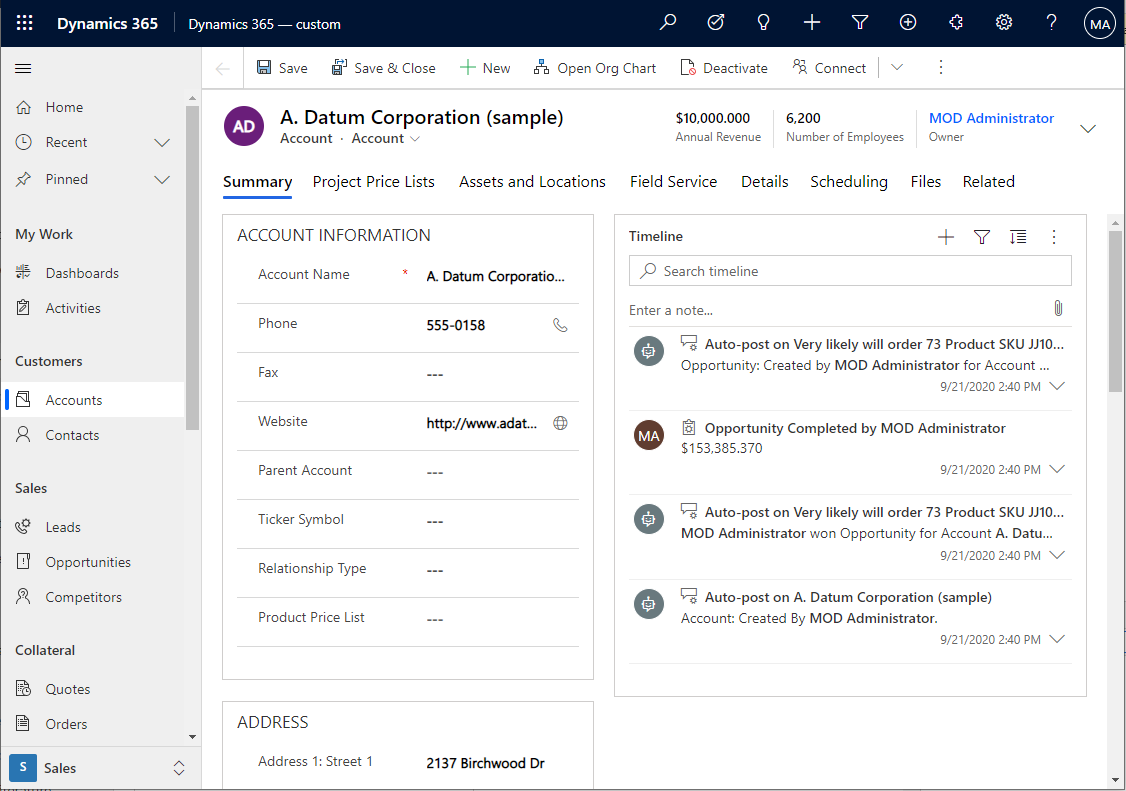
Show: formContext.ui.footerSection.setVisible(false);

Of course, you can hide all of the above. Diana has a good use case for this where she turns forms into dialogs here.

Explore AI, agents & Microsoft technology.
I share practical ideas, tutorials, and videos about AI, AI agents, Microsoft technologies, and the Power Platform.
Subscribe on YouTube →
Hi Carl,
Thanks for this post.
When main form is navigated via say MFD, we see two titles.
1.One is at the very top which comes as “New Case” , case being entity name and same row right corner we can see cross button and min/max button.
2.Another one comes under headersection which can be hidden like this as you said formContext.ui.headerSection.setBodyVisible(false)
Any idea on How to hide #1?