To create a team site in SharePoint, go through the following steps.
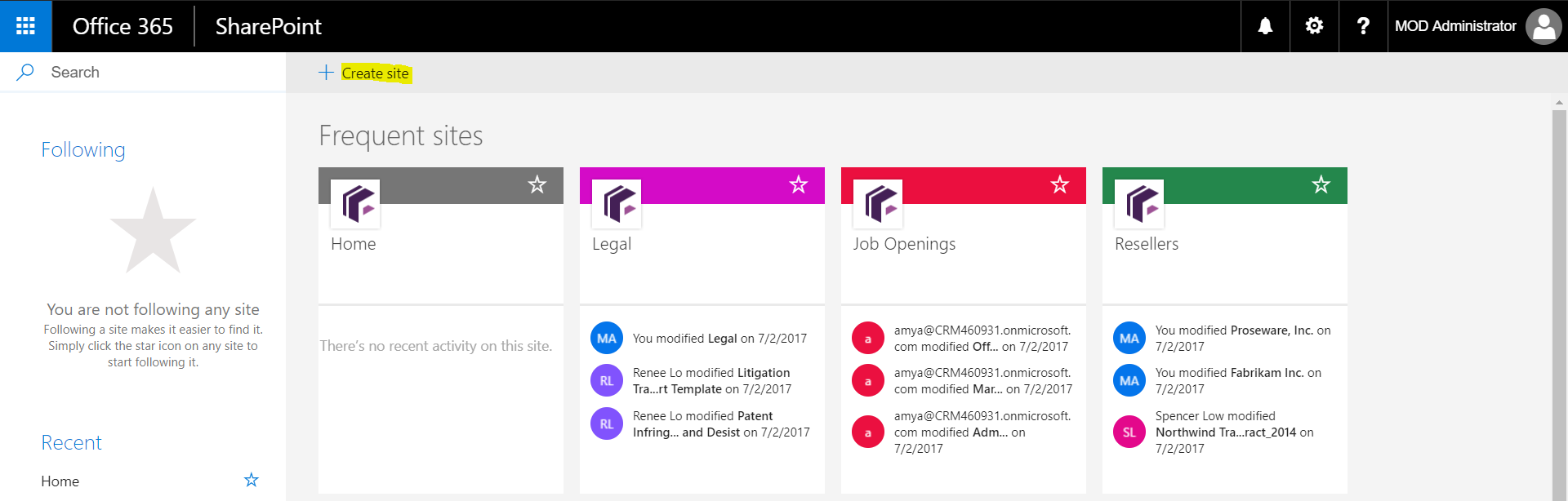
First, log into SharePoint. You will then see your SharePoint home page. Click on the + Create Site link:
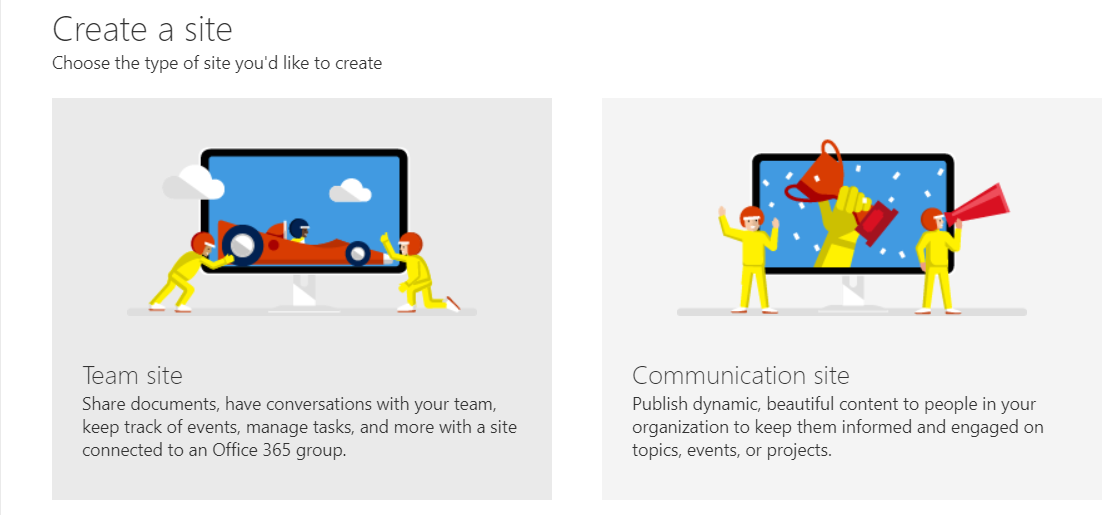
You will be presented with an option to create a Team Site or Communication site. We will select Team Site:
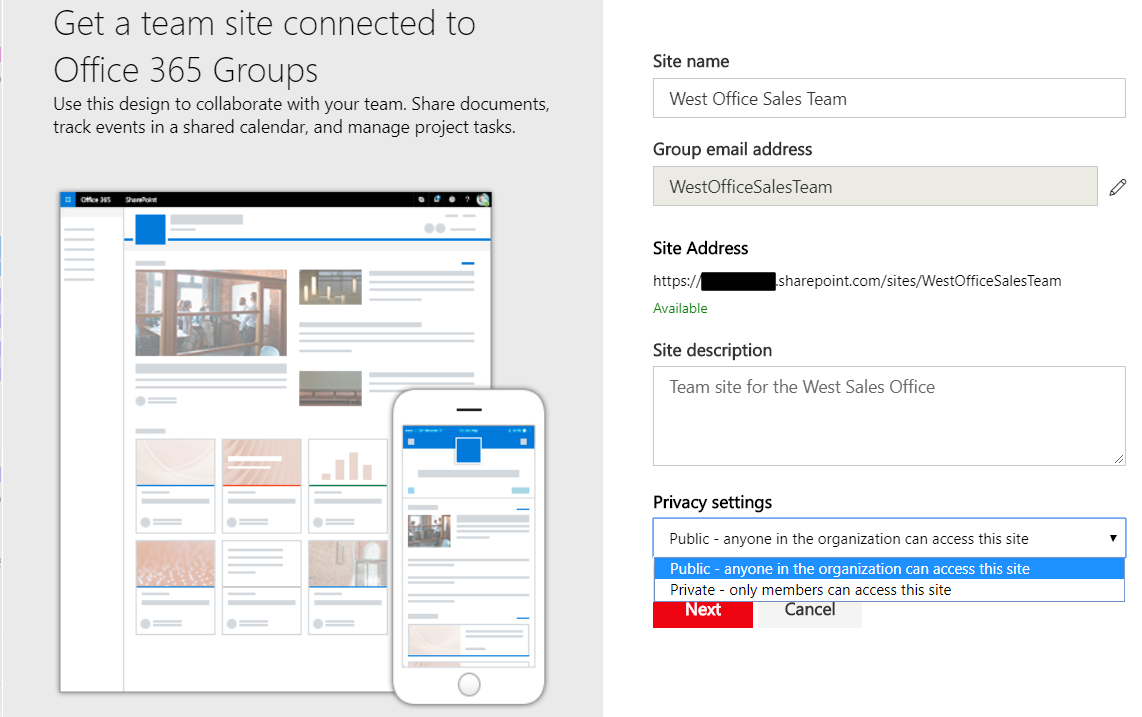
Now enter the name of the site. SharePoint will confirm that the site url is available (https://*****.sharepoint.com/sites/WestOfficeSalesTeam)
Note the option to select Public and Private privacy settings. We will select Private:
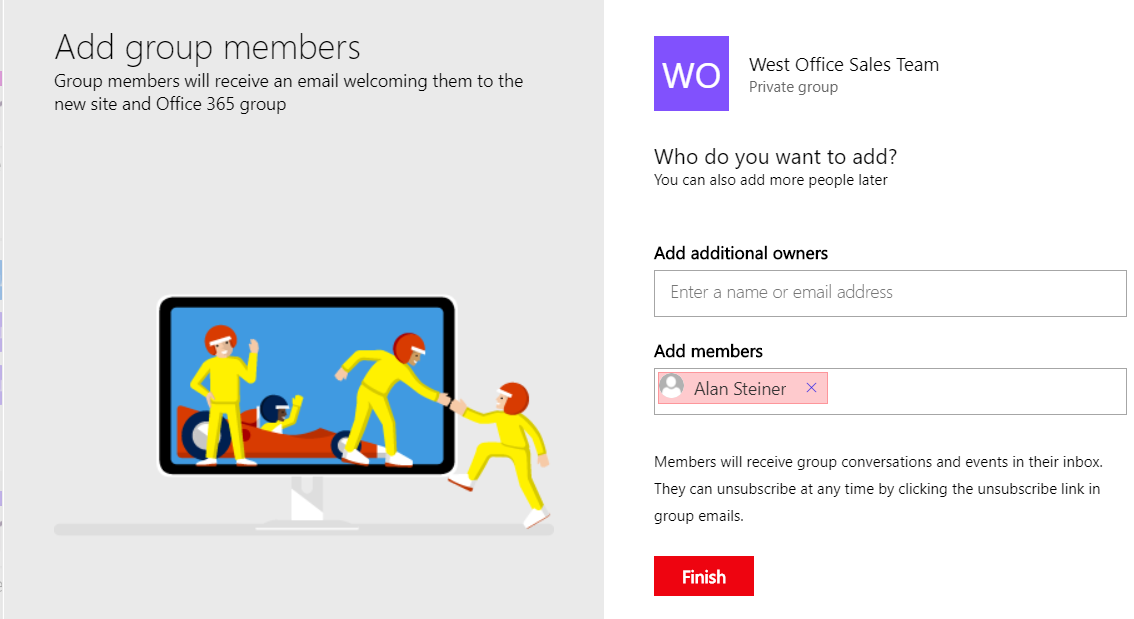
We can now add users as owners or members. Click to add:
The team site is now created:
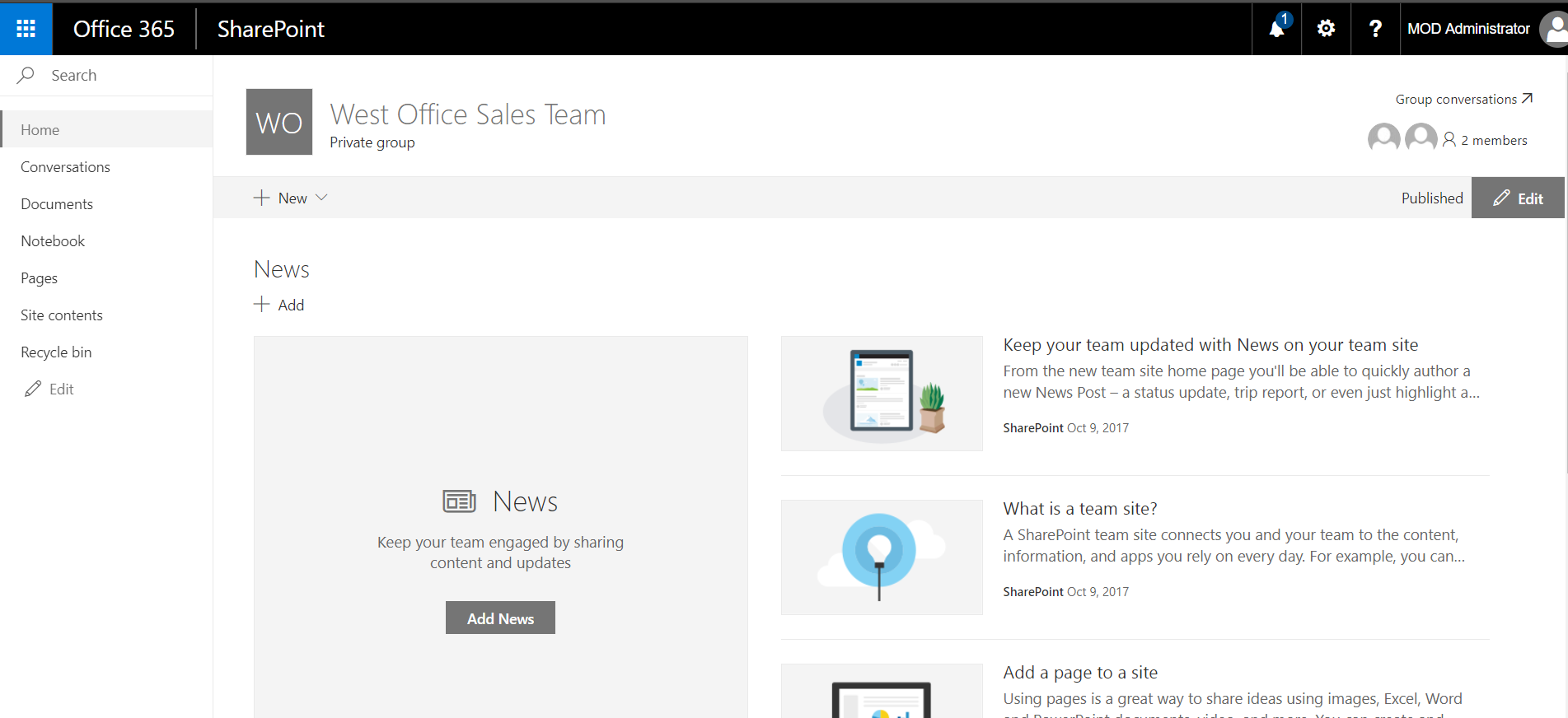
We can select New to create site content and also go straight to Documents, Notebooks etc:
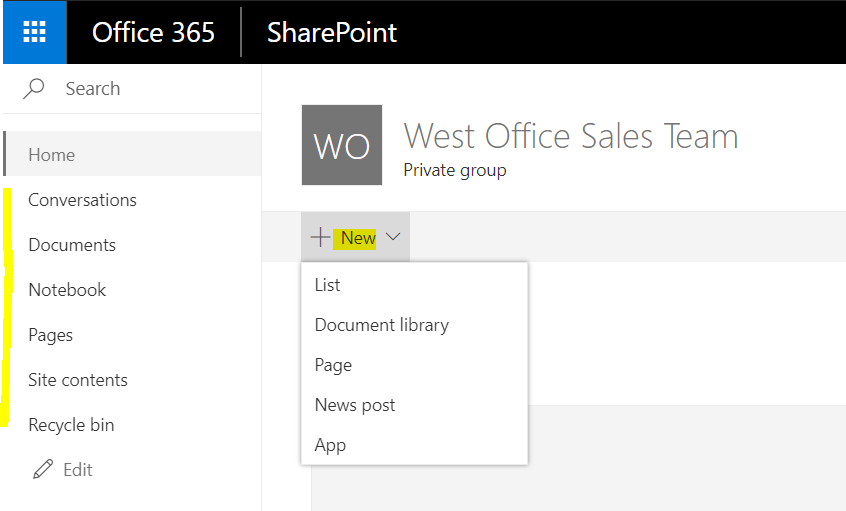
Click on Settings->Site Permissions to add/remove users:
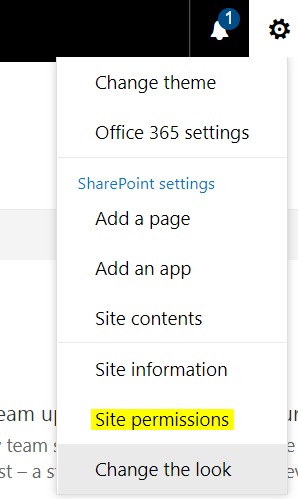
Invite People:
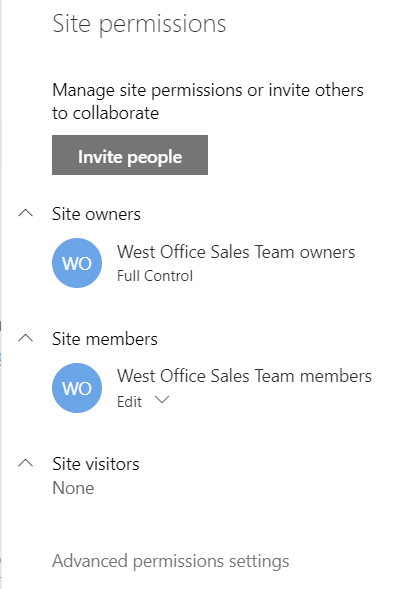
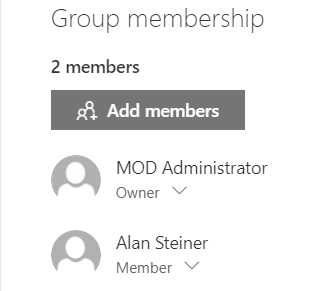
Add/remove members:
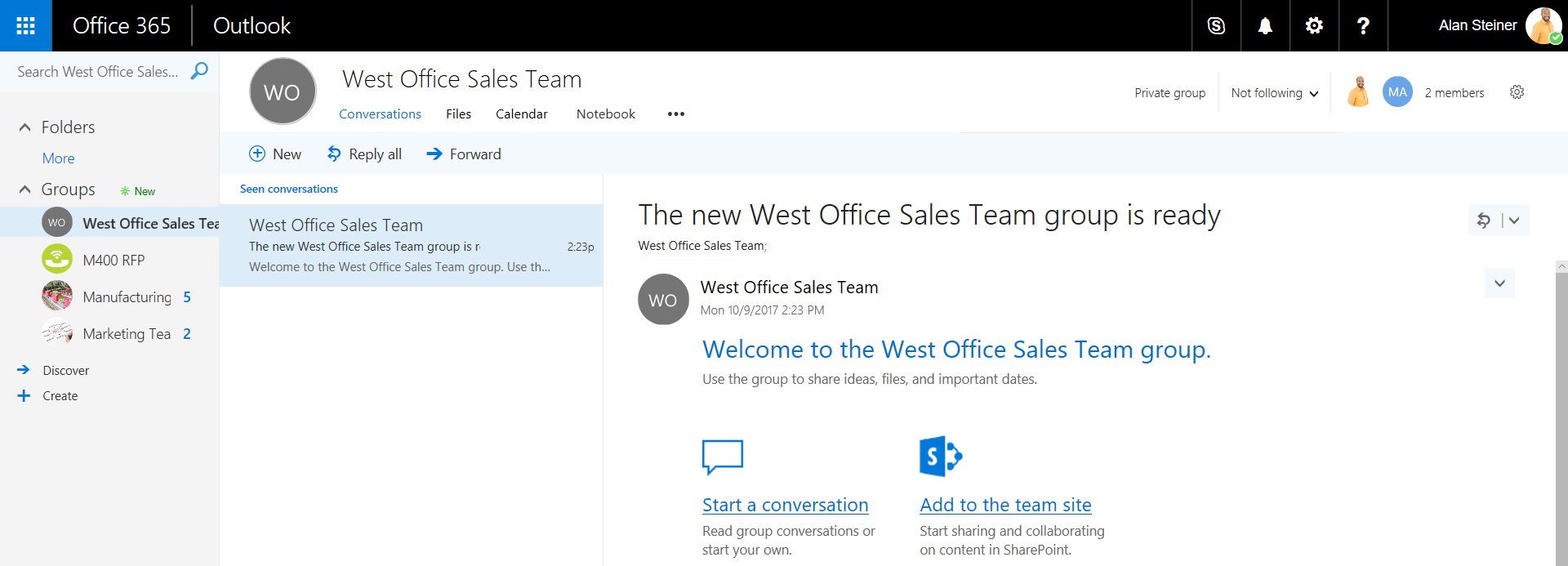
In Outlook, as a member, Alan will receive an email welcoming him to the group:
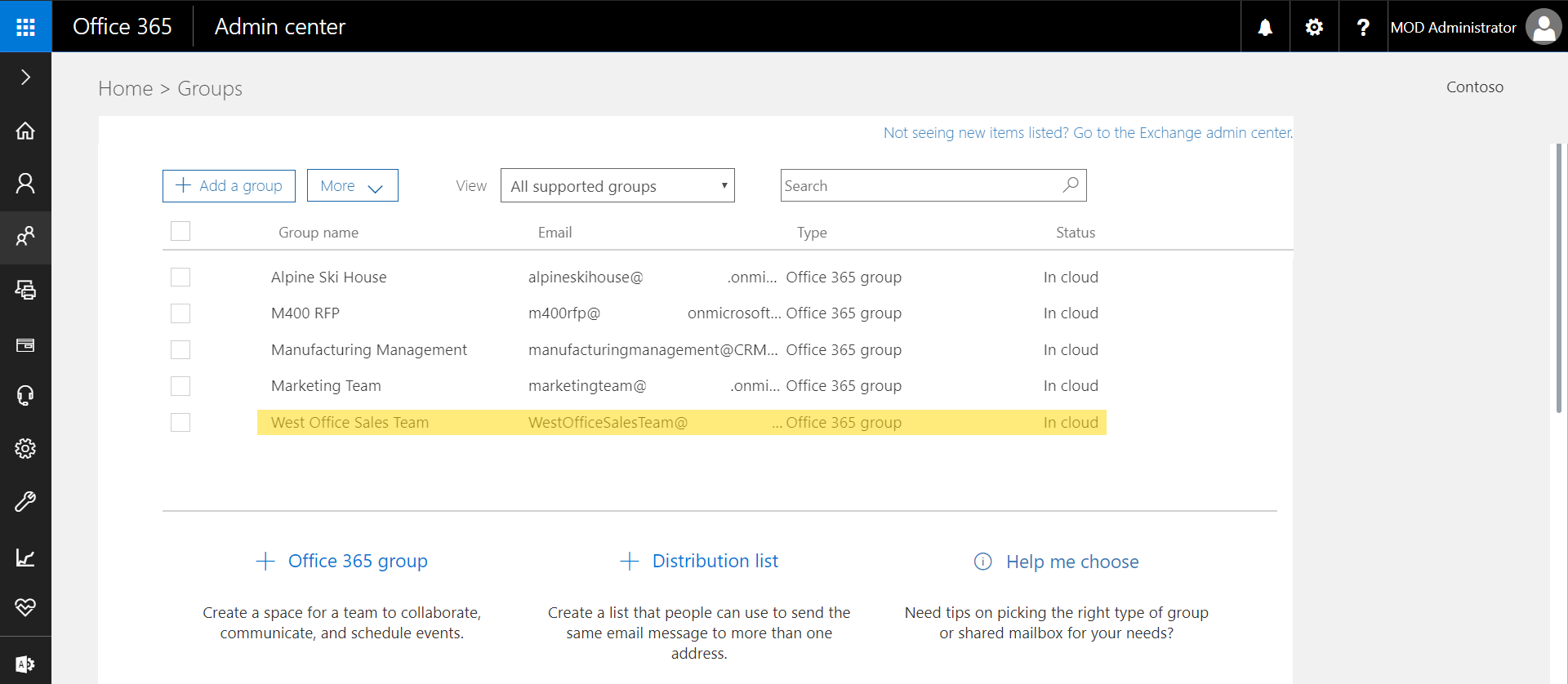
In the Office 365 Admin Center, a new group will be created:
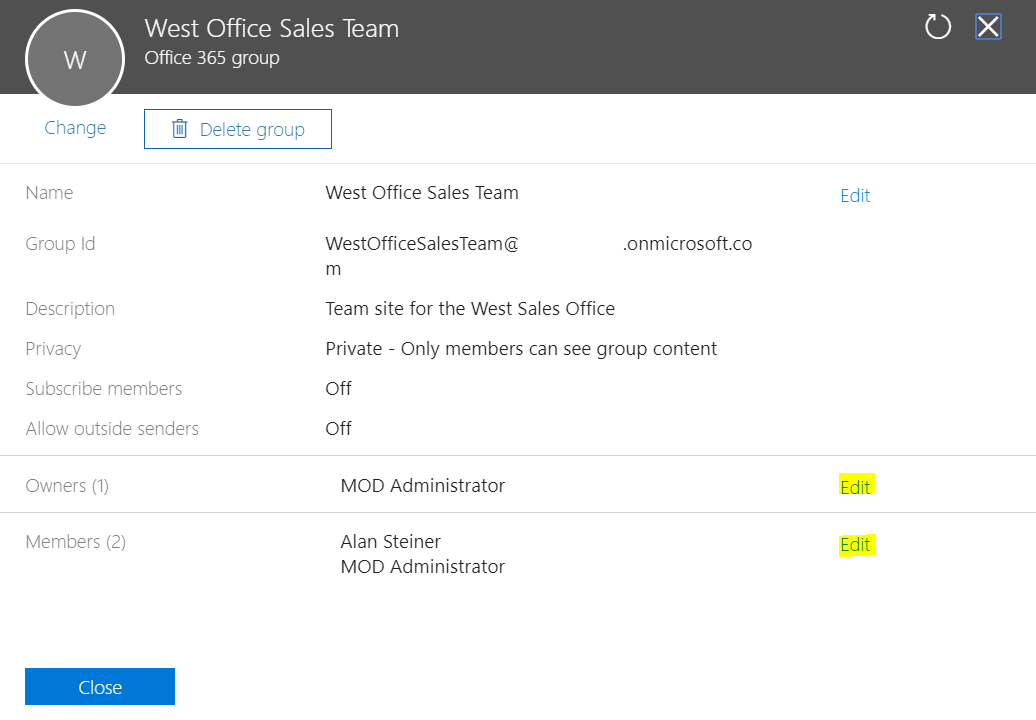
And you can add/remove users from here:

Explore AI, agents & Microsoft technology.
I share practical ideas, tutorials, and videos about AI, AI agents, Microsoft technologies, and the Power Platform.
Subscribe on YouTube →