In Outlook, you can track emails in Dynamics 365 using the Outlook App for Dynamics 365.
To do this, log into Outlook and select a message from your customer:
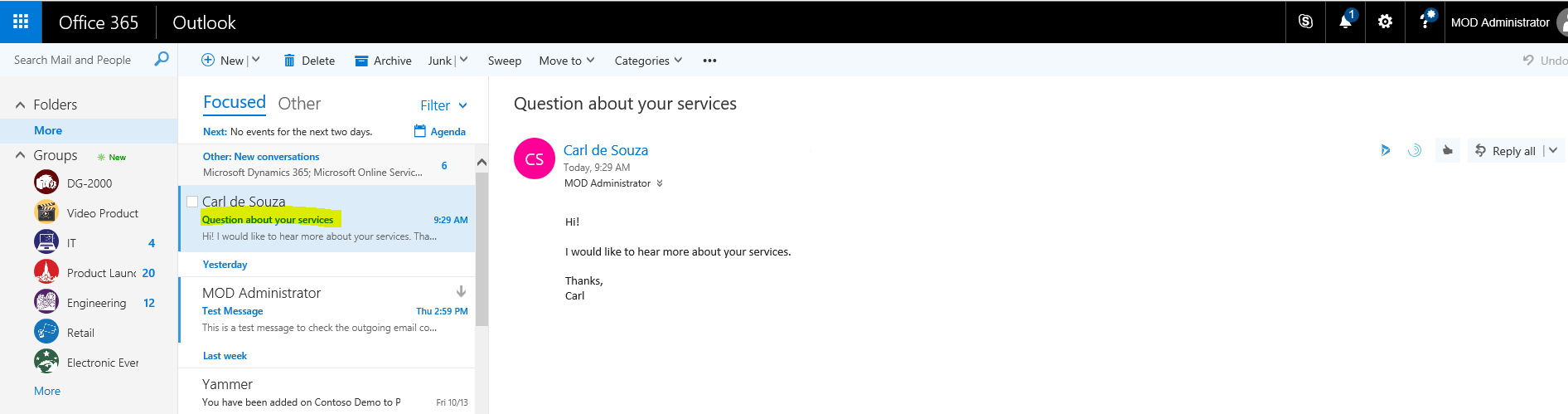
Next, click on the Dynamics icon in the top right:

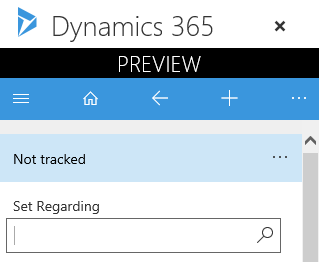
Click on regarding to set
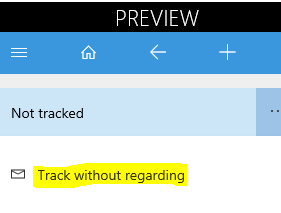
You will see the message:
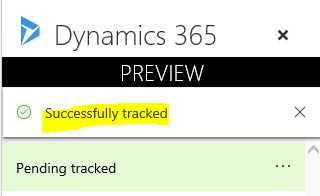
You will now have the option to view the email in Dynamics 365:
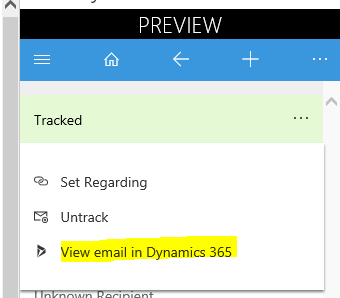
This will open a panel in Outlook displaying the Dynamics 365 record:
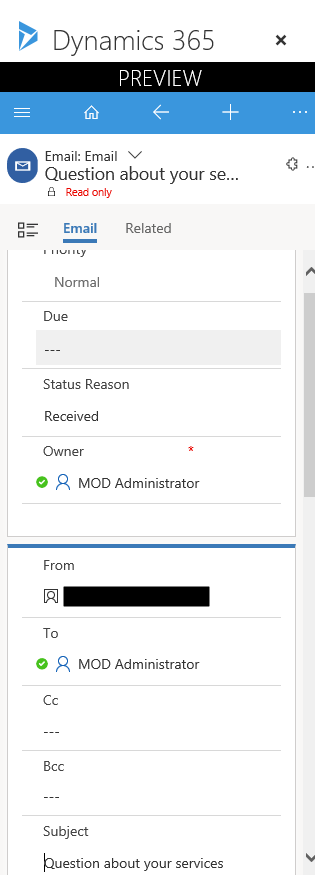
Clicking on the ellipse will show more options:
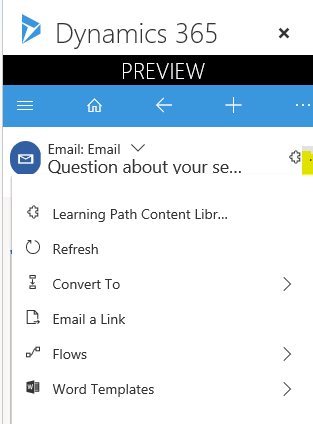
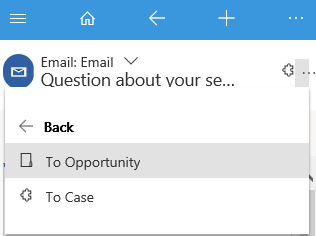
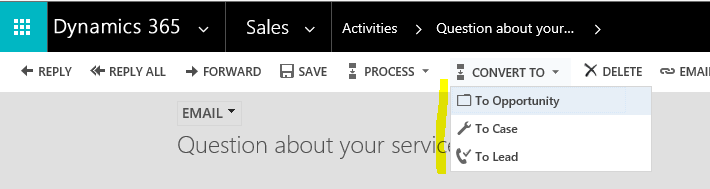
Including converting the email to a case or opportunity:
In Dynamics 365, you will see a new email activity has been created as a result of tracking the email. The activity is complete:
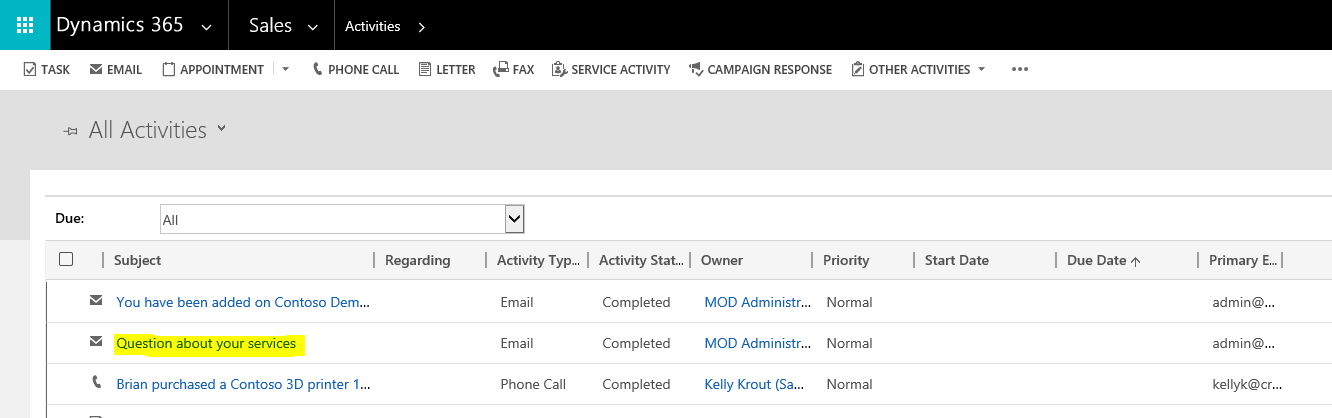
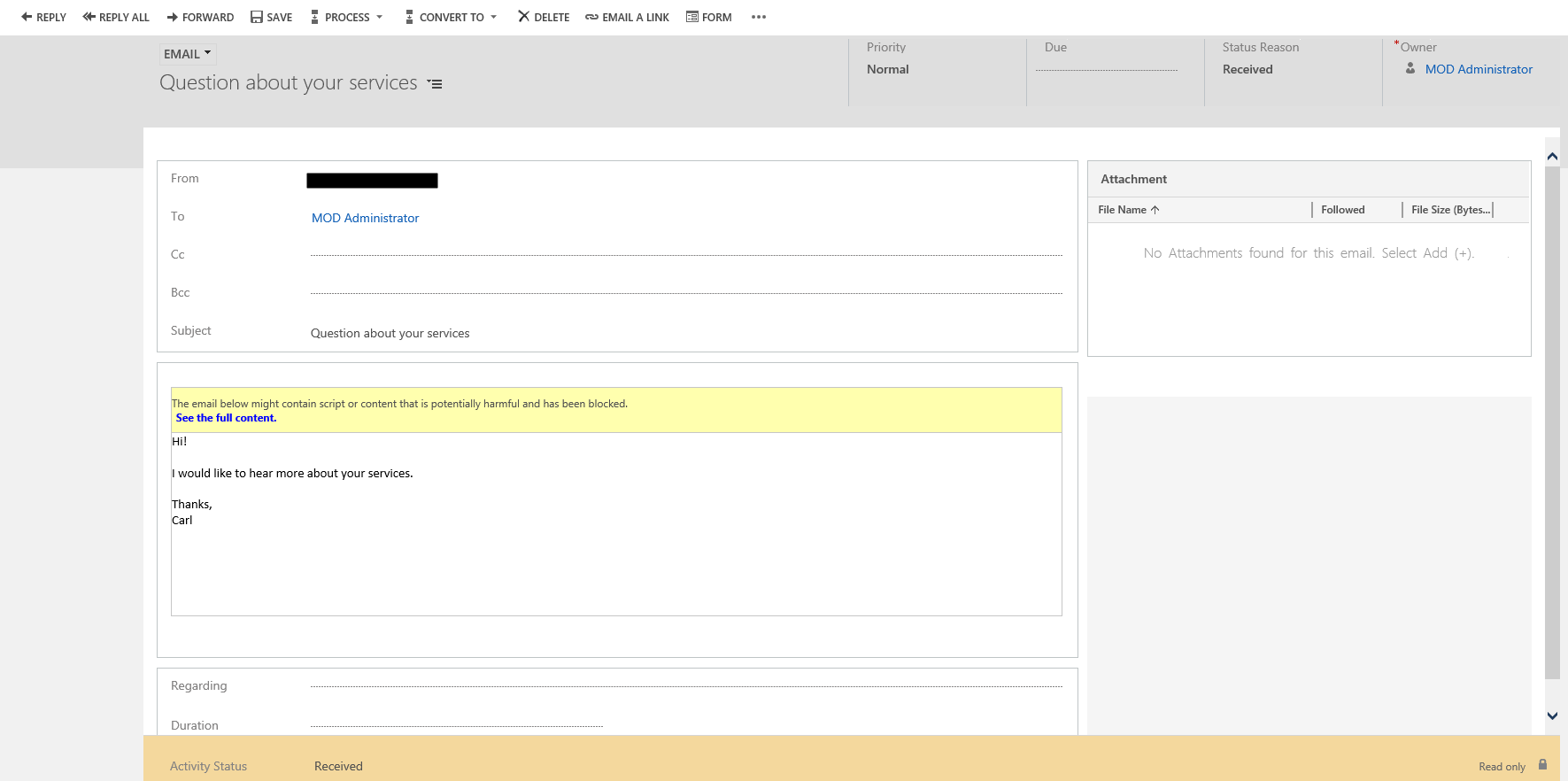
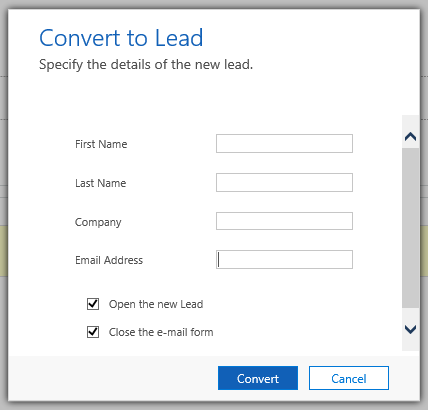
Within Dynamics 365, you have the option to convert the activity to a Lead, Case or Opportunity:
Also in Dynamics 365, a new contact record for the email has automatically been created.
Let’s say you wanted to set regarding on the email to a particular account in Dynamics 365. To do this, select Set Regarding:
Choose an account.
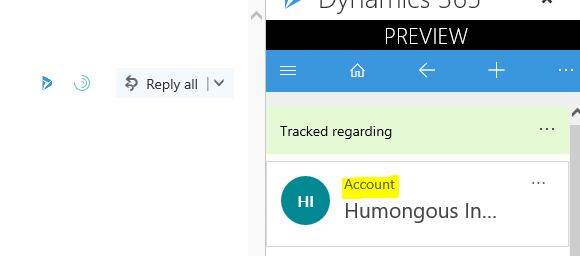
Now in Dynamics 365, under activities for the account, you will see the email:
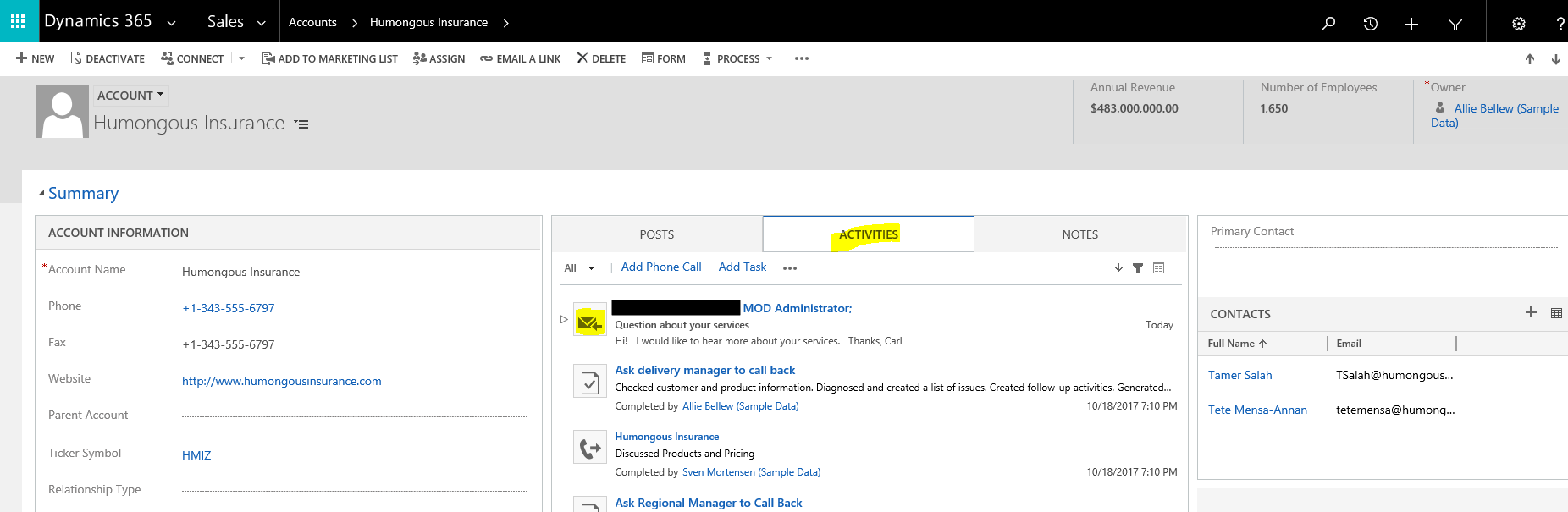
From here, you will be able to convert the activity as discussed before, to a lead for example:
I AM SPENDING MORE TIME THESE DAYS CREATING YOUTUBE VIDEOS TO HELP PEOPLE LEARN THE MICROSOFT POWER PLATFORM.
IF YOU WOULD LIKE TO SEE HOW I BUILD APPS, OR FIND SOMETHING USEFUL READING MY BLOG, I WOULD REALLY APPRECIATE YOU SUBSCRIBING TO MY YOUTUBE CHANNEL.
THANK YOU, AND LET'S KEEP LEARNING TOGETHER.
CARL

I keep getting email in Outlook, (not the Office 365 Outlook app), that will appear as untracked, but then, after a few minutes or so, they’ll say that they are tracked in Dynamics 365. How can I get rid of all emails being tracked?
Thank you,