In this post, we will look at how to pass context from a toolbar button in Dynamics 365 in the Unified Client Interface (UCI).
Let’s add a custom button to the Contact form and call a JavaScript which will pass the context.
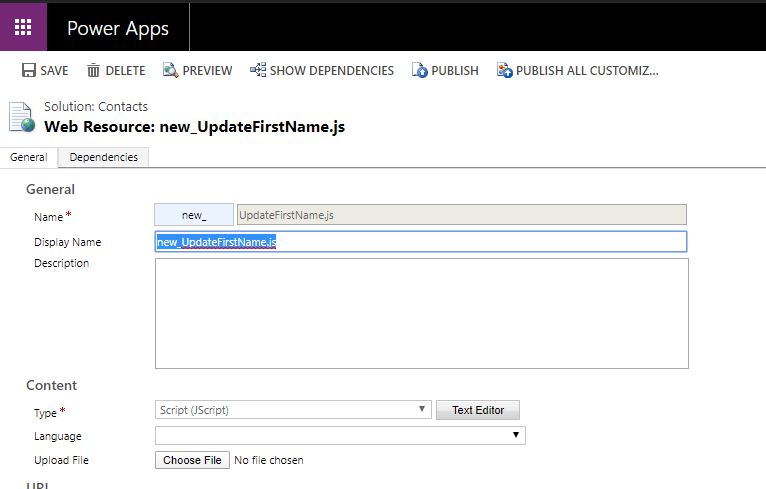
First, let’s create a new JavaScript web resource:
We will pass the context as the first parameter:
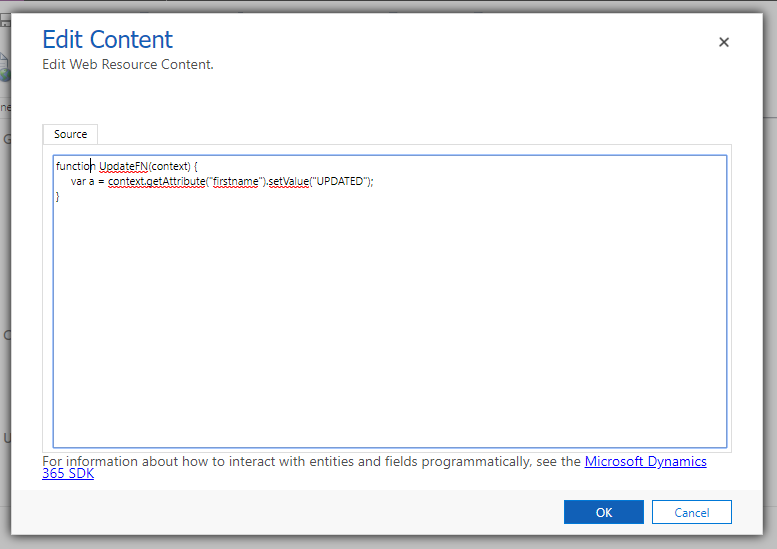
Code:
function UpdateFN(context) {
     var a = context.getAttribute("firstname").setValue("UPDATED");
}
Save and publish the file.
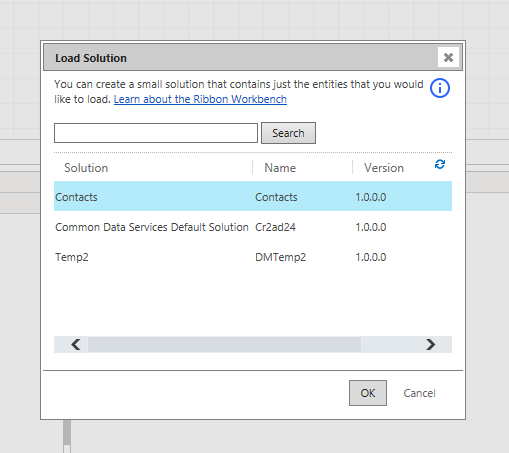
Open the Ribbon Workbench and select a solution with Contacts:
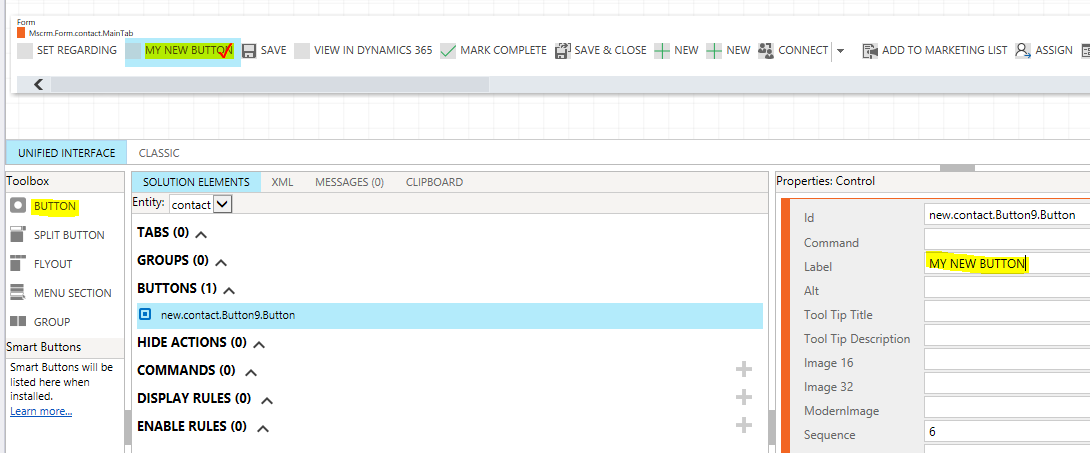
Add a new button:
And add a new Command:
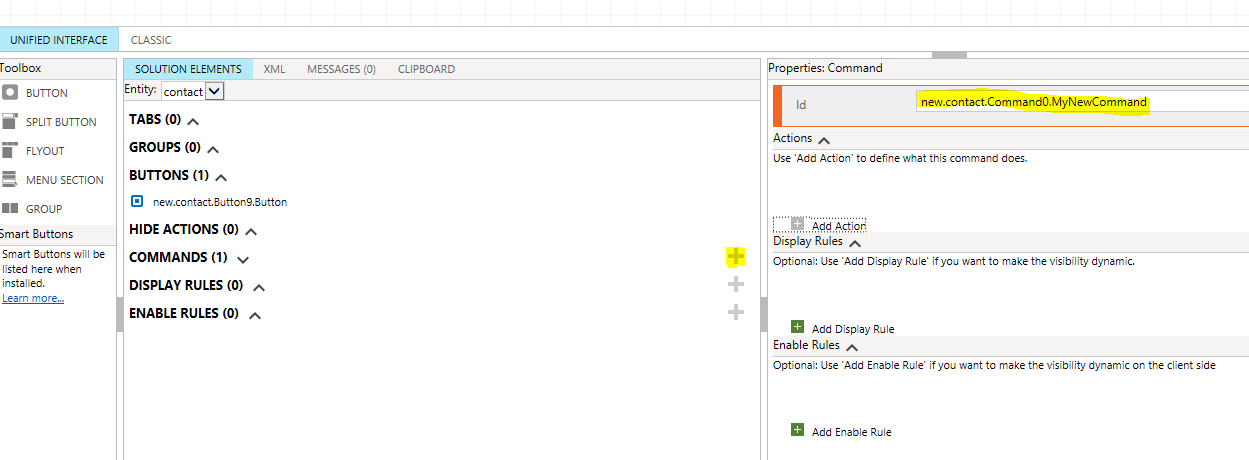
Add a JavaScript action:
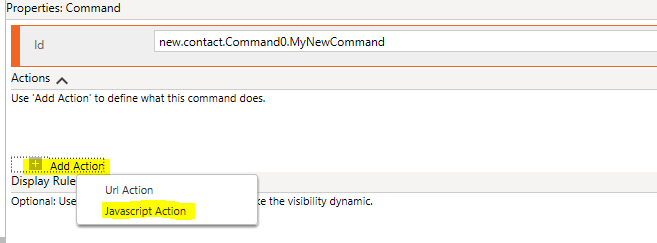
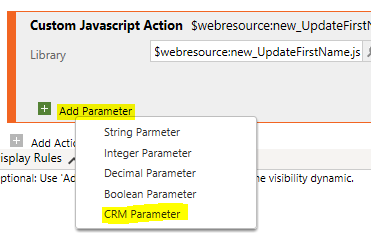
Lookup the new Web resource we created, and enter the function name to call:

Then select Add Parameter:
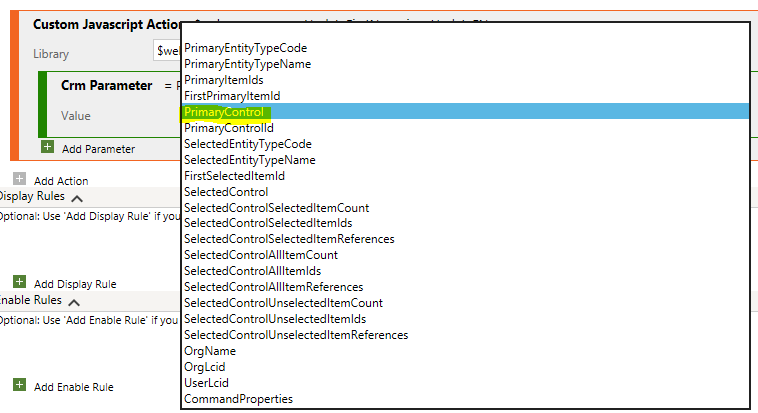
Select PrimaryControl:
Now set the Button to use the command:
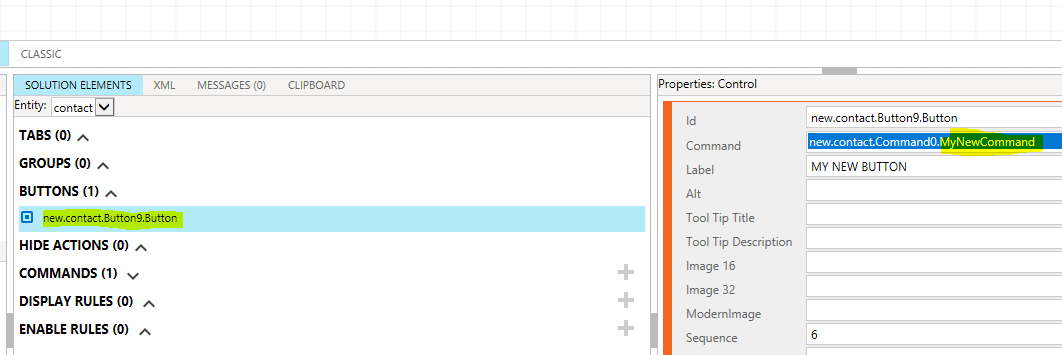
Click Publish in the Ribbon Workbench.
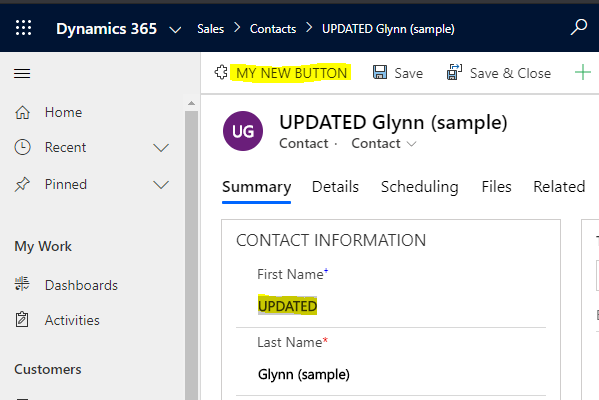
Now let’s go to a contact. Click on the button, and we see the first name has been updated:
I AM SPENDING MORE TIME THESE DAYS CREATING YOUTUBE VIDEOS TO HELP PEOPLE LEARN THE MICROSOFT POWER PLATFORM.
IF YOU WOULD LIKE TO SEE HOW I BUILD APPS, OR FIND SOMETHING USEFUL READING MY BLOG, I WOULD REALLY APPRECIATE YOU SUBSCRIBING TO MY YOUTUBE CHANNEL.
THANK YOU, AND LET'S KEEP LEARNING TOGETHER.
CARL