The following steps show how to register an application with Microsoft Azure. This app can then be used for OAuth 2.0 authentication outside of Dynamics CRM.
- Log into portal.azure.com as your Dynamics CRM administrator.
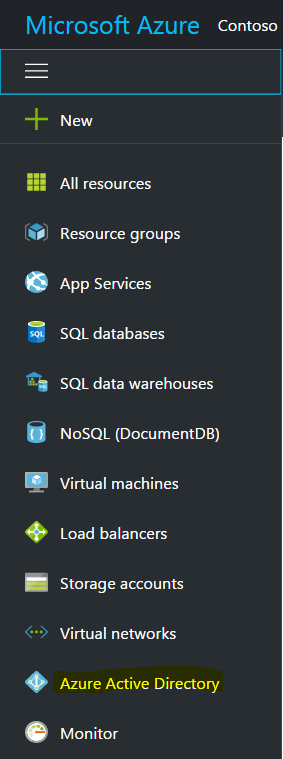
- Select Azure Active Directory from the menu on the left:
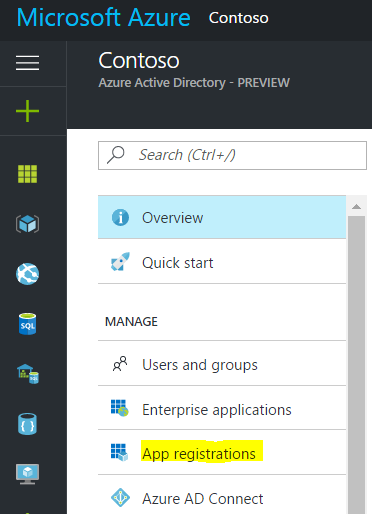
- Select App Registrations:
- Select Add:

- Enter the name of the app, e.g. Test Basic App. Select the application type as Native:

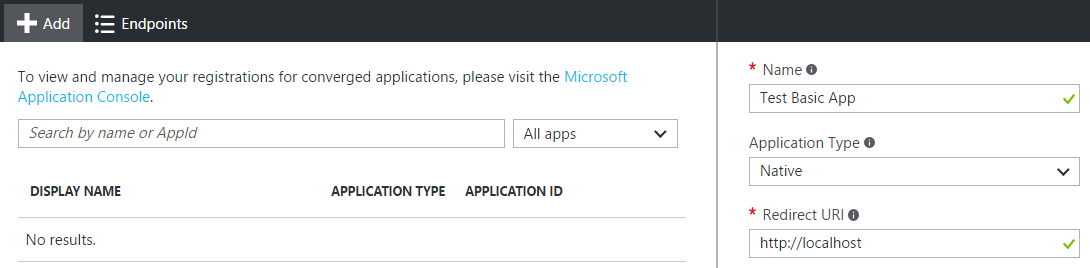
- Click Create to create the app.
- Selecting the app will show its Application ID and Object ID:
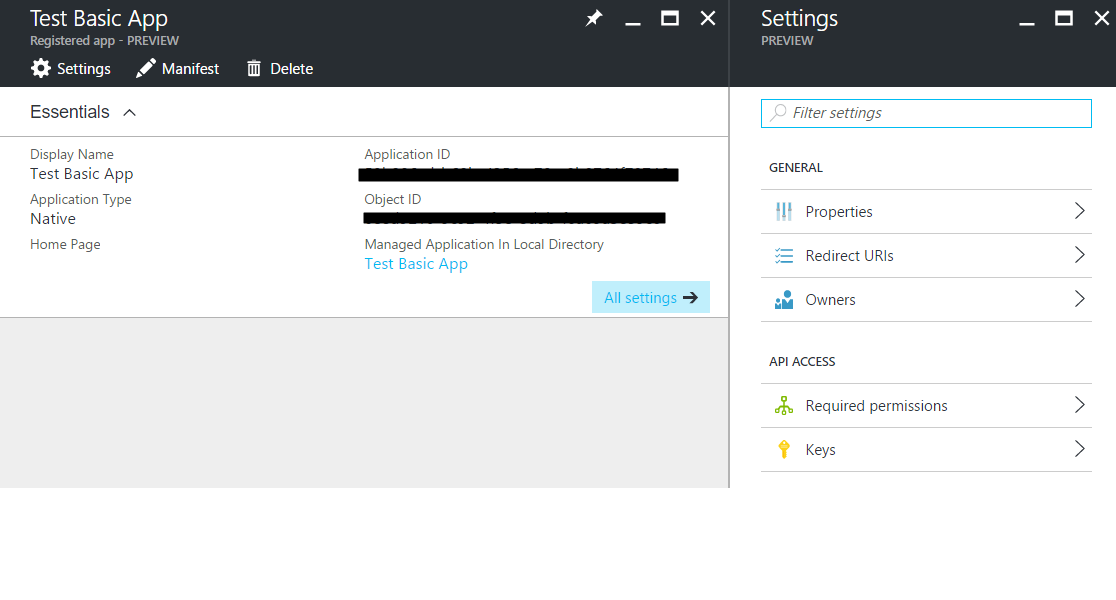
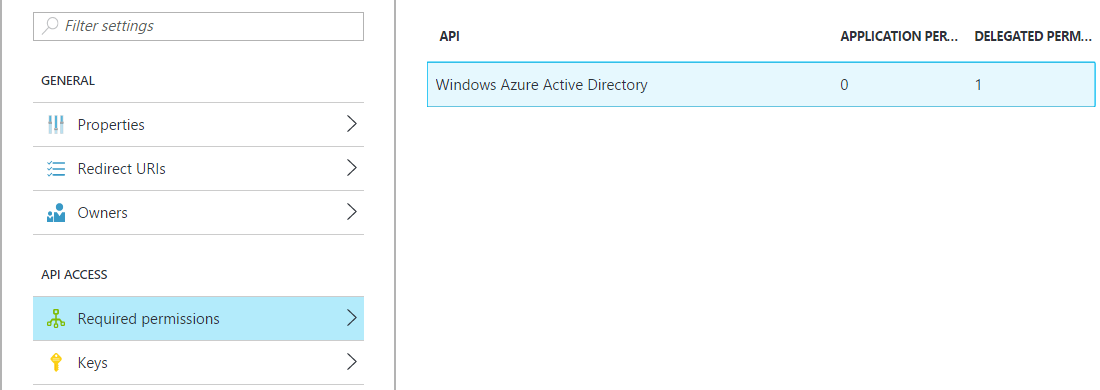
- Select Required Permissions:
- Select Add to add a permission and choose Dynamics CRM Online:
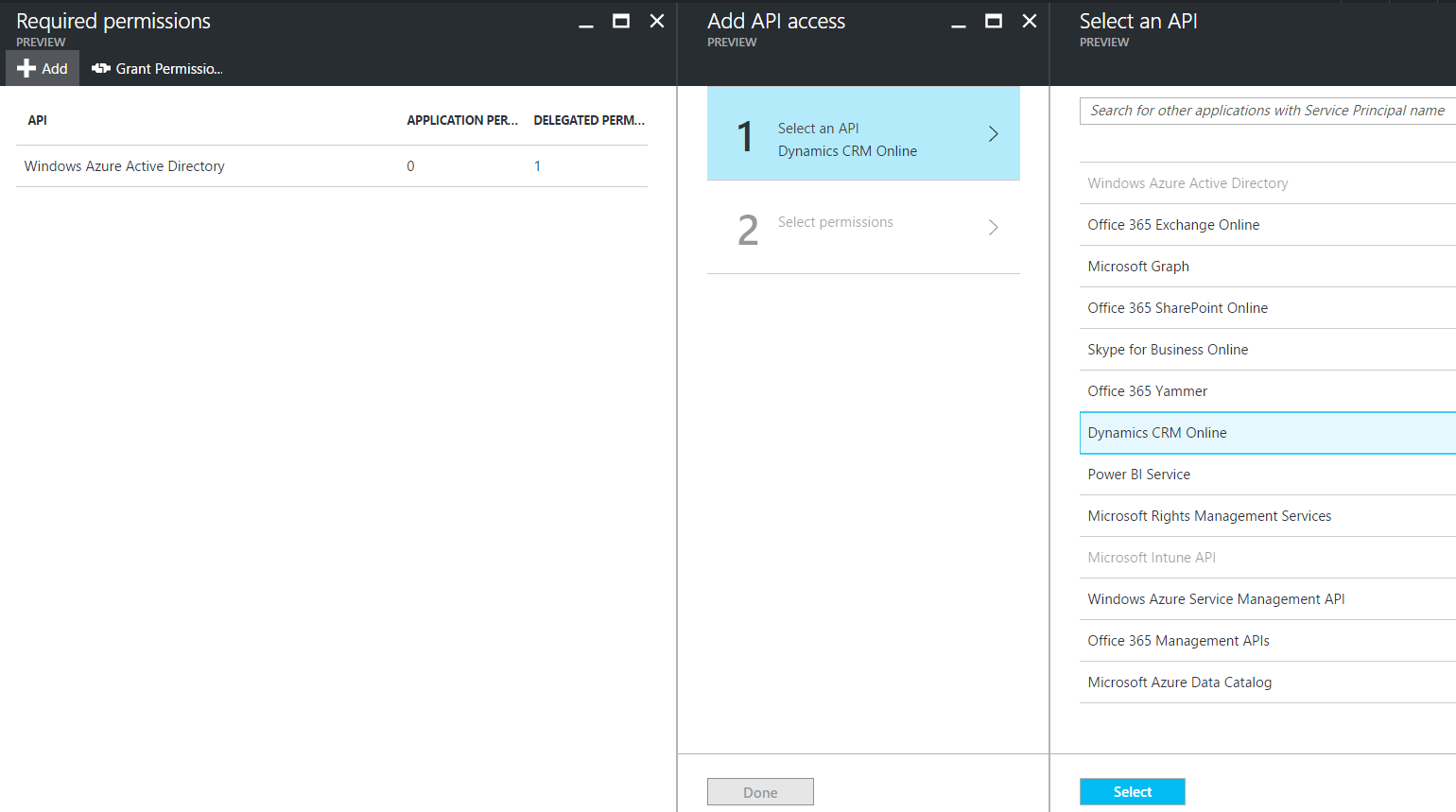
- Select Access CRM Online as organization users. Click done:

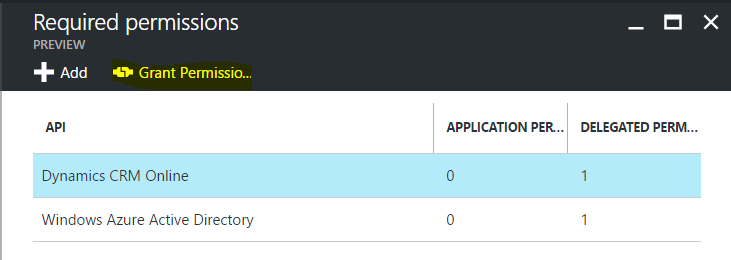
- Select Dynamics CRM Online and select Grant Permissions. Click Yes to grant permissions:
- Your app is now registered on Windows Azure.

Keep learning. Keep building.
Explore AI, agents & Microsoft technology.
I share practical ideas, tutorials, and videos about AI, AI agents, Microsoft technologies, and the Power Platform.
Subscribe on YouTube →Carl de Souza Enterprise Architect at Microsoft · AI Technology Expert