The following steps show how to register an application with Microsoft Azure. This app can then be used for OAuth 2.0 authentication outside of Dynamics CRM.
- Log into portal.azure.com as your Dynamics CRM administrator.
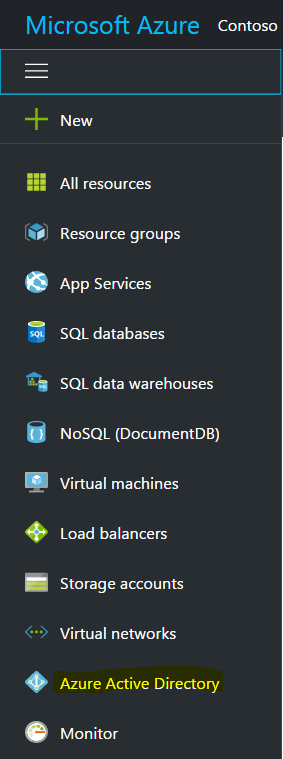
- Select Azure Active Directory from the menu on the left:
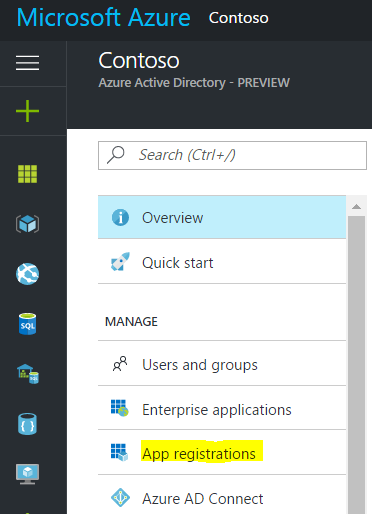
- Select App Registrations:
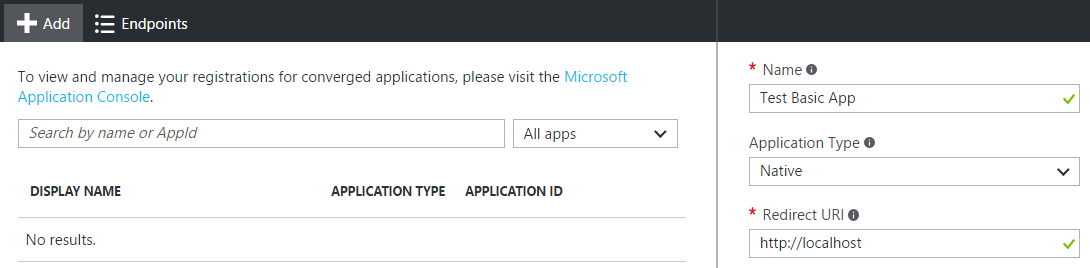
- Select Add:

- Enter the name of the app, e.g. Test Basic App. Select the application type as Native:

- Click Create to create the app.
- Selecting the app will show its Application ID and Object ID:
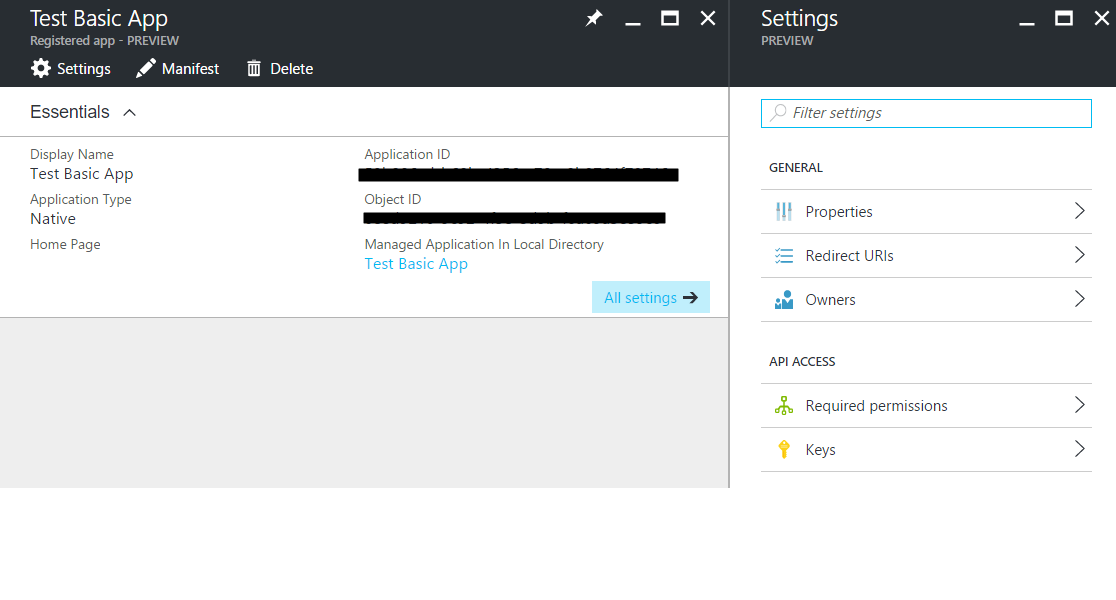
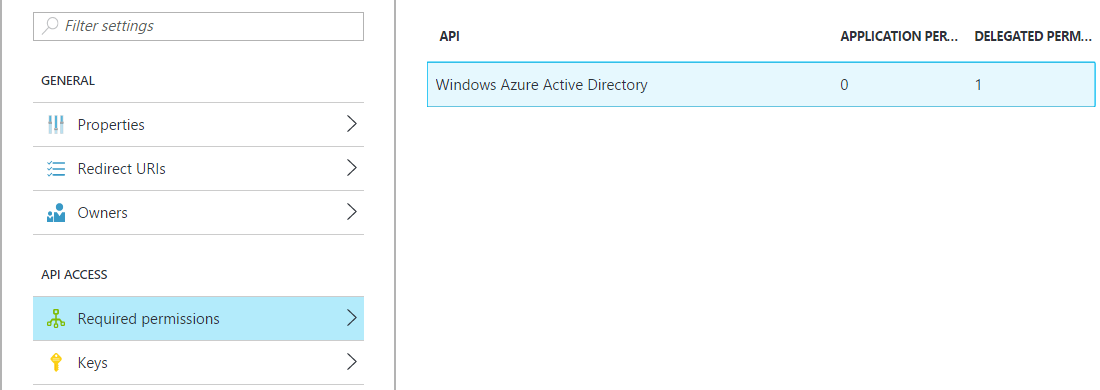
- Select Required Permissions:
- Select Add to add a permission and choose Dynamics CRM Online:
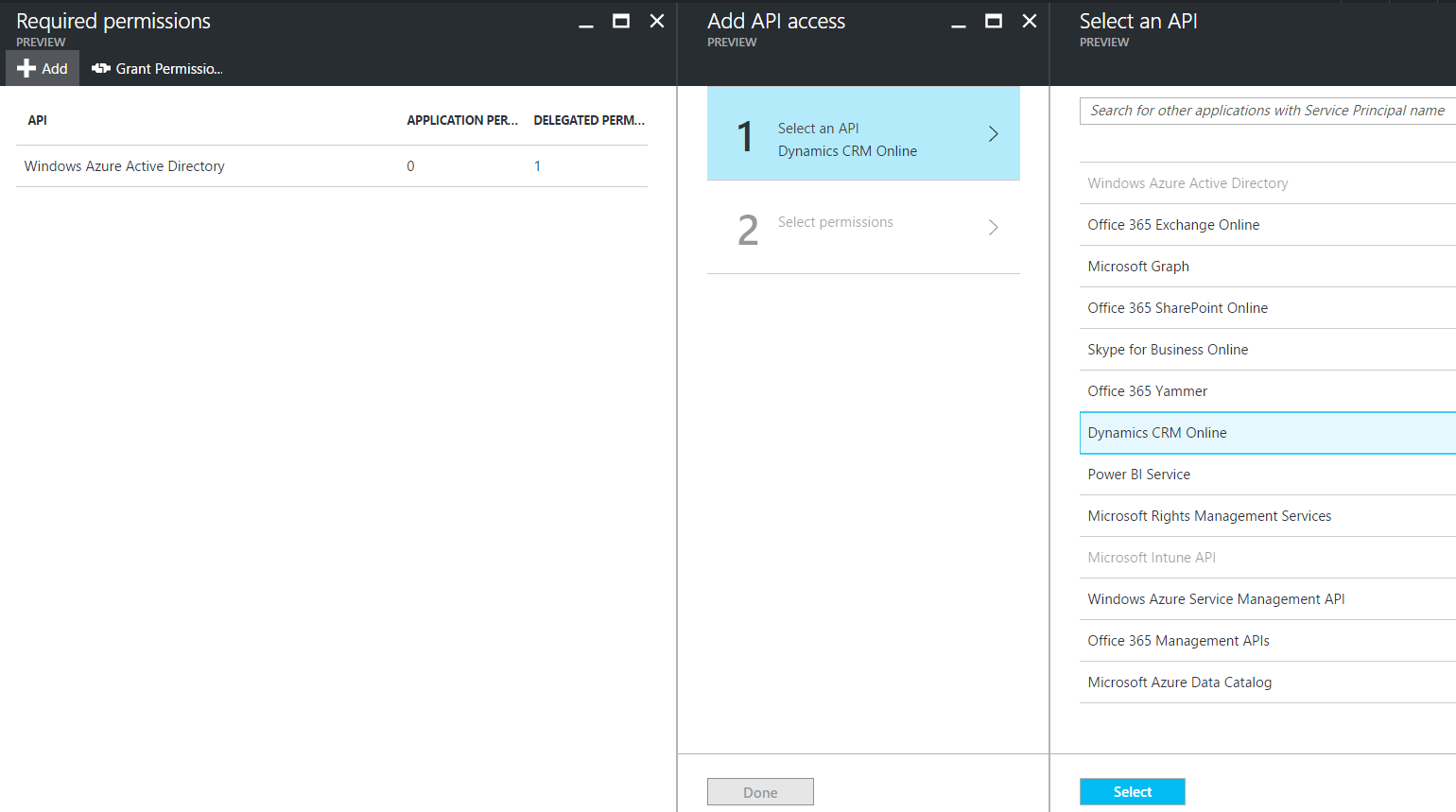
- Select Access CRM Online as organization users. Click done:

- Select Dynamics CRM Online and select Grant Permissions. Click Yes to grant permissions:
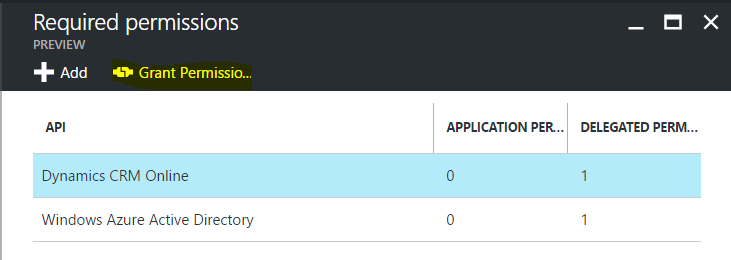
- Your app is now registered on Windows Azure.
THANKS FOR READING. BEFORE YOU LEAVE, I NEED YOUR HELP.
I AM SPENDING MORE TIME THESE DAYS CREATING YOUTUBE VIDEOS TO HELP PEOPLE LEARN THE MICROSOFT POWER PLATFORM.
IF YOU WOULD LIKE TO SEE HOW I BUILD APPS, OR FIND SOMETHING USEFUL READING MY BLOG, I WOULD REALLY APPRECIATE YOU SUBSCRIBING TO MY YOUTUBE CHANNEL.
THANK YOU, AND LET'S KEEP LEARNING TOGETHER.
CARL