In order to use LINQ queries to access Dynamics 365 data, you need to go through the following steps. This is a late-bound example.
First, add the necessary assemblies to access Dynamics 365:
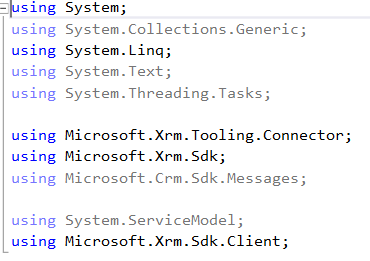
Next, connect to Dynamics 365:

Finally write the LINQ query, here joining the contact and account and retrieving relevant fields to display:
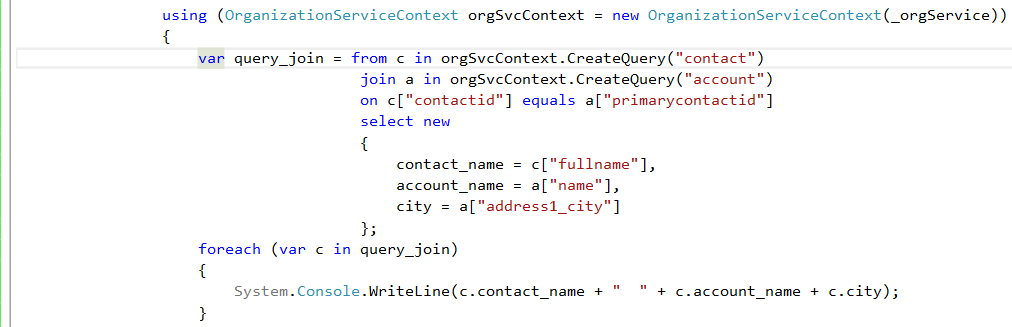
Results below:
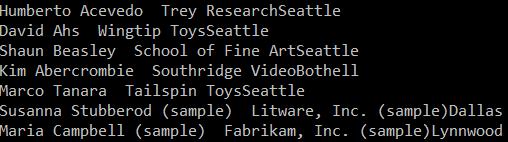
Code:
[sourcecode language=”CSharp”] using System;using System.Collections.Generic;
using System.Linq;
using System.Text;
using System.Threading.Tasks;
using Microsoft.Xrm.Tooling.Connector;
using Microsoft.Xrm.Sdk;
using Microsoft.Crm.Sdk.Messages;
using System.ServiceModel;
using Microsoft.Xrm.Sdk.Client;
namespace Carl.CRMLinqSample
{
class Program
{
static void Main(string[] args)
{
try
{
var connectionString = @"AuthType = Office365; Url = https://yourcrm.crm.dynamics.com/;Username=yourusername;Password=yourpassword";
CrmServiceClient conn = new CrmServiceClient(connectionString);
IOrganizationService _orgService;
_orgService = (IOrganizationService)conn.OrganizationWebProxyClient != null ? (IOrganizationService)conn.OrganizationWebProxyClient : (IOrganizationService)conn.OrganizationServiceProxy;
using (OrganizationServiceContext orgSvcContext = new OrganizationServiceContext(_orgService))
{
var query_join = from c in orgSvcContext.CreateQuery("contact")
join a in orgSvcContext.CreateQuery("account")
on c["contactid"] equals a["primarycontactid"]
select new
{
contact_name = c["fullname"],
account_name = a["name"],
city = a["address1_city"]
};
foreach (var c in query_join)
{
System.Console.WriteLine(c.contact_name + " " + c.account_name + c.city);
}
}
System.Console.ReadLine();
}
catch (Exception ex)
{
System.Console.WriteLine(ex.ToString());
System.Console.ReadLine();
}
}
}
}
[/sourcecode]

Explore AI, agents & Microsoft technology.
I share practical ideas, tutorials, and videos about AI, AI agents, Microsoft technologies, and the Power Platform.
Subscribe on YouTube →