In this post, we will look at the Developer Portal (Legacy) for Azure API Management.
Browse to your APIM in Azure and click on the link:
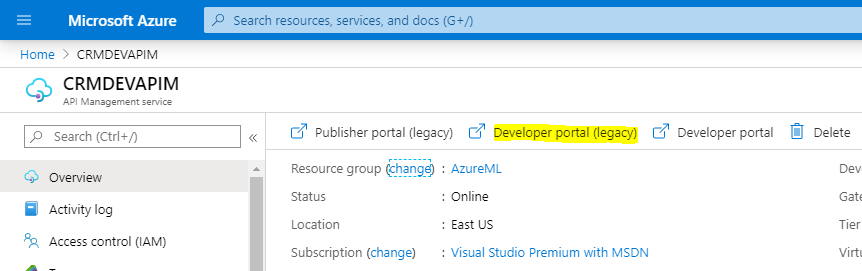
On selecting this, we get to a developer portal:
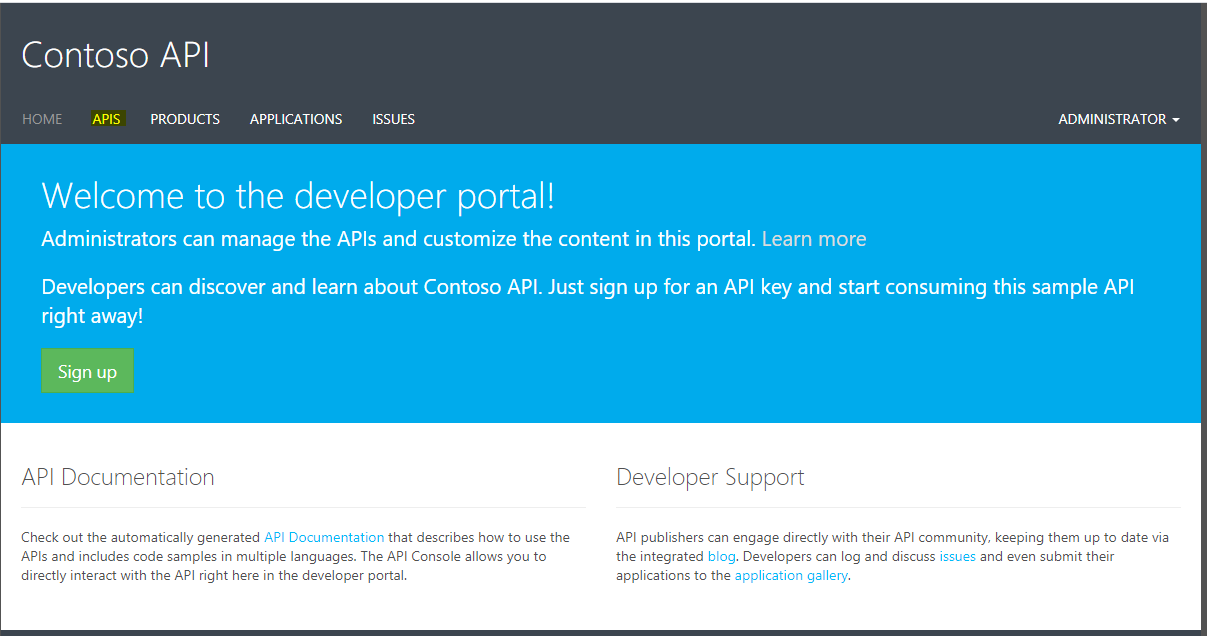
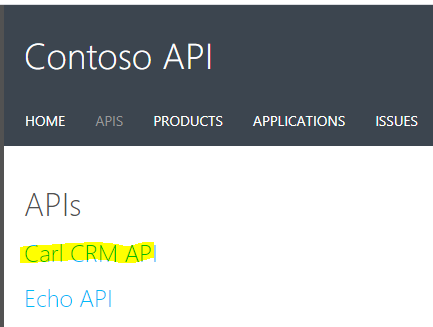
We see our APIs. Select one:
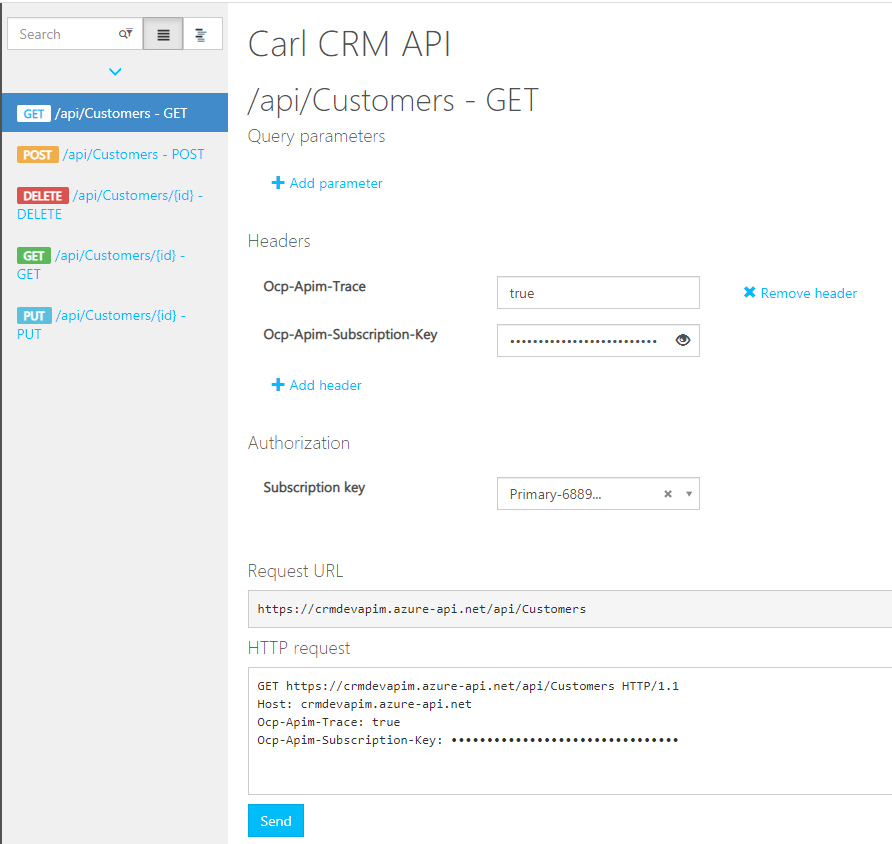
We see our operations. Select one and click Try It:
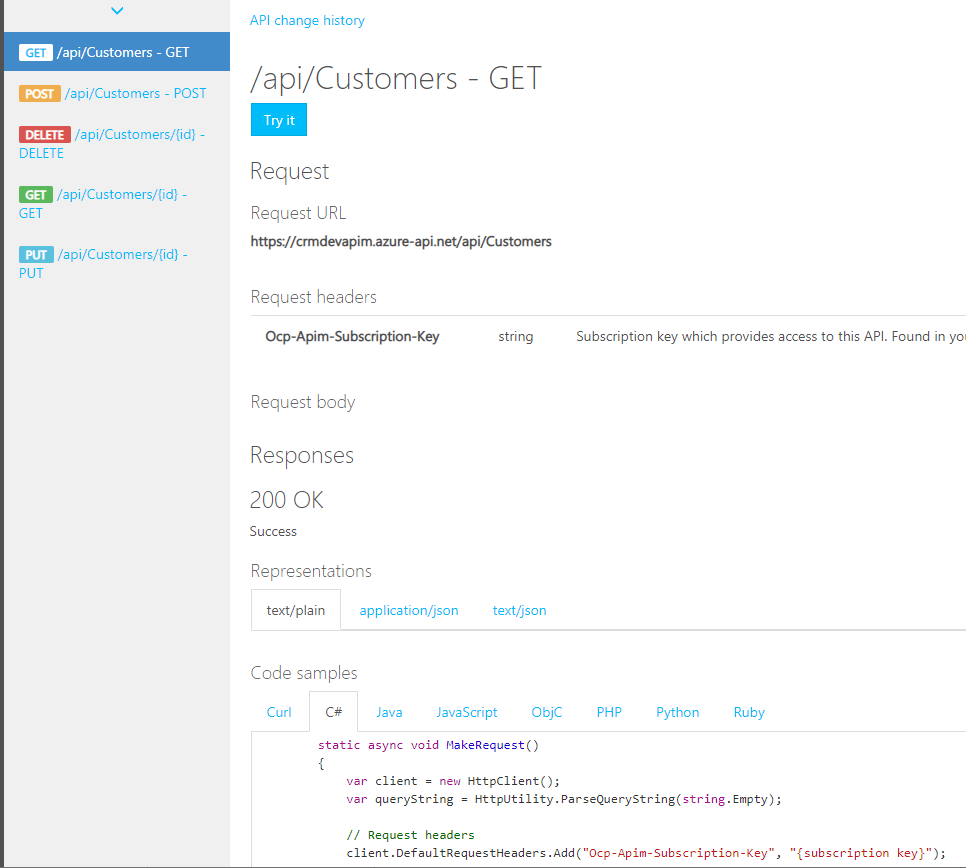
We can select a Subscription Key and click Send to send a request:
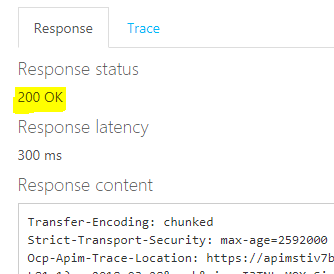
We get a 200 Response back. If there were errors we could examine the trace:
Select Products to see all products:
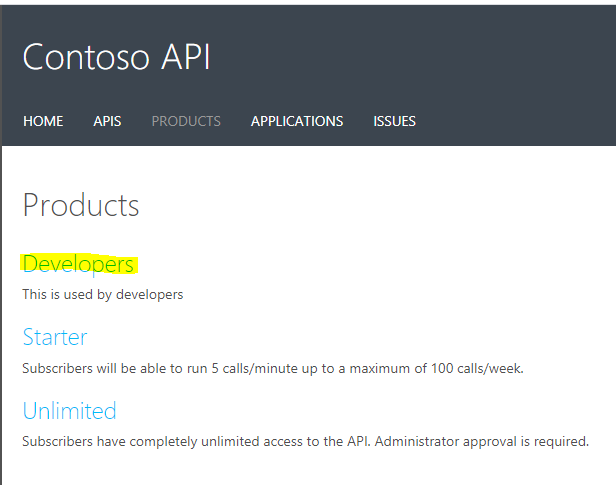
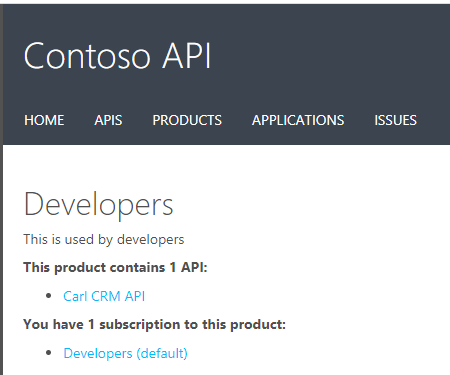
E.g. Developers:
The portal can be useful when testing App Services and APIM.
I AM SPENDING MORE TIME THESE DAYS CREATING YOUTUBE VIDEOS TO HELP PEOPLE LEARN THE MICROSOFT POWER PLATFORM.
IF YOU WOULD LIKE TO SEE HOW I BUILD APPS, OR FIND SOMETHING USEFUL READING MY BLOG, I WOULD REALLY APPRECIATE YOU SUBSCRIBING TO MY YOUTUBE CHANNEL.
THANK YOU, AND LET'S KEEP LEARNING TOGETHER.
CARL

Very helpful walkthrough, Carl! This post makes the legacy Azure API Management Developer Portal much easier to understand. I liked how you clearly demonstrated the “Try It” option and response testing — it’s great for quick validation before full deployment.
Thanks for consistently sharing such practical Azure insights!