In this post, we will look at how to use FetchXML in a Power Apps Portal Web Page and Template.
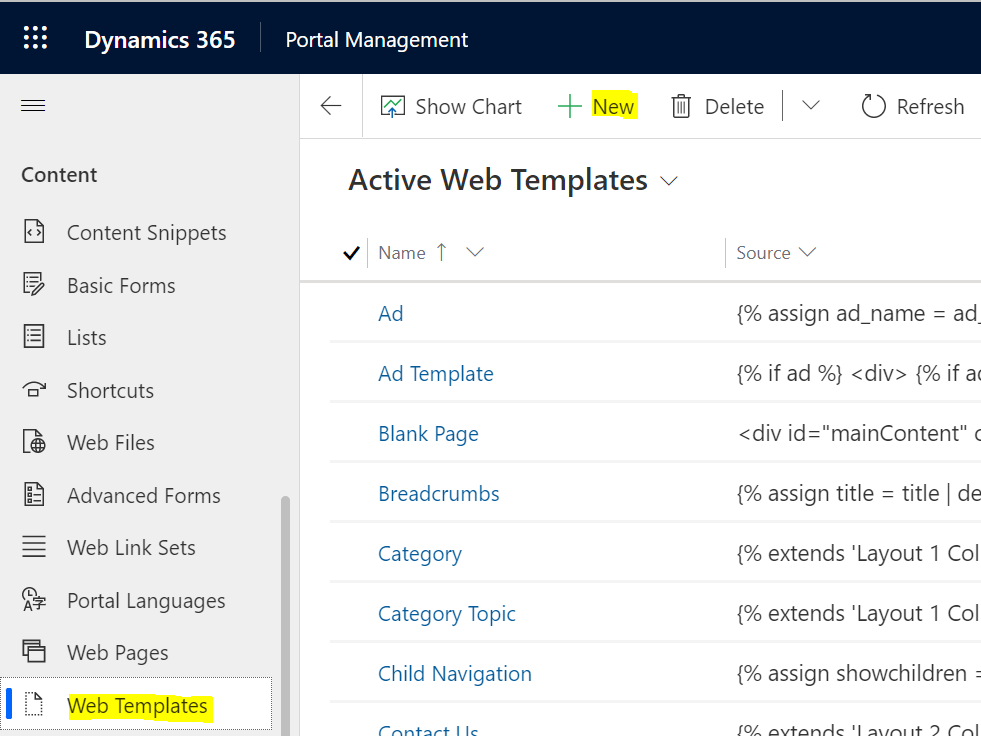
First, let’s go to the Portal Administration app and create a new Web Page Template:
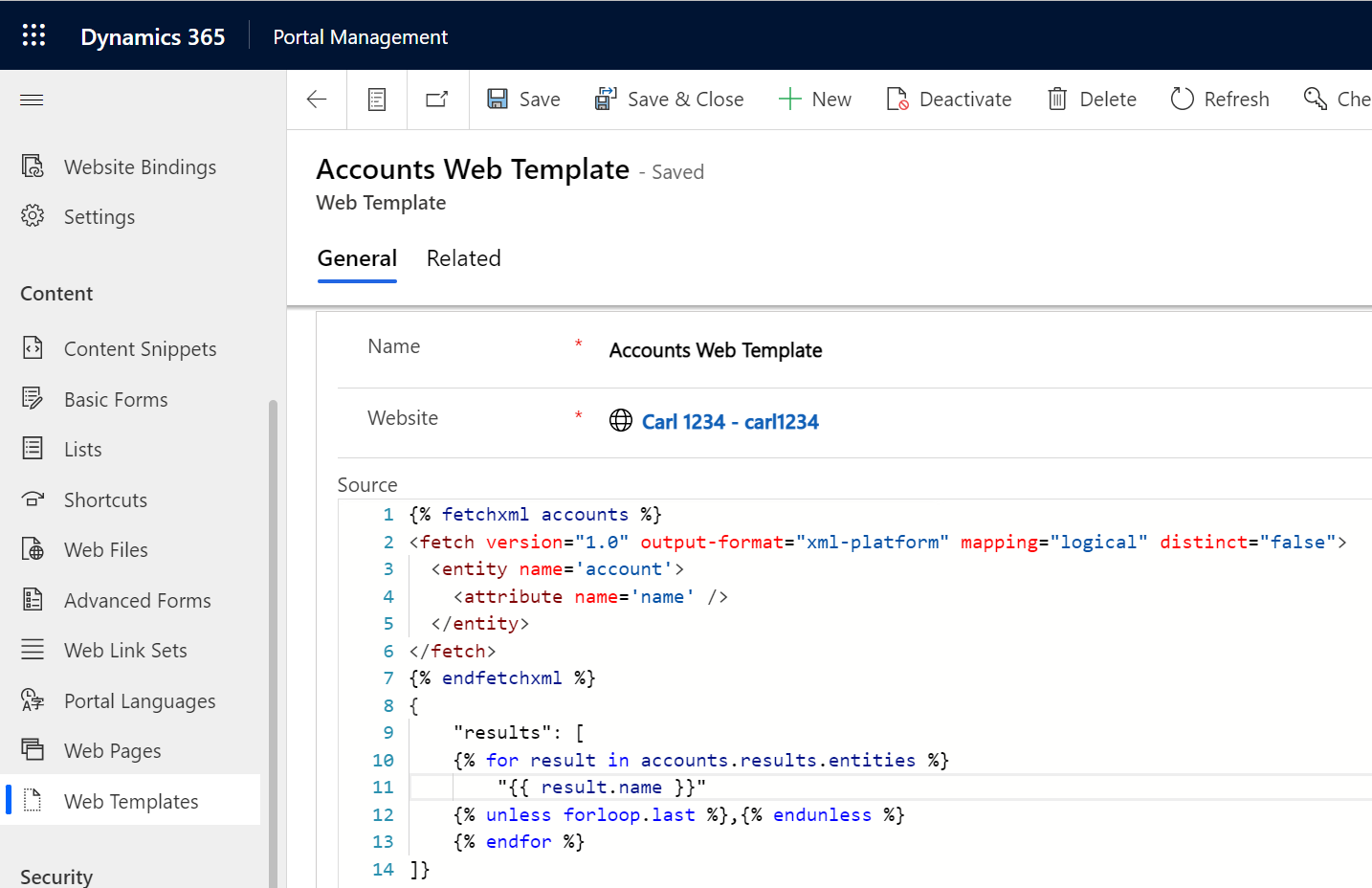
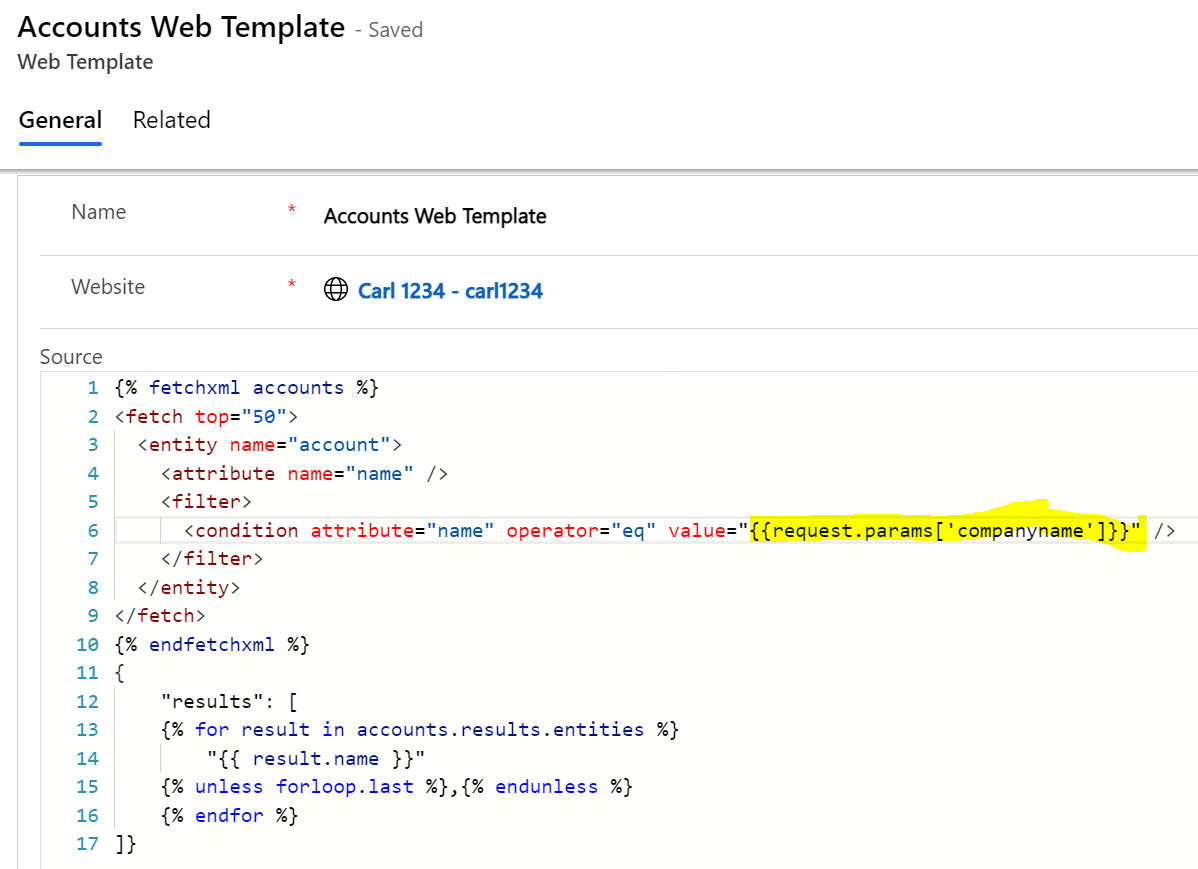
Paste in the FetchXML like below. You can see we are creating a new web template, and running a FetchXML query, then iterating through the results and returning them in a JSON format:
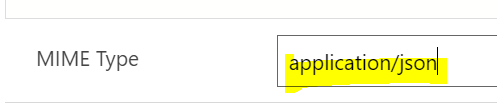
Scroll down to the bottom of the page and set the MIME type to application/json:
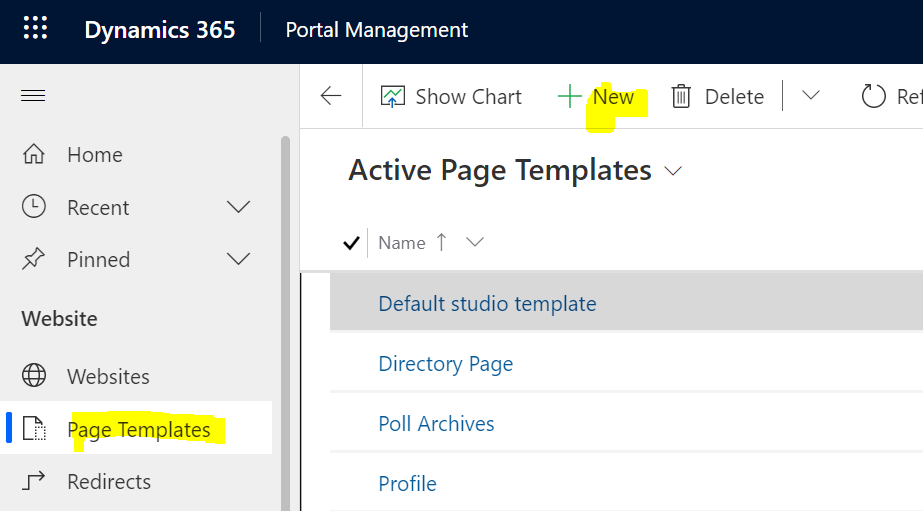
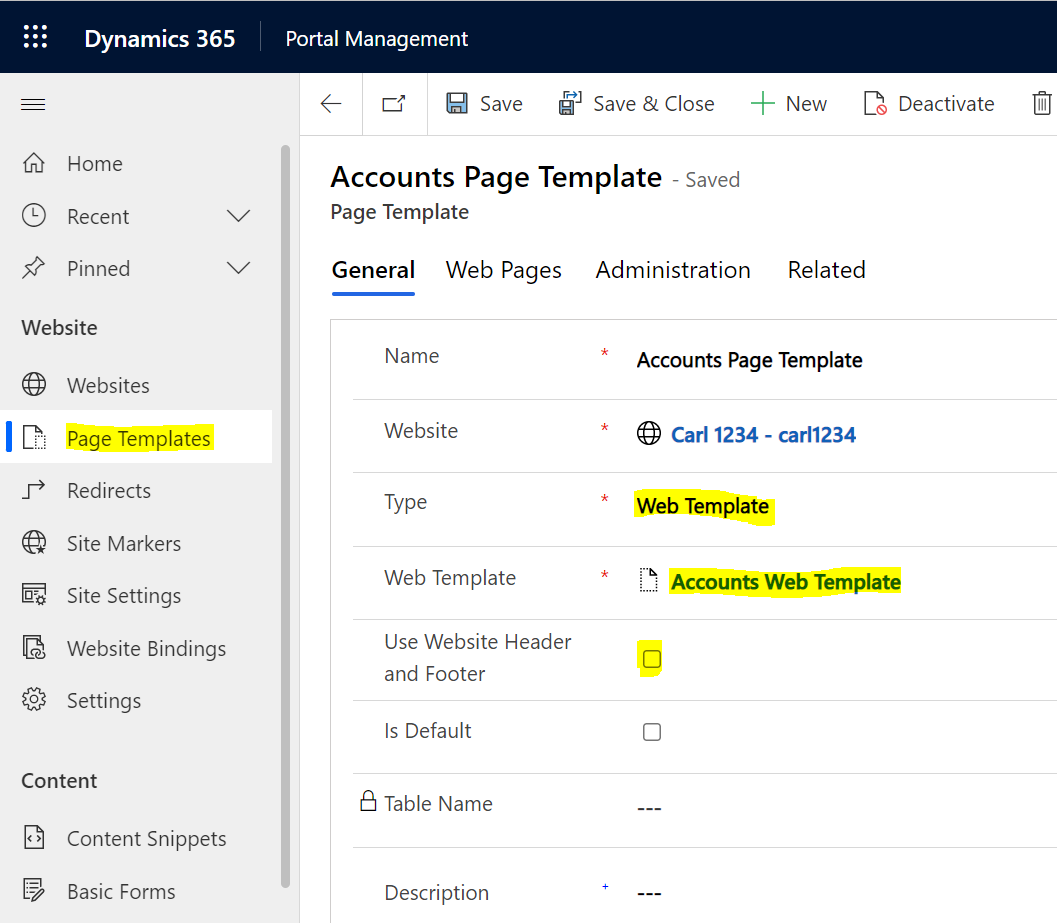
Next, create a new Page Template:
Select the Web Template, uncheck Website Header and Footer like below:
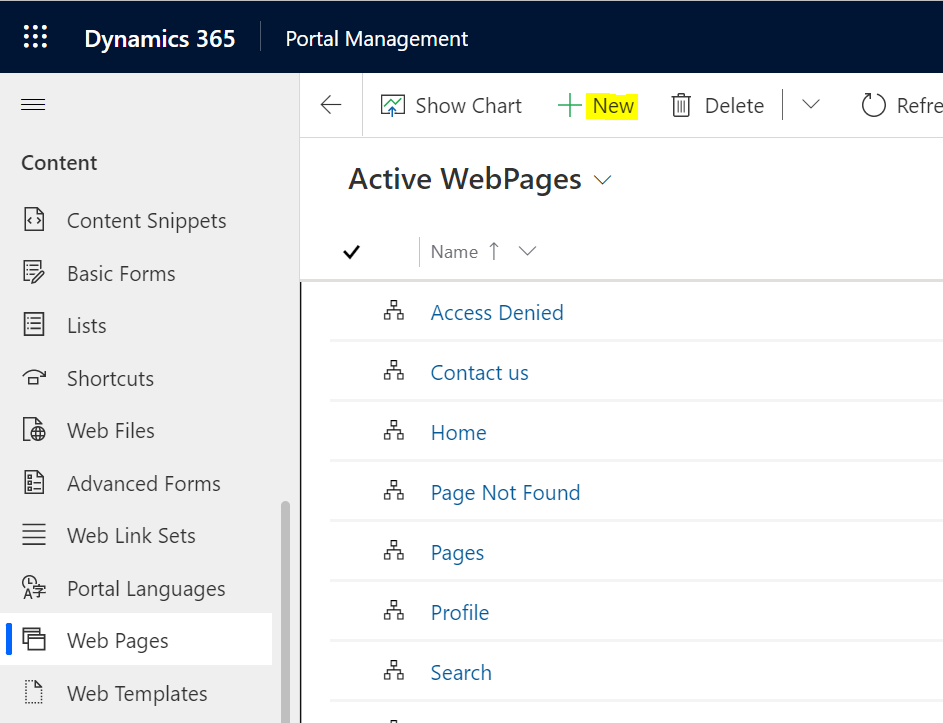
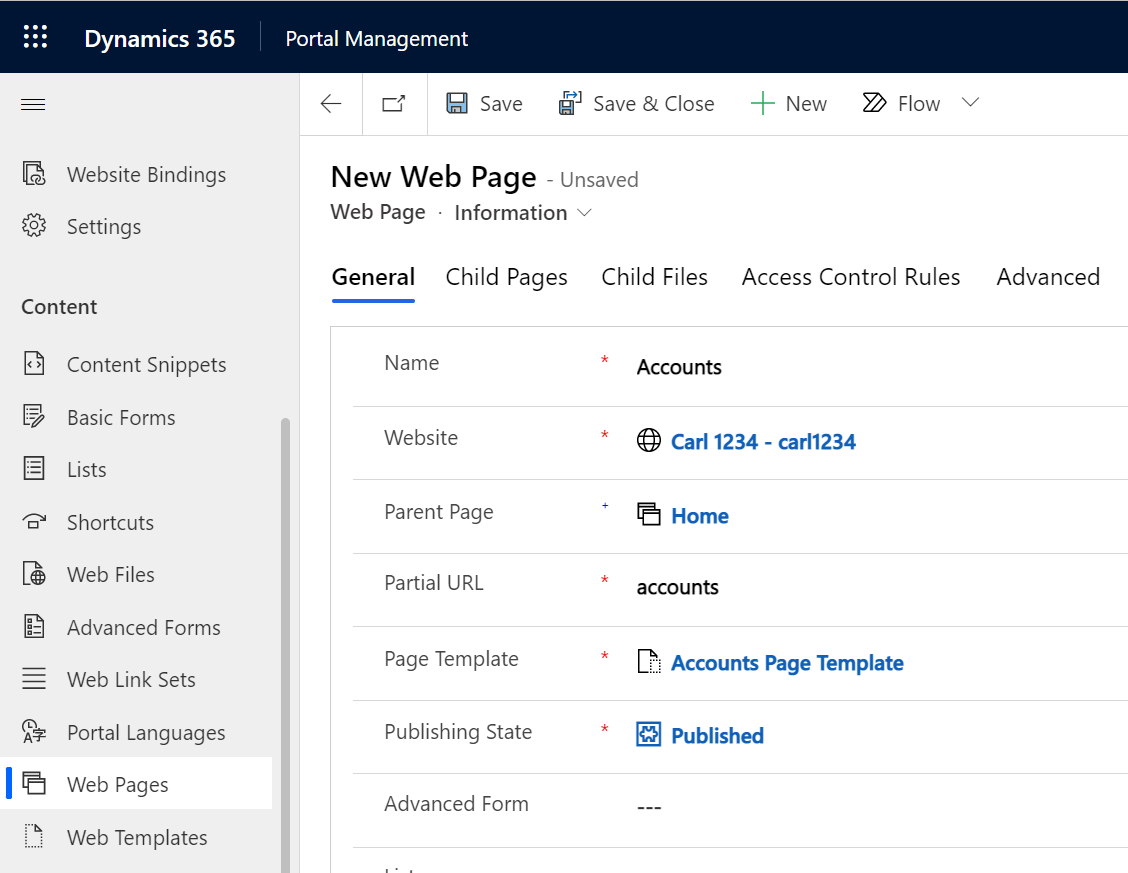
Next, create a Web Page and reference the template:
Now, if we were to go to the accounts page, we see there are no results:
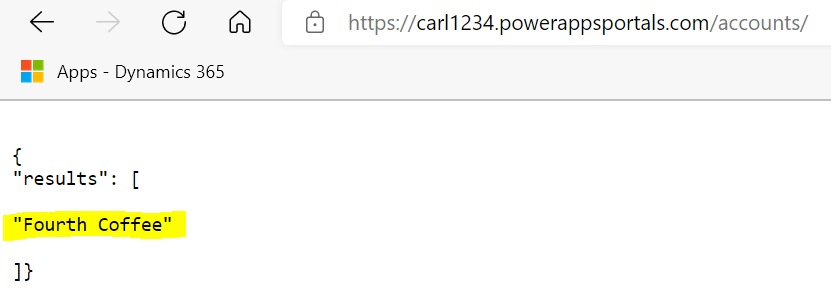
Be sure to confirm that the user has web roles with table permissions to retrieve the data you need.
Now, let’s say we need to pass parameters to the FetchXML. Let’s pass the company name to our FetchXML query through the request.params:
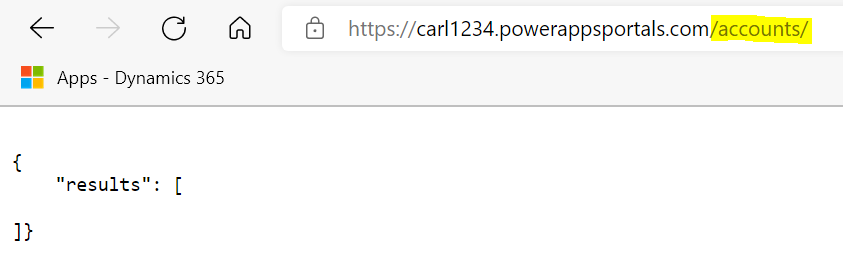
Now if we run the page without any parameters, we get no results:
If we run the page with the companyname parameter, our FetchXML runs as expected with the parameter:
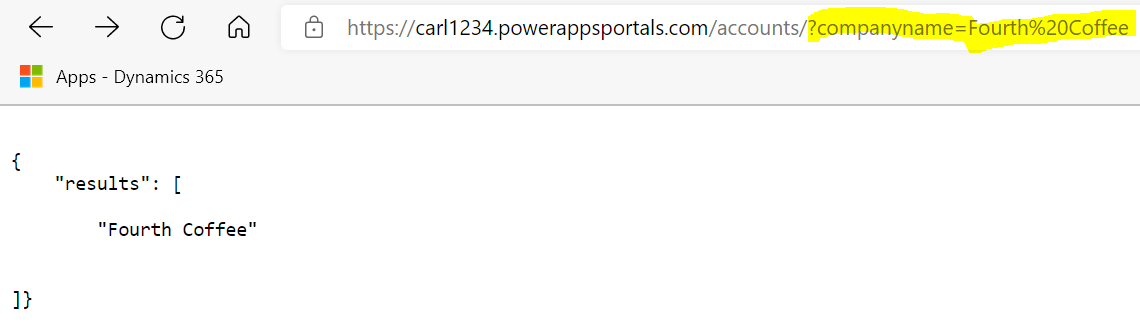
Note the user would need to have permission to see the record.

Explore AI, agents & Microsoft technology.
I share practical ideas, tutorials, and videos about AI, AI agents, Microsoft technologies, and the Power Platform.
Subscribe on YouTube →
Hi, can you explain how to work with large sets of records for example: 30,000 items to be edit, view, delete using fetchxml to be displayed in Power pages?
Hey , I have tried implementing this but it is sending me response in HTML . I have added all the required things like MIME Type , Uncheck Header & Footer etc,