First, create a new console app:
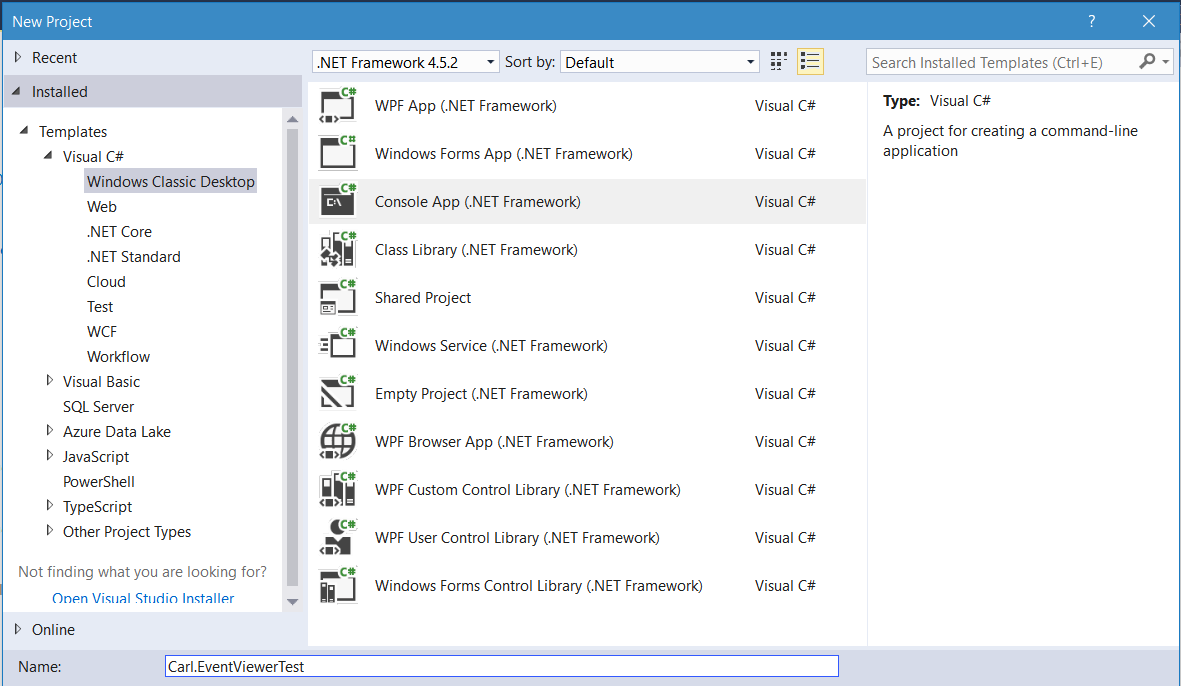
Next, add:
using System.Diagnostics;
Notice the Event Viewer in Windows has several areas:
- Windows Logs, which are:
- Application
- Security
- Setup
- System
- Forwarded Events
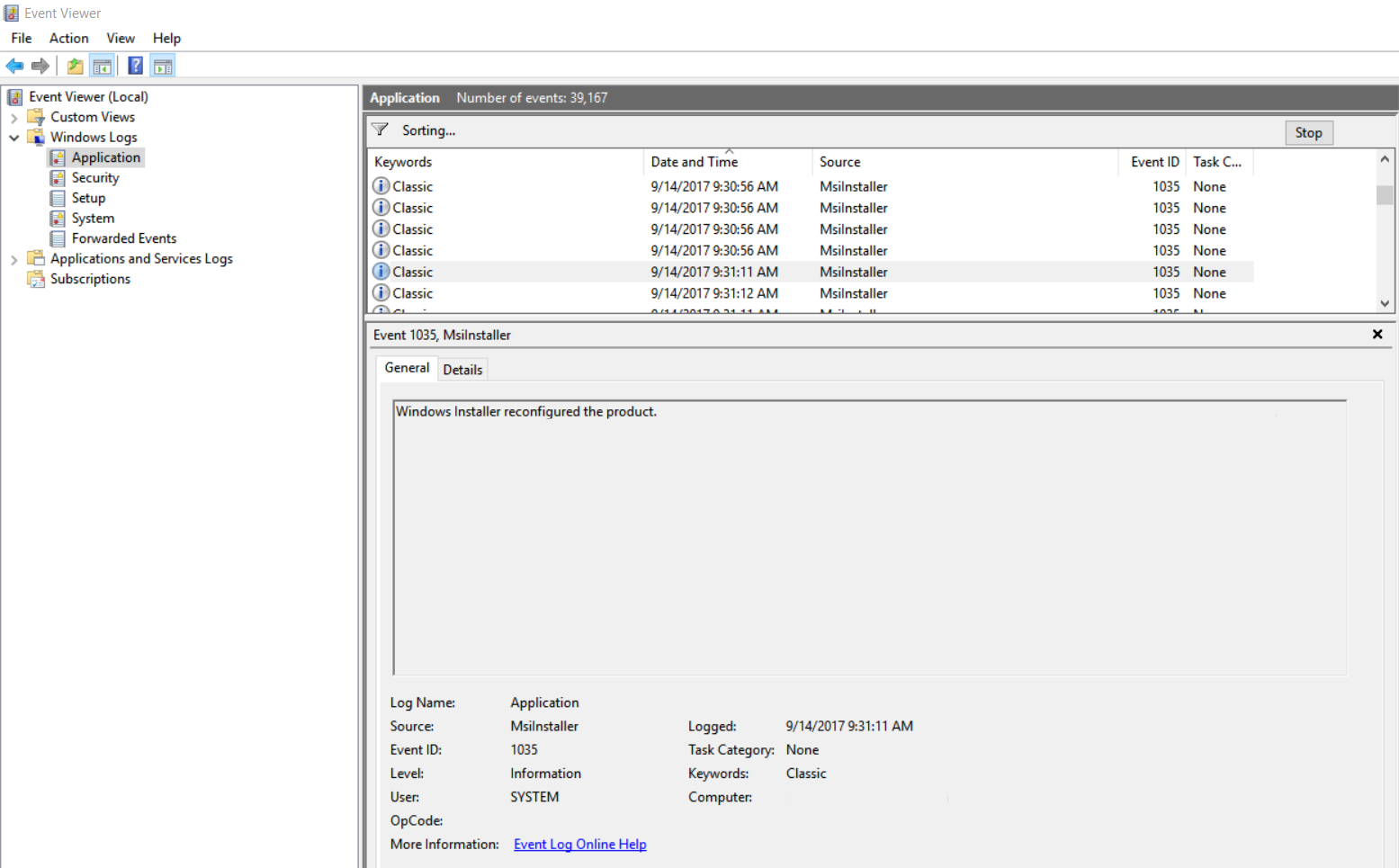
And within each log, there are:
- Keywords
- Date and Time
- Source
- Event Id
- Task Category
To write to the application log, use the code:
        static void Main(string[] args)
        {
            string Event = "Application has started";

            using (EventLog eventLog = new EventLog("Application"))
            {
                eventLog.Source = "Application";
                eventLog.WriteEntry(Event, EventLogEntryType.Information);
            }
        }
This will write to the Application log. Note the event id is not found for the new application:
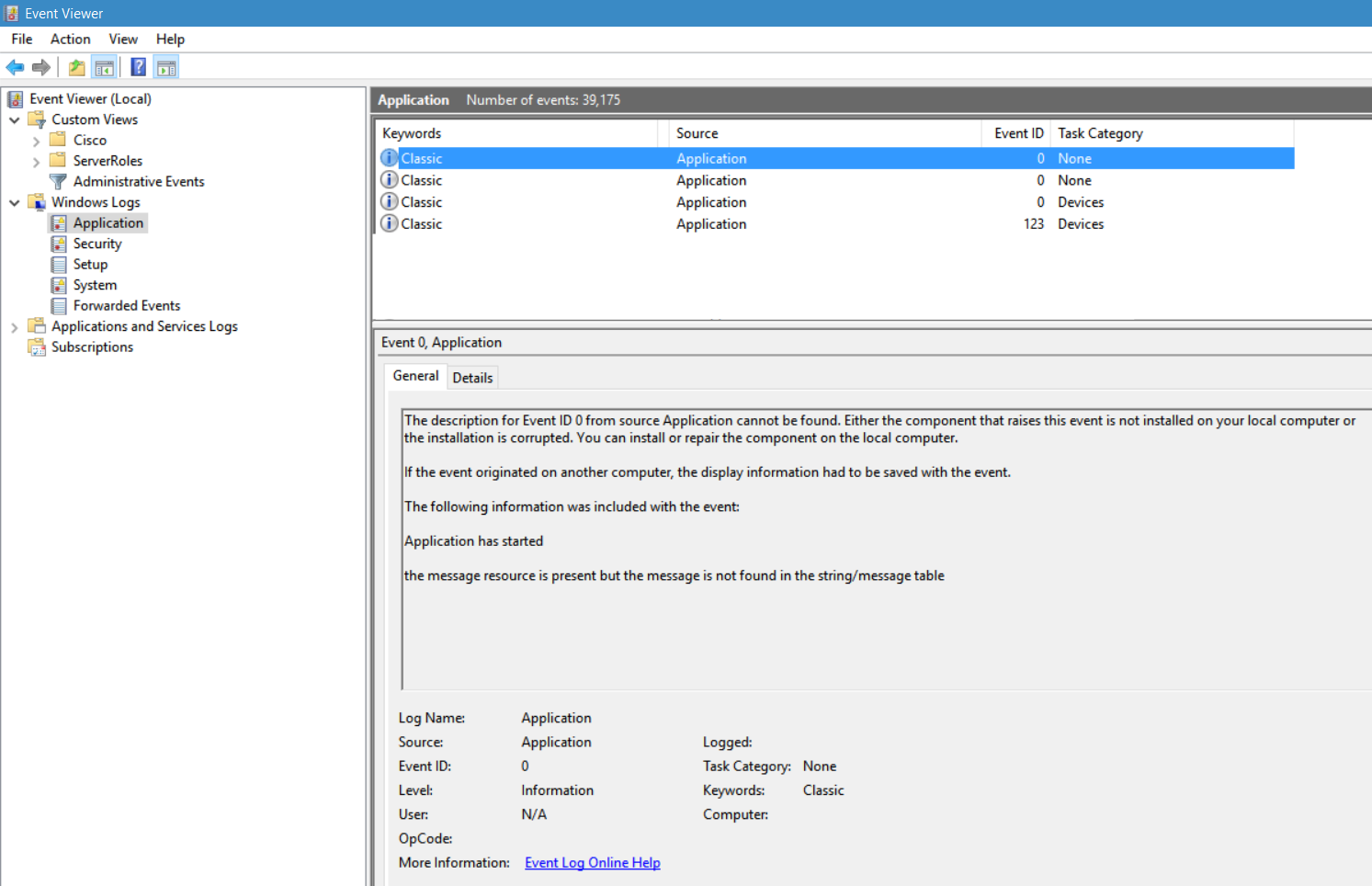
In order to create a new log in the event viewer, use the code below:
using System;
using System.Collections.Generic;
using System.Linq;
using System.Text;
using System.Threading.Tasks;
using System.Diagnostics;

namespace Carl.EventViewerTest
{
    class Program
    {
        static void Main(string[] args)
        {
            string Event = "Application has started";
            string Source = "My App";
            string Log = "App";

            if (!EventLog.SourceExists(Source))
                EventLog.CreateEventSource(Source, Log);

            using (EventLog eventLog = new EventLog("App"))
            {
                eventLog.Source = "My App";
                eventLog.WriteEntry(Event, EventLogEntryType.Information);
            }
        }
    }
}
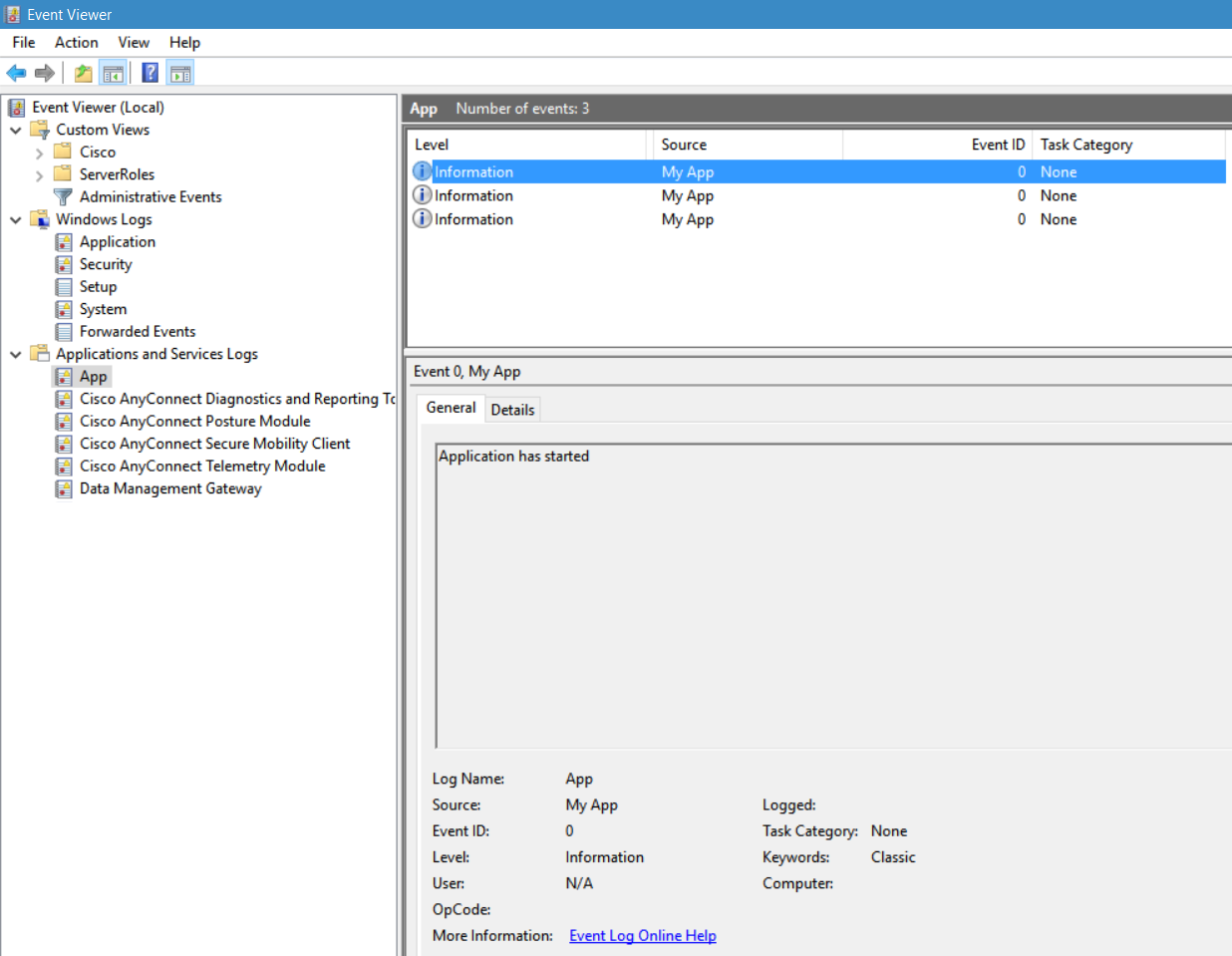
Notice there is a new log, “App” created under Applications and Service Logs:
THANKS FOR READING. BEFORE YOU LEAVE, I NEED YOUR HELP.
I AM SPENDING MORE TIME THESE DAYS CREATING YOUTUBE VIDEOS TO HELP PEOPLE LEARN THE MICROSOFT POWER PLATFORM.
IF YOU WOULD LIKE TO SEE HOW I BUILD APPS, OR FIND SOMETHING USEFUL READING MY BLOG, I WOULD REALLY APPRECIATE YOU SUBSCRIBING TO MY YOUTUBE CHANNEL.
THANK YOU, AND LET'S KEEP LEARNING TOGETHER.
CARL

Hey Carl,
nice post but one part is missing: how to create “subfolder” oder “nested Logs”.
In Applications – and Services Logs are (e.g.) Microsoft -> AppV -> Client -> and here’re the logfiles.
I tried with dashes in the Name and so on but with no glue.
I’m sure it’s that much easy… it’s like the wood and the trees …..
Best regards
Chris