SSDT Analysis Services and Reporting Services Projects in Visual Studio 2017

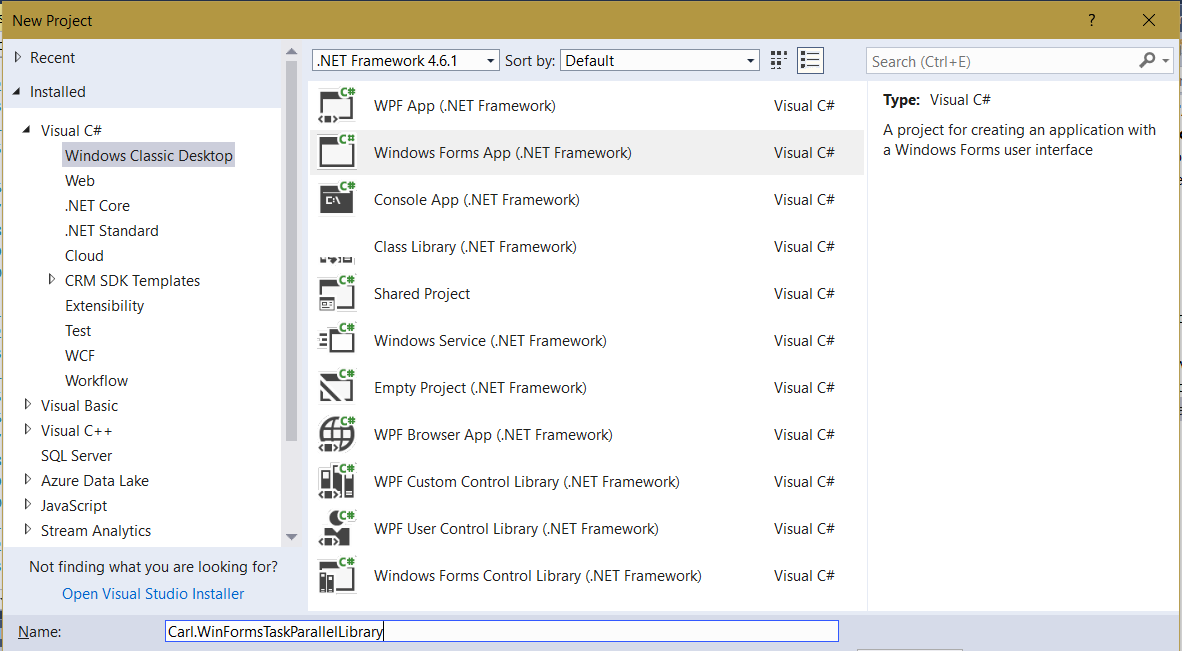
If you try to open old Analysis Services smproj or Reporting Services projects in Visual Studio 2017 you may run into an unsupported error. To install the required templates, go to: https://marketplace.visualstudio.com/items?itemName=ProBITools.MicrosoftAnalysisServicesModelingProjects Select the Download link: Then for Reporting Services go to: https://marketplace.visualstudio.com/items?itemName=ProBITools.MicrosoftReportProjectsforVisualStudio Select Download: You will now be able to create and load analysis services and reporting services projects in Visual Studio:  

Visual Studio 2017 Install

Go to https://www.visualstudio.com/downloads/ and download the version you require. Run the download. I will install Professional. Select the components you would like to install and note the additional components in the Summary when you select a workload: Select Individual Components to install additional software: And Language Packs if required: Select Install on the bottom right: Once completed: Visual Studio will open:  

Installing the Sales Analytics for Dynamics 365 Content Pack

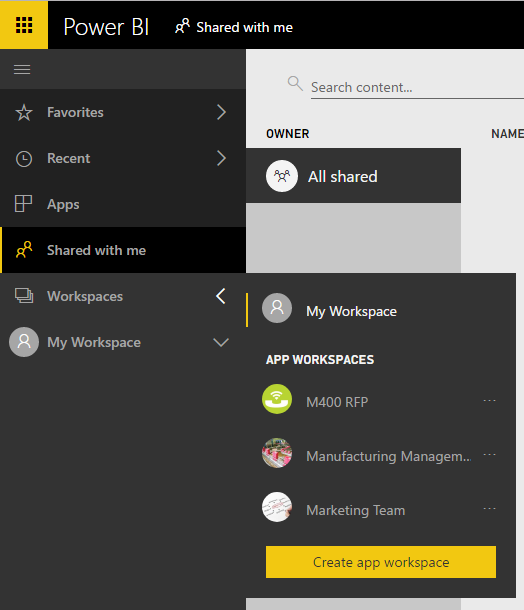
To install the Sales Analytics for Dynamics 365 Content Pack, go through the following steps. Sign in to Power BI at http://powerbi.com: And you will see something like below. Under Services, click Get: This will take you to the AppSource window. Enter Dynamics in the search box and find Sales Analytics for Dynamics 365. Click Get it now: Enter the URL to your Dynamics 365 Service, and the last month of … Continue reading Installing the Sales Analytics for Dynamics 365 Content Pack

USD – Opening Multiple Records

In Unified Service Desk, users can select a Dynamics 365 record, which we can set up to open in its own hosted control. For example, if a user selects a Contact, we can open that contact in a “Contact” hosted control. However, what if we would like to open multiple tabs of Contacts? For example, in USD we have a list of contacts: Selecting one contact opens the contact tab: … Continue reading USD – Opening Multiple Records

Power BI Forecasting and Analytics

Power BI has a forecasting capability that can be applied to line charts. To use the forecasting, create a line chart, for example like the one below showing MSFT stock prices: Under the Visual properties, go to the Analytics tab and you will see Forecast. Add a new forecast: You may see this message below if the data is irregular. In our case, we can filter the data to show … Continue reading Power BI Forecasting and Analytics

Dynamics 365 Plugins – Pre and Post Images

When using Dynamics 365 Plugins, we have the ability to view the record data before and after changes have been made. Here we will go through an example. First, create a new class library in Visual Studio: Add code: [sourcecode language=”csharp”] using System; using System.Collections.Generic; using System.Linq; using System.Text; using System.Threading.Tasks; using Microsoft.Xrm.Sdk; using Microsoft.Xrm.Sdk.Query; namespace Carl.Crm.PrePostImage { public class CheckAccount : IPlugin { public void Execute(IServiceProvider serviceProvider) { Microsoft.Xrm.Sdk.IPluginExecutionContext … Continue reading Dynamics 365 Plugins – Pre and Post Images

Publishing from Excel 2016 to Power BI

You can publish from within Excel 2016 to Power BI. To do this, go through the following steps. In Excel 2016, create a new spreadsheet with data. Then, go to File->Publish: Select Save to Cloud, to save to One Drive for Business: Save the file. Next, Publish to Power BI: You should see a success message: A new dataset will be created (no report or dashboard): Go to Schedule Refresh. You will … Continue reading Publishing from Excel 2016 to Power BI

Dynamics 365 Autosave

Dynamics 365 has an auto-save configuration option. After records are initially saved in Dynamics 365, if a user updates a record, the system will automatically save the record every 30 seconds. This behavior can be disabled by going to system settings:  

Power BI Direct Query Limitation

To use direct query mode, select your supported data source and then DirectQuery: Click OK and you will then be able to select your tables: From here, you can work with the data source by adding new custom columns, measures and calcuated columns and define new relationships from the connected data and also other data sources. You will have a limitation on additional Direct Query data sources. If you add a new … Continue reading Power BI Direct Query Limitation

Getting Data Excel 2016

Excel 2016 has built in BI capabilities. To get data from an external data source, go to the Data tab: Under Get and Transform, select New Query: We will get data from a local SQL database: Enter the database details: Select a table and click Edit: This opens the Query Editor: Click the Advanced Editor to see the connection details: Click OK to close the Query Editor. The data is loaded to the … Continue reading Getting Data Excel 2016