Self-Hosting a WCF Service in a Windows Console App

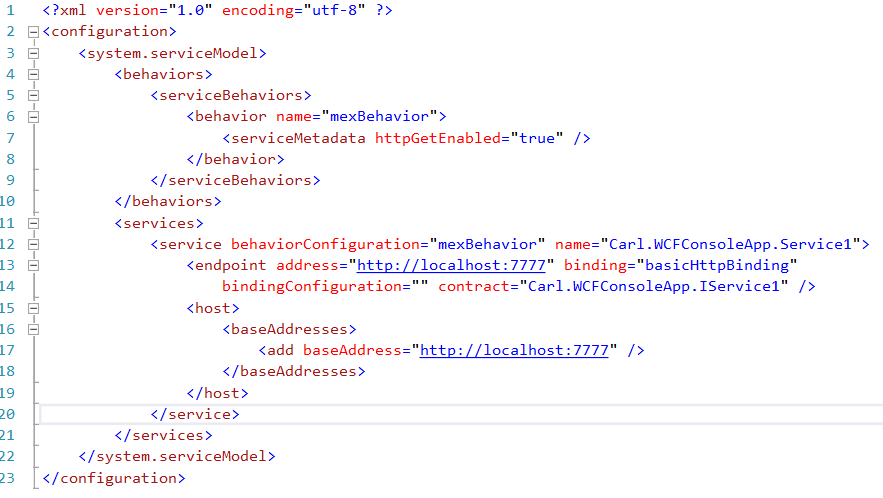
WCF Services can be self-hosted in a Windows console app. Here we will go through how to do this. First, create a new class library project in Visual Studio: Add a new item: Add a new WCF Service: Add some code to GetData in IService.cs: And Service1.cs: Delete any configuration files that are part of the project. We will use the configuration in our calling app. Compile the code. Now, … Continue reading Self-Hosting a WCF Service in a Windows Console App

Console App Exit Codes

Console apps can return exit codes to provide a way to show the app has successfully run. Here we will go through an example of creating an exe that returns an exit code. First, create a new C# console app: Now, to the main method, we will add: static void Main(string[] args) { Environment.ExitCode = 5; } The Environment.ExitCode will set the exit code value. To get the output, we … Continue reading Console App Exit Codes

Creating a Windows Bat File

A batch file in Windows is a way to automate Windows tasks. Batch files contain the extension .bat. To create a batch file, create a new file in a text editor such as Notepad, enter your commands, and save the file with a .bat extension, e.g. tasks.bat. Batch files are useful in that you don’t have to repeat typing a series of Windows commands such as running executables – they … Continue reading Creating a Windows Bat File

Cross-thread operation not valid: Control accessed from a thread other than the thread it was created on

This error occurs when trying to perform operations on a windows control when using threading. Here we will go through the error and how to resolve it. We will create a Windows Forms app in Visual Studio: First, we will create a working simple solution, without using threads. Add a label and a button: Add the code on the clicking of the button to set the label1 to “Hello World”: … Continue reading Cross-thread operation not valid: Control accessed from a thread other than the thread it was created on

WPF XAML Hello World

Here is a simple example to get started with Windows Presentation Foundation (WPF) and Extensible Markup Language (XAML). First, create a new Visual Studio project and select under Windows templates “WPF Application”: You should see something like this in Visual Studio: You will see a default window. Next, let’s add a button to the window. Open Toolbox and drag a Button across. Then, give the button a name: Double click the … Continue reading WPF XAML Hello World

Dynamics 365 RetrieveMultiple Plugin

In Dynamics 365, we have the ability to register a plugin when a retrieve multiple request is executed on an entity. Here we will go through creating a a Retrieve Multiple plugin. First, create a new class library in Visual Studio: Microsoft.Xrm.Sdk In this example, we will run the RetrieveMultiple when Accounts are displayed. We can invoke this by selecting accounts in a view or running an Advanced Find query. … Continue reading Dynamics 365 RetrieveMultiple Plugin

Creating a Basic Dynamics GP SSRS Report

To create a basic Dynamics GP SSRS report, do the following. First, browse out to your SSRS website and go to the relevant Dynamics GP module. In this example we will display customer information, so “Sales”: Select the Report Builder link to open Report Builder: Select the Table or Matrix Wizard: Click Create a New Dataset: Browse out to your company dataset, in this case TWO: Go to Views and … Continue reading Creating a Basic Dynamics GP SSRS Report

Dynamics CRM SQL Reports

Visual Studio SSRS reports can be used to connect to the Dynamics CRM on premise SQL database. We will go through an example of how to do this. First, create a new Visual Studio project. Add a new report using the report wizard. Set the type to Microsoft SQL Server and the connection string to the CRM organization database: Select query builder: Enter a query, e.g. SELECT * FROM filteredaccount We … Continue reading Dynamics CRM SQL Reports

Editing SSRS Reports in Visual Studio

In order to edit SSRS reports in Visual Studio, you will need SQL Server Data Tools installed. First, go to the Microsoft Download website and find the link to your Visual Studio version. For example, for Visual Studio 2012, go to: https://www.microsoft.com/en-us/download/details.aspx?id=36843&wa=wsignin1.0 Once downloaded, install the application: Now, when you open Visual Studio, you will see new Business Intelligence options: Create a new Report Server project. Right click Reports and add an … Continue reading Editing SSRS Reports in Visual Studio

Creating Dynamics CRM Reports with SSRS and Fetch XML

Dynamics CRM comes with pre-packaged reports. You can also create your own reports using SSRS. Here we will go through examples of doing this. Open Visual Studio. Ensure SQL Server Data Tools are installed and the Report Authoring Extensions are installed. Create a new report project: This will create a blank project: Right click Reports and add a new report: This will open the Report Wizard. Click Next: Enter the CRM connection … Continue reading Creating Dynamics CRM Reports with SSRS and Fetch XML