In D365, processes such as Actions, Business Process Flows, Dialogs and Workflows can be created and managed through Settings->Process Center in the Dynamics 365 site map:
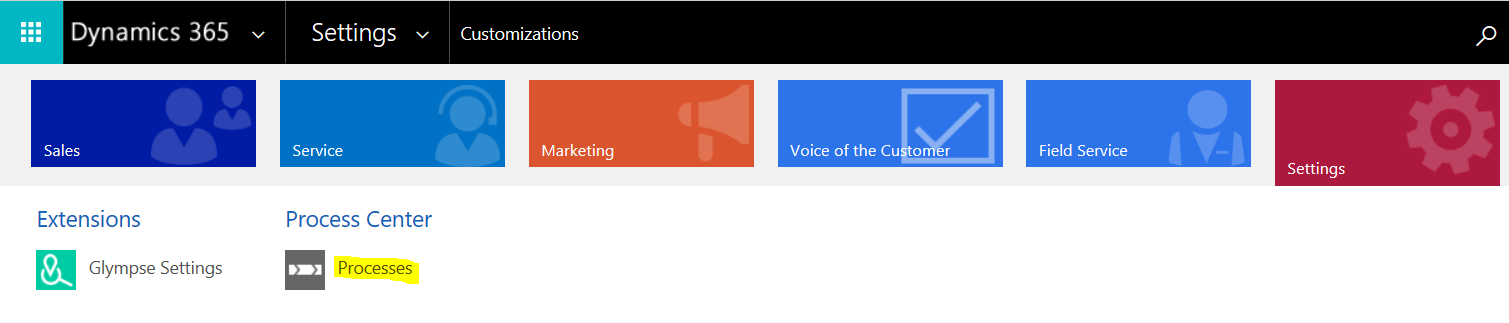
This option has been known to disappear for some organizations. If Process Center is missing, perform the following steps to re-enable the option in the site map.
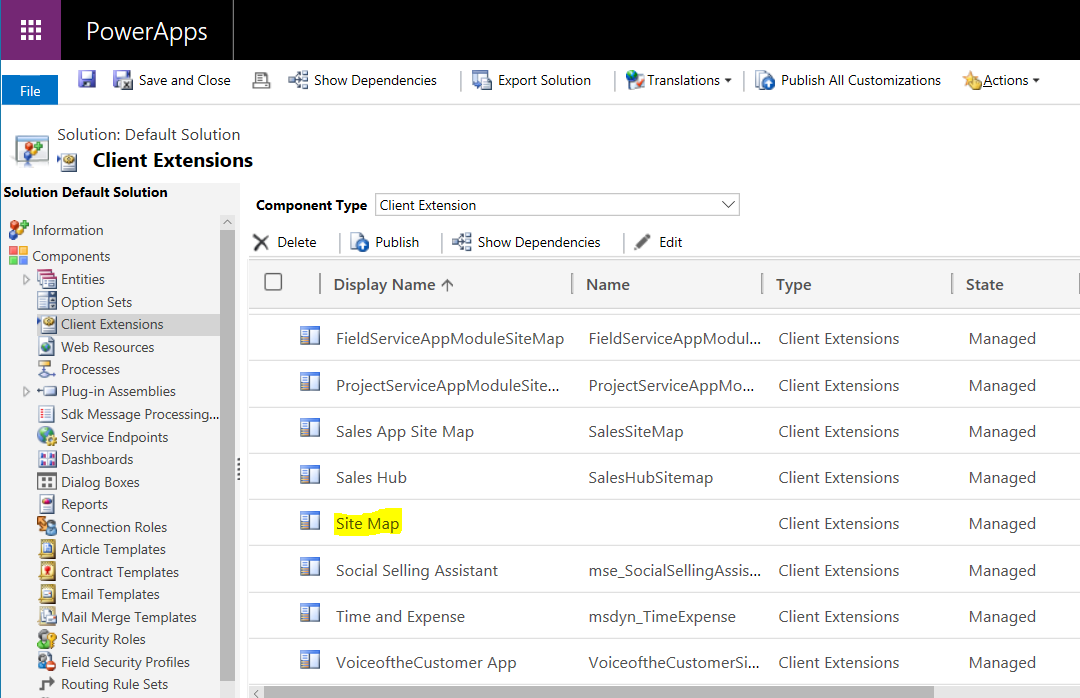
First, go to Settings->Customizations and customize the system. Open Client Extensions->Site Map:
This will open the Site Map Designer:
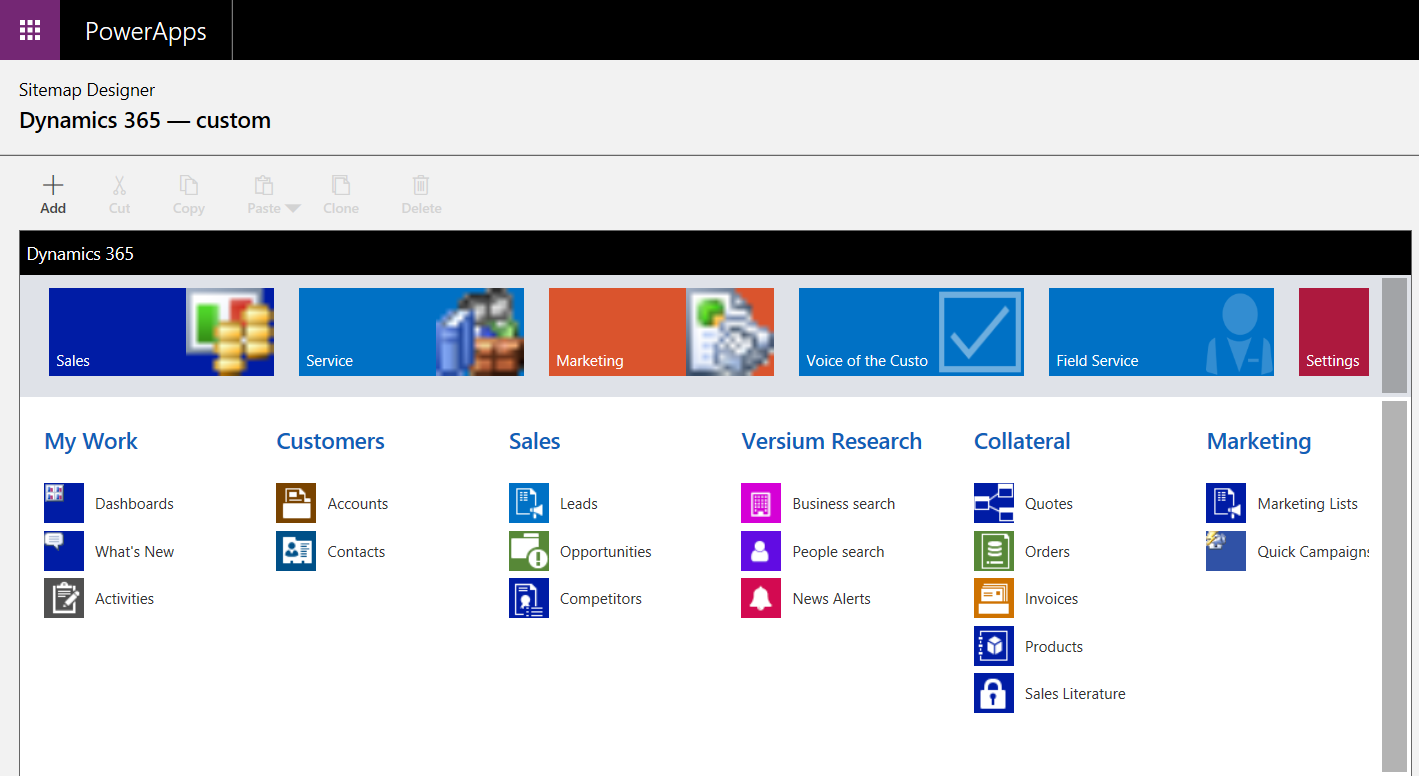
Select Settings:
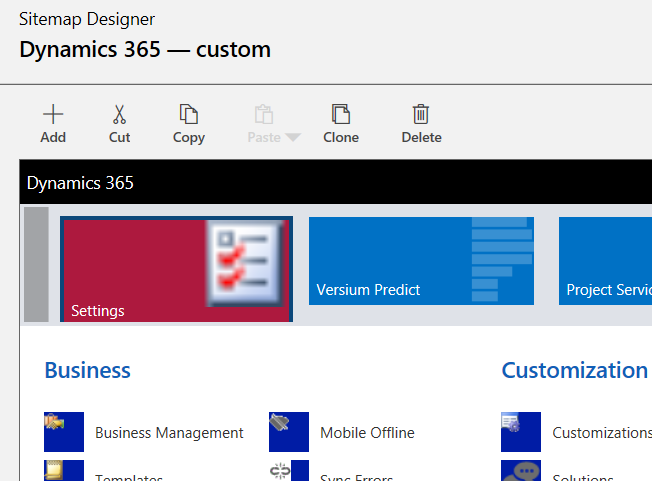
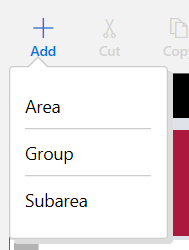
Add->Group:
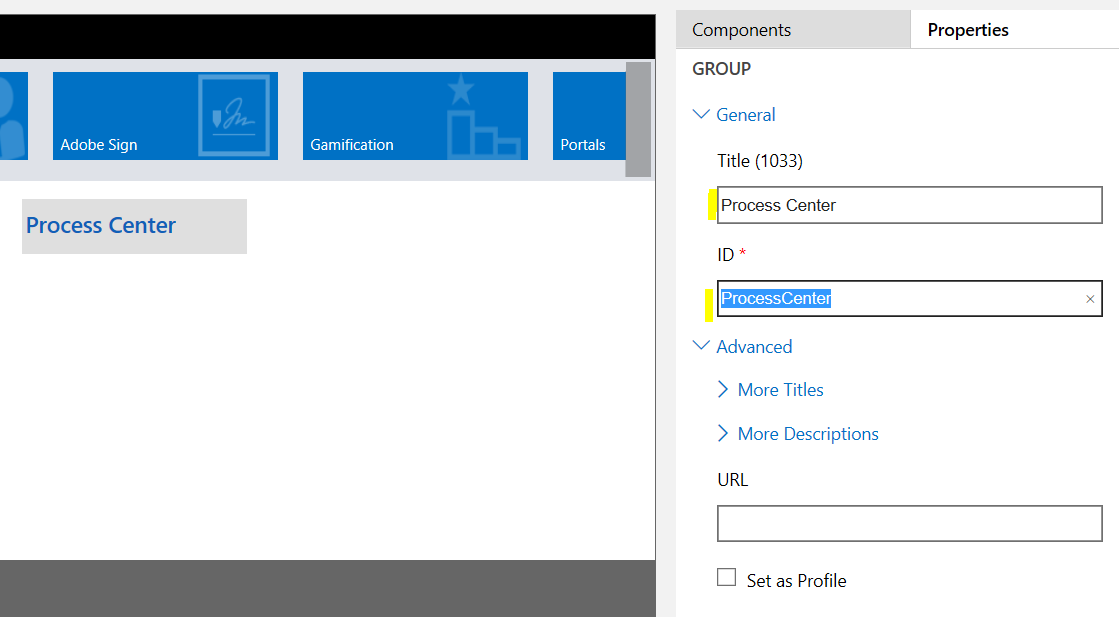
Change the Title and Id to Process Center:
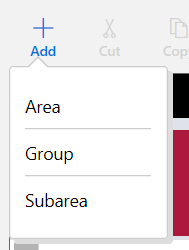
Next add a Subarea:
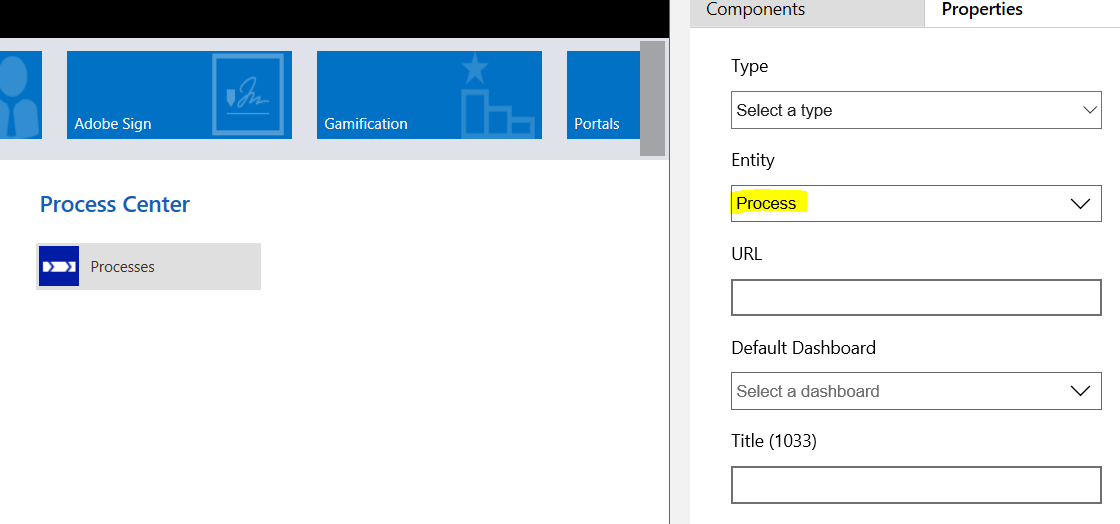
Change the Entity to “Process”:
Click Save and Publish:
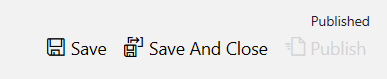
Refresh your Dynamics 365 page. You will now be able to see the Process Center in your Site Map.
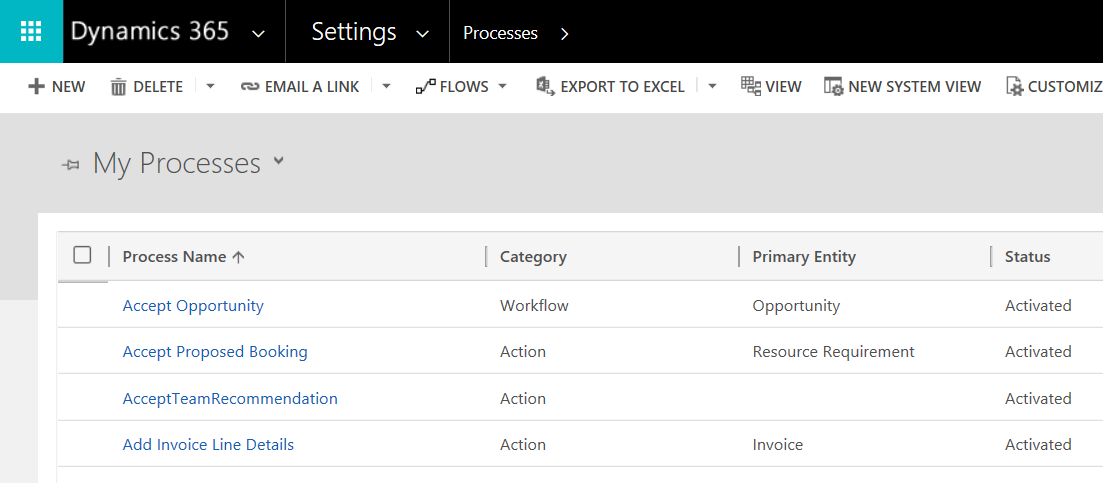
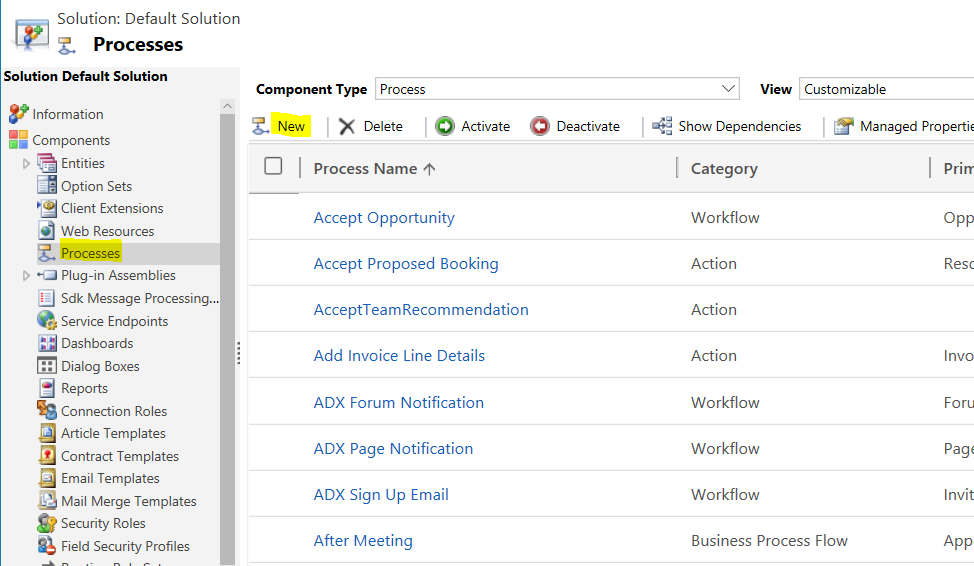
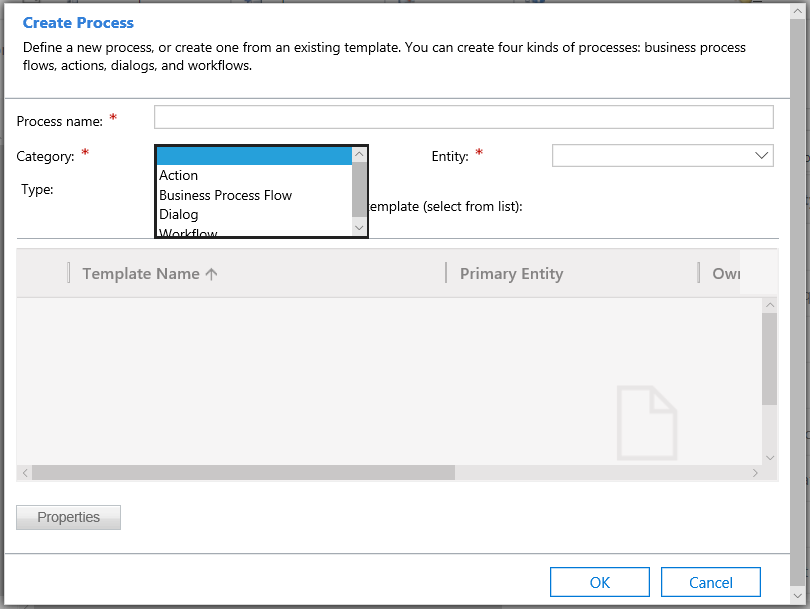
Note, you can also create and view processes through Customizations:

Explore AI, agents & Microsoft technology.
I share practical ideas, tutorials, and videos about AI, AI agents, Microsoft technologies, and the Power Platform.
Subscribe on YouTube →
Carl,
You rule.
Matt.