In this post we will go through installing Field Service for Dynamics 365 Online.
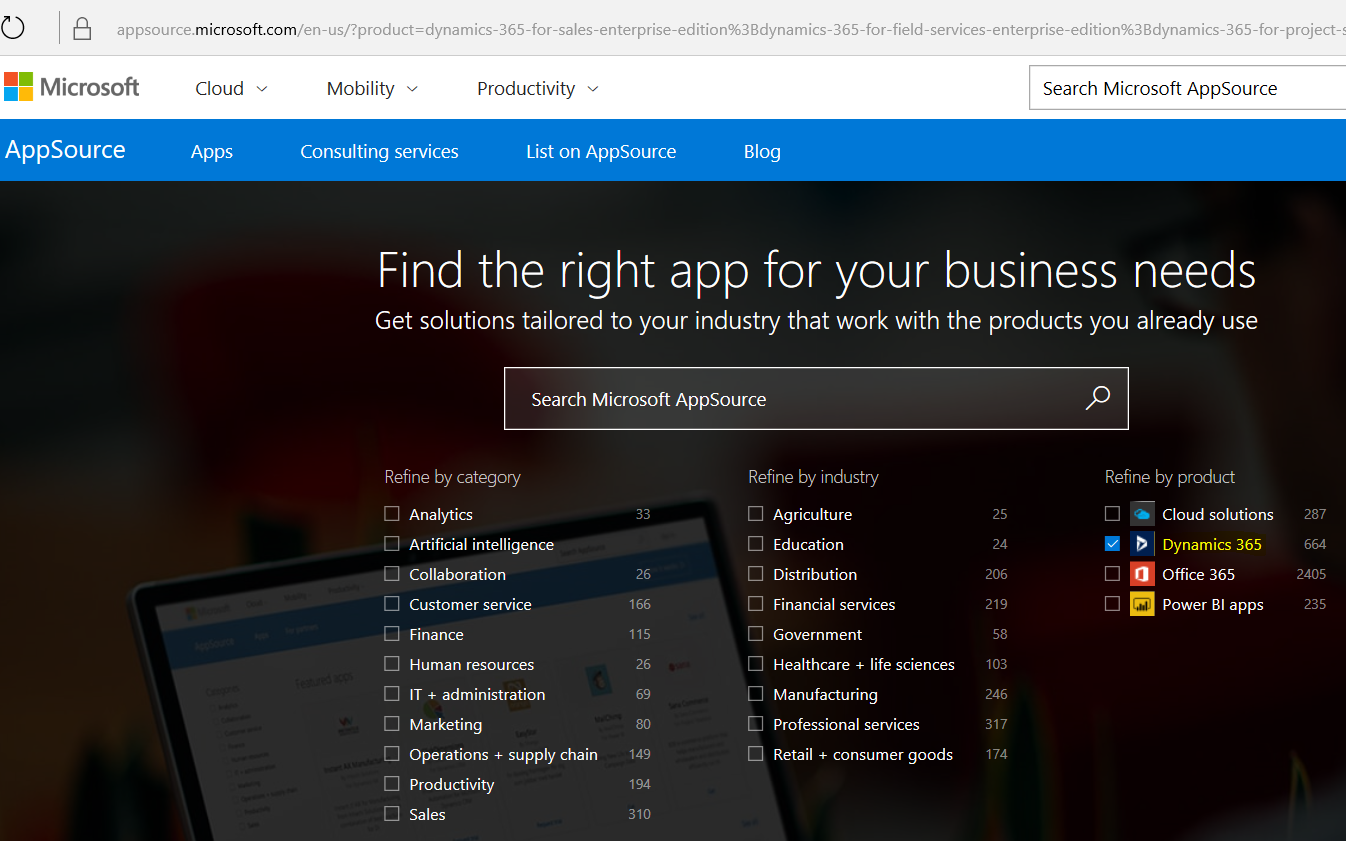
Go to App Source and refine by product Dynamics 365:
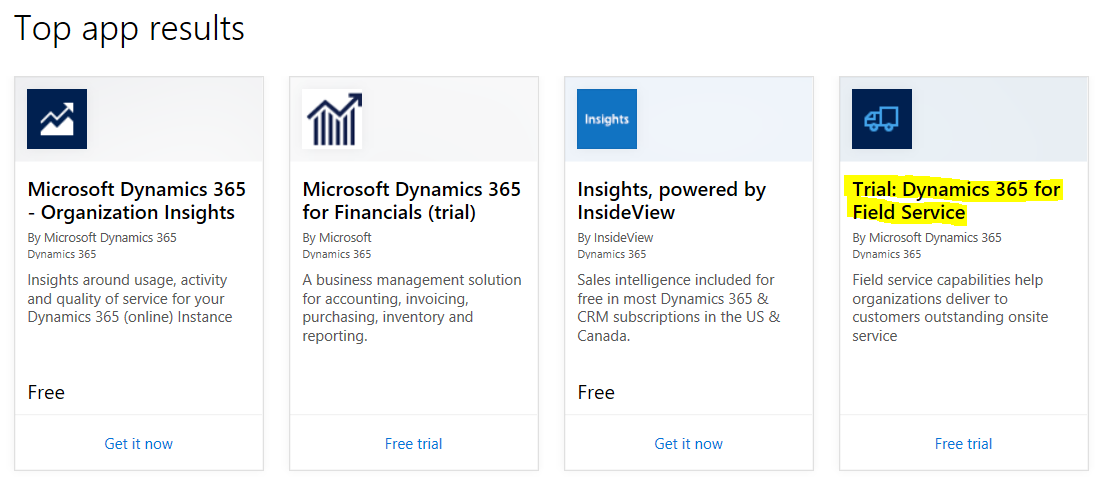
Scroll down and you will see Dynamics 365 for Field Service:
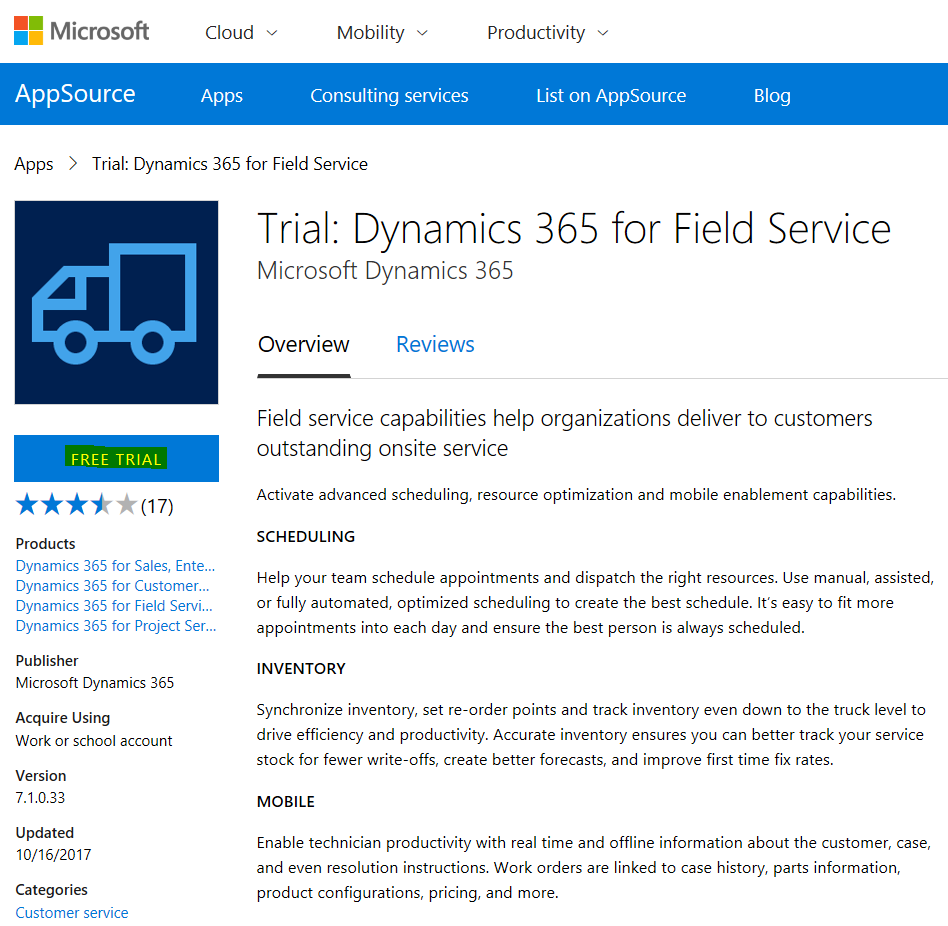
Click on Free Trial:
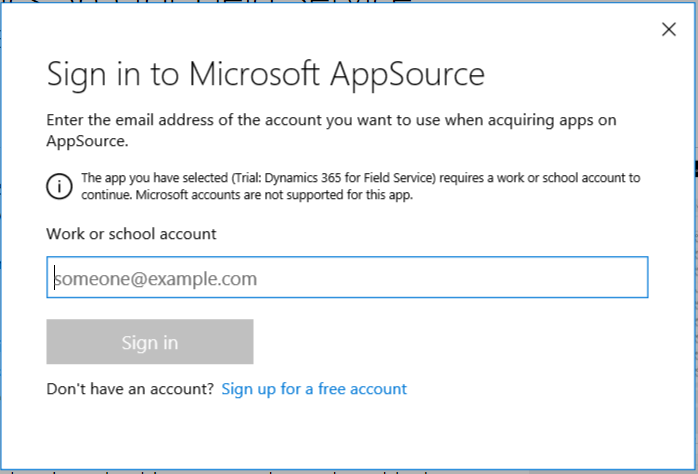
You may be prompted to enter your email address:
Click Continue:
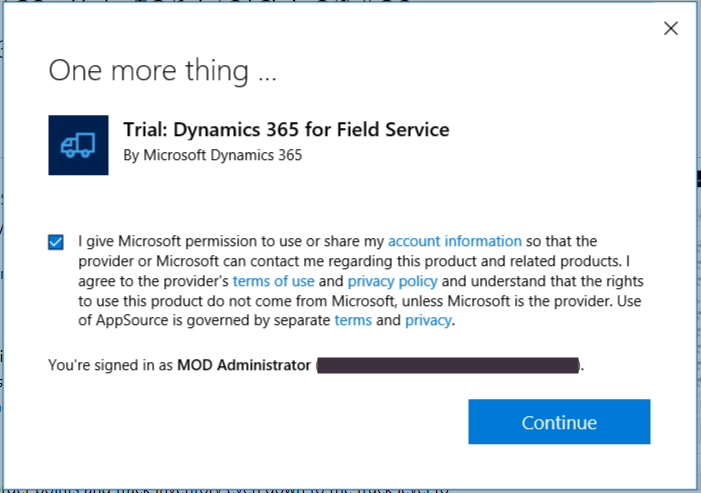
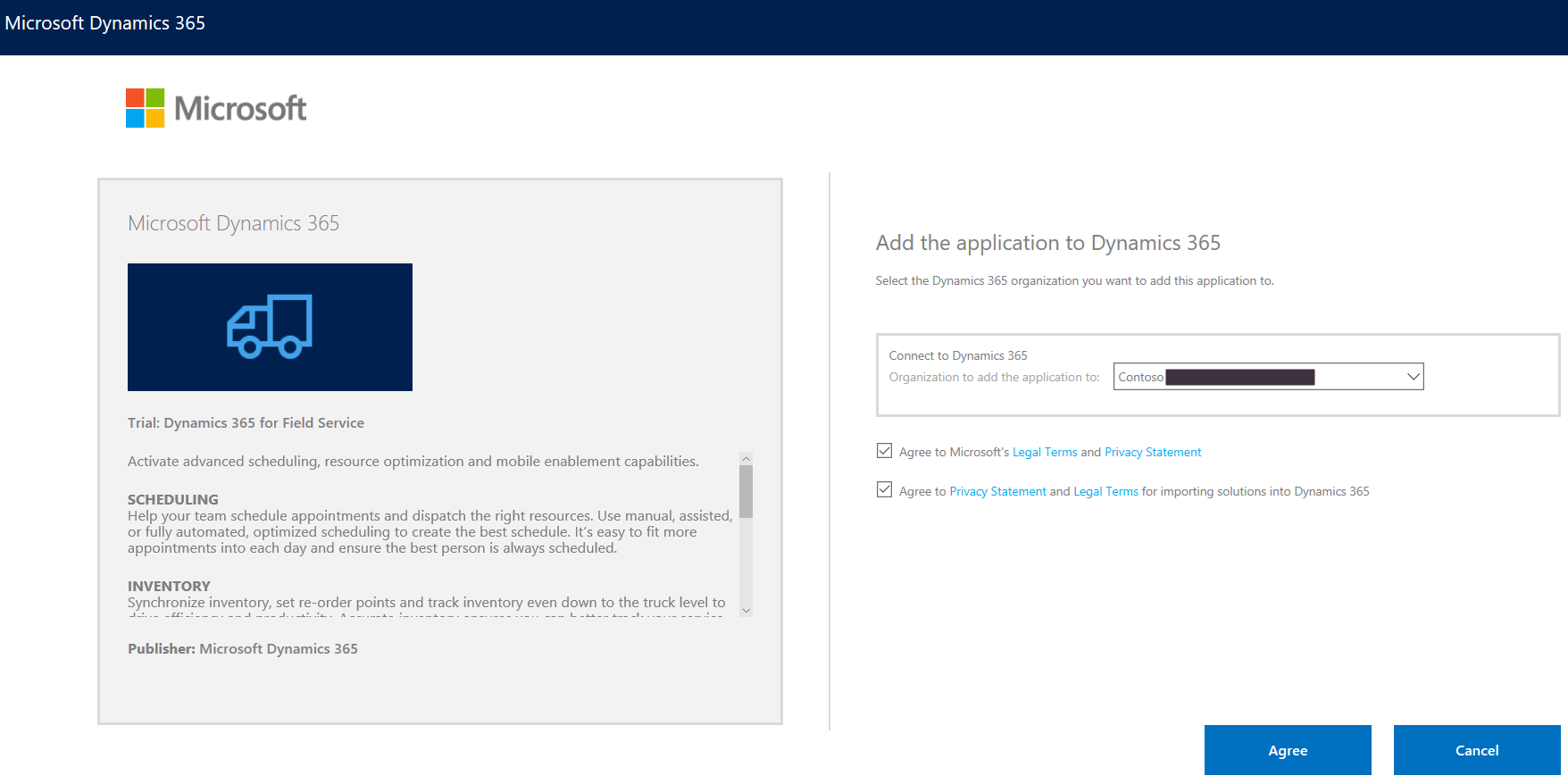
Click to Agree:
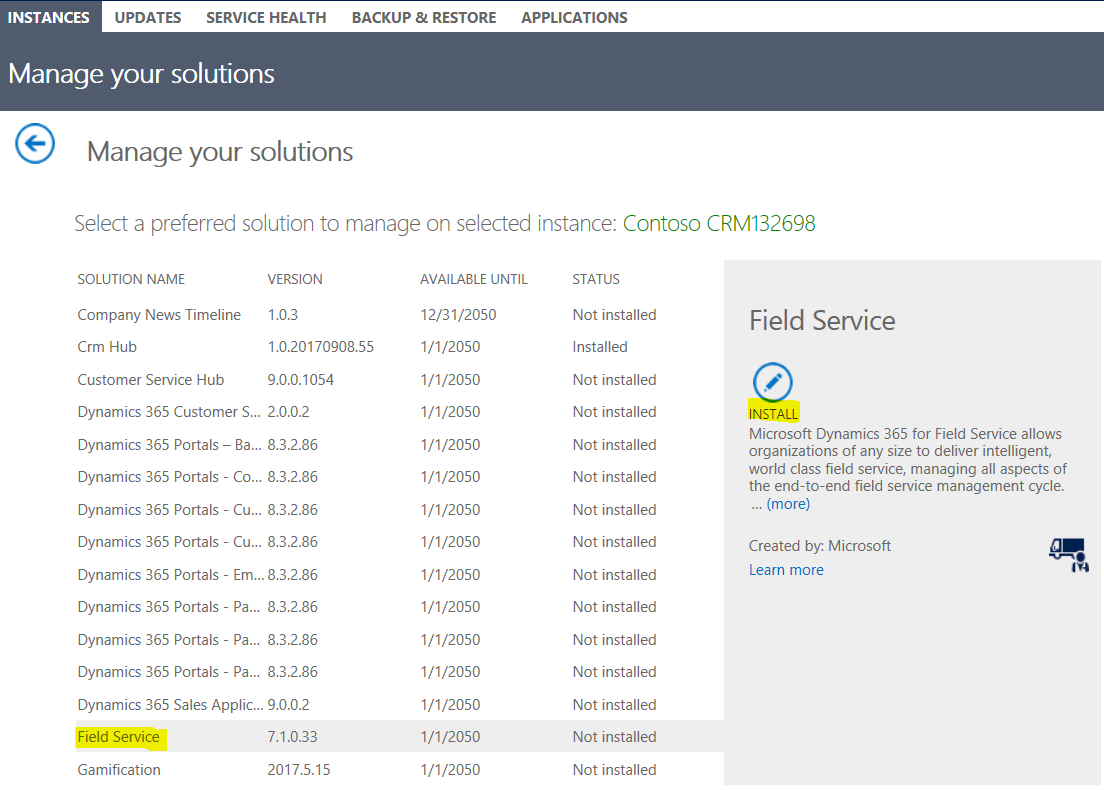
Now in the Administrator Portal you will see Field Service. Click Install:
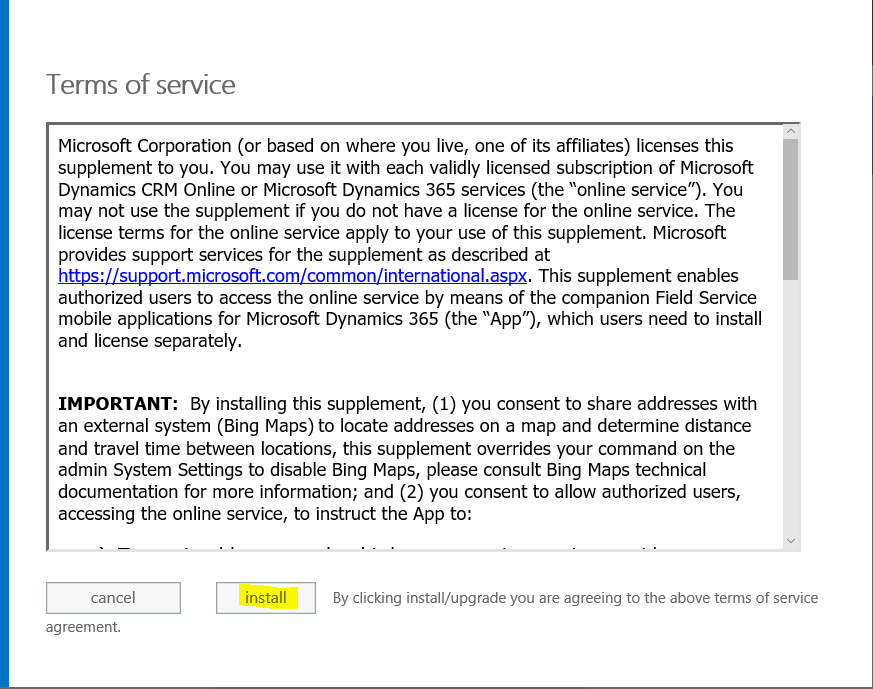
And Install:
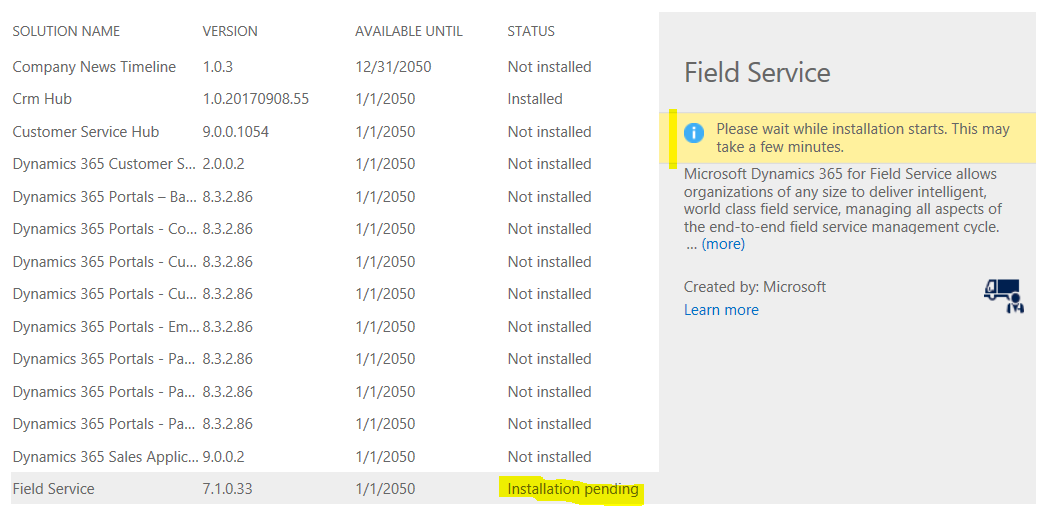
The status will change to Installation pending:
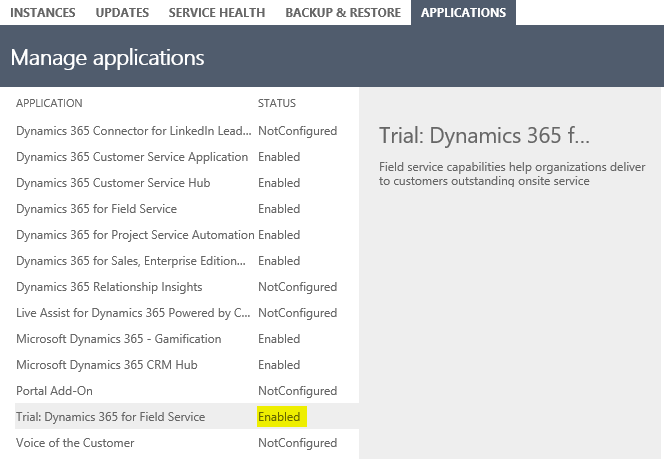
Once complete, the status will change to Enabled:
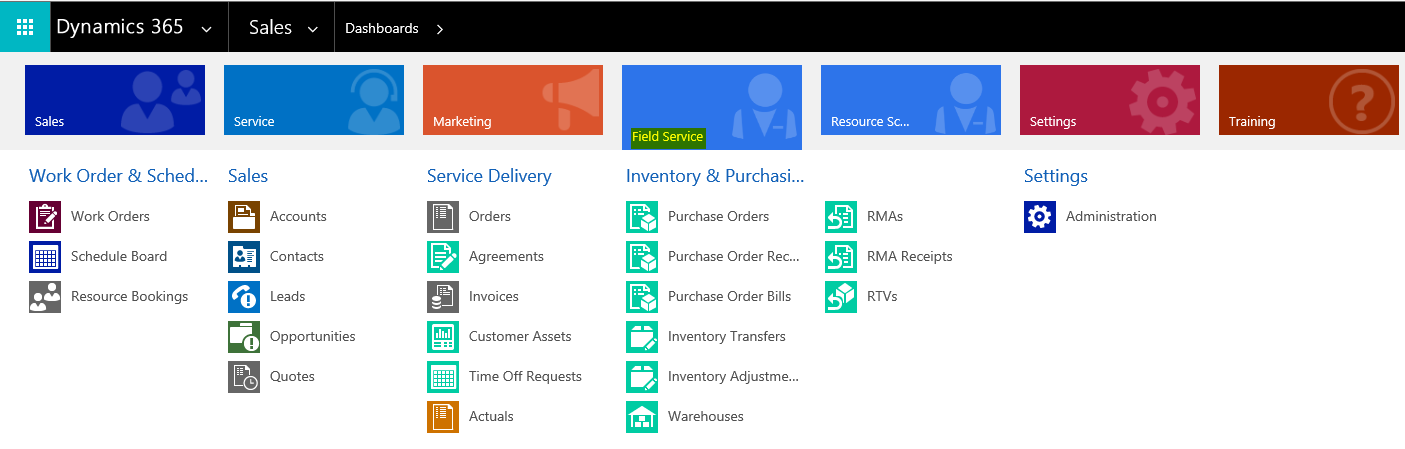
And you will see Field Service installed in the Dynamics 365 menu:

Keep learning. Keep building.
Explore AI, agents & Microsoft technology.
I share practical ideas, tutorials, and videos about AI, AI agents, Microsoft technologies, and the Power Platform.
Subscribe on YouTube →Carl de Souza Enterprise Architect at Microsoft · AI Technology Expert
