In this post, we will look at how to easily install multiple XrmToolbox tools at once. We will also look at how XrmToolbox color codes each line in the tools library.
When you log into XrmToolbox, you may see the message “Updates are available for your tools”:
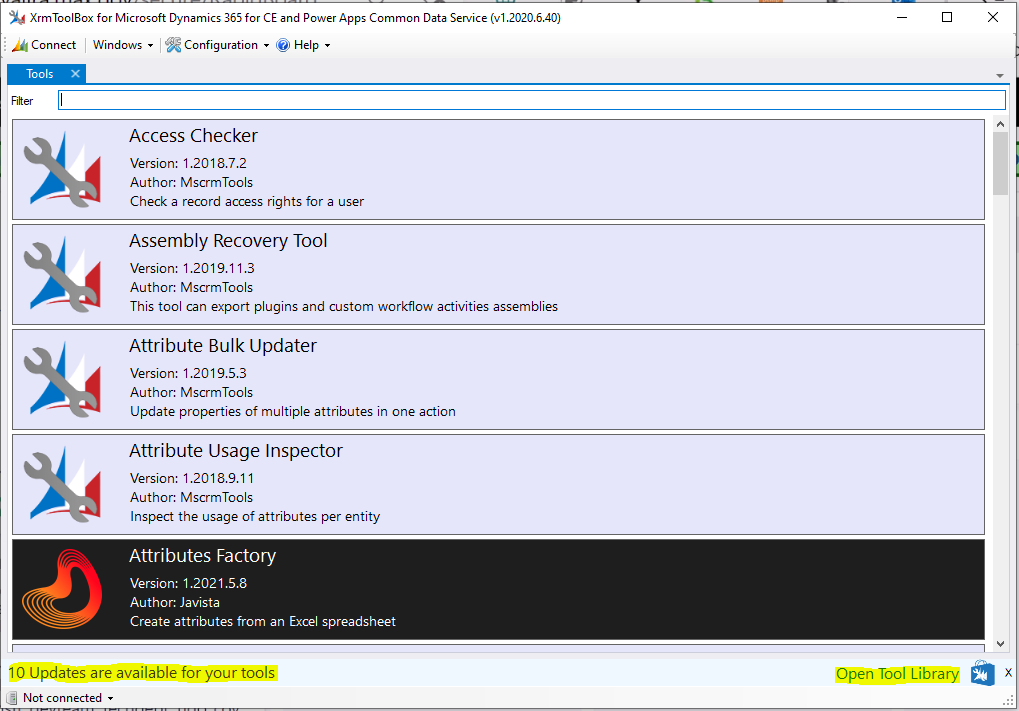
On the right, you will see the link to Open Tool Library. Selecting this opens the tool library like below, however it displays all tools in alphabetical order:
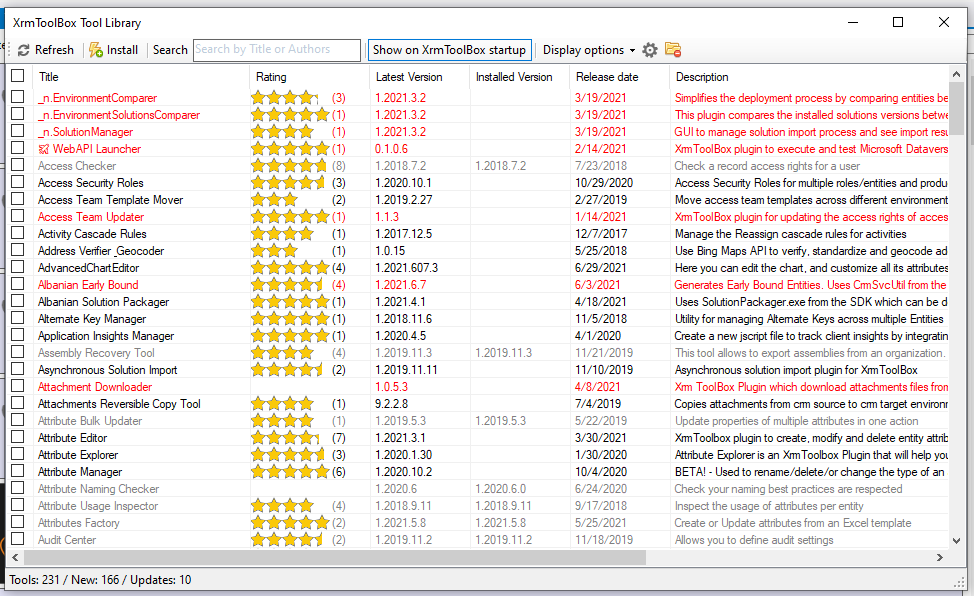
Scrolling to the right, we see the Action column:
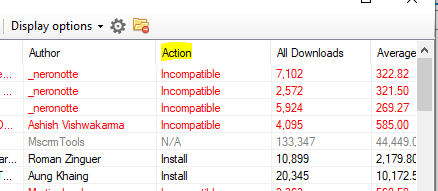
If we click to sort by Action, we can see XrmtoolBox color codes each line based on the action available:
- Red = Incompatible
- Black = Install (i.e. currently not installed in your environment)
- Grey = N/A (installed but no updates)
- Blue = Update
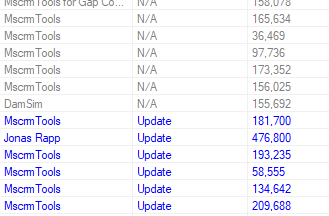
To update all the tools that require an update, simply select all of the blue ones:
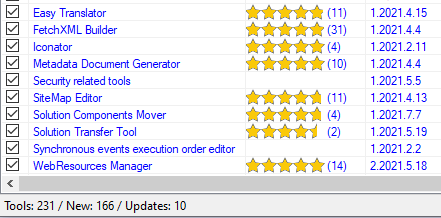
And click Install:

This will download each of the tools:

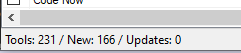
You may be prompted to restart XrmToolbox, and once complete, you should not see the Updates message any more:

Explore AI, agents & Microsoft technology.
I share practical ideas, tutorials, and videos about AI, AI agents, Microsoft technologies, and the Power Platform.
Subscribe on YouTube →