You can connect to Dynamics CRM/Dynamics 365 through the Postman application.
To do so, first create a new application in Azure.
Next, open Postman. I use the Chrome version, accessed in Chrome by: chrome://apps
In Chrome, select OAuth 2.0 as the authentication type:
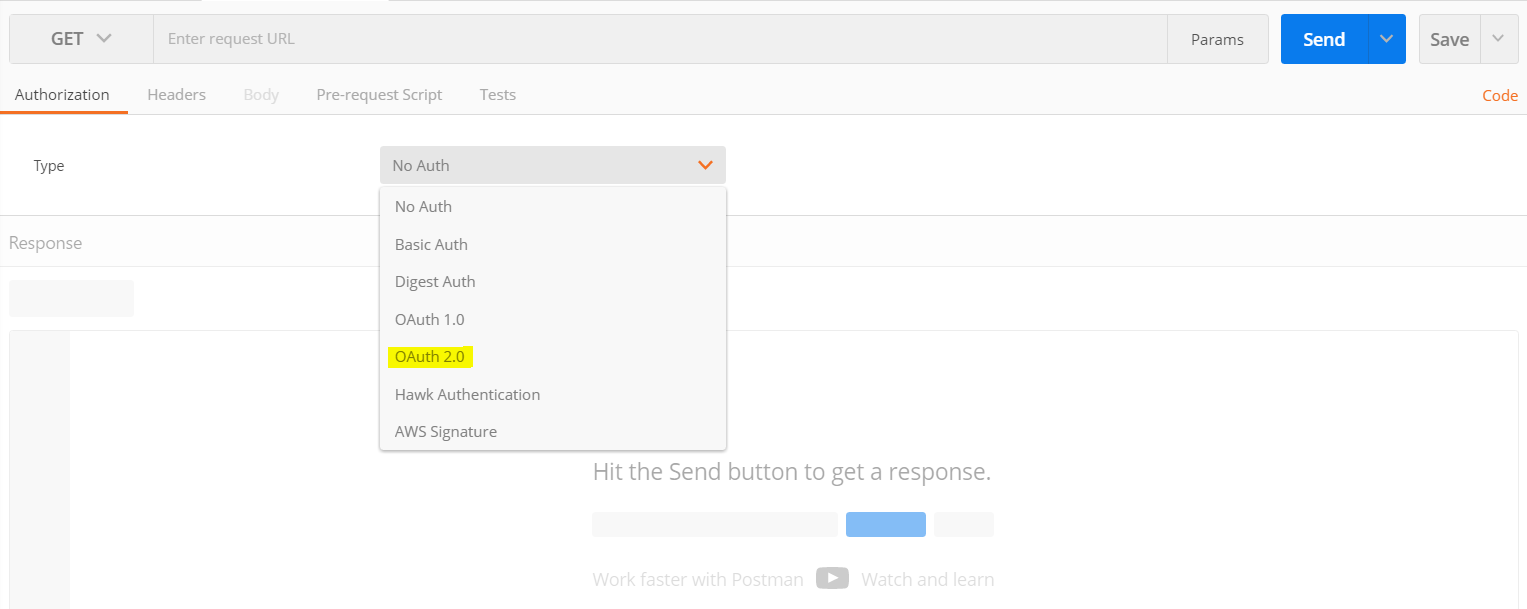
Click Get New Access Token:

This opens the window below:
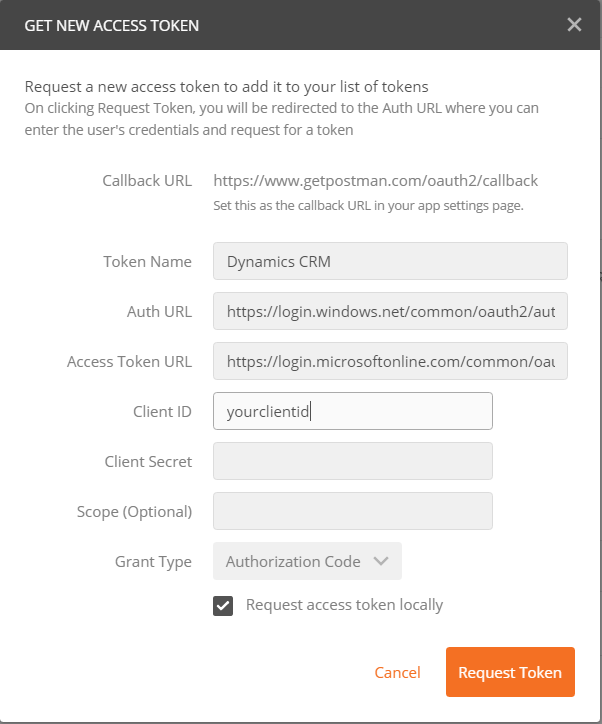
Enter the information as follows:
Auth URL: https://login.windows.net/common/oauth2/authorize?resource=https://yourcrminstance.crm.dynamics.com
Auth Token URL: https://login.microsoftonline.com/common/oauth2/token
Client Id: Your Id From Azure as described in the link above
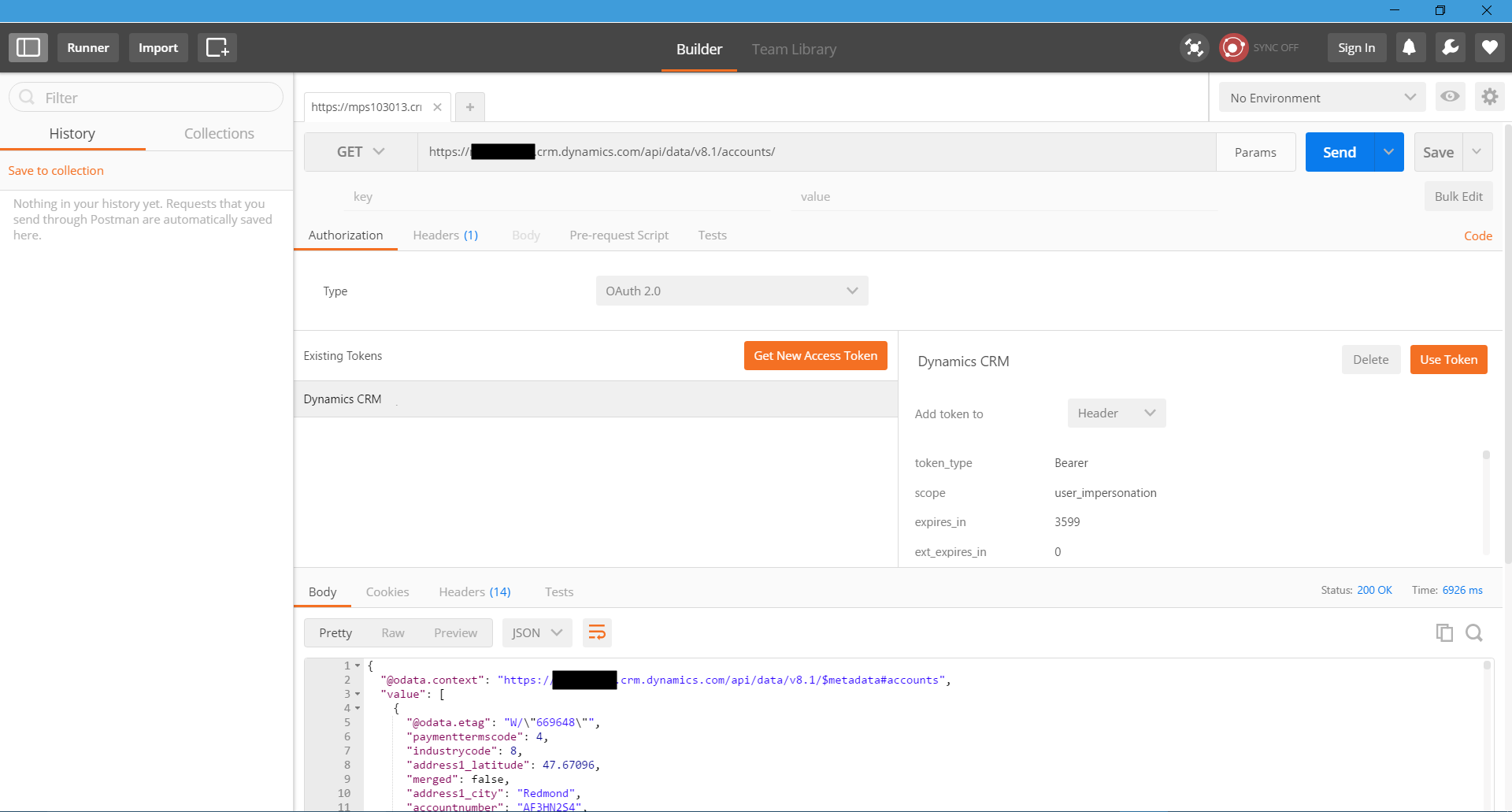
Let’s do an example where we will perform a GET operation on accounts.
Enter the URL https://yourinstance.crm.dynamics.com/api/data/v8.1/accounts/
When you have the access token, select “Use Token” with Header selected. This will add the token to the header. Press Send. You will see in the body the JSON returned with a list of accounts:

Explore AI, agents & Microsoft technology.
I share practical ideas, tutorials, and videos about AI, AI agents, Microsoft technologies, and the Power Platform.
Subscribe on YouTube →
How can we connect to CRM on-premise using Postman tool?
[…] Post by Carl de Souza […]
How to make a Post request to CRM from Postman?
I’m getting 401 unauthorized error. Need help.
HI,
Would you please show how to use RetrievePrincipalAccessInfo function?
Thank you!