Dynamics 365 has a utility in the SDK that performs the migration of configuration from one environment to another. It is called the Configuration Migration tool.
To use it, browse to the CRM SDK to the ConfigurationMigration folder:
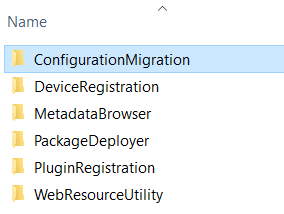
Run the DataMigrationUtility.exe file:

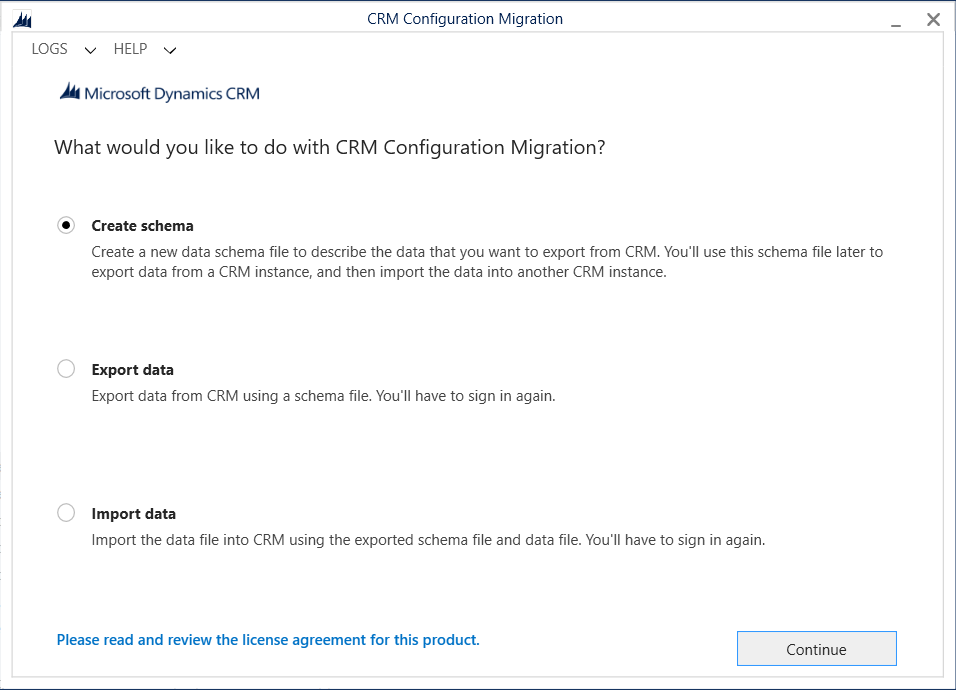
Select to create a schema:
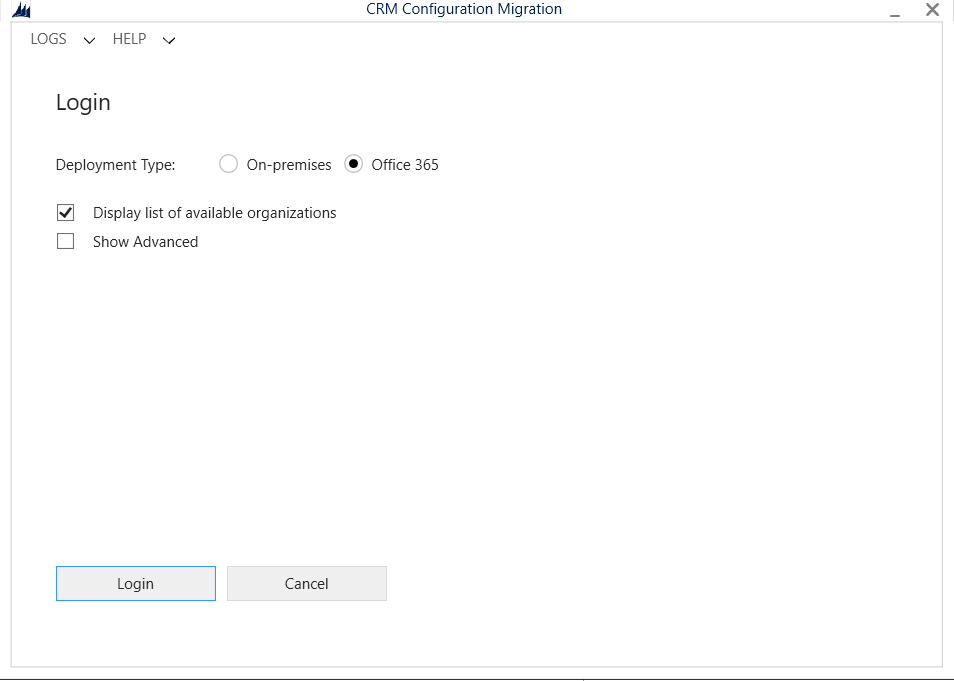
Enter your login information:
Select the solution and which entities you want to add to the schema:
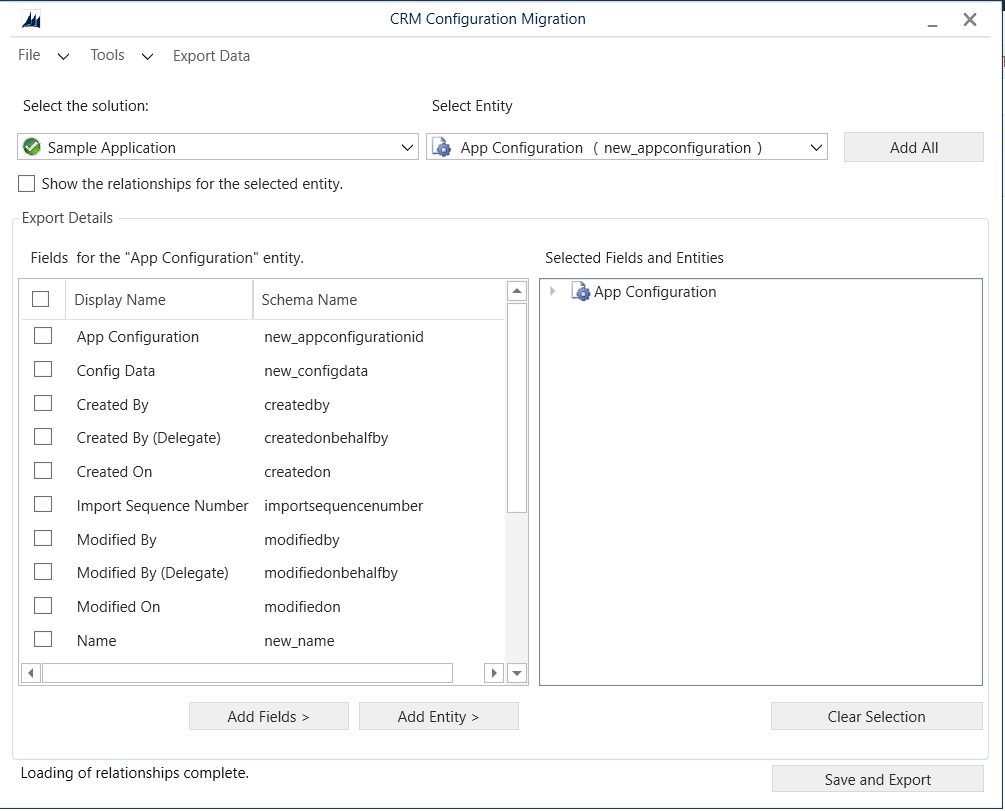
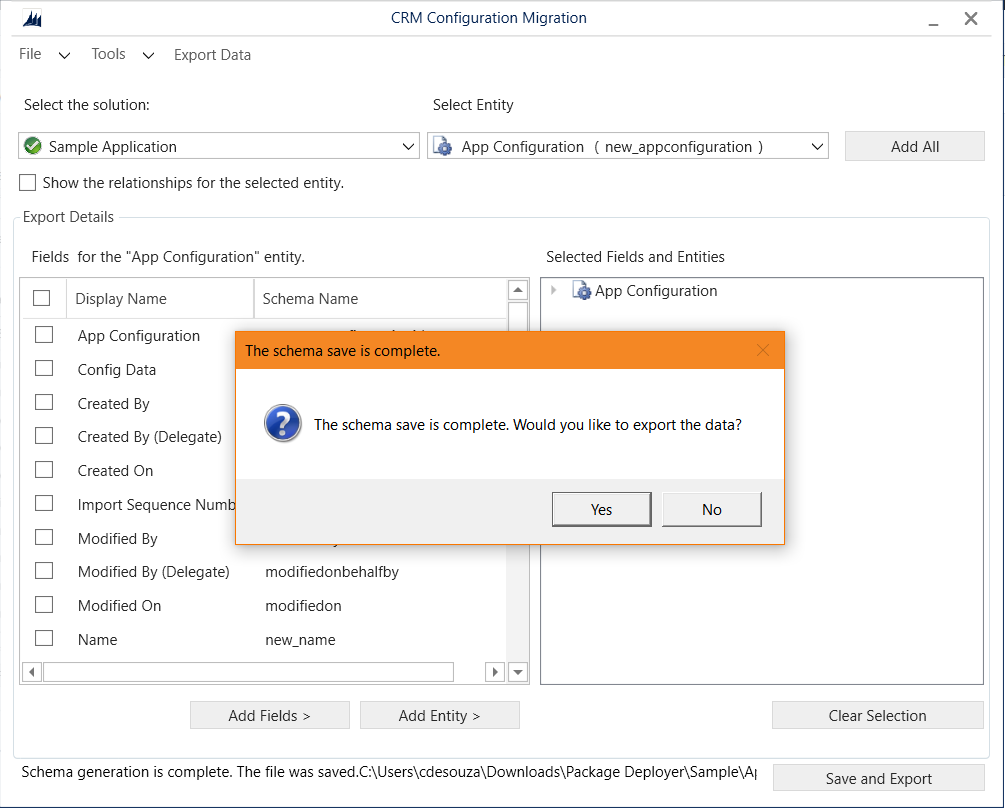
Press Save and Export. This will create a schema.xml file that contains the entity metadata:
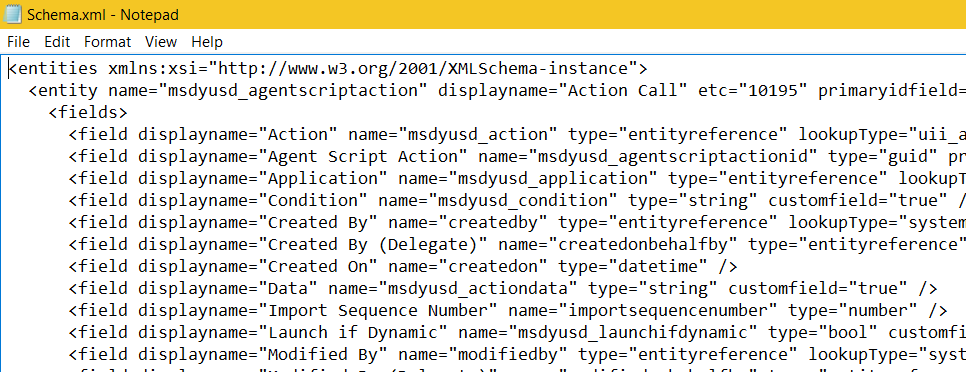
Next, select to export the data:
Note if you want to use the standard USD configuration, you can skip the above step and use the schema file located in the UII SDK at UII\USD Developer Assets\USD Configuration Tool Schema\USDDefaultSchema.xml.

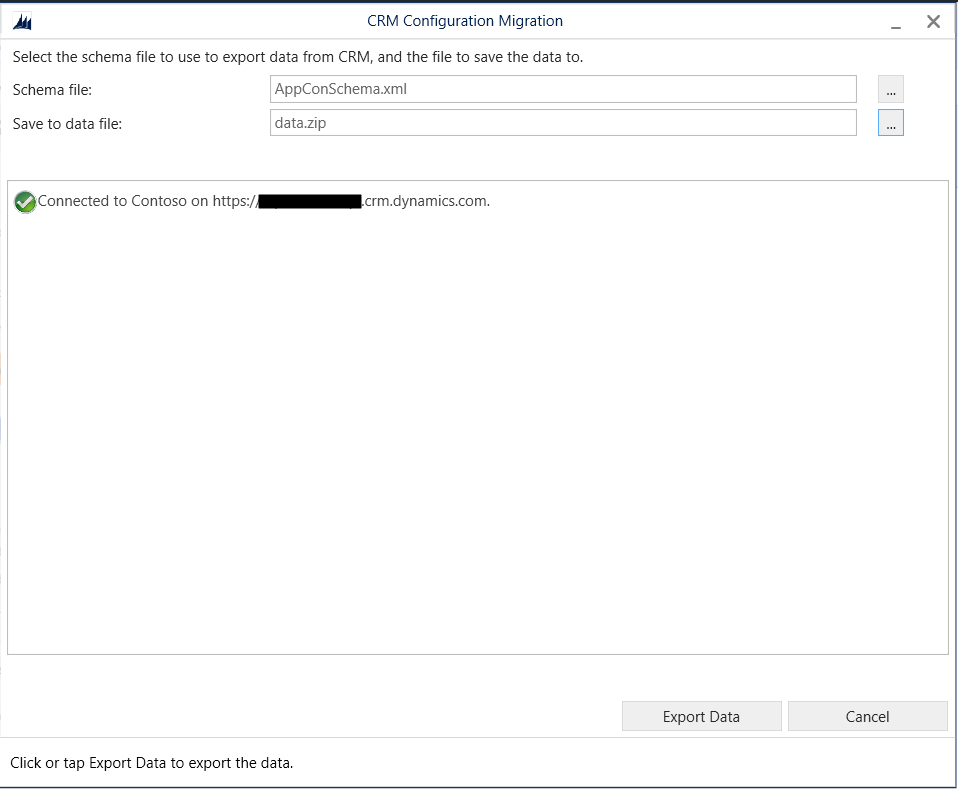
In the Configuration Migration tool, select the schema file (created above or the USD Default from UII). Select a location for the data.zip file that will be created.
Click Export Data:
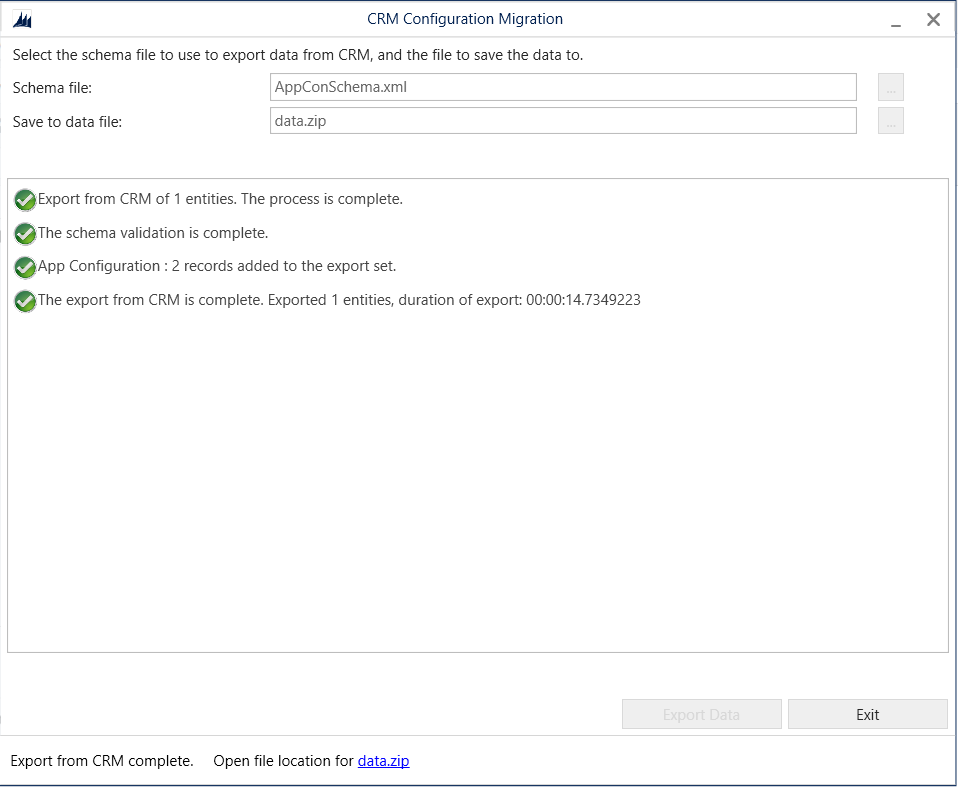
Wait for export complete:
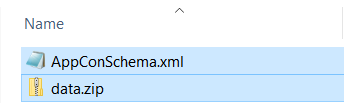
2 files will be created:
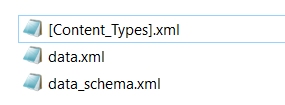
The ZIP file contains:
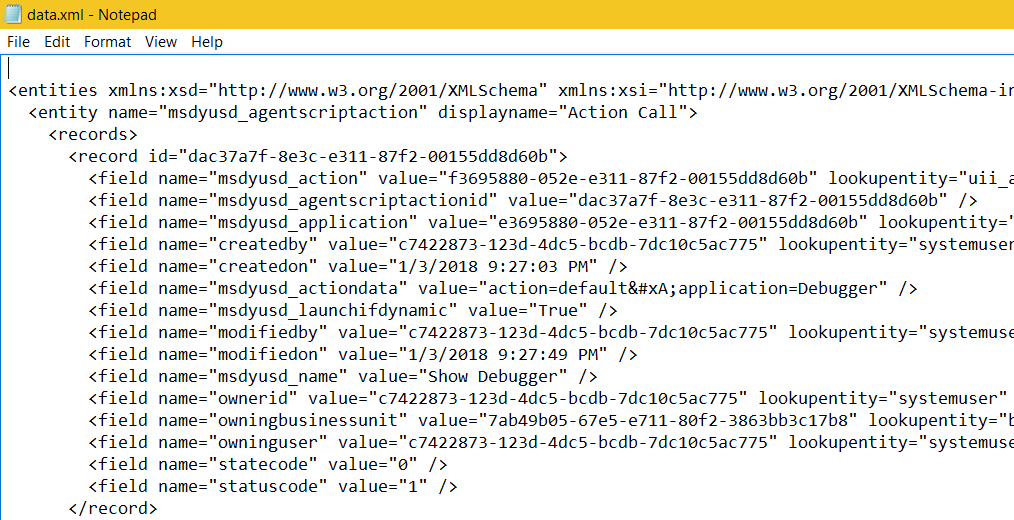
Data.xml:
To import a configuration, you can select the data.zip package and import into a destination organization using the same method.
Select Import and sign in.
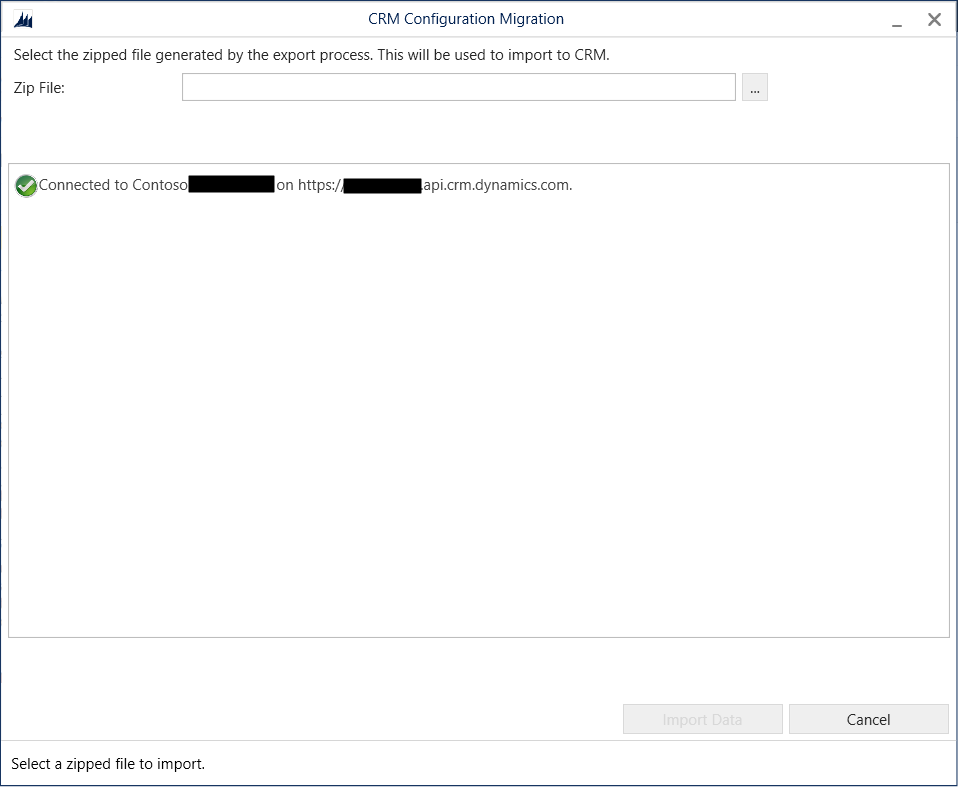
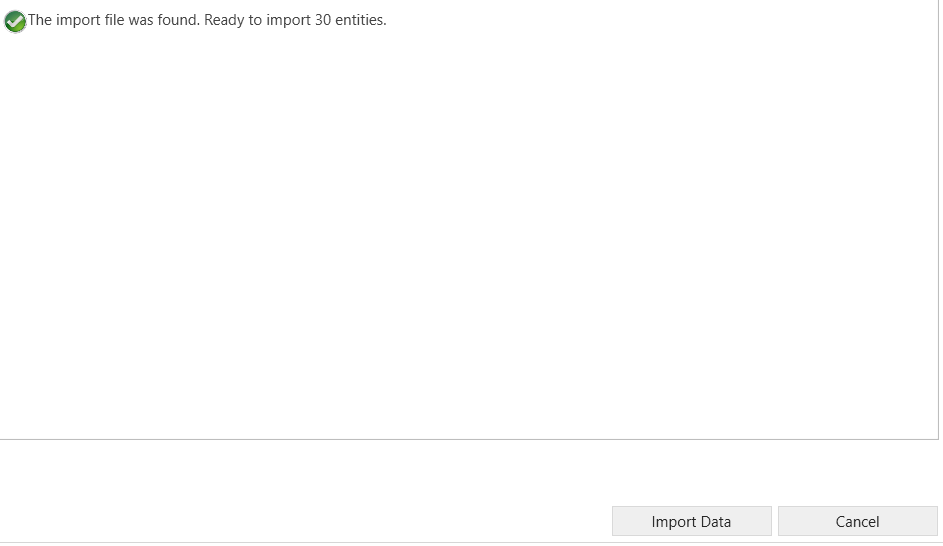
Select to Import:

Explore AI, agents & Microsoft technology.
I share practical ideas, tutorials, and videos about AI, AI agents, Microsoft technologies, and the Power Platform.
Subscribe on YouTube →
Hi Carl,
You don’t have the schema file still available you can share by anychance?
Thanks in advance
Charles