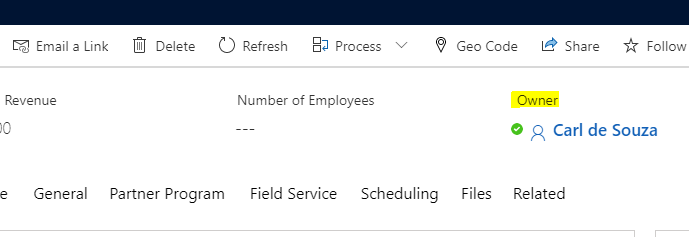
In Dynamics 365 / PowerApps, Skype / Teams statuses can be displayed next to the names of users in fields. Below we can see the status as green (available):
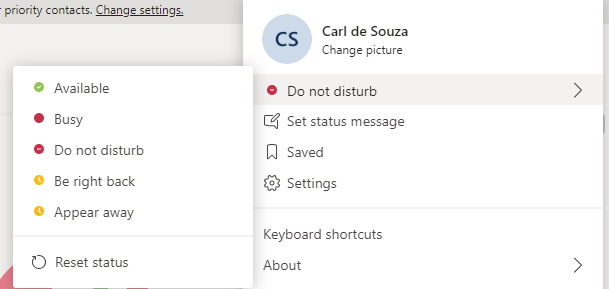
And if the user changes the status to Do not Disturb (changing below in Teams):
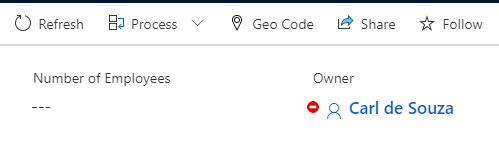
We see the status updated automatically on the record:
To enable/disable the status, go to the admin center at https://admin.powerplatform.microsoft.com/ and change the Skype presence:
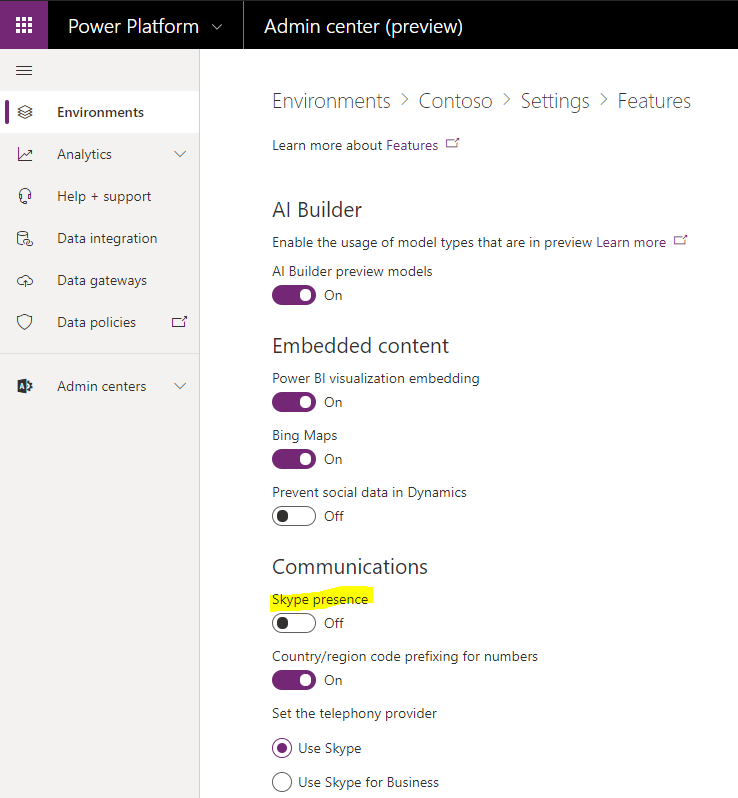
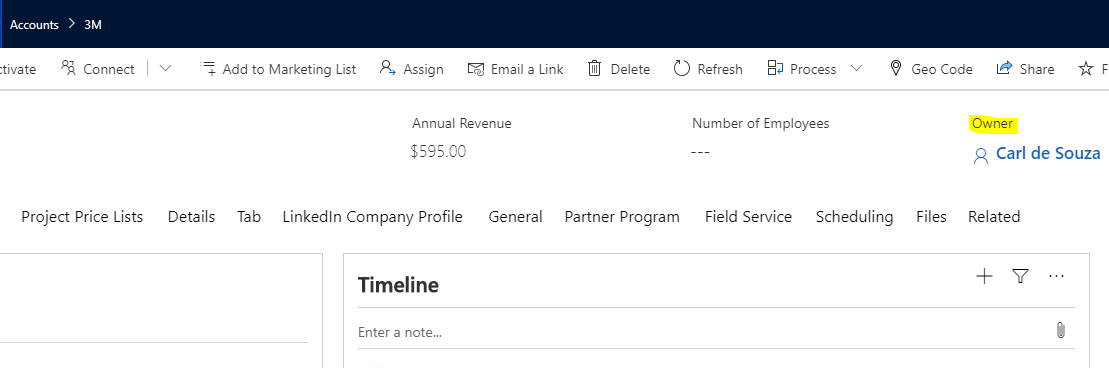
We see now the field does not have a status icon:

Keep learning. Keep building.
Explore AI, agents & Microsoft technology.
I share practical ideas, tutorials, and videos about AI, AI agents, Microsoft technologies, and the Power Platform.
Subscribe on YouTube →Carl de Souza Enterprise Architect at Microsoft · AI Technology Expert

Can you please explain how to do the same for teams?
Looks like this can no longer be disabled (skype/teams presence), and has been removed from the form above.
Hi,
I am not able to find the flag for the feature anymore, did they change the location?
Thank you!
Francesca