In Dynamics 365, you can set the logo and colors of the organization through “themes”. To access themes, go to Settings->Customizations:
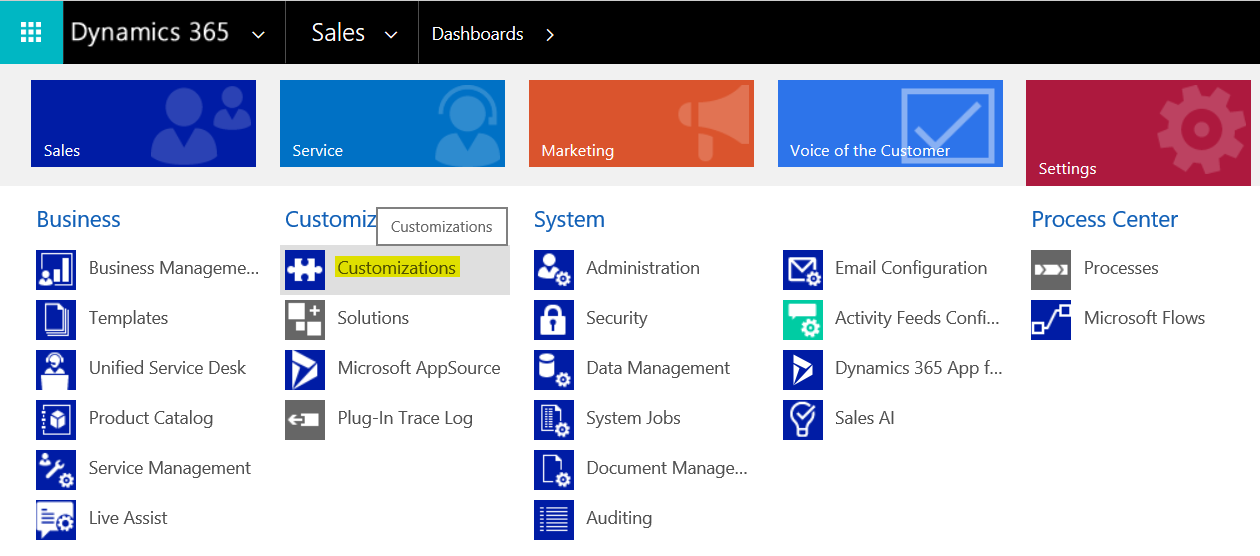
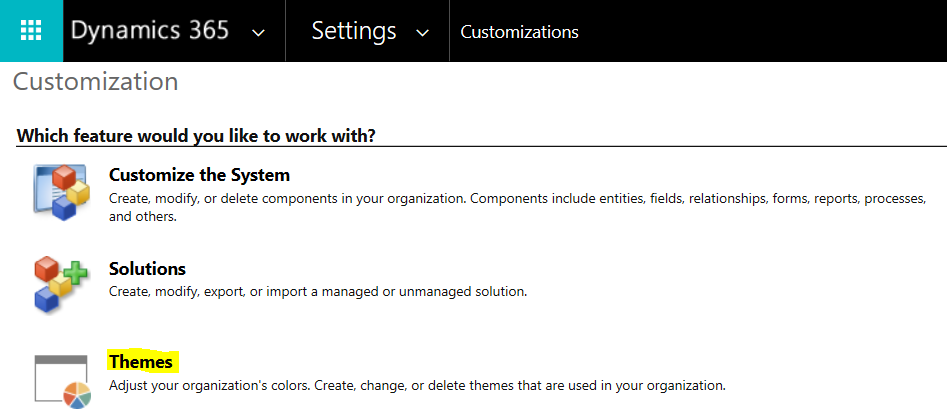
Select Themes:
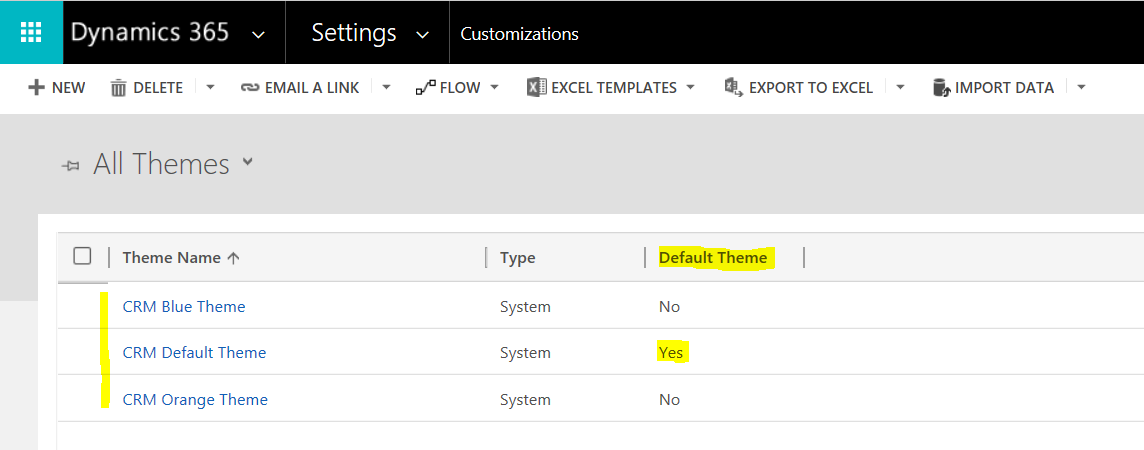
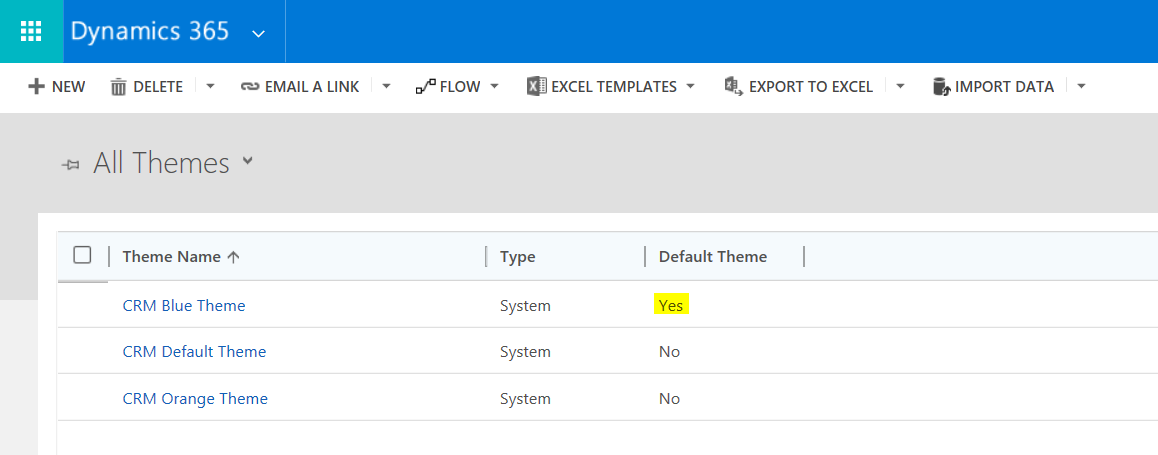
Here you will see any existing themes in the system, as well as what is marked as the current “default” theme:
To set a theme, select it and press “Publish Theme”:
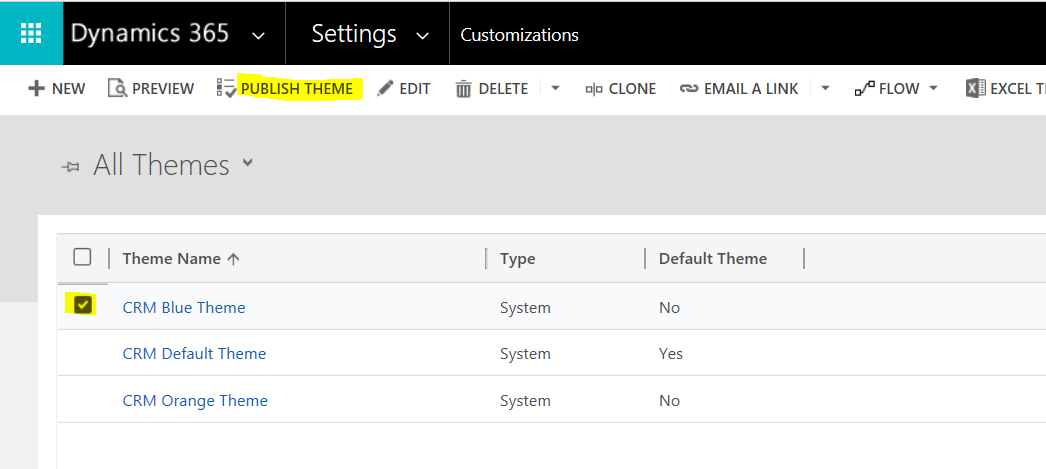
The system will then be updated to use that theme. Note the color differences in using the Blue theme:
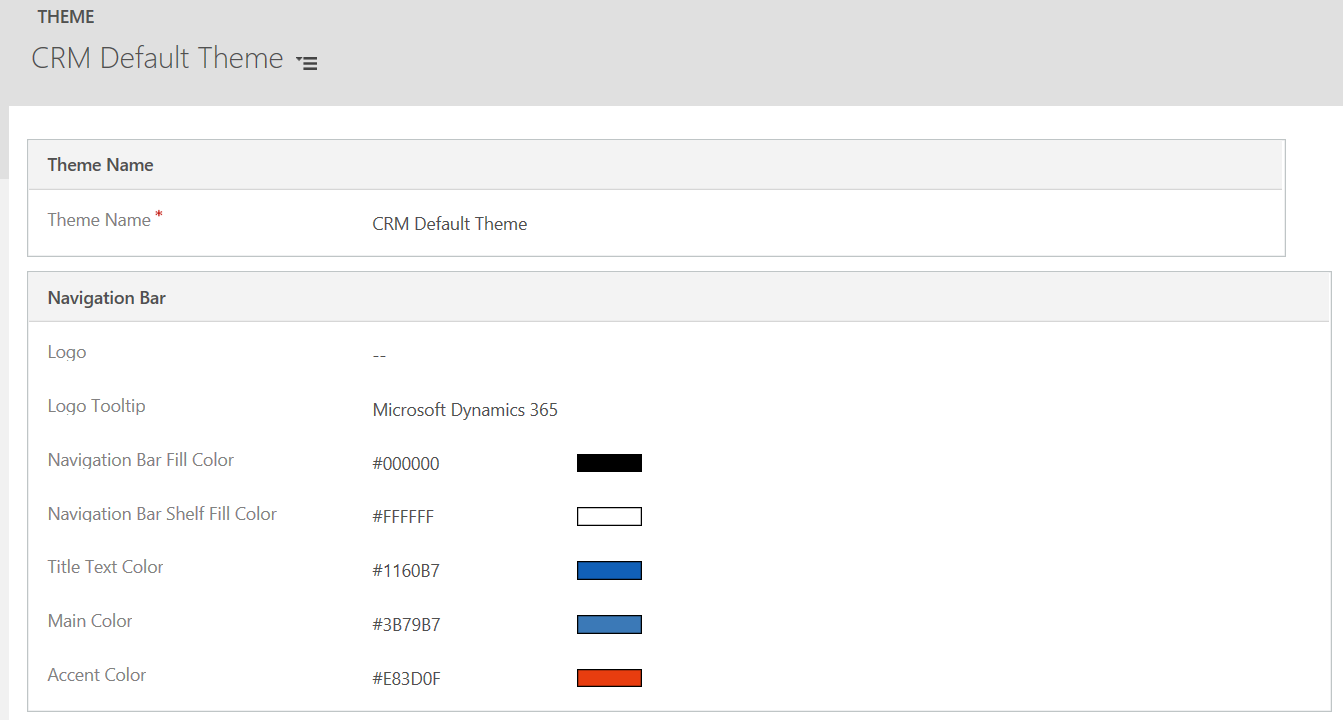
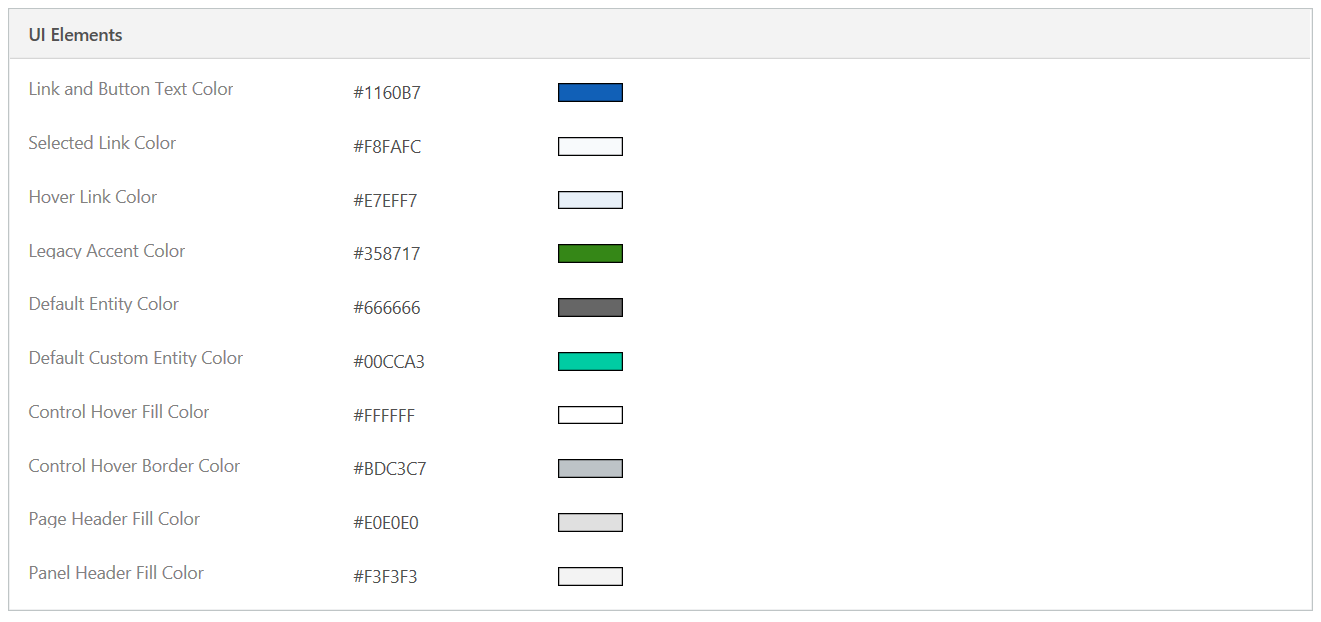
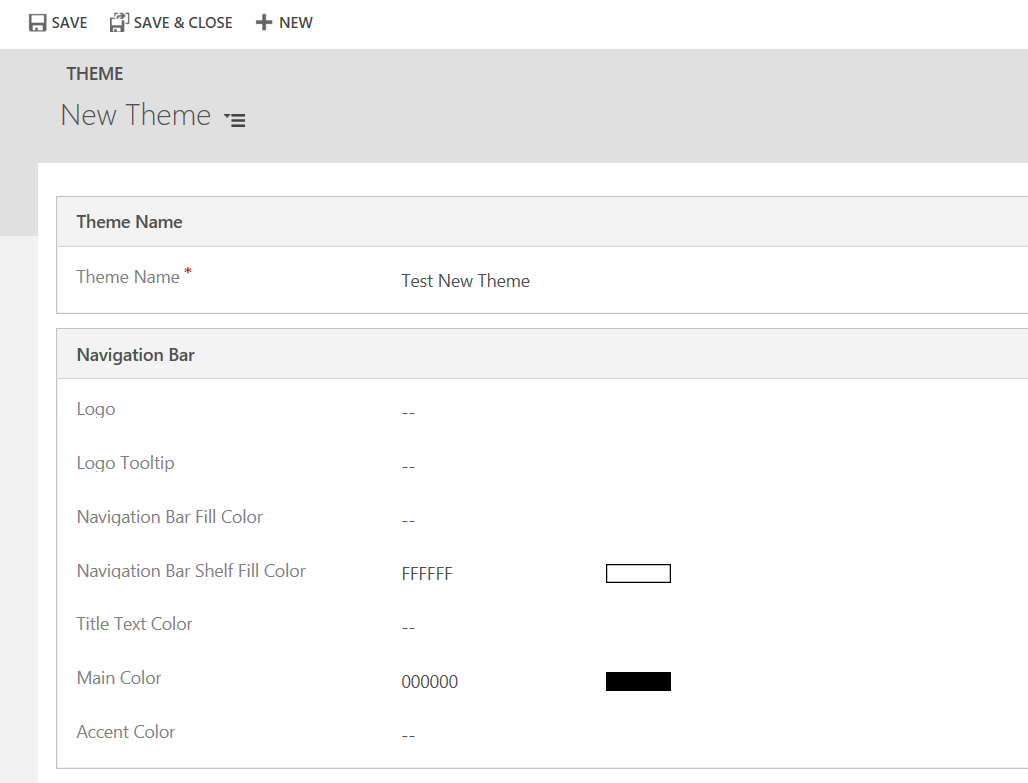
There are several elements we can control, including:
- Logo
- Logo Tooltip
- Navigation Bar Fill Color
- Navigation Bar Shelf Fill Color
- Title Text Color
- Main Color
- Accent Color
- Link and Button Text Color
- Selected Link Color
- Hover Link Color
- Legacy Accent Color
- Default Entity Color
- Default Custom Entity Color
- Control Hover Fill Color
- Control Hover Border Color
- Page Header Fill Color
- Panel Header Fill Color
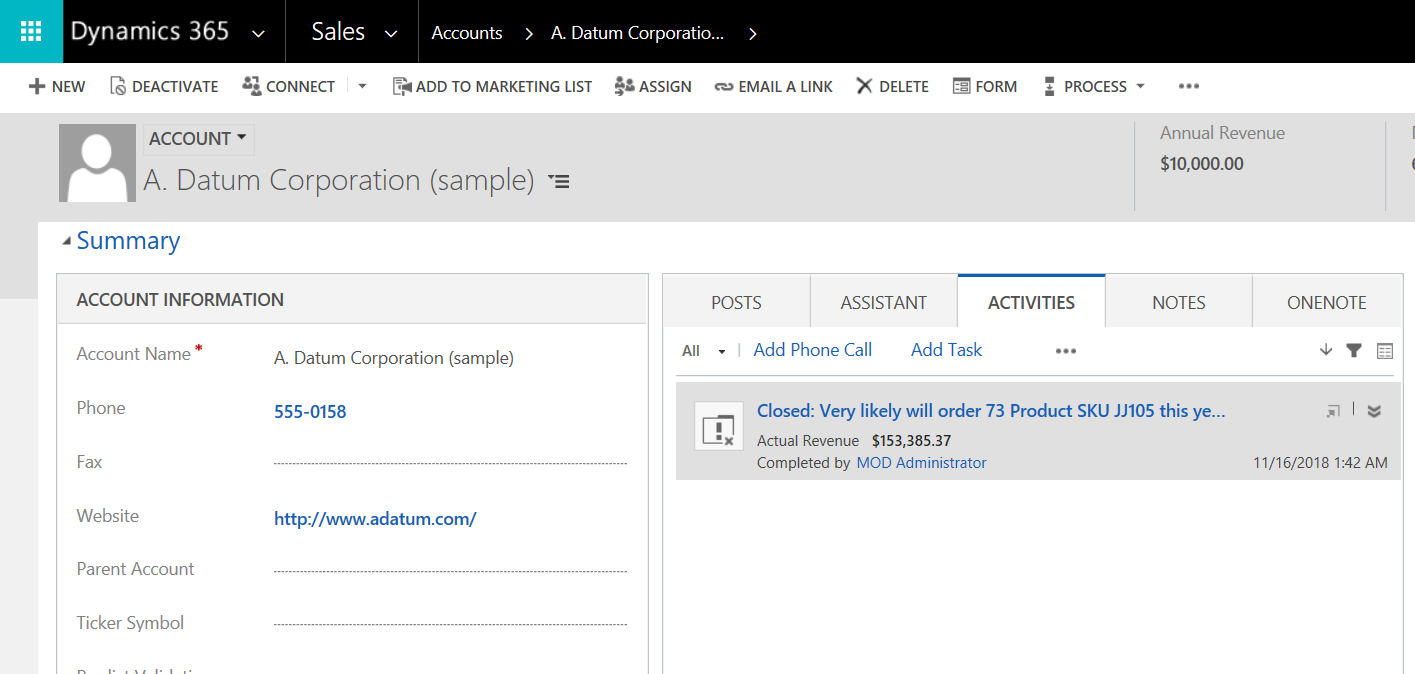
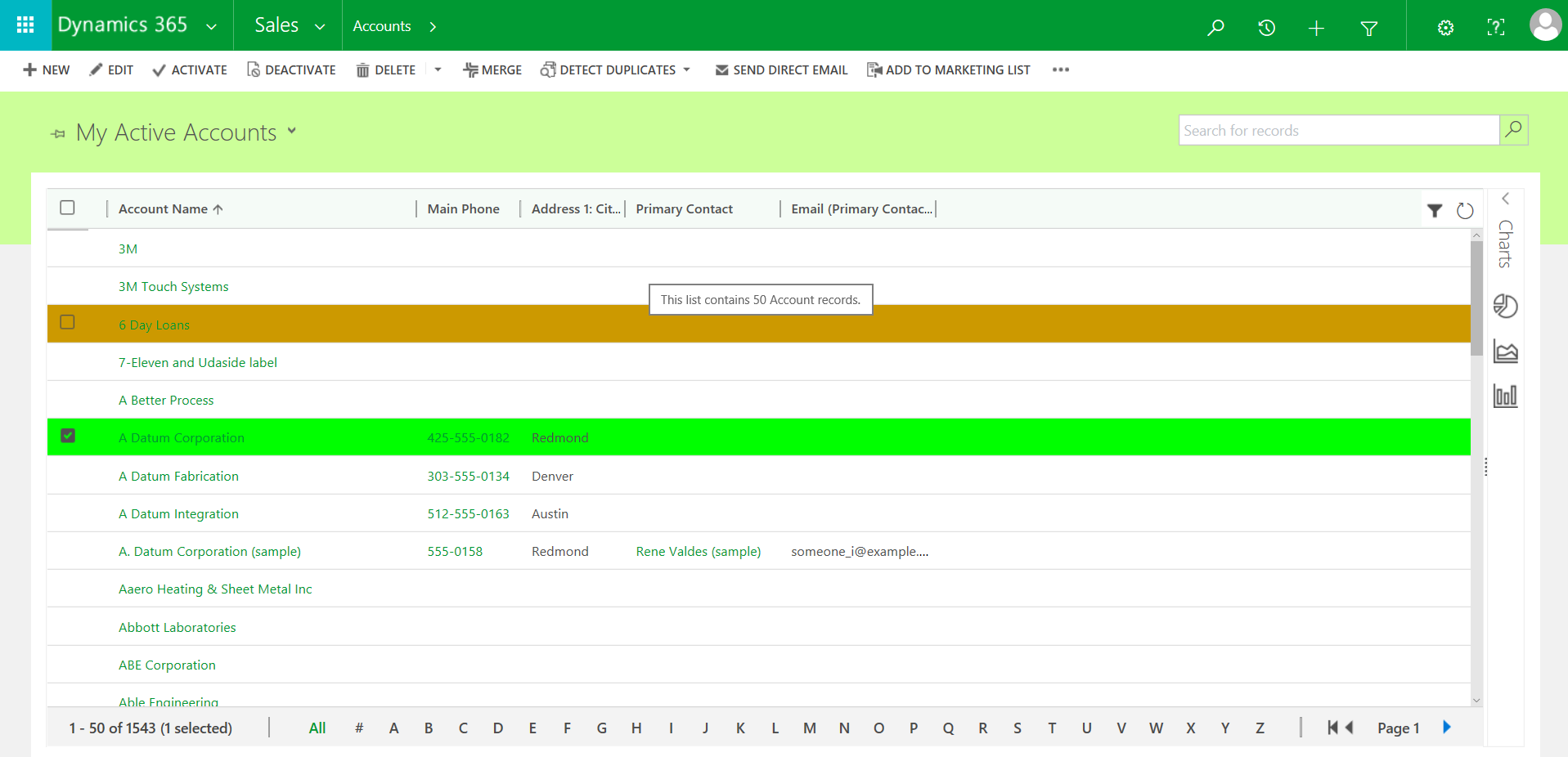
Looking at a Dynamics 365 page, we can see some of these colors being used:
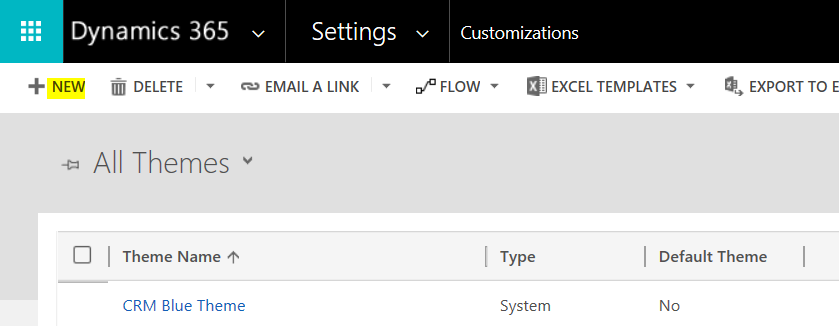
To create a new theme, click New:
Give the theme a name:
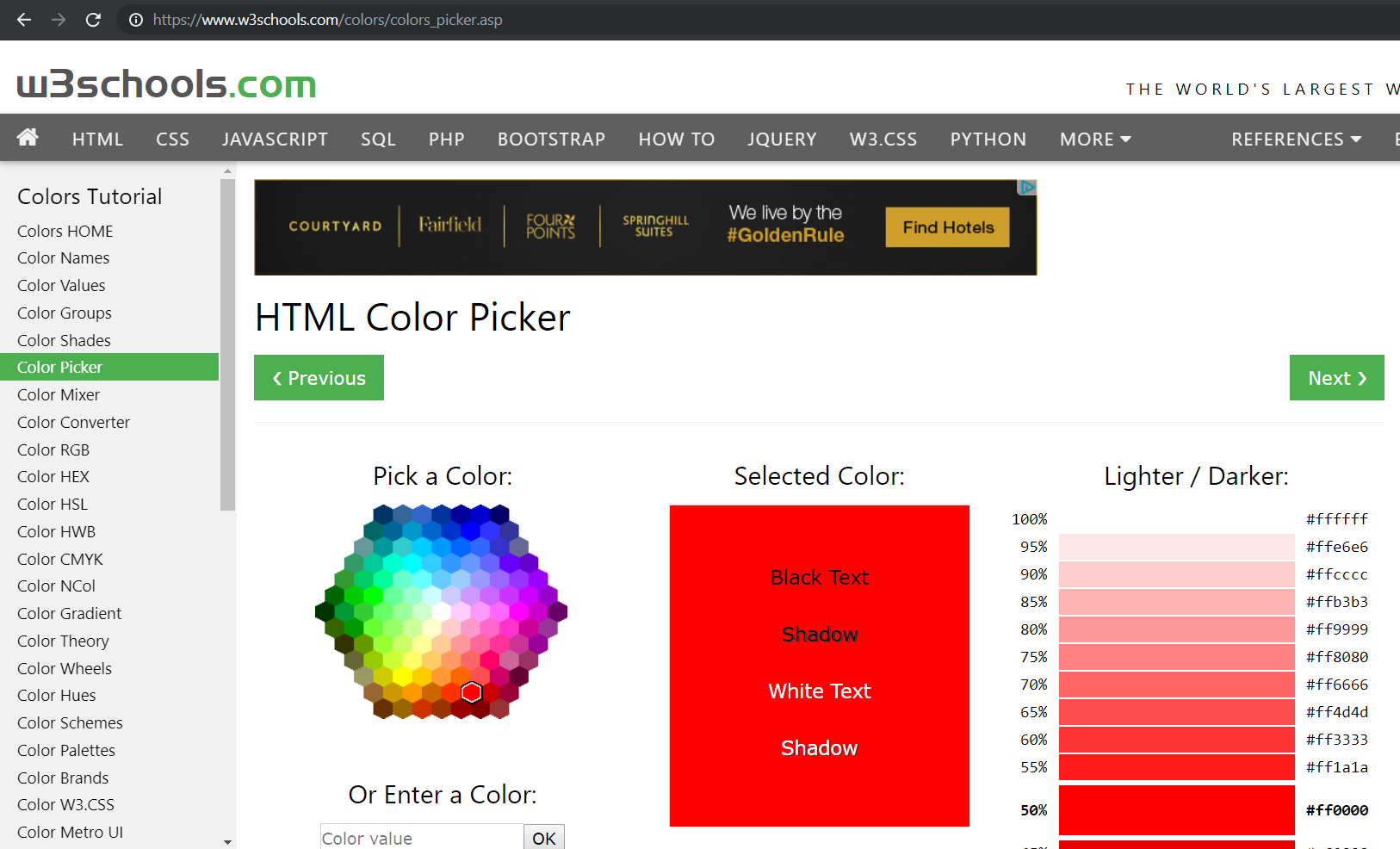
You will need to know the HEX color codes for your colors. You can find these in various websites or applications. I will use these at w3schools.com to demonstrate:
Let’s make our nav bar fill color to be green:
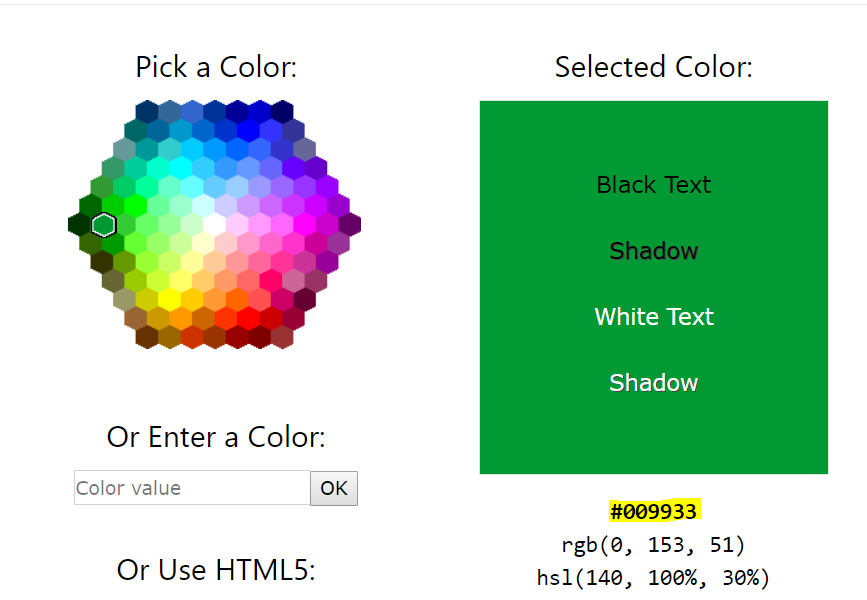
Add the hex color to the theme. The actual color will be displayed:
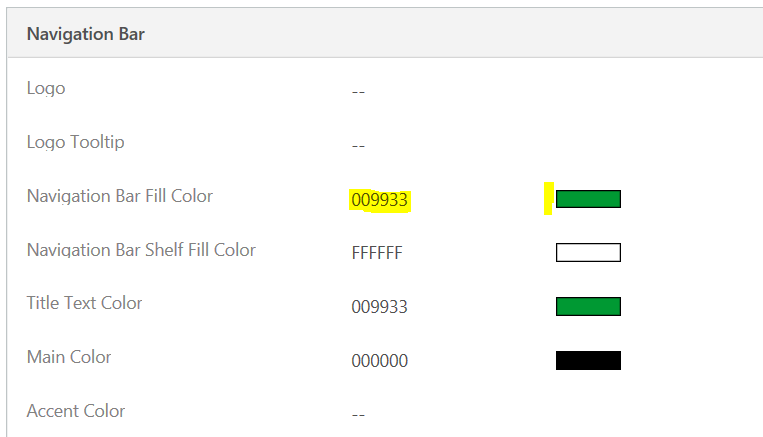
Add more colors to the theme:
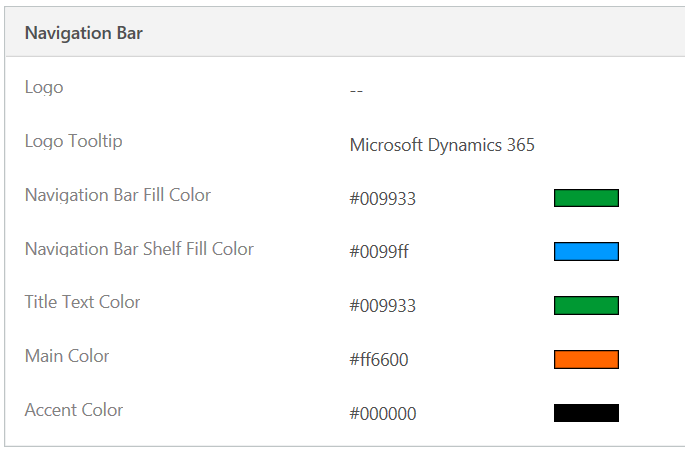
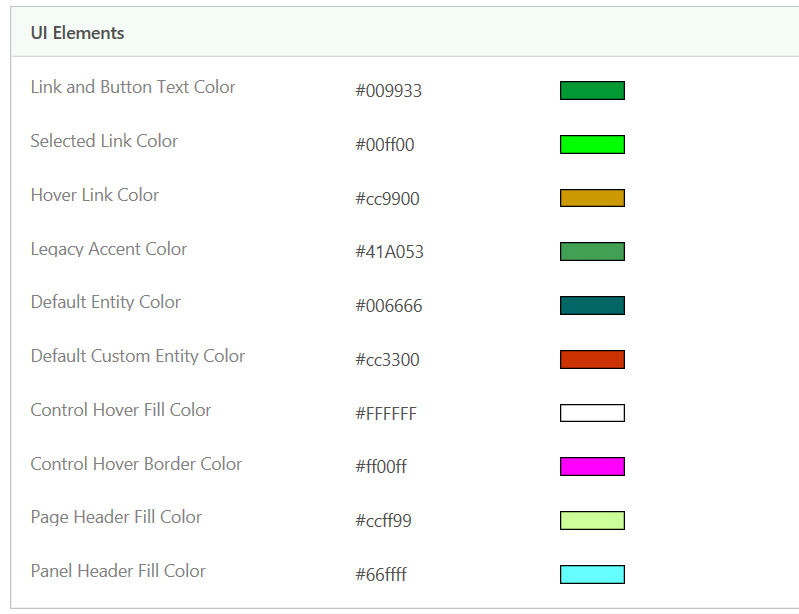
Save and Publish the theme. The colors will be updated:
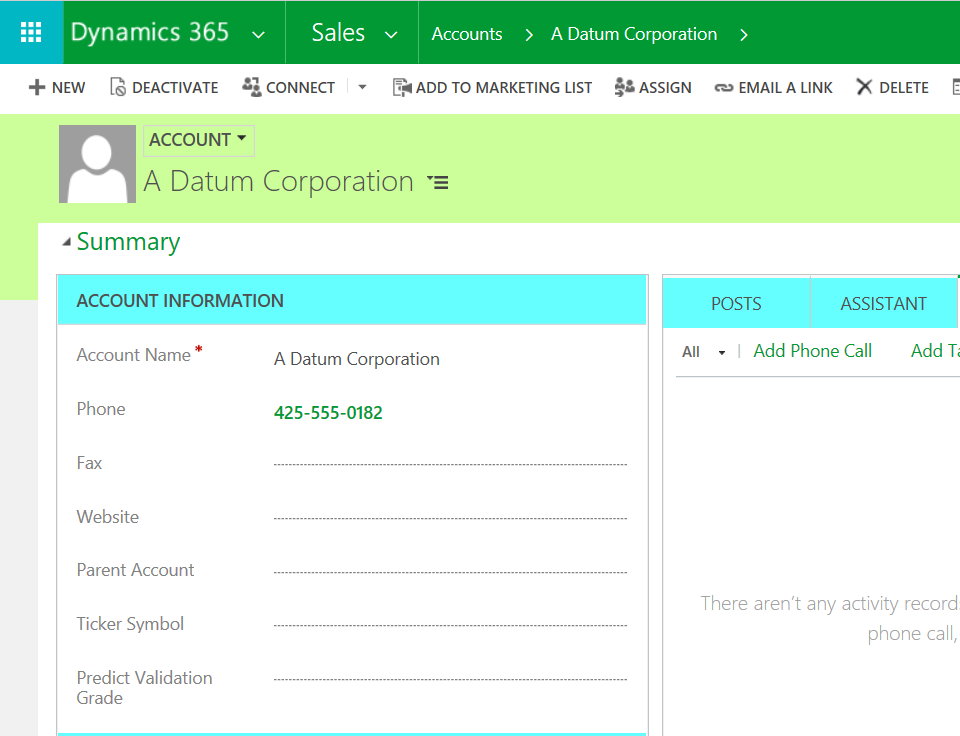
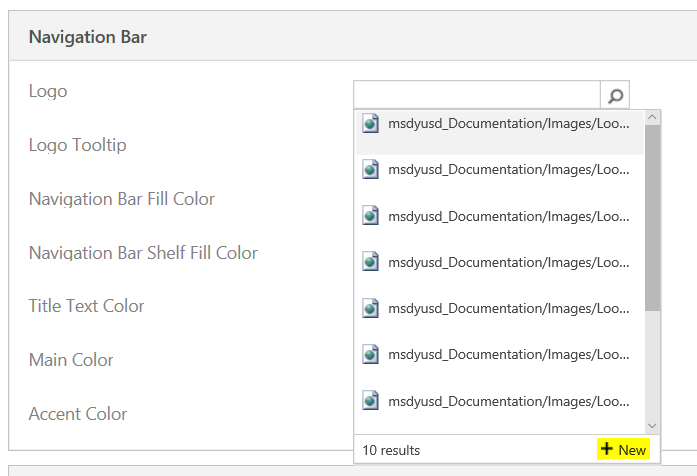
To use a logo, we will need to create a web resource to hold our image. In the logo field, click New:
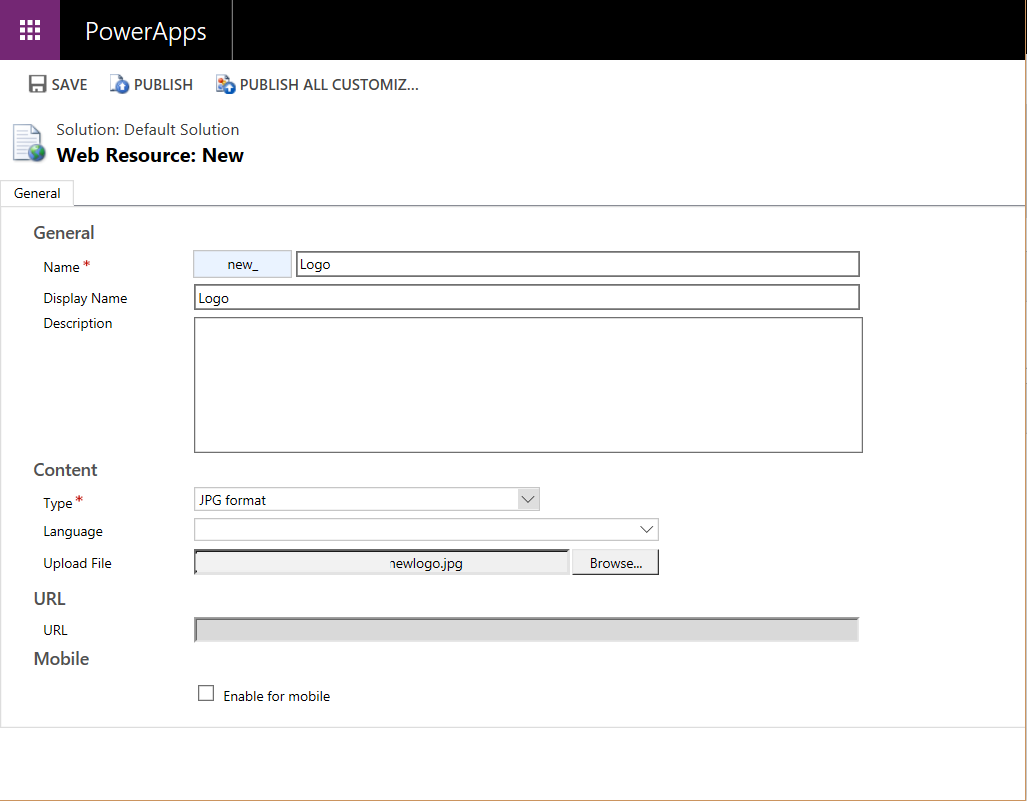
Select the picture format and save and publish:
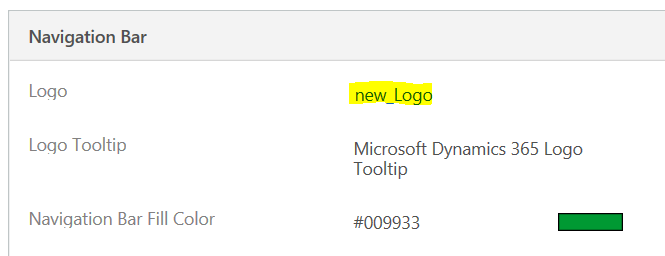
Select it on the theme:
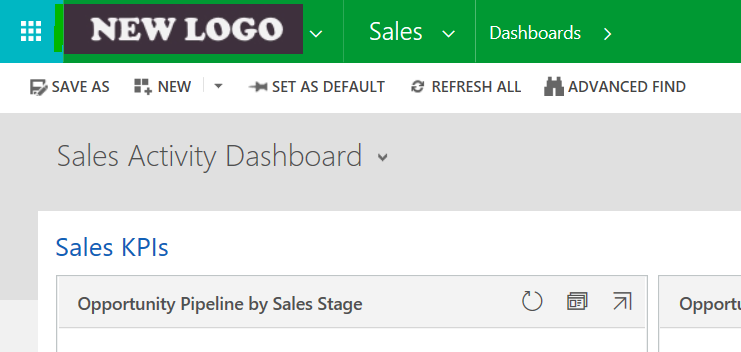
Save and Publish the theme. You will now see the new logo:
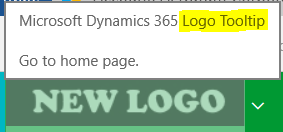
And when you zoom over it, tooltip:

Explore AI, agents & Microsoft technology.
I share practical ideas, tutorials, and videos about AI, AI agents, Microsoft technologies, and the Power Platform.
Subscribe on YouTube →
Can you set a theme per App in your Enviornment?