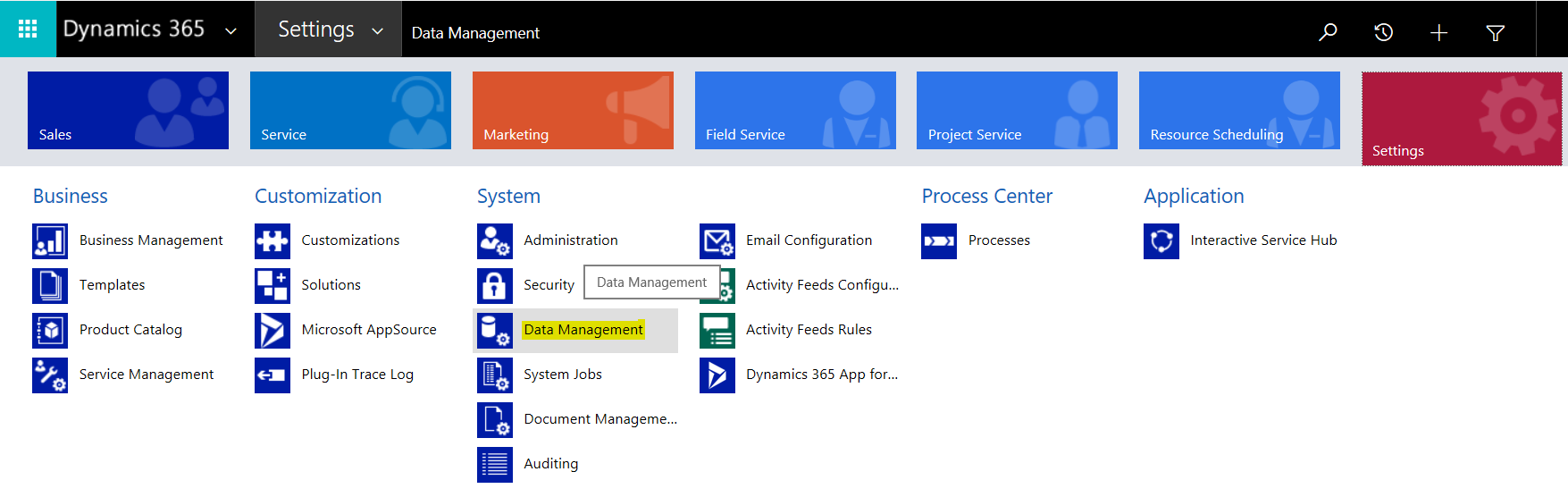
To install sample data in Dynamics 365, go to Settings->Data Management:
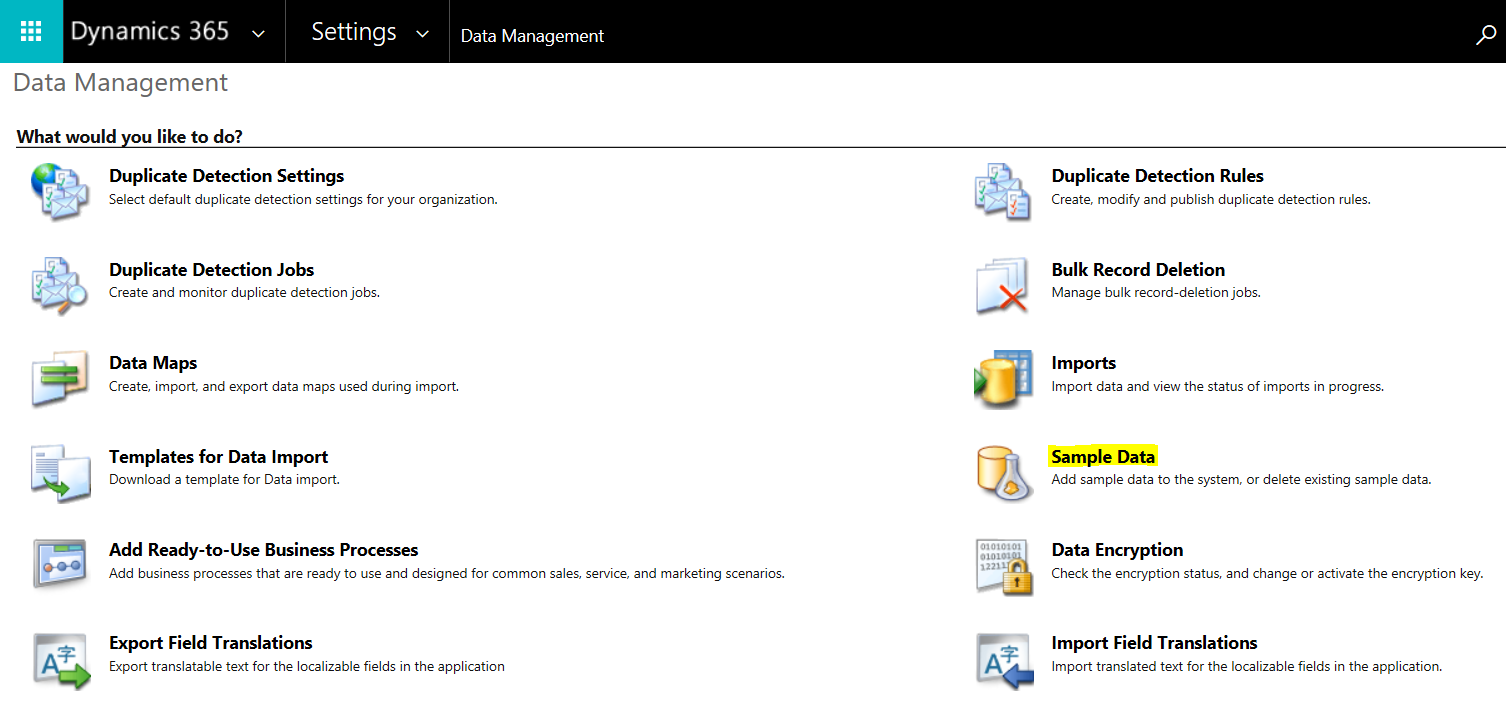
Select Sample Data:
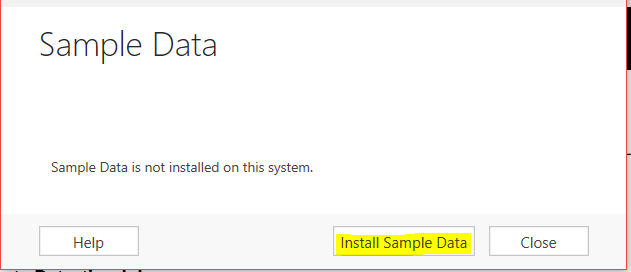
Click Install Sample Data:
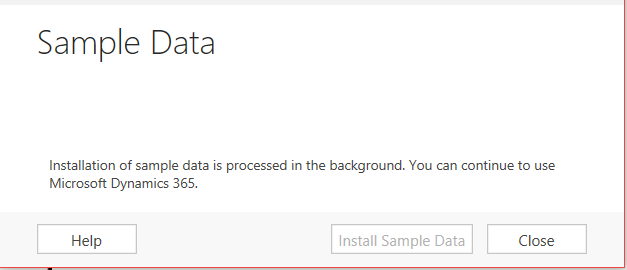
You will see the message “Installation of sample data is processed in the background. You can continue to use Microsoft Dynamics 365”:
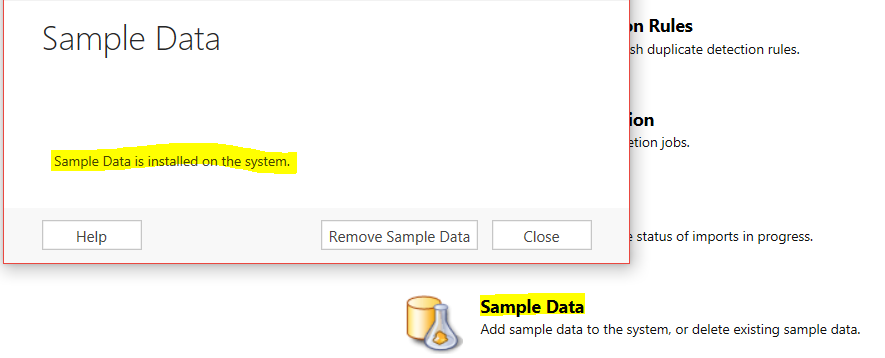
Close the dialog. Click to open it again. You will see the message when complete, “Sample data is installed on the system”. Note the option to Remove Sample Data:
Sample data will then be installed.

Keep learning. Keep building.
Explore AI, agents & Microsoft technology.
I share practical ideas, tutorials, and videos about AI, AI agents, Microsoft technologies, and the Power Platform.
Subscribe on YouTube →Carl de Souza Enterprise Architect at Microsoft · AI Technology Expert
