In this post, we will go through how to export and import a Canvas Apps Power Apps in 2 formats, the MSAPP and ZIP. Importing is useful when trying out Power Apps in the Community gallery located at https://powerusers.microsoft.com/t5/Community-App-Samples/bd-p/AppFeedbackGallery.
MSAPP Files
MSAPP files contain only the Canvas App, as opposed to the ZIP file format we will look at next which contains additional resources.
First, let’s export a MSAPP file. Open your app in the Power Apps maker, then select File:
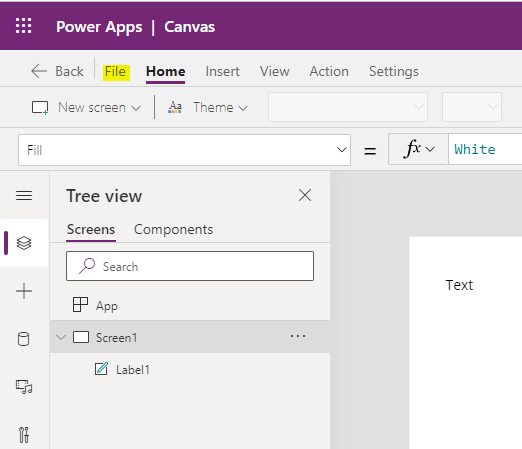
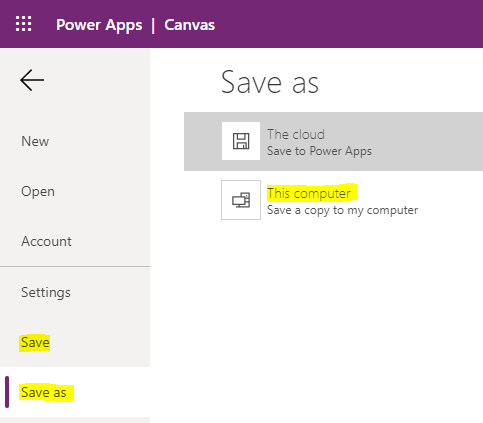
Then Save or Save As:
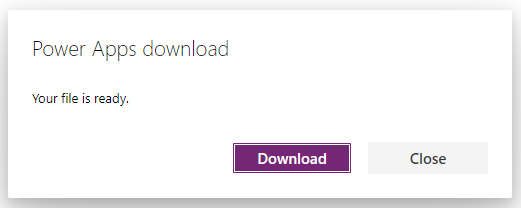
Click to Download the MSAPP file:

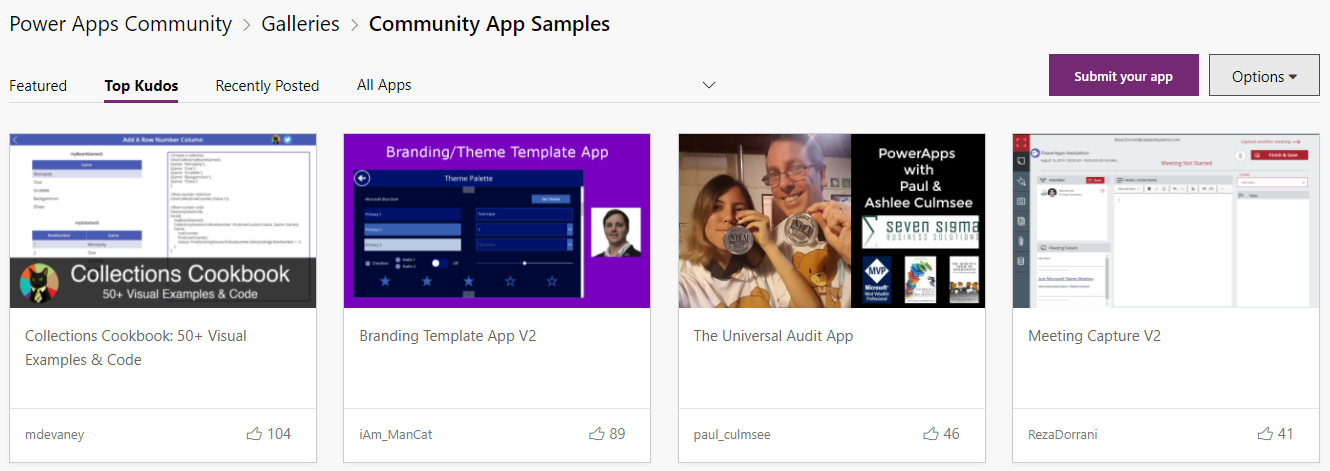
Let’s import a MSAPP file from Community, the Collections Cookbook which gets the most “kudos”. Select to open its page:
Now, scroll down and click to download the msapp file. The msapp file is generated originally as a result of a File->Save a Copy to My Computer in the create studio:

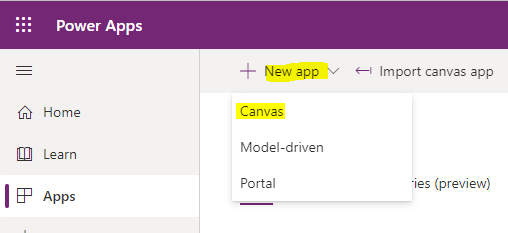
Now, go to https://make.powerapps.com/ and create a new Canvas App:
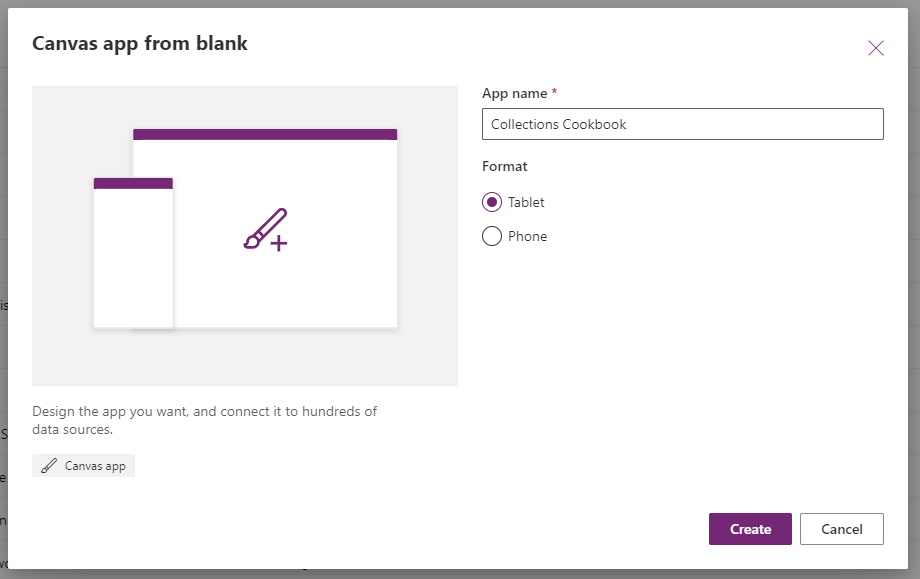
Give it a name:
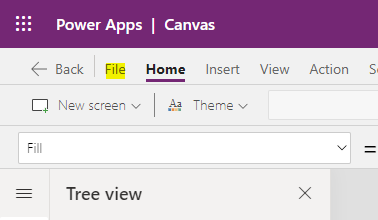
Click File:
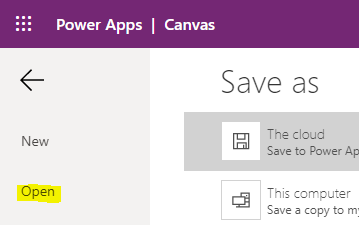
Open:
Browse:
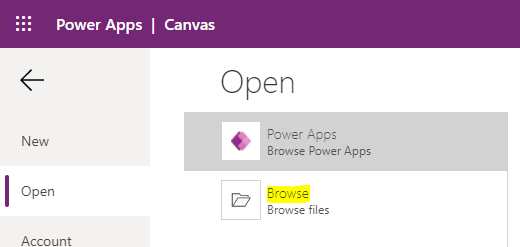
Select the downloaded msapp file:

The app will load:
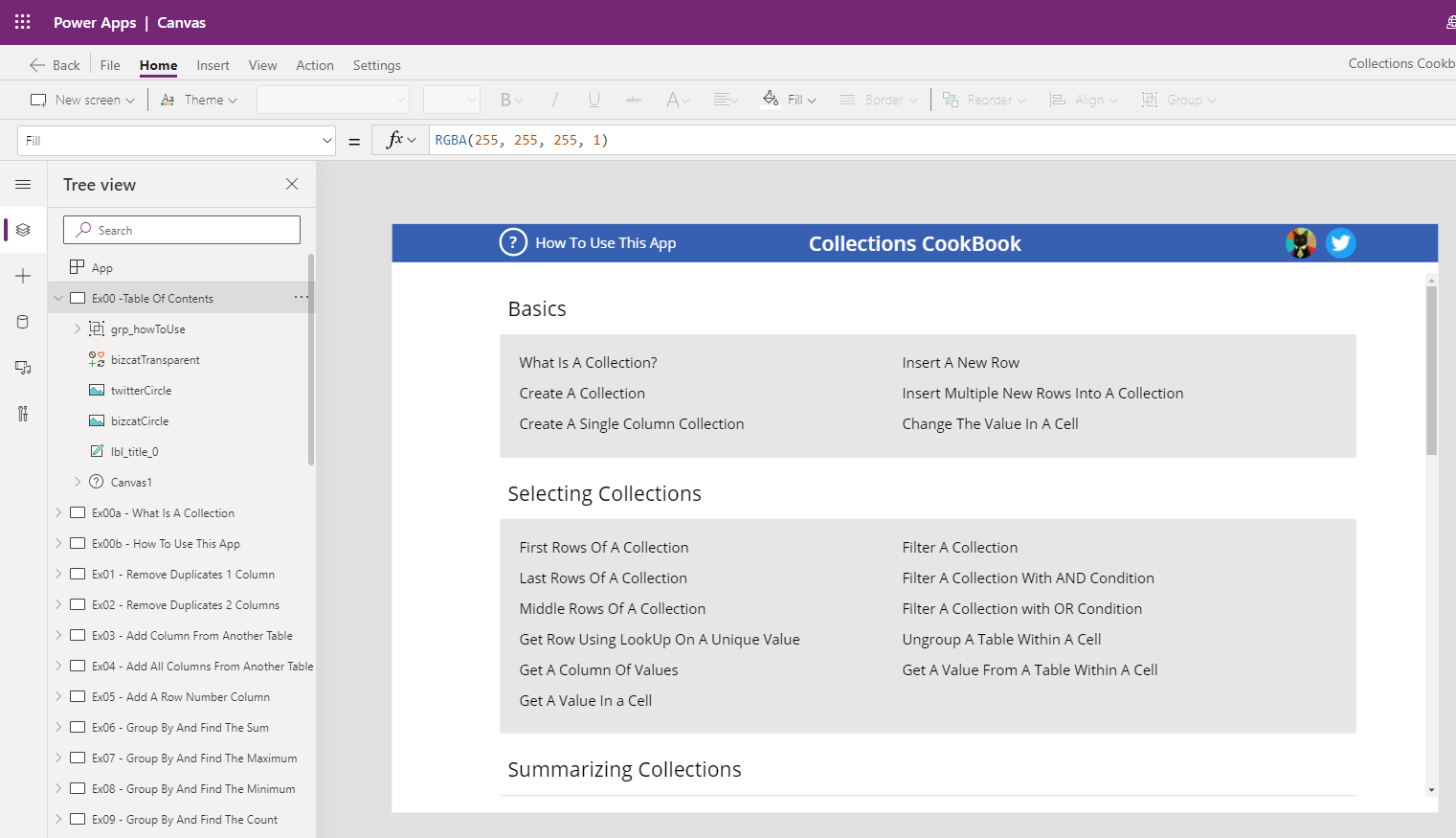
You can now play the app, save it to the cloud etc.
ZIP Files
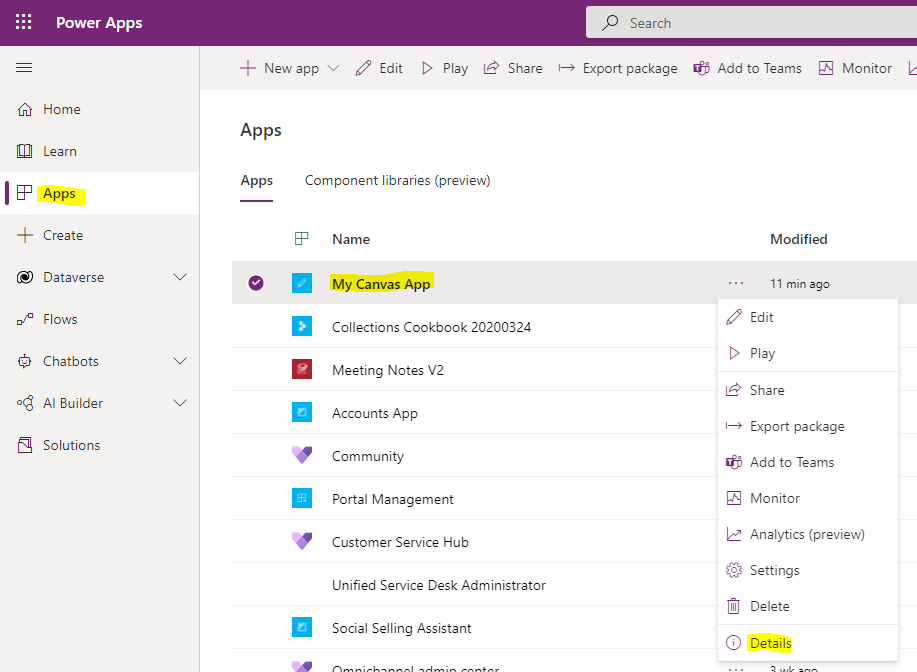
To export a ZIP file, go to your app in the Power Apps maker and select Details:
Select Export Package:
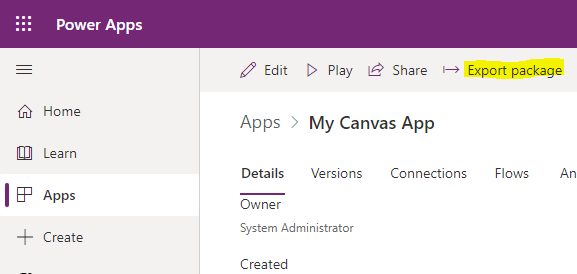
Provide a package name, and click Export:
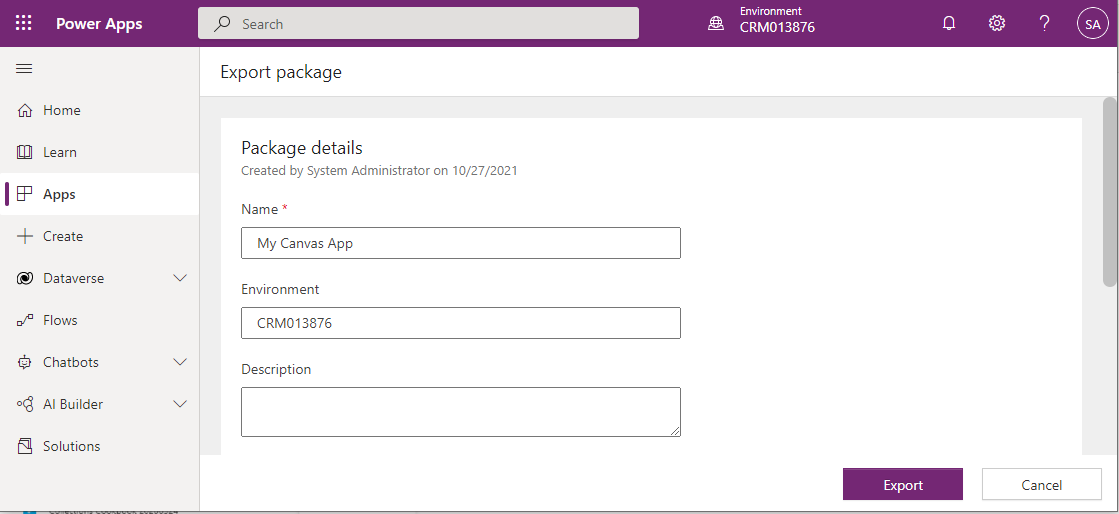
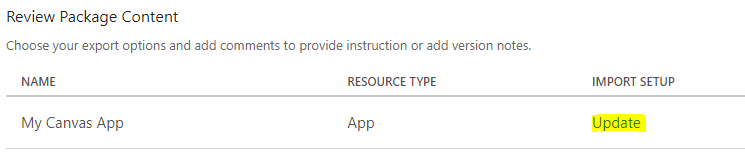
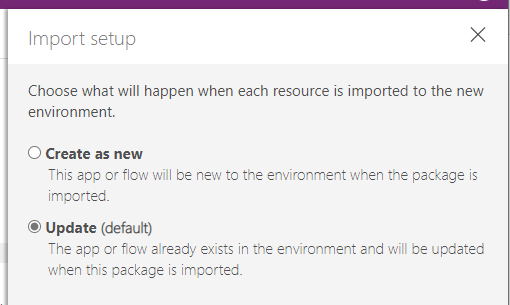
Note you can set what will happen when the app is imported:
Once exported, you should see below, and the package should download:
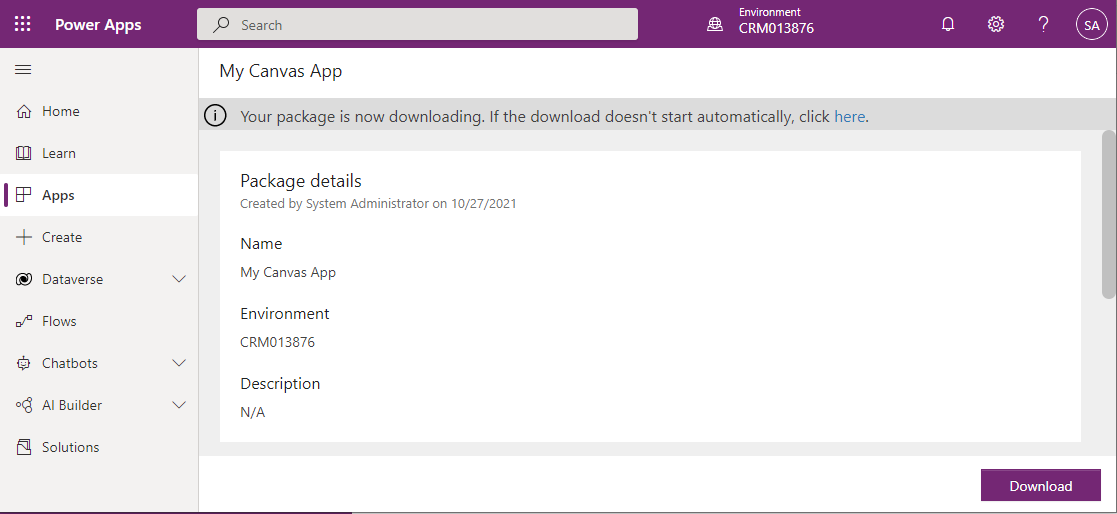
As a ZIP file:

You will see some apps in the community portal having a ZIP file download option.
To import it, go to Apps->Import Canvas App:
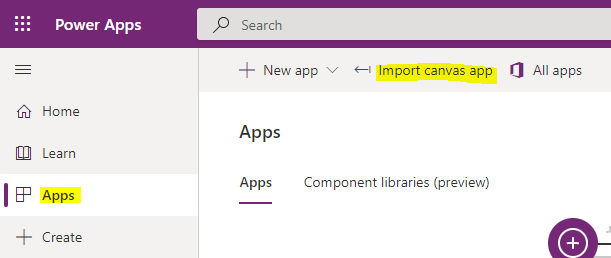
Click Upload, and select the ZIP file:
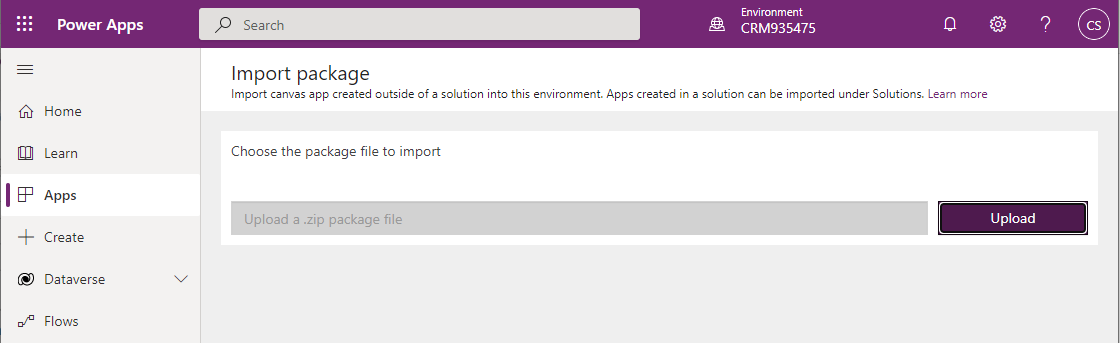
You will see:
You will now see below:
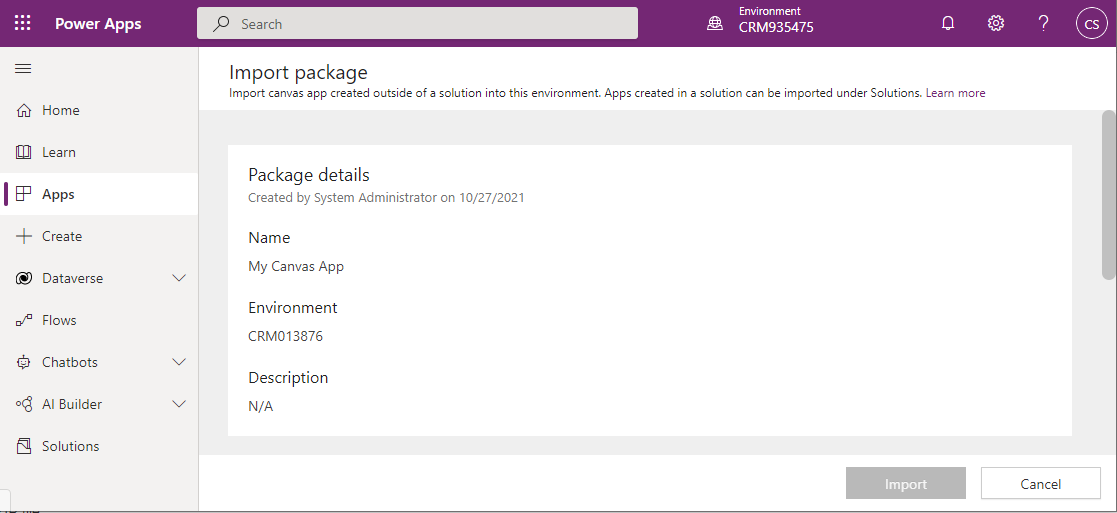
In my case, as I set the export option to Update, I will change this from Update to Create as New for my new environment:

Select Create as New:
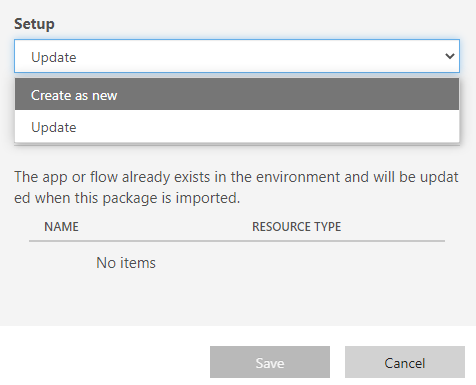
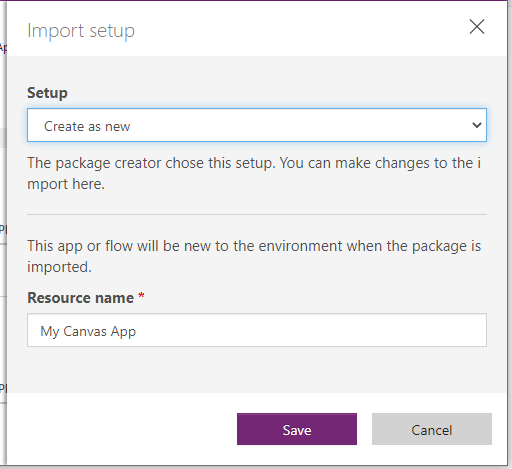
Give the new app a name and Save:
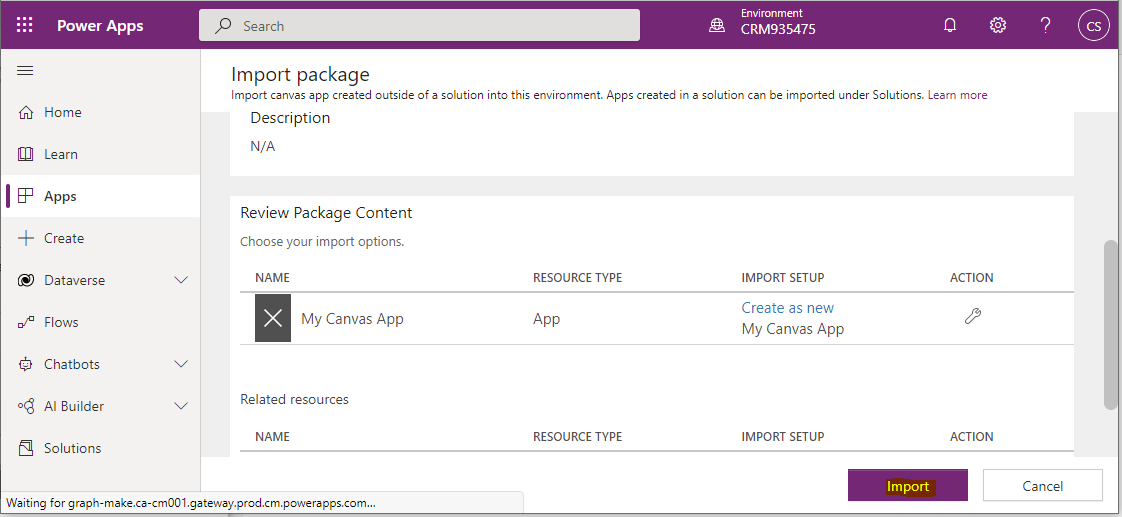
Now click Import:
We now see:
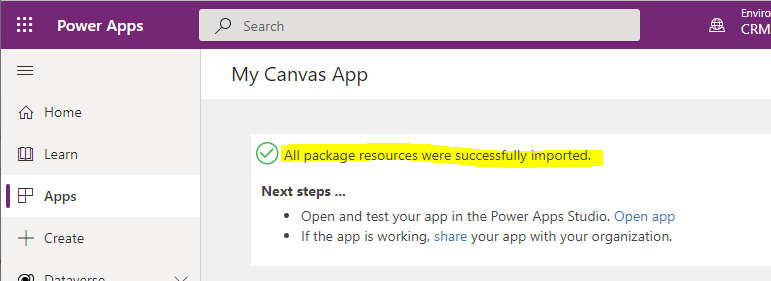
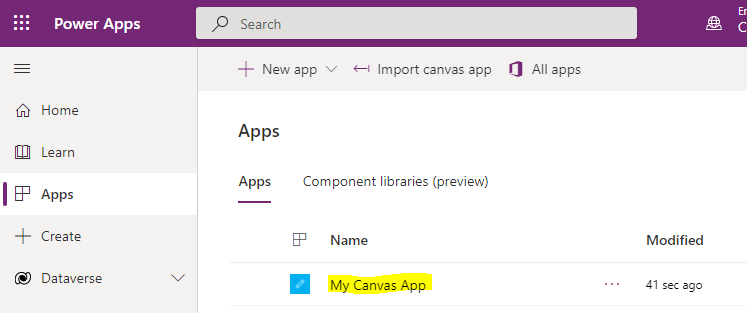
And the app appears:

Explore AI, agents & Microsoft technology.
I share practical ideas, tutorials, and videos about AI, AI agents, Microsoft technologies, and the Power Platform.
Subscribe on YouTube →