In this post, we will look at contact signup in Power Apps Portals.
First, let’s look at the portal-contact design. When a person signs up for Power Apps portals, they will appear as a contact in Dynamics 365. I.e. if you browse to contacts, you will see the contact record.
The type of Authentication enabled for a portal can be accessed by going to Settings in the Power Apps Maker portal, then Authentication Settings:
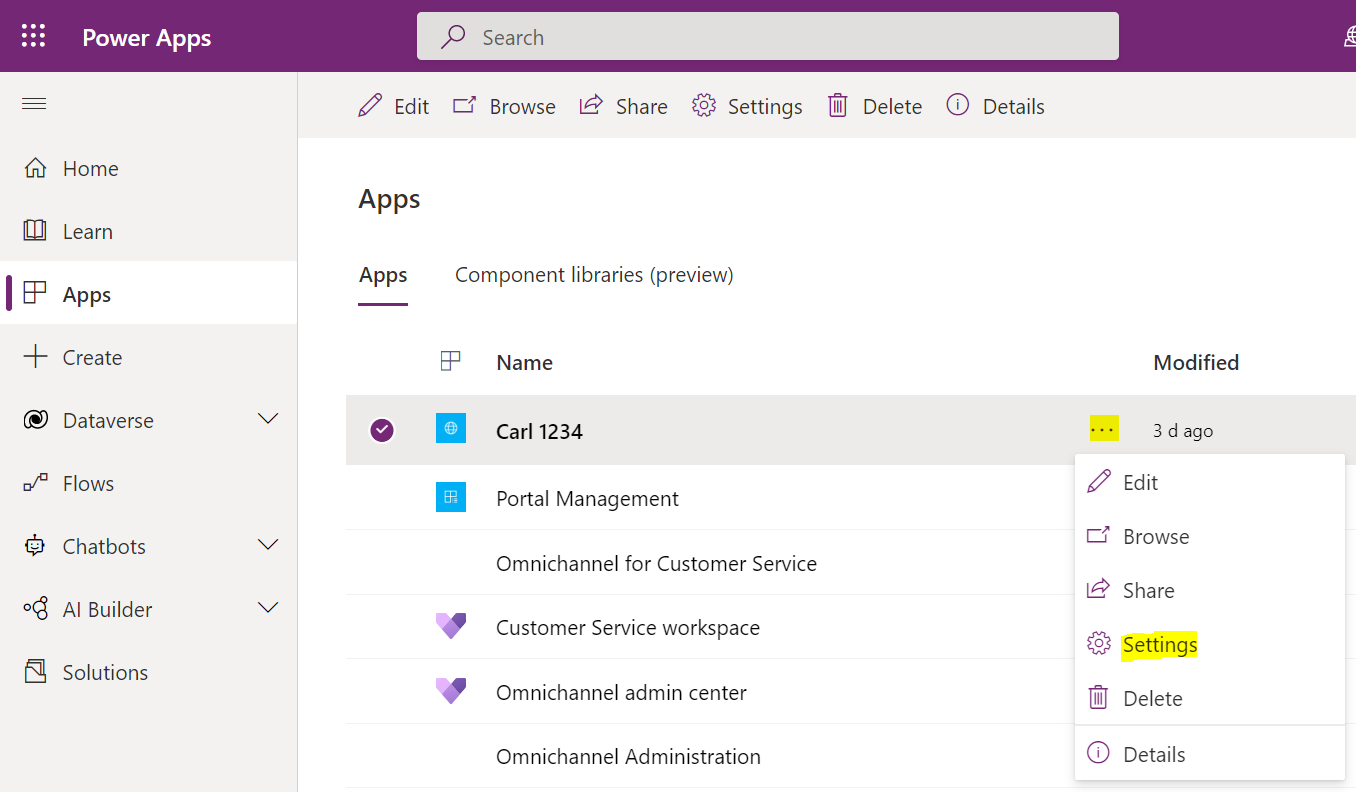
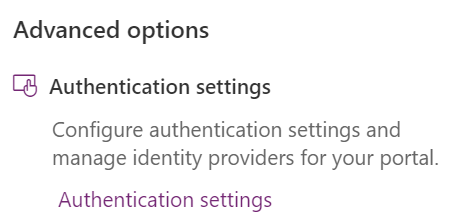
Here we see the Identity Providers and what is enabled, disabled, or not configured:
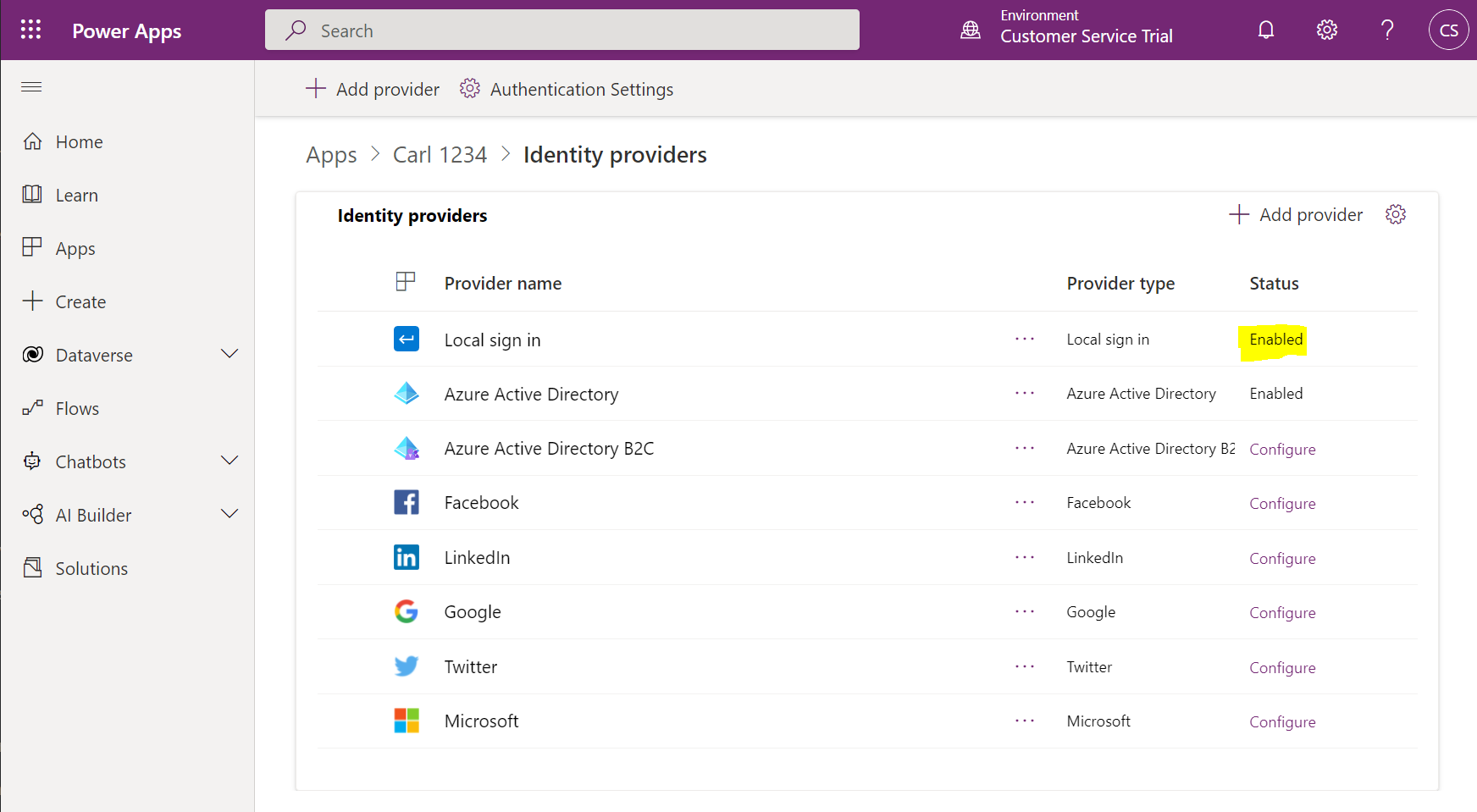
Above, we can see we are using Local Sign-In, which is the local account username and password a user would see when they go to the portal:
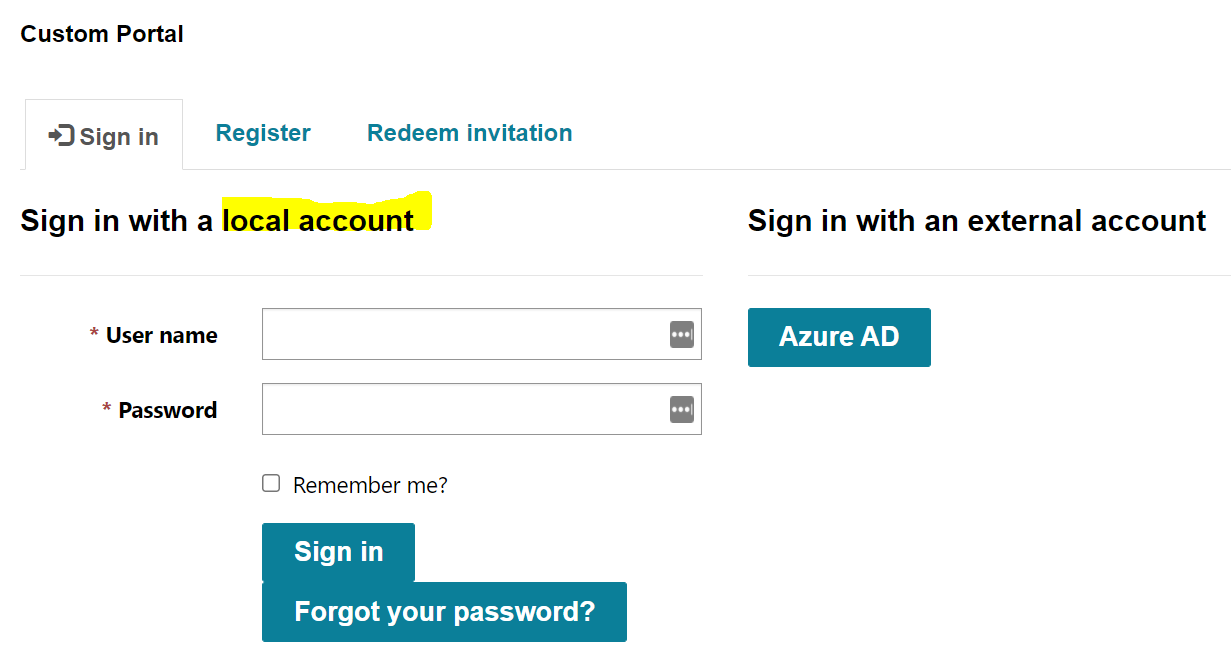
Let’s register as a new user:
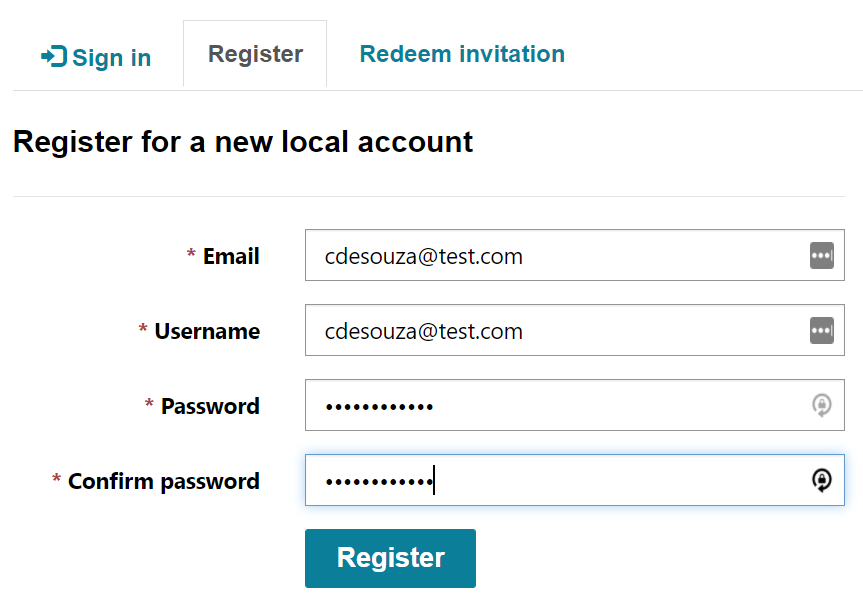
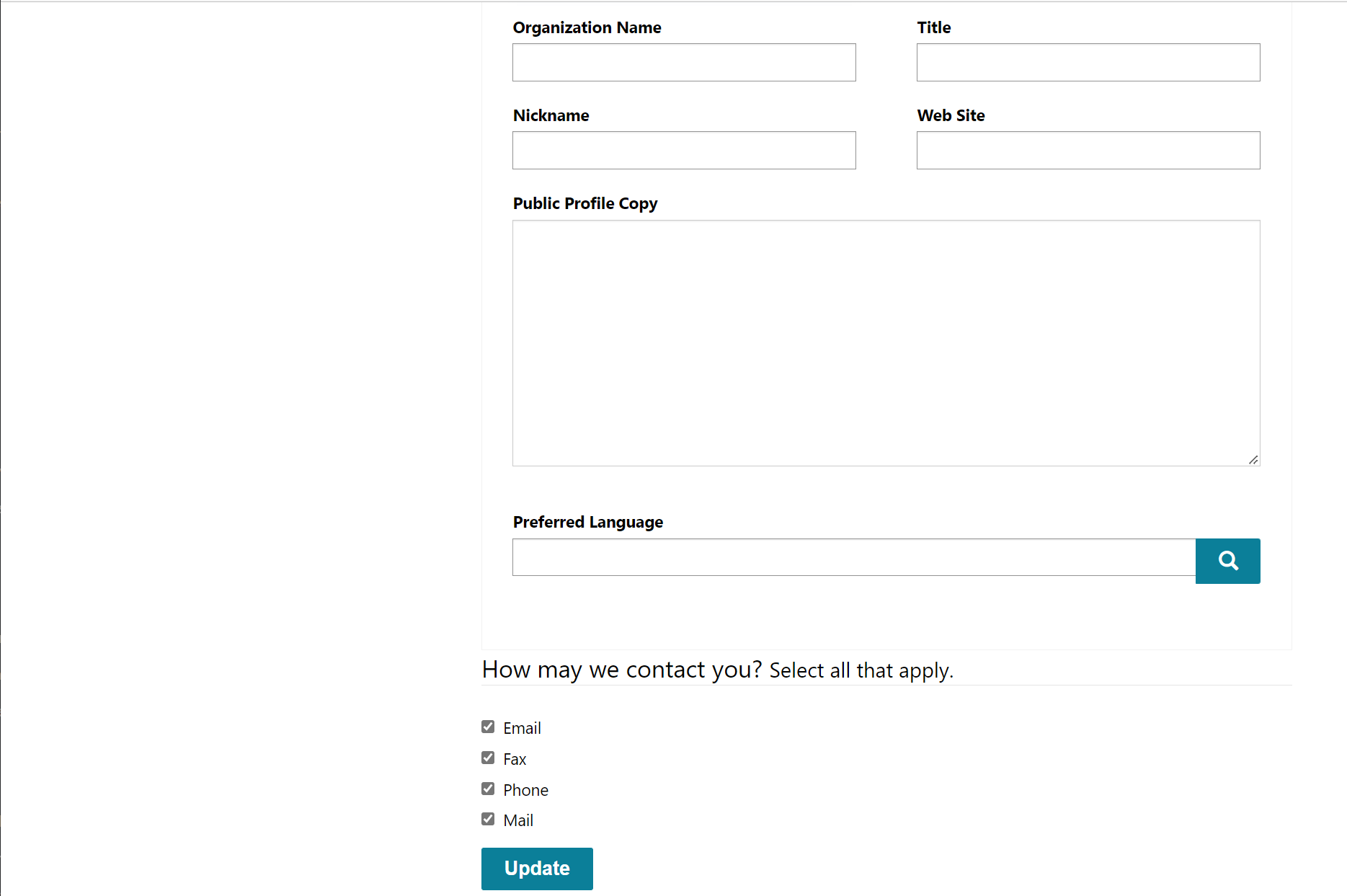
This redirects the user to the registration page, where they can enter their first and last name, etc:
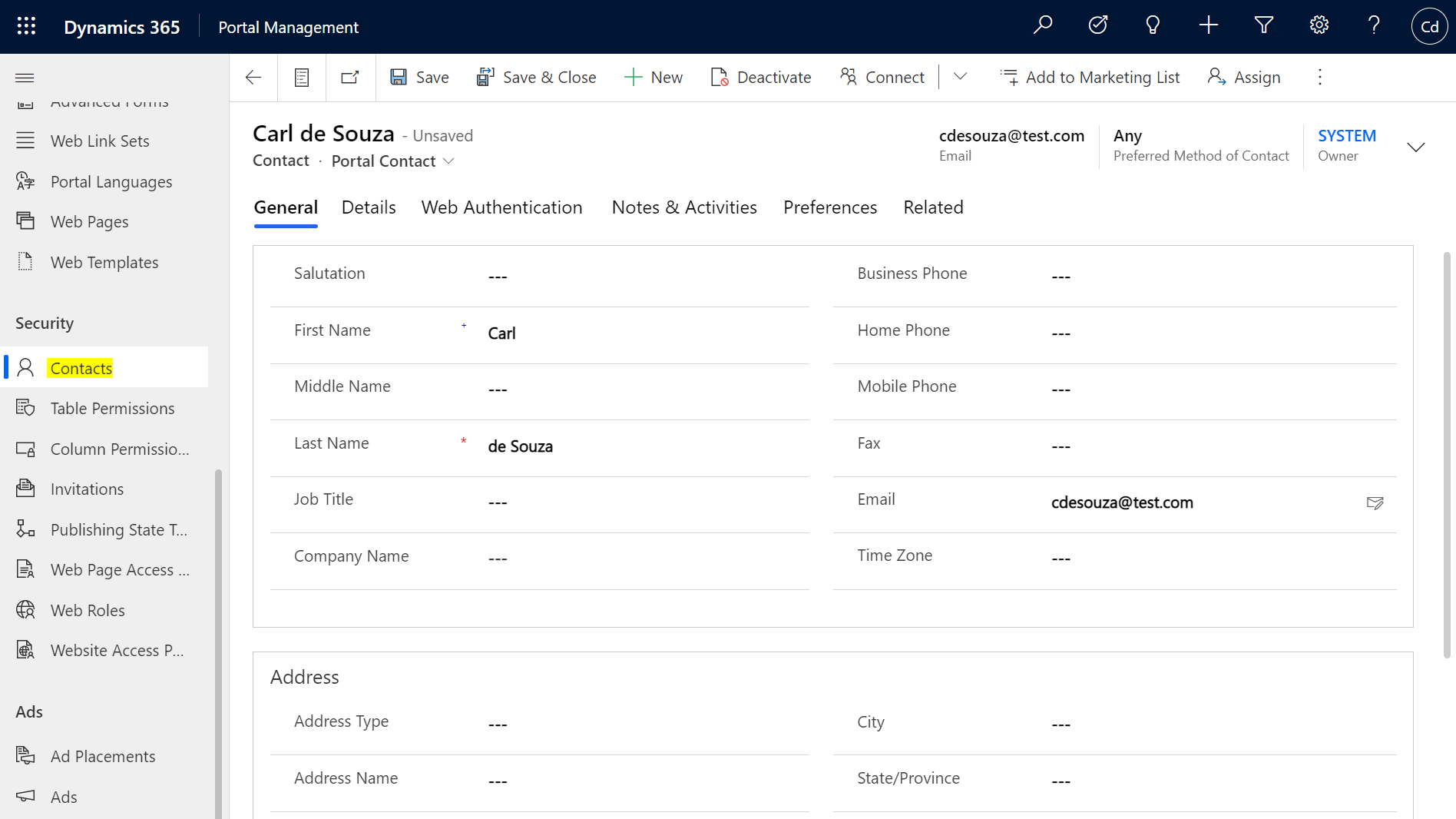
If we head to the Portal Management app, we see a contact is created. Note the Portal Contact form:
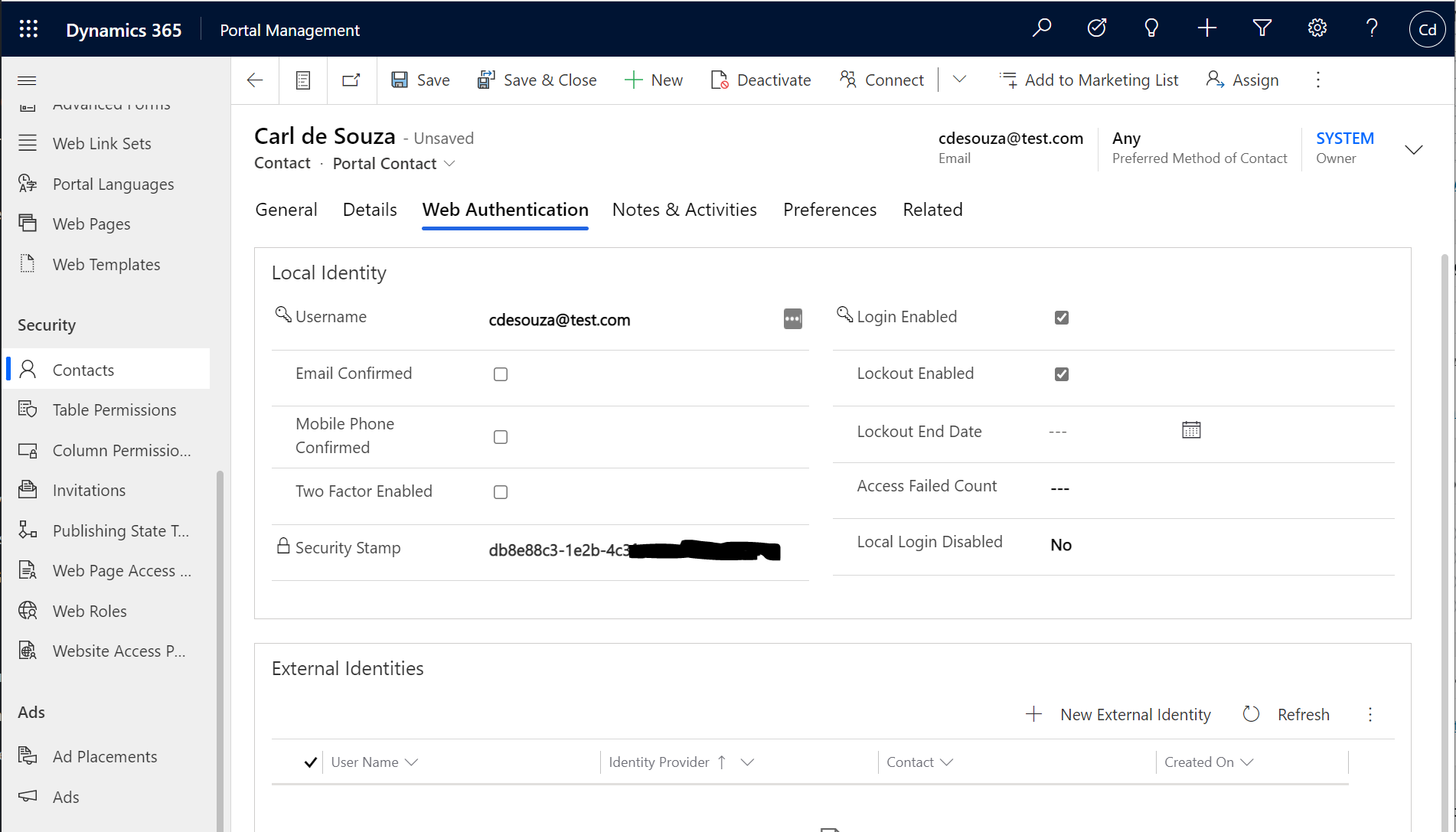
In the Web Authentication tab, we see the username, security stamp, any external identities, if the login is enabled, etc:
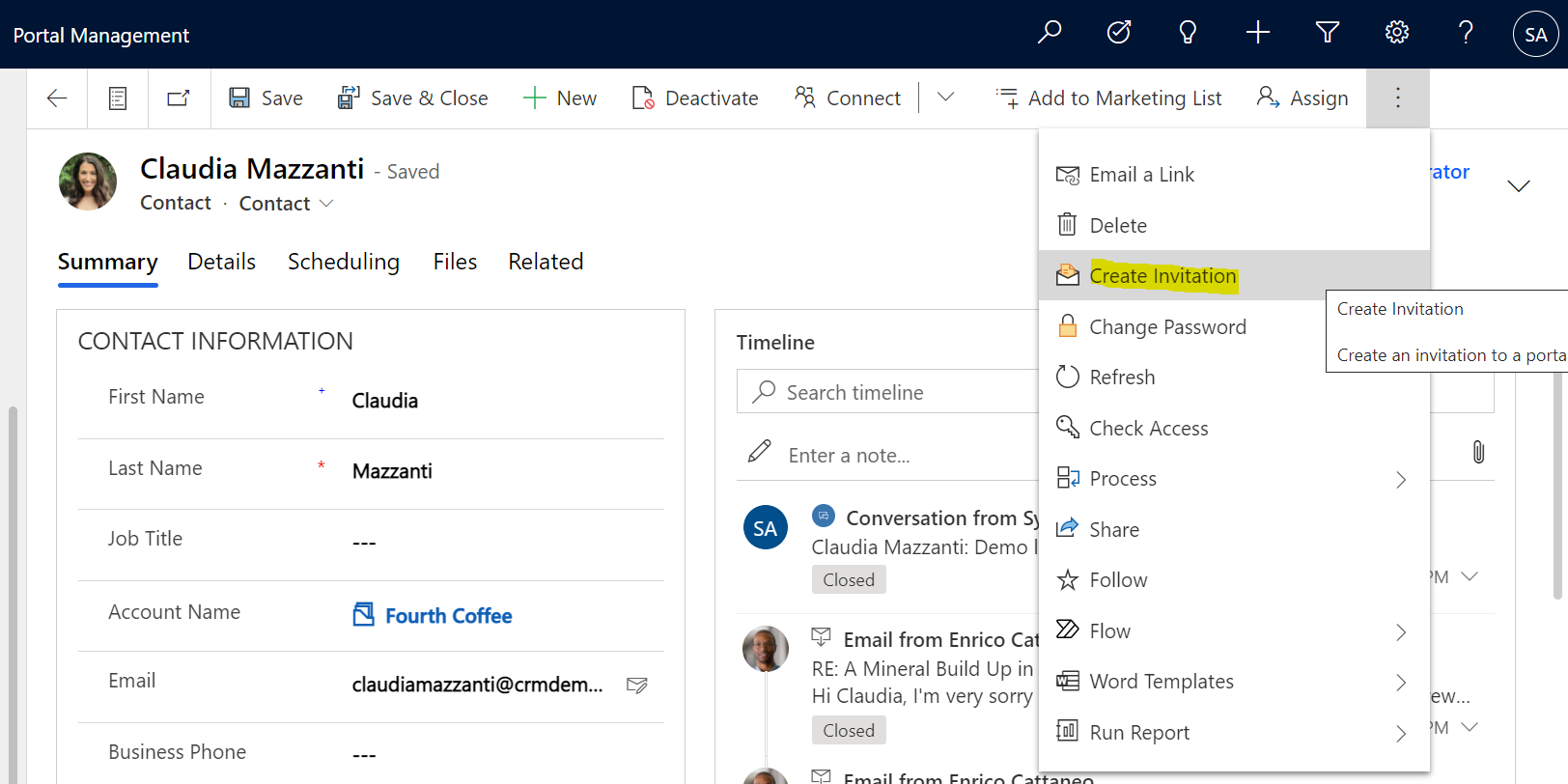
Now, let’s say we want to invite an existing Dynamics 365 contact to use our portal. We can select the Create Invitation from the contact record:
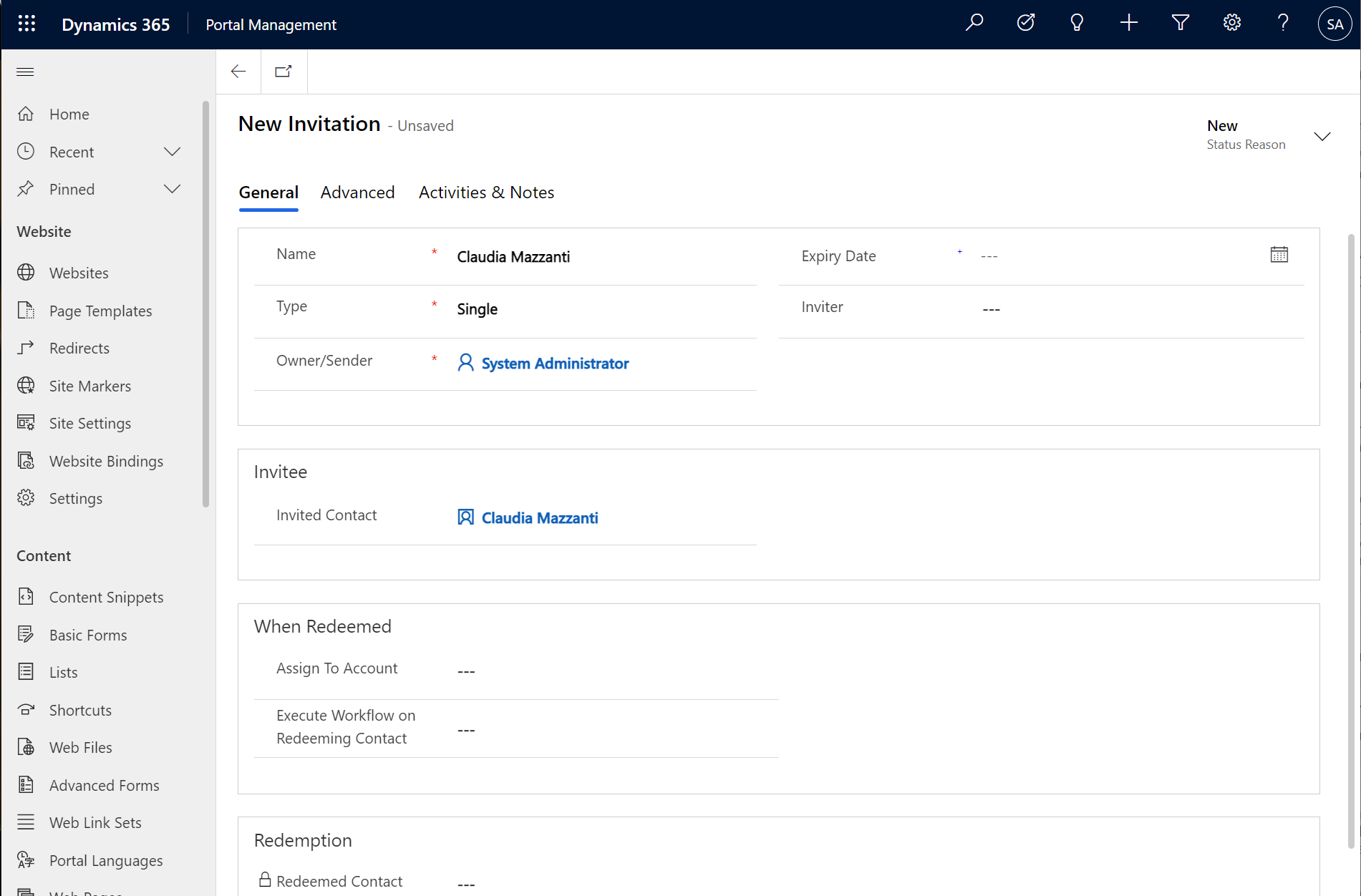
Note the ability to assign the contact to an account once the contact redeems the invitation, as well as execute a workflow:
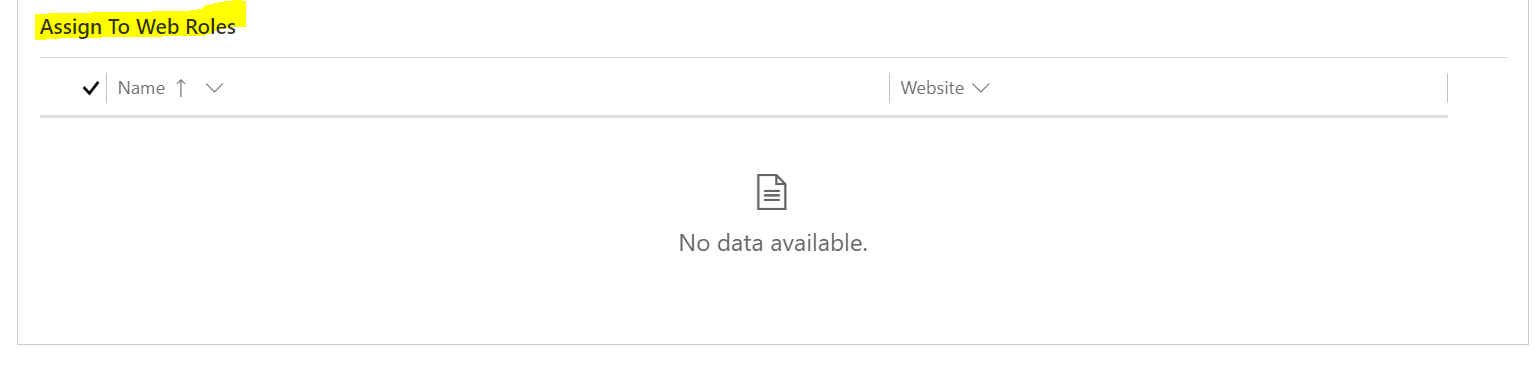
Once saved, we get the ability to assign web roles to the contact:
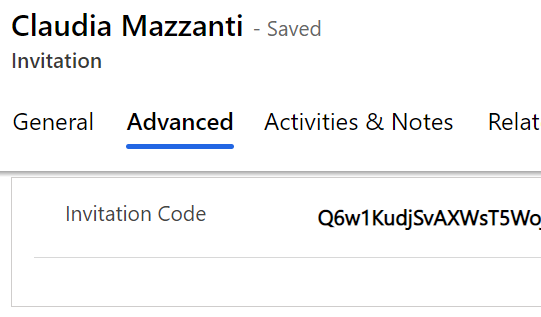
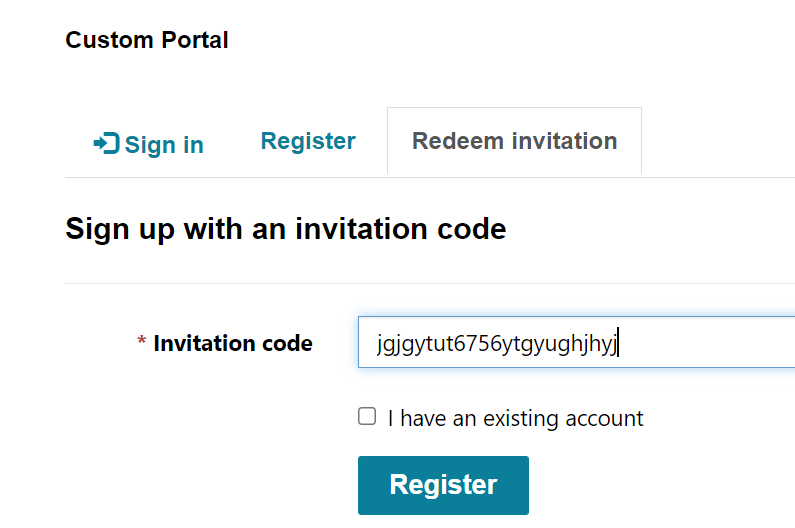
And on the Advanced Tab, we see the Invitation Code, which can be used to sign up for the portal if the invitation is lost, for example:
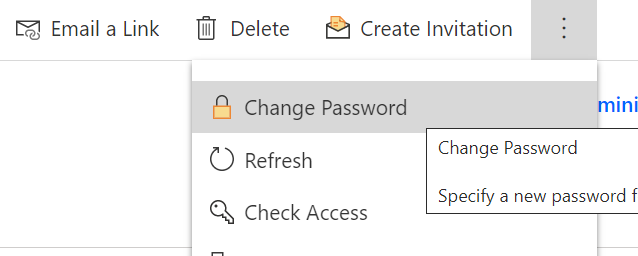
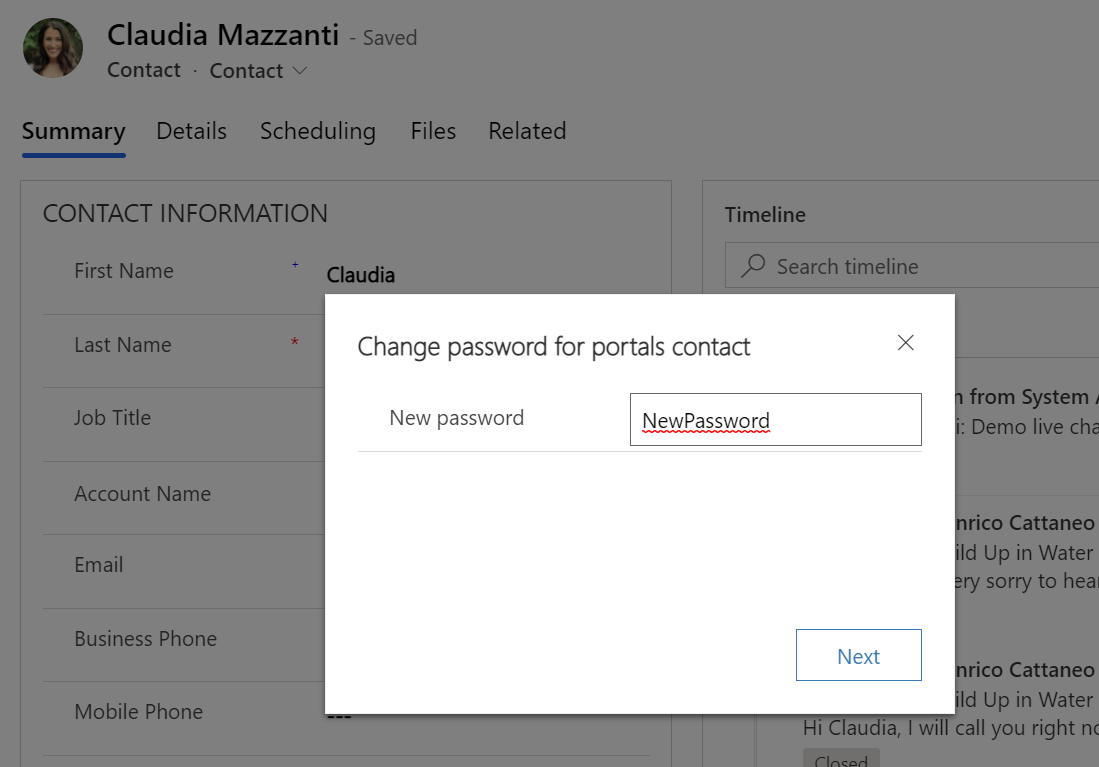
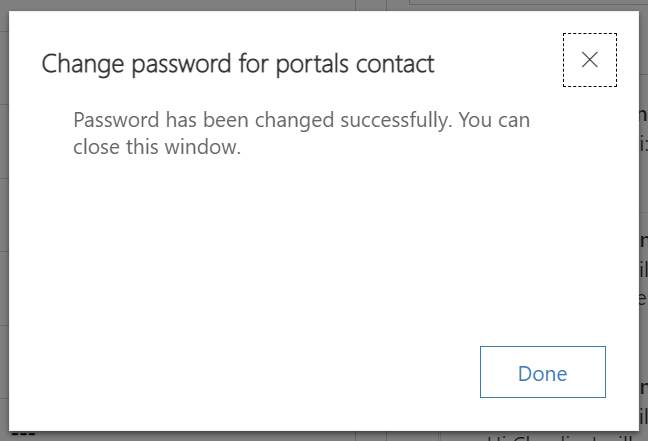
Dynamics 365 users can also start a change password request for a user:
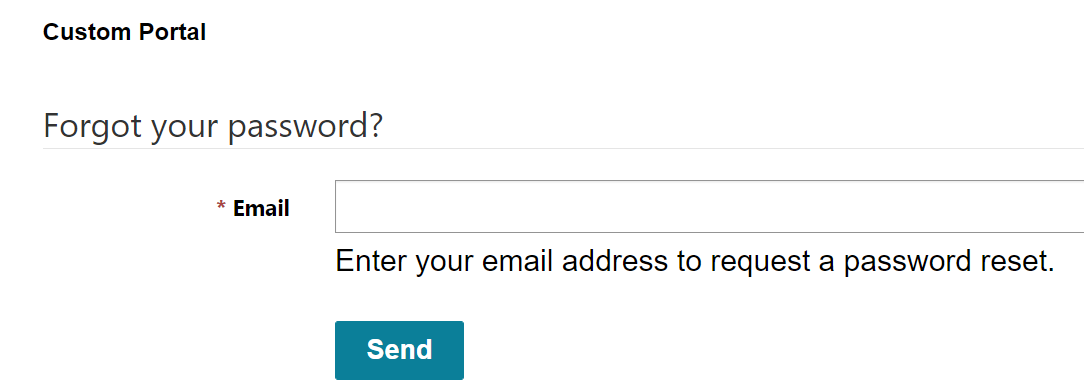
And portal users can initiate a change password request by clicking on the forgot password link:
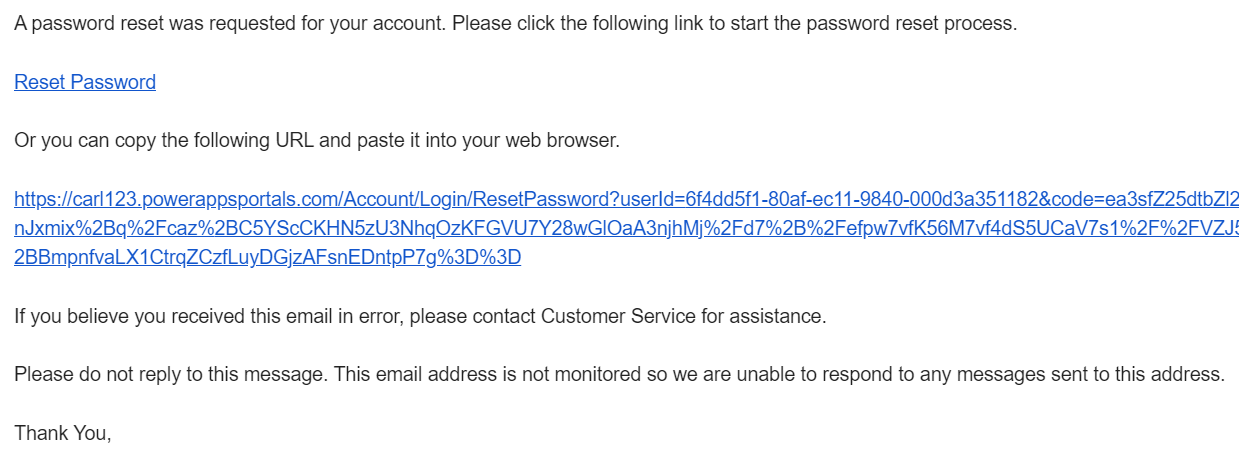
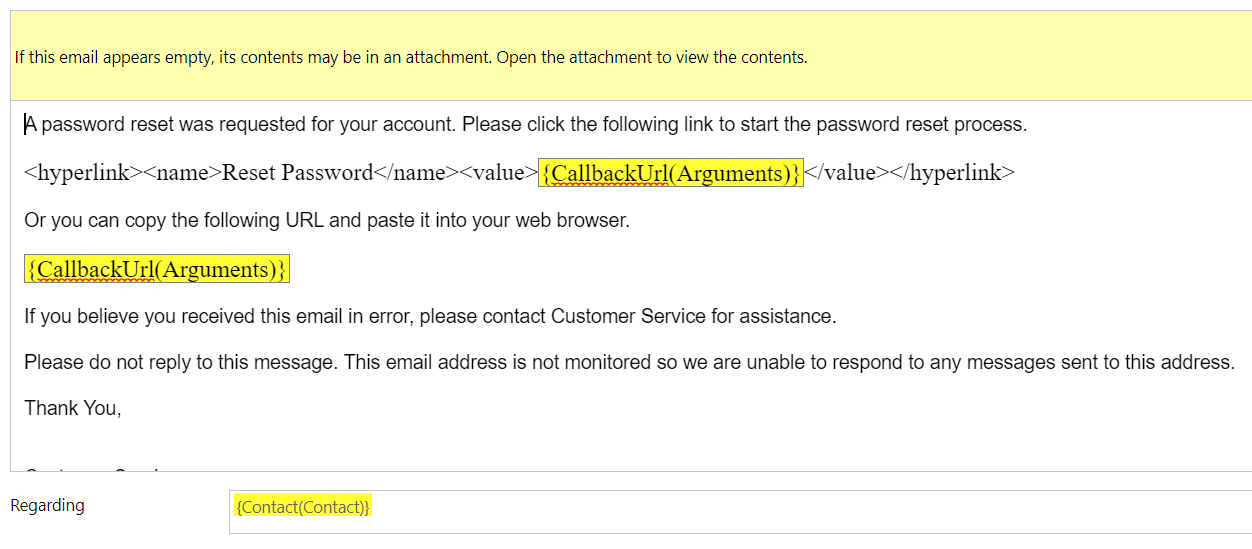
The user will receive an email:
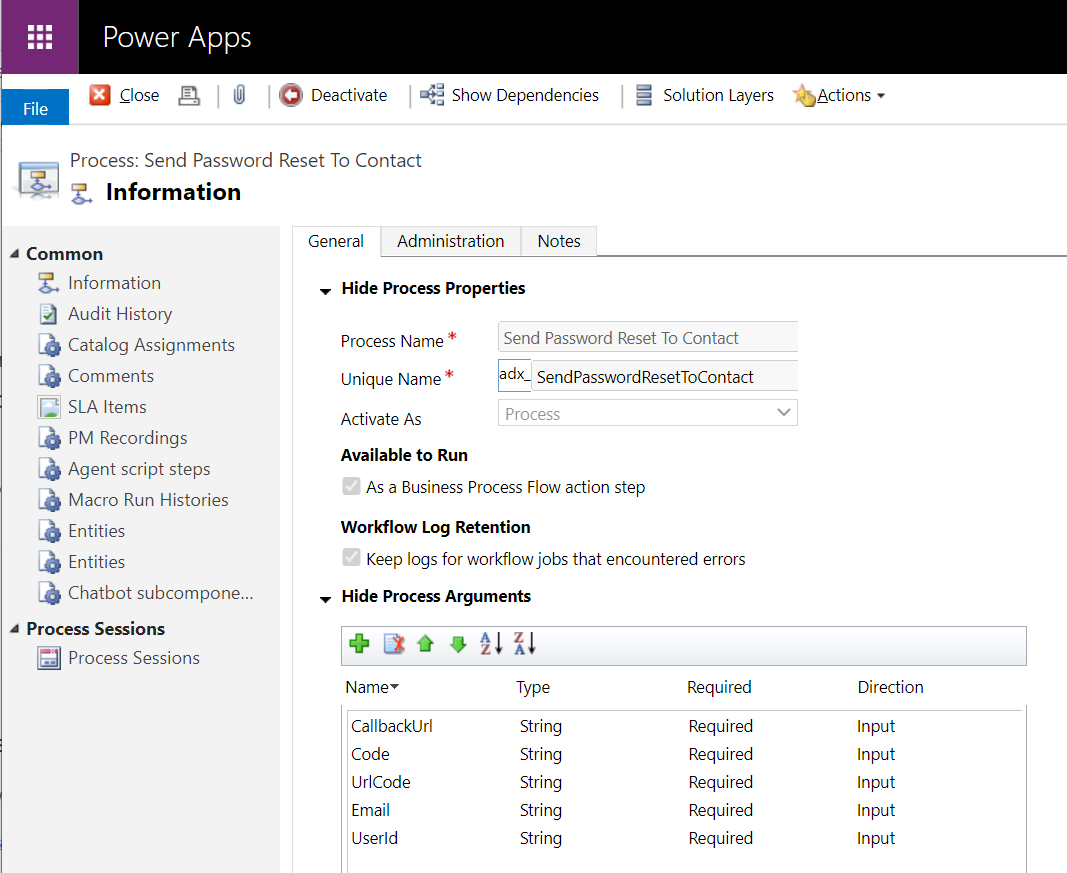
Which uses the process Send Password Reset To Contact:
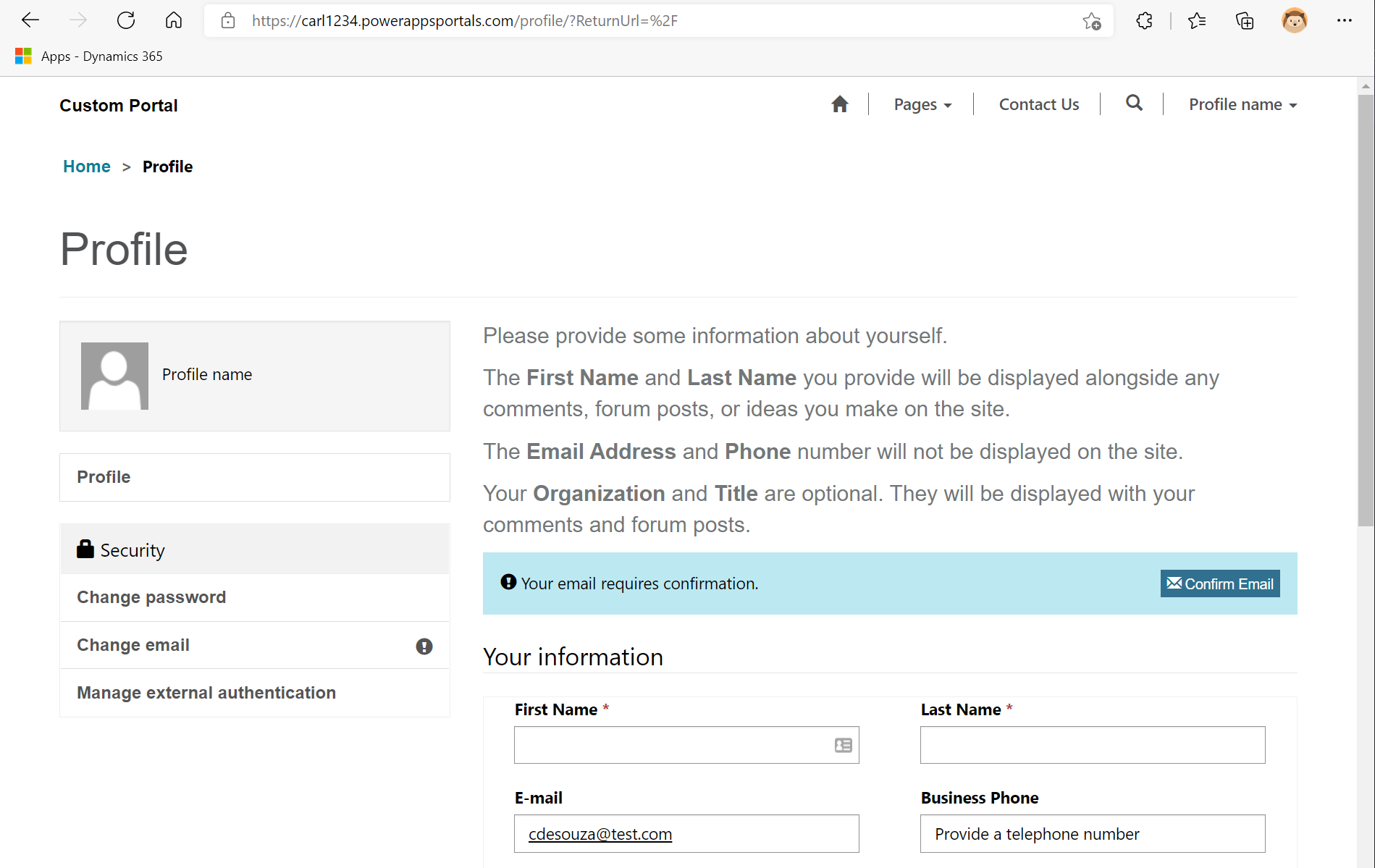
You may see the message to confirm your email:

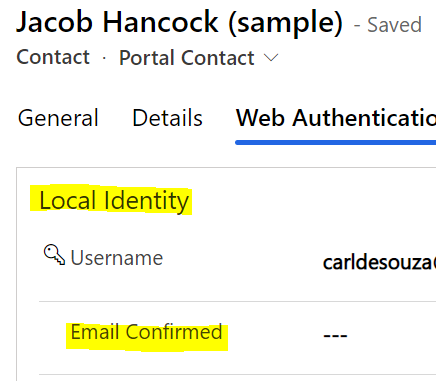
Prior to confirming, we see the Email Confirmed flag as empty:
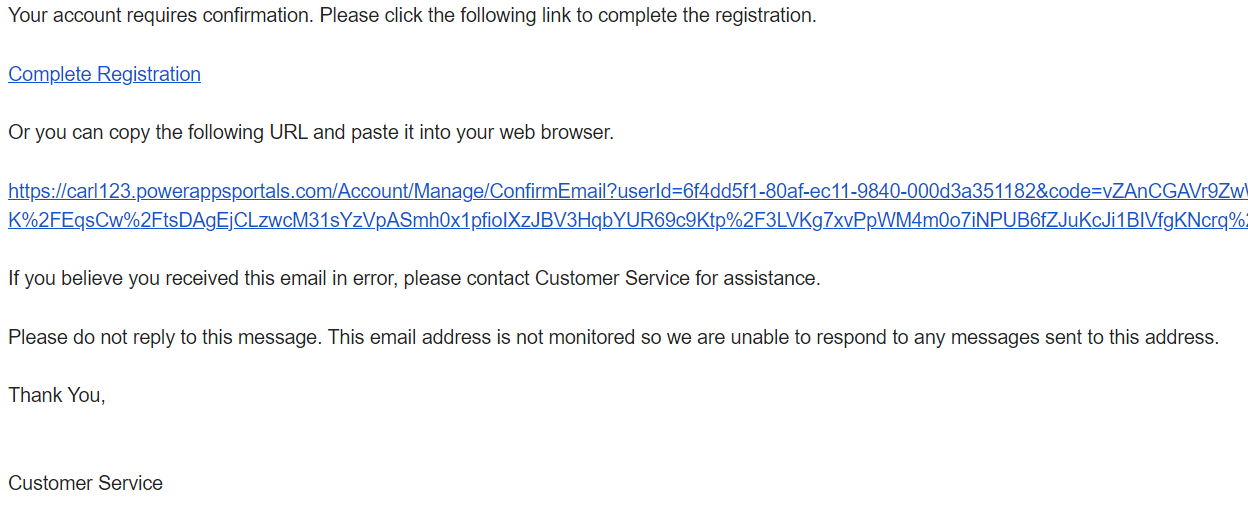
The email sent to the contact looks like below:
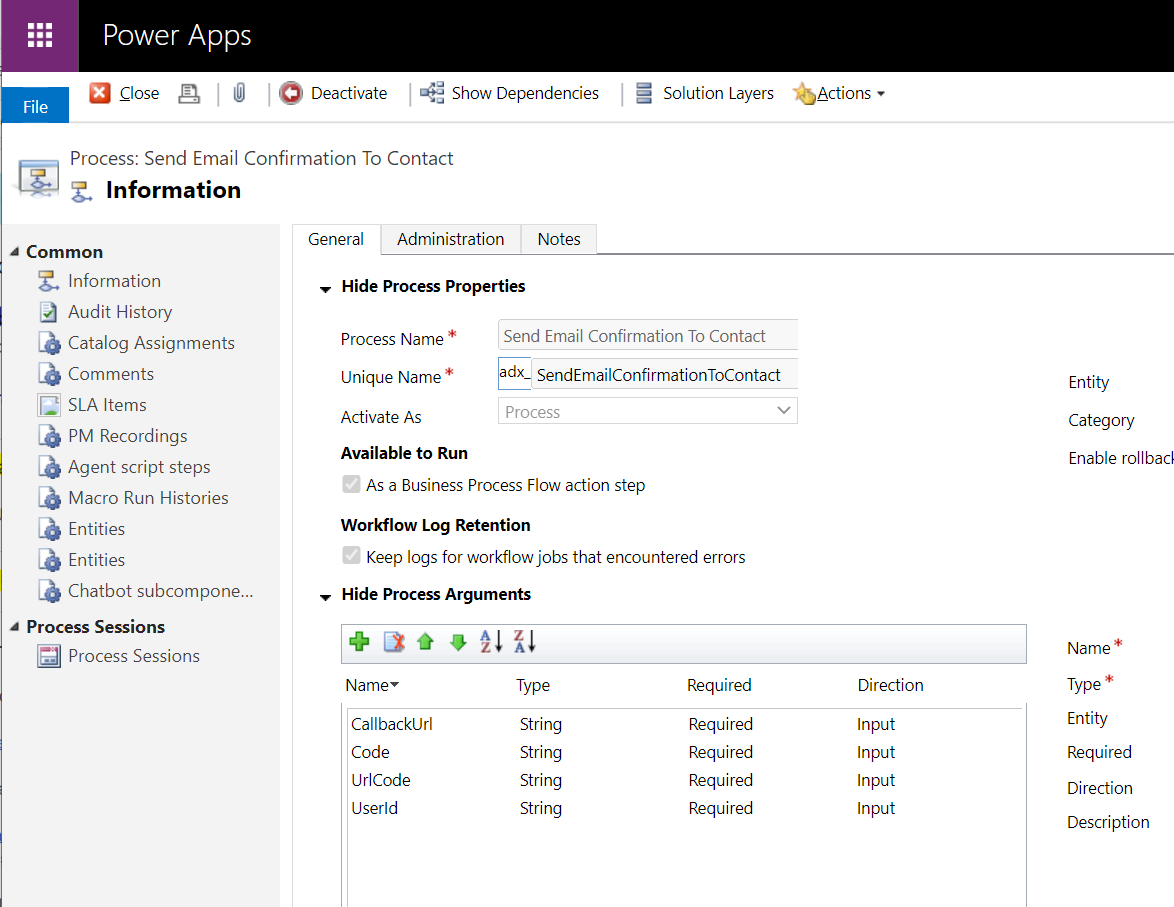
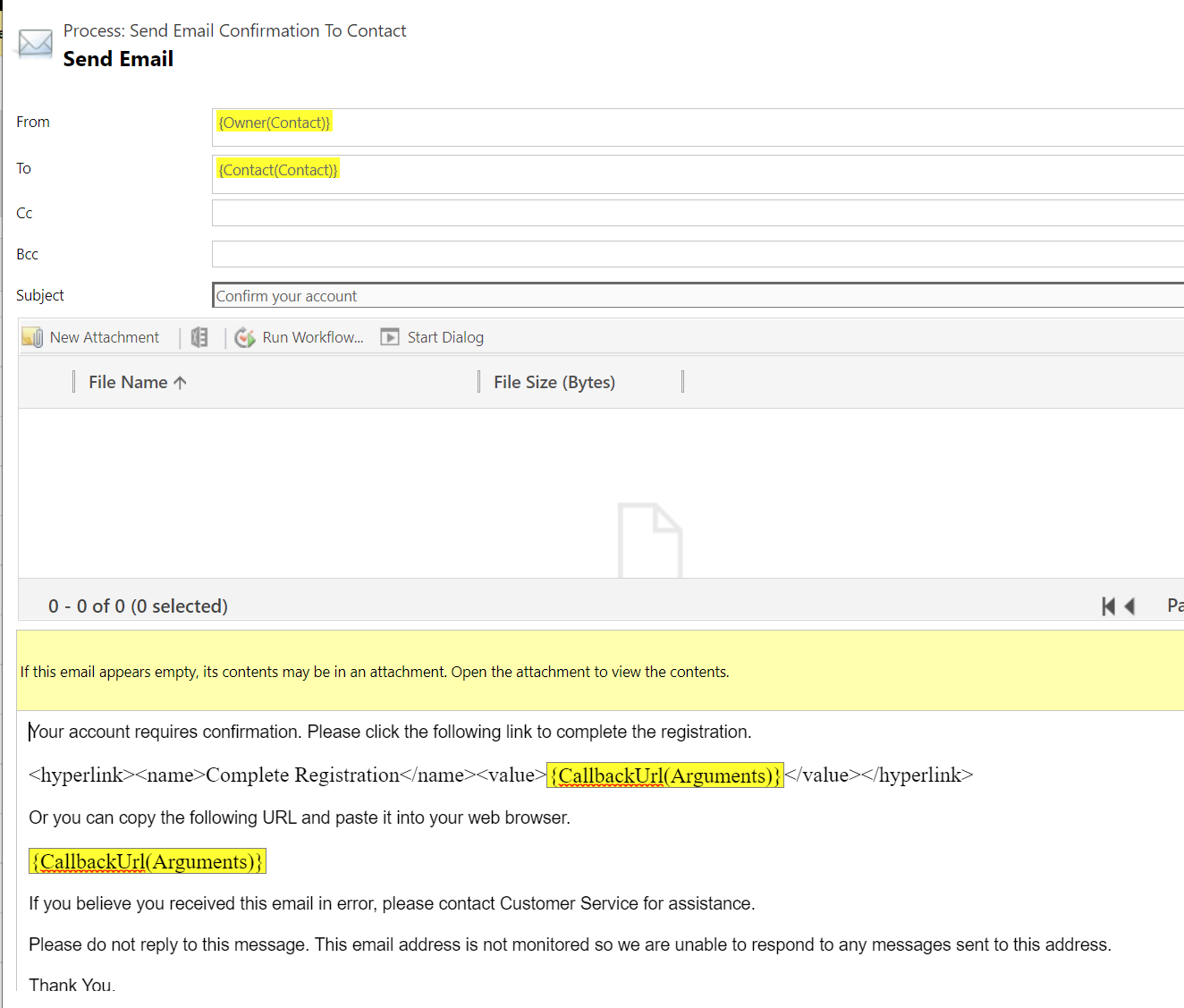
Note, this is the Send Email Confirmation To Contact process:
Clicking on the link confirms the email:

From here, you can build your security around web roles and what each contact can see.

Explore AI, agents & Microsoft technology.
I share practical ideas, tutorials, and videos about AI, AI agents, Microsoft technologies, and the Power Platform.
Subscribe on YouTube →
Thank you for all this detailed instruction. Is it possible to trigger the OOTB “Sent Email Confirmation to Contact” action in a workflow so I can automatically confirm email after the user registration? What should be provided for the input parameters? Thanks!
I was having an issue with users authenicating using EntraID. When a user wants to change their email, i can go to contact’s record change the email address, and in Entra ID i can change or add the email address and would then resend the redemption code.
The user is able to authenticate but not redirected into the portal.
I noticed that the Security Stamp value is missing. How should i troubleshoot?