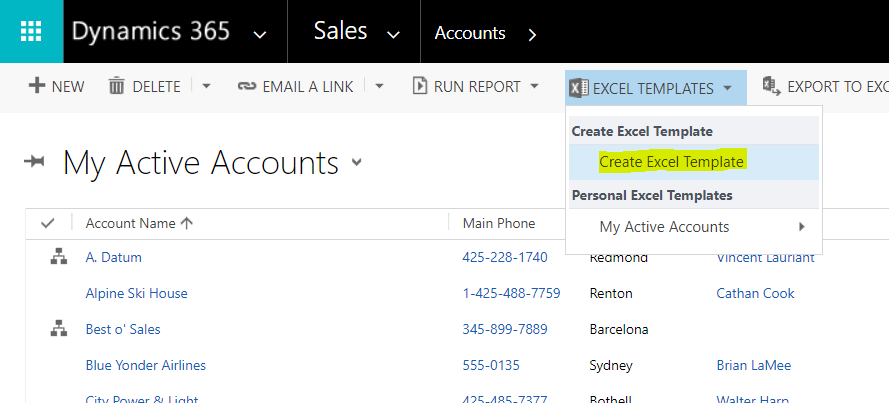
To set up Word Templates, go to select a view and select Excel Templates->Create Excel Template:
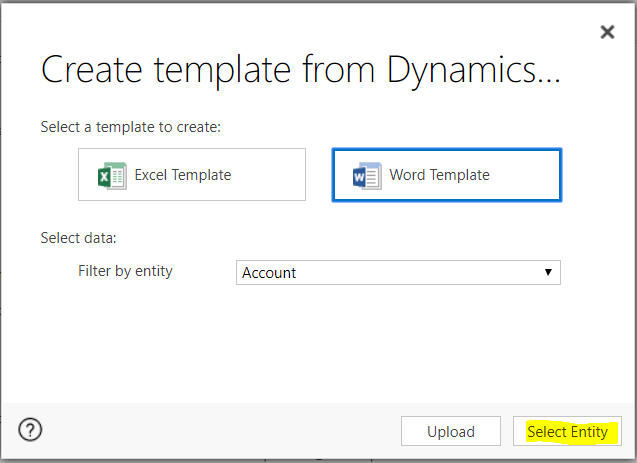
Click Select Entity:
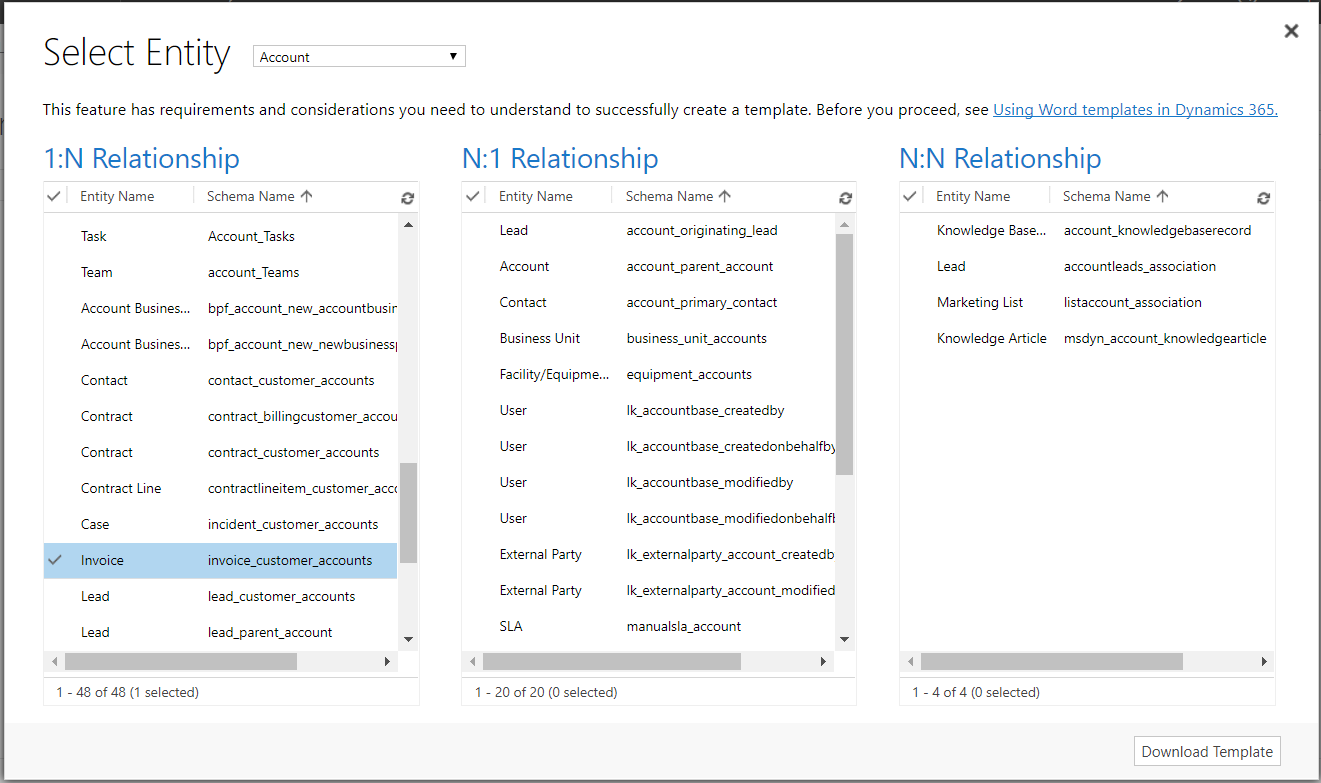
Select any relationships and click Download Template:
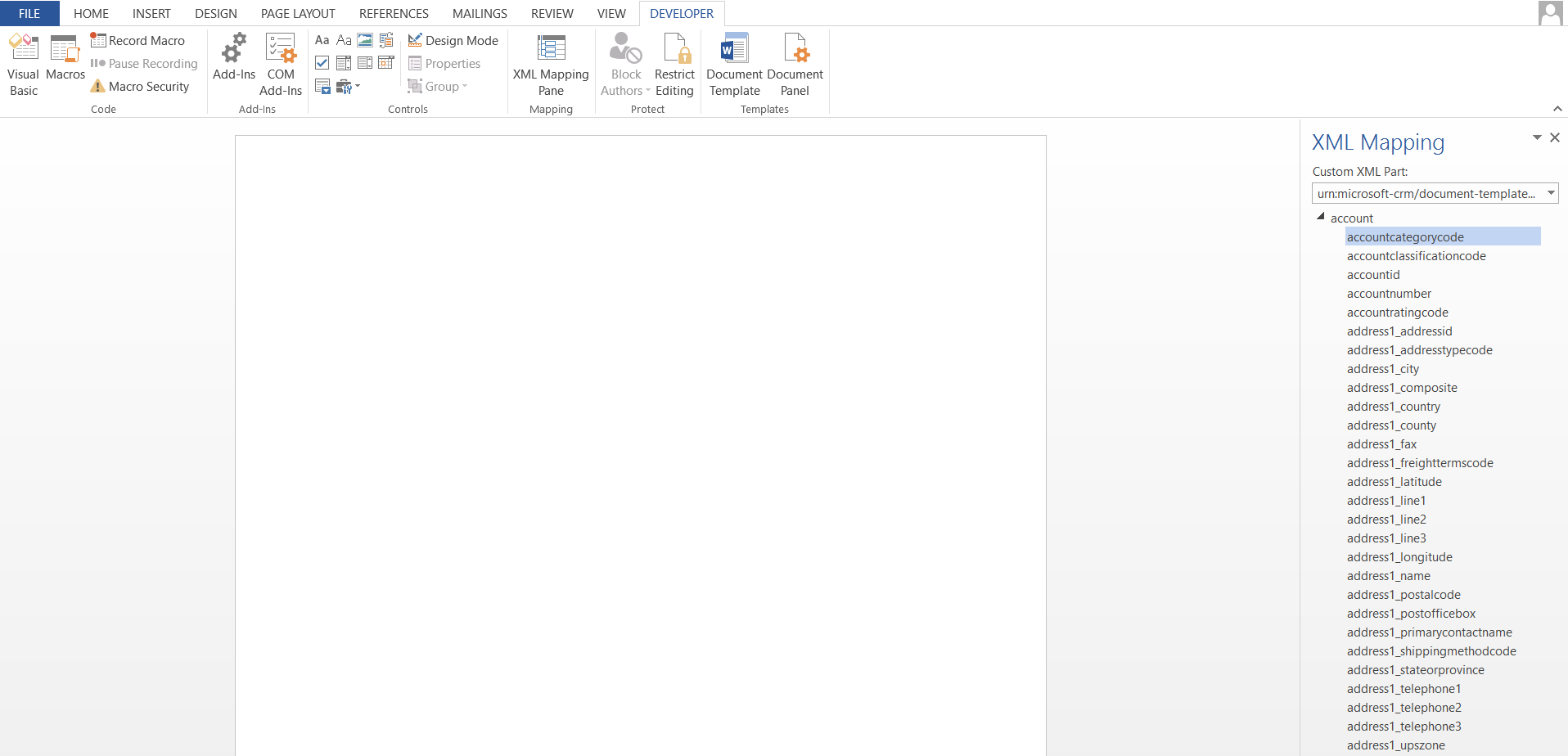
Open the downloaded Word document. From the developer tab, select XML Mapping Pane:
Right click on a field and select Insert->Plain Text:
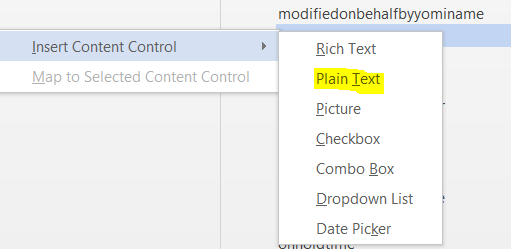
The field will now appear in the document:

Back in the view, select to Upload a Word Document:
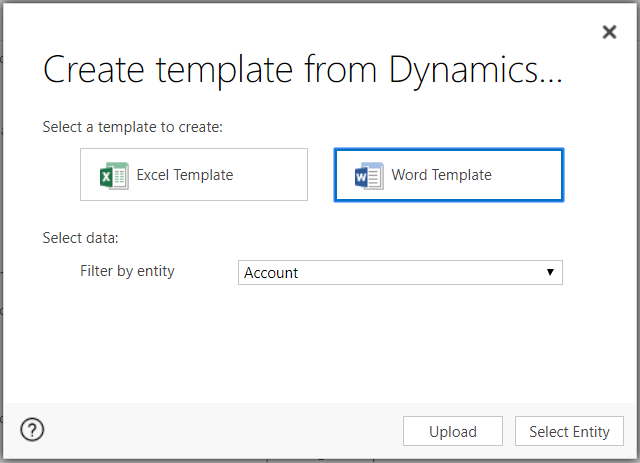
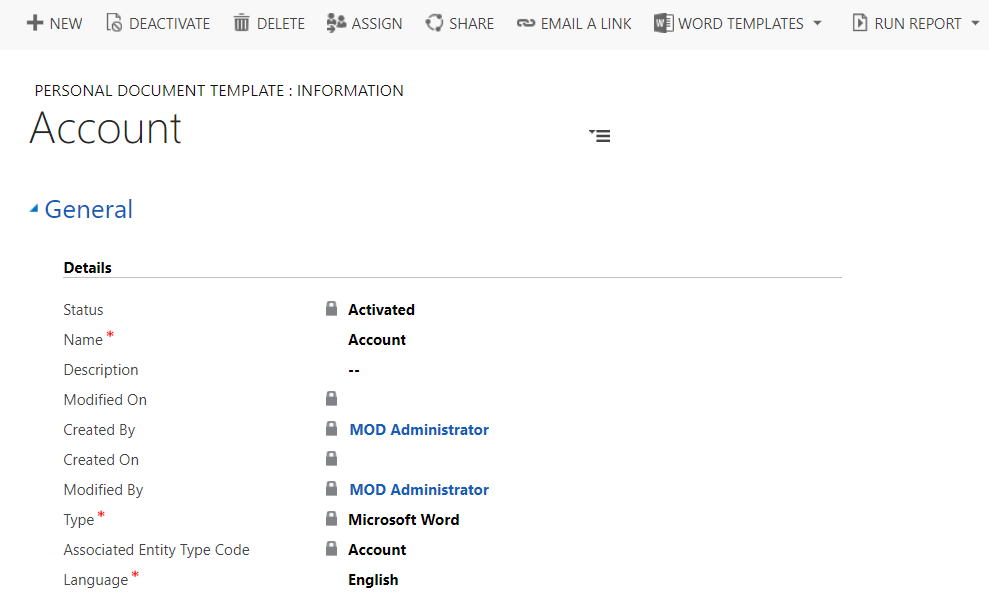
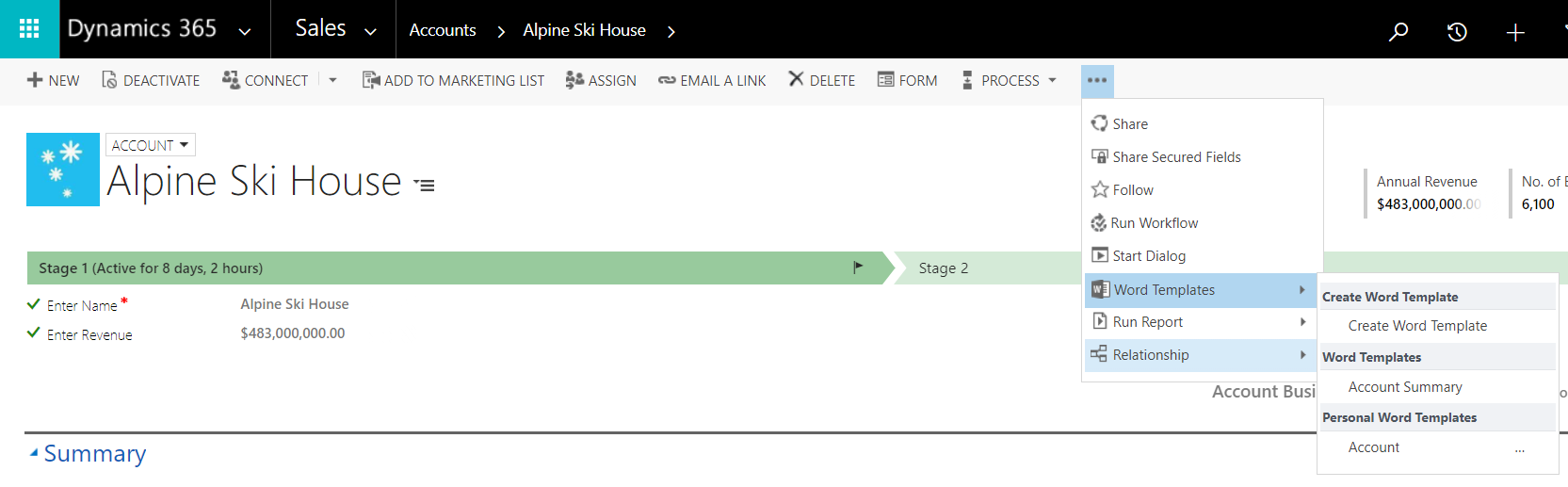
Now, select an account. Go to Word Templates and select the new template created:
A document will be created with the template populated:

Keep learning. Keep building.
Explore AI, agents & Microsoft technology.
I share practical ideas, tutorials, and videos about AI, AI agents, Microsoft technologies, and the Power Platform.
Subscribe on YouTube →Carl de Souza Enterprise Architect at Microsoft · AI Technology Expert

Hi Carl,
i created a word template on the quote table. In the template there is a grid showing all the quotedetails. Is it possible to sort or filter the quotedetails in the resulting word file and therefore also in the pdf?
Can you interact with multiple retrive (for example)?
Do you have any ideas to achieve this goal?
Thanks in advance,
PC
Hi,
is there a solution for sorting the tables.
regards