In this post, we will look at how to implement Custom Tracing in Monitor and App Insights with Power Fx.
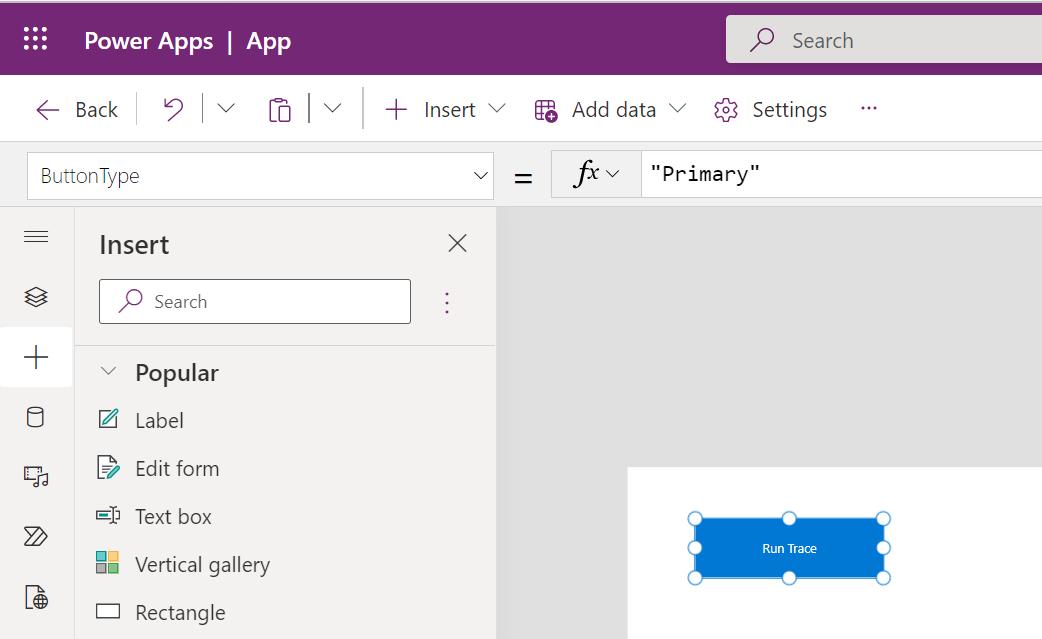
First, let’s create a new Custom Page, and add a button to the page with the label “Run Trace”:
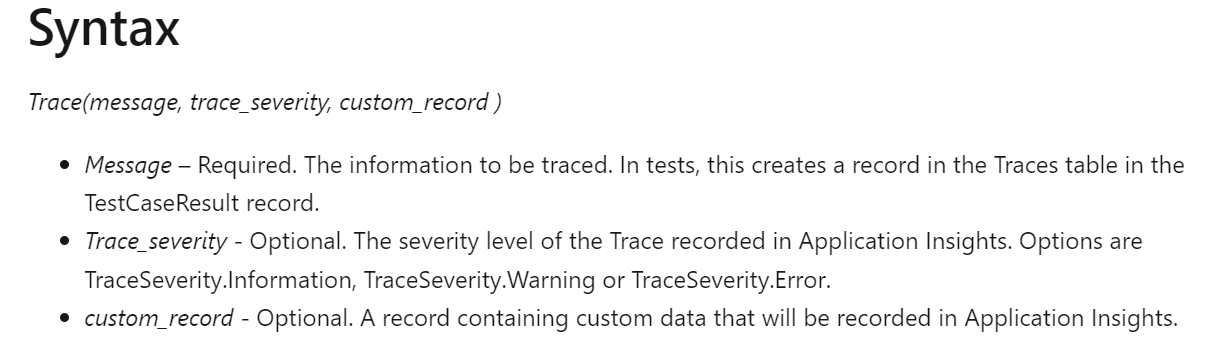
The syntax for the trace function from the Microsoft documentation is:
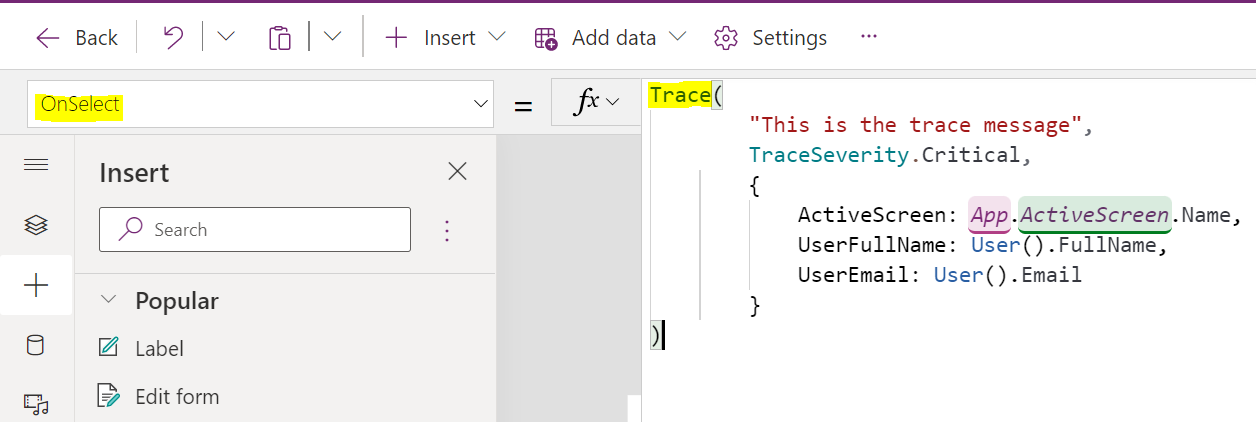
Let’s add the following Trace statement to the OnSelect of the button. Note the 3rd parameter is an object where we can pass anything we want:
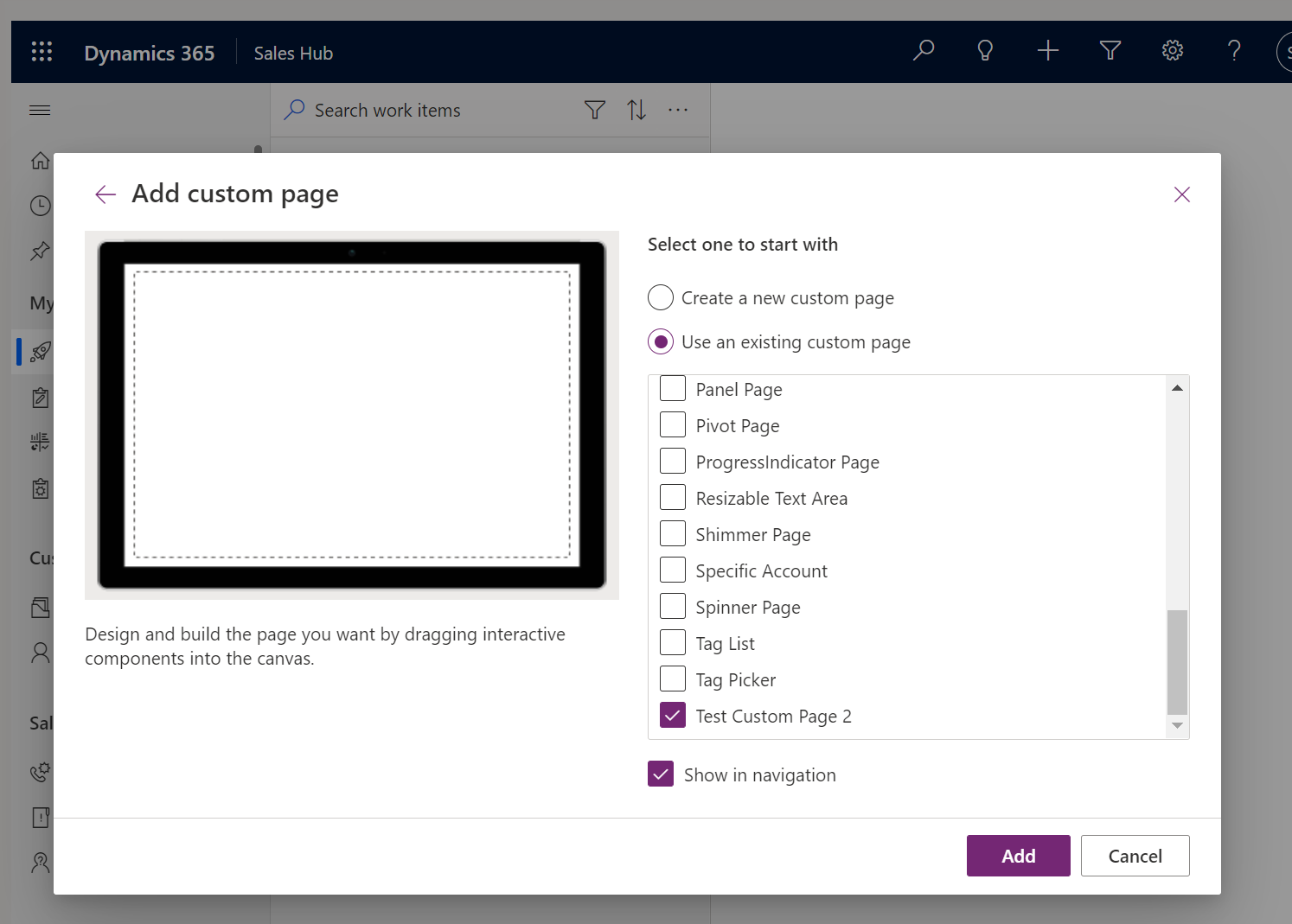
Now let’s add this page to an app and save and publish:
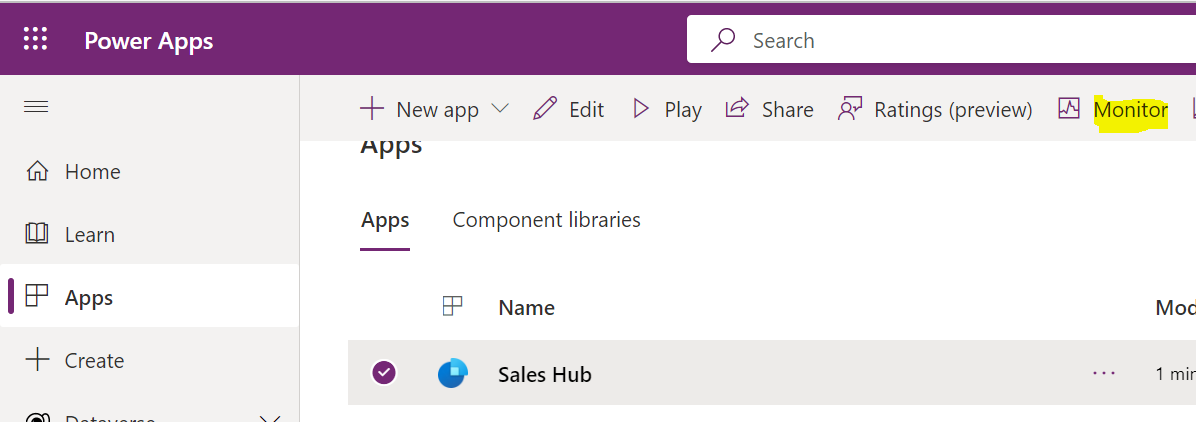
We can now test this. Open Monitor:
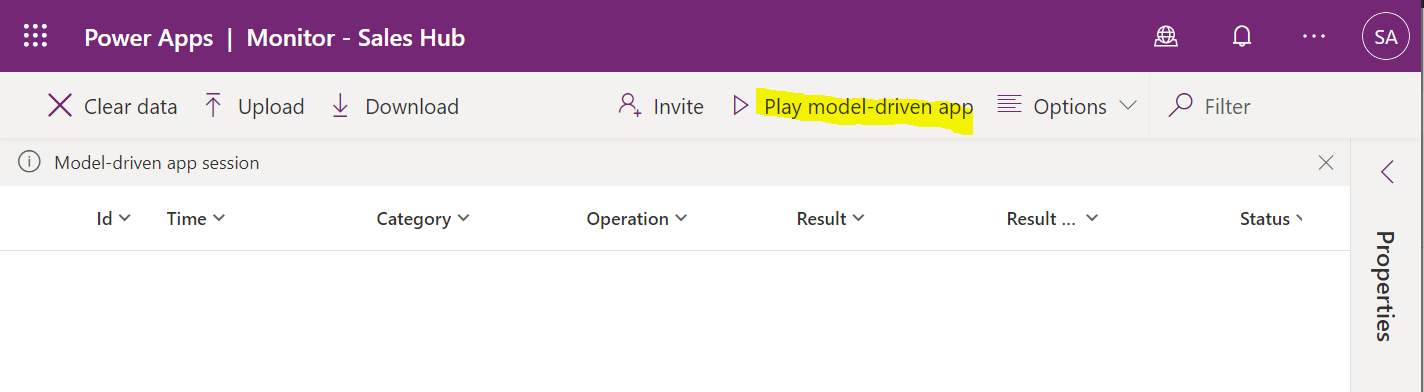
Play the app:
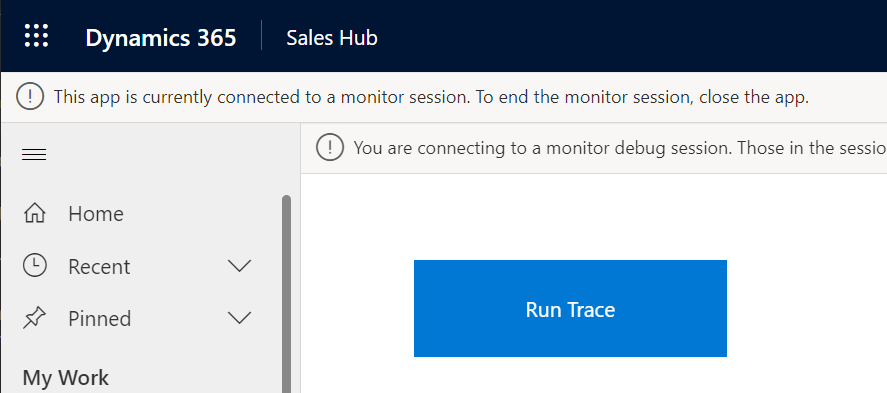
And click on the button:
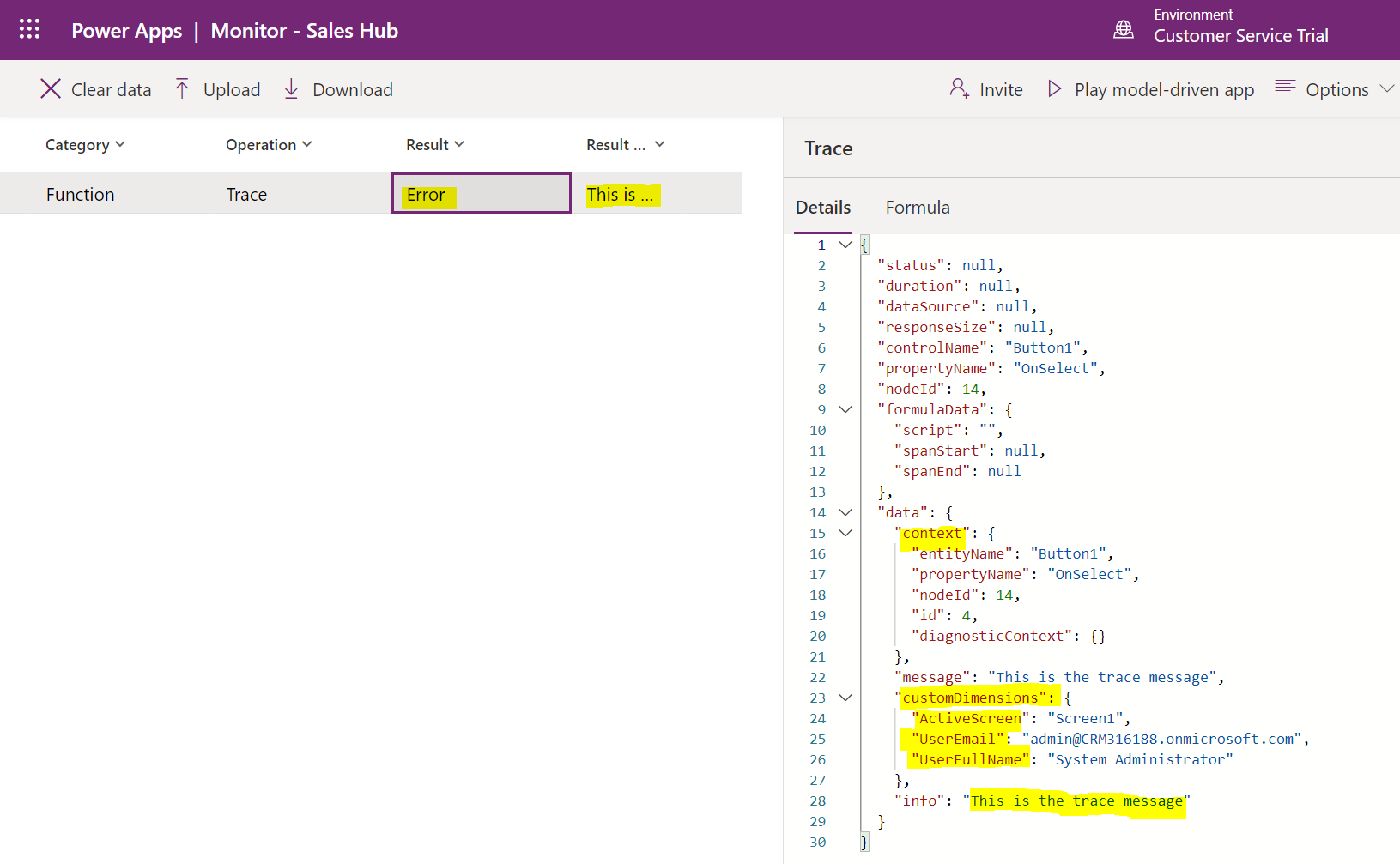
We see the trace come through in Monitor:

Keep learning. Keep building.
Explore AI, agents & Microsoft technology.
I share practical ideas, tutorials, and videos about AI, AI agents, Microsoft technologies, and the Power Platform.
Subscribe on YouTube →Carl de Souza Enterprise Architect at Microsoft · AI Technology Expert
