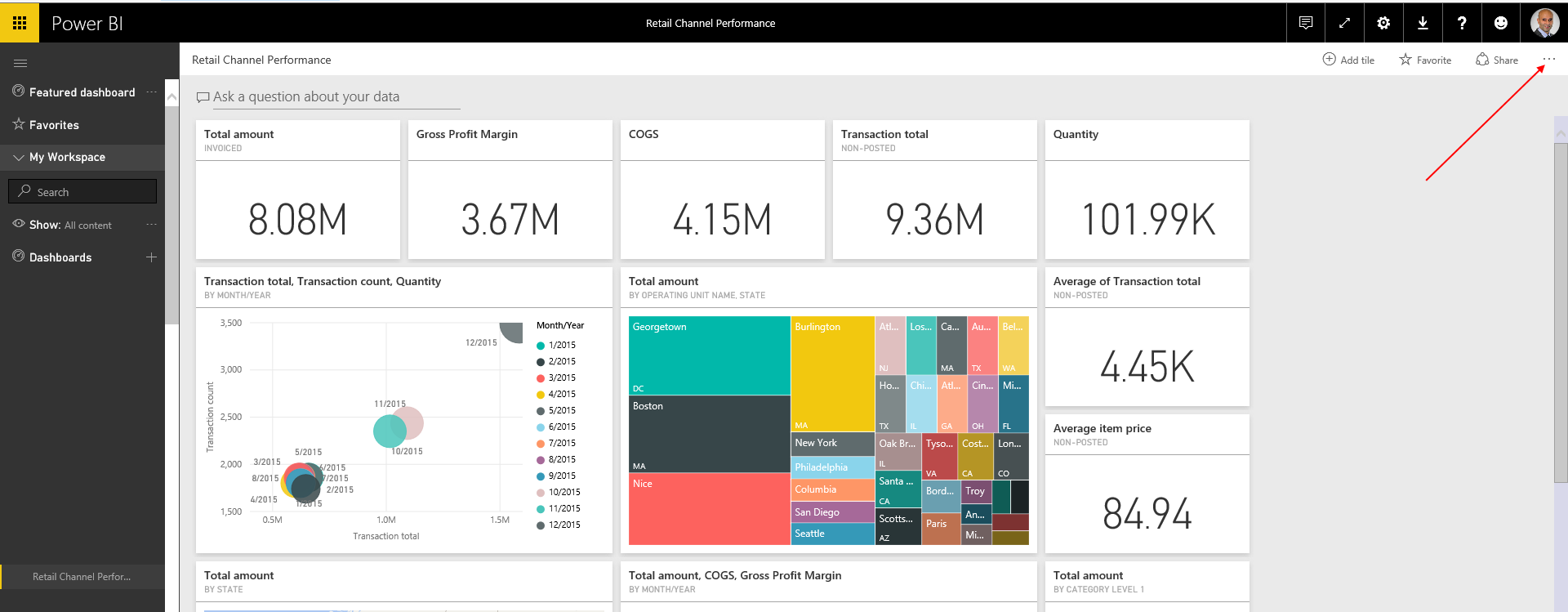
Connecting Power BI Desktop to Dynamics CRM Online

To connect Power BI Desktop to Dynamics CRM Online, open Power BI desktop click on Get Data: Filter by Dynamics and select “Dynamics CRM Online”: Enter your OData URL and click OK. This will be in the format: https://*****.crm.dynamics.com/XRMServices/2011/OrganizationData.svc Select Organization Account and Sign In: Then click Connect from the same screen. This will load the entities from CRM.    

Publish Web Service to Azure from Visual Studio

To publish a web service from Visual Studio, do the following. You may need to install the Azure SDK for .NET. You can find the download link on the Microsoft website: https://azure.microsoft.com/en-us/downloads/archive-net-downloads/ Select the web service. Right click and publish:   Select Microsoft Azure App Service and New: Confirm the details and click Create: Press Publish: A webpage will be created with the instructions: And you can access the web service … Continue reading Publish Web Service to Azure from Visual Studio

Deploy Security Roles Dynamics 365

There are situations where you create security roles in one organization and you need to transfer them to another organization, e.g. a development environment to a production environment. We will go through an example of how to do this. First, create a new security role: Next, add some permissions: Create a new solution and select the new security role: Now, in the destination system, select the security role: The new security role … Continue reading Deploy Security Roles Dynamics 365

Create Record in Dynamics 365 using jQuery

To create a new record of an entity in Dynamics 365, use the code below: var account = {}; account.Name = “Sample Account”; var jsonAccount = window.JSON.stringify(account); if (typeof($) === ‘undefined’) { $ = parent.$; jQuery = parent.jQuery; } $.ajax({ type: “POST”, contentType: “application/json; charset=utf-8”, datatype: “json”, url: Xrm.Page.context.getClientUrl() + “/XRMServices/2011/OrganizationData.svc/AccountSet”, data: jsonAccount, beforeSend: function (XMLHttpRequest) { //Specifying this header ensures that the results will be returned as JSON. XMLHttpRequest.setRequestHeader(“Accept”, … Continue reading Create Record in Dynamics 365 using jQuery

Query Dynamics 365 using jQuery

You can query Dynamics 365 data by using jQuery. Here we will go through an example. We will be connecting to the OData Web service. The URL will be: https://yourcrm.crm.dynamics.com/XRMServices/2011/OrganizationData.svc/ To access the AccountSet data, the URL will be: https://yourcrm.crm.dynamics.com/XRMServices/2011/OrganizationData.svc/AccountSet We can pass parameters to the OData to filter the data if required. Add the following JavaScript code to somewhere in CRM. This will retrieve all accounts using jQuery and display … Continue reading Query Dynamics 365 using jQuery

XMLHttpRequest Explained

The XMLHttpRequest is an API used in modern web browsers. It contains methods that allow communication between the web browser and a web server through JavaScript. Although the name is XML, it can also support JSON. Let’s go through an example of how to use it. First, we will use a previous example where we have a WCF web service set up. This service is then uploaded to Azure so it can be … Continue reading XMLHttpRequest Explained

Dynamics 365 $ is not defined

In your JavaScript code, you may receive this error when running jQuery code: $ is not defined To resolve this, add the following code to JavaScript before the jQuery call is made: if (typeof($) === ‘undefined’) { $ = parent.$; jQuery = parent.jQuery; }

Create WCF Web Service in Visual Studio

Windows Communication Foundation (WCF) web services can be created in Visual Studio. Note these web services replace the old asmx web services. To create a web service in Visual Studio do the following. Create a new project in Visual Studio and select WCF Service Application: This creates the solution: Delete the existing Service1.svc and IService1.cs and add a new WCF Service: This will create these 2 files again. Note the … Continue reading Create WCF Web Service in Visual Studio

Dynamics 365 Accessing the Plugin Trace Log

The Dynamics 365 Plugin Trace Log settings are located in Settings->Administration->System Settings: And then accessed under the Settings->Customization menu: Records will be created here: And you can drill into each record for more details: Click here to learn how to write to the Plugin Trace Log from your plugins.

Dynamics 365 Raise Error in Plugin

To raise an error in the plugin code, we use InvalidPluginExecutionException. For example: throw new InvalidPluginExecutionException(“Plugin has run. Code will stop executing.”); The code runs in the Execute function of the plugin code. For example: using System; using System.Collections.Generic; using System.Linq; using System.Text; using System.Threading.Tasks; using Microsoft.Xrm.Sdk; using Microsoft.Xrm.Sdk.Query; namespace Carl.AssociateDisassociate {     public class AssociateDisassociate : IPlugin     {         public void Execute(IServiceProvider serviceProvider)         {             throw new InvalidPluginExecutionException(“Plugin has run. Code will stop executing.”);         }     } } The code will display the error and stop executing: If you register the code on the Pre-Operation it will prevent the rest of the CRM code from … Continue reading Dynamics 365 Raise Error in Plugin