When you create WPF apps in Visual Studio, you will see an extra toolbar on your WPF forms:
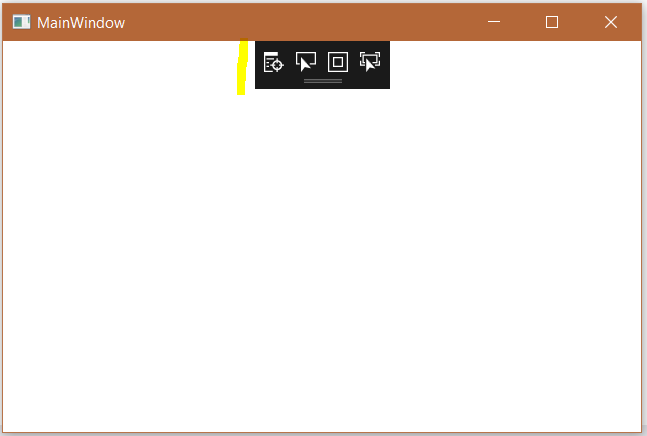
This is the UI Debugging Tools for XAML in Visual Studio. Options include:
- Go to Live Visual Tree
- Enable Selection
- Display Layout Adorners
- Track Focused Element
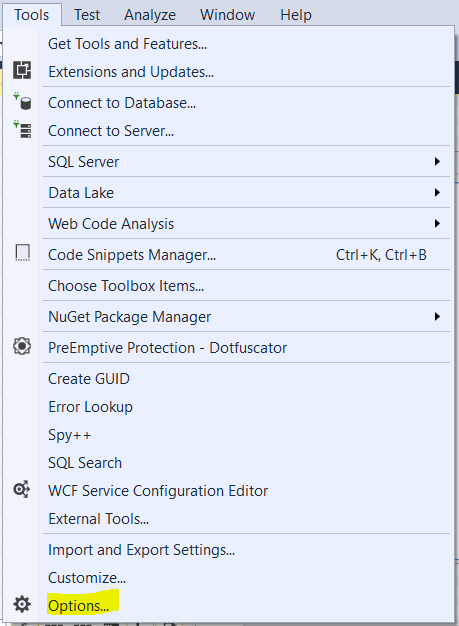
To disable this, in Visual Studio select Tools->Options:
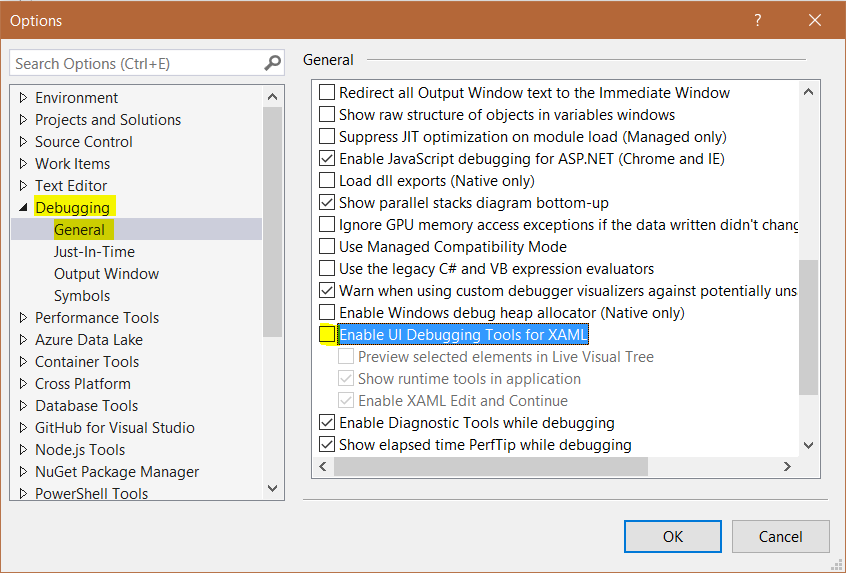
Debugging->General->Enable UI Debugging Tools for XAML:
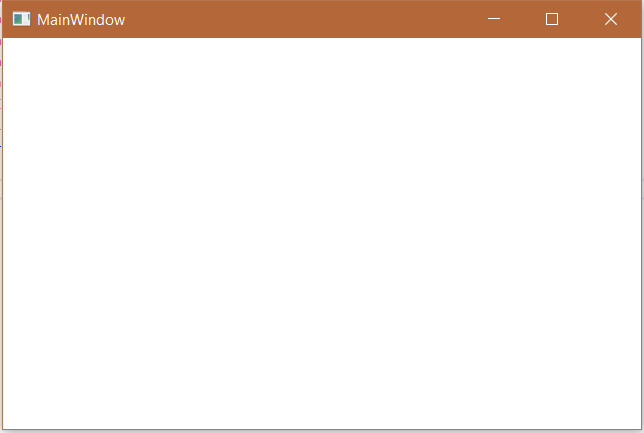
Rerun and you will now not see the tools:

Keep learning. Keep building.
Explore AI, agents & Microsoft technology.
I share practical ideas, tutorials, and videos about AI, AI agents, Microsoft technologies, and the Power Platform.
Subscribe on YouTube →Carl de Souza Enterprise Architect at Microsoft · AI Technology Expert

thanks dude, you are awesome
In VS 2022 this seems to be controlled by
Options/Debugging//XAML Hot Reload/Enable in-app tool bar
IN VS Professional 2019, the option to uncheck is “Enable Diagnostic Tools while debugging”