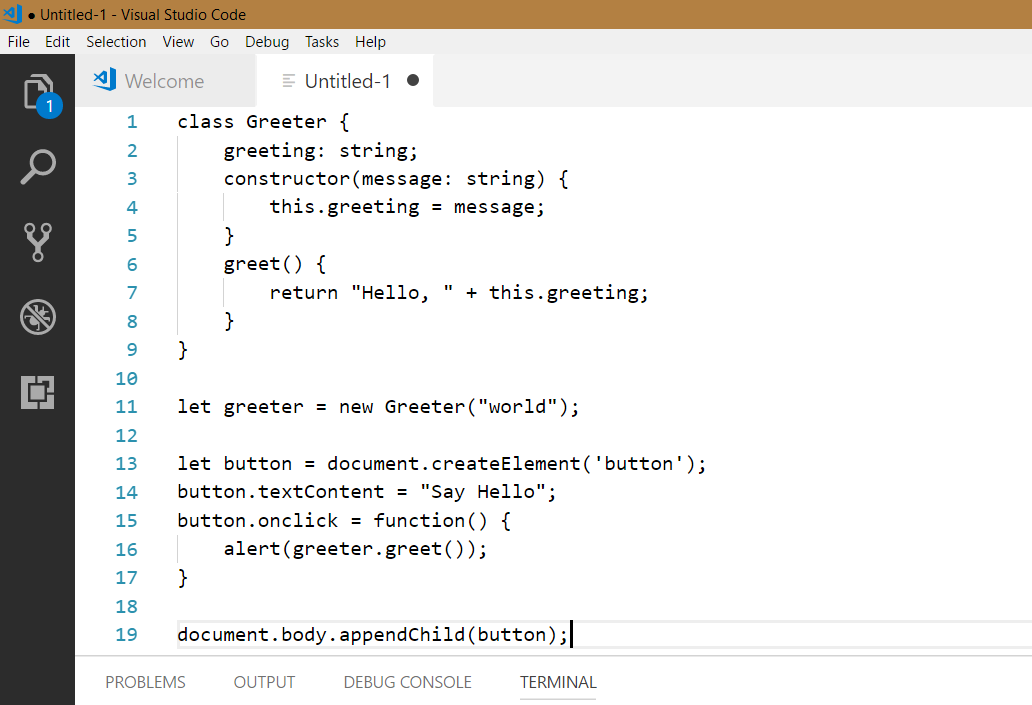
Visual Studio Code has support for the TypeScript language. To use it, create a new file with TypeScript code in Visual Studio Code:
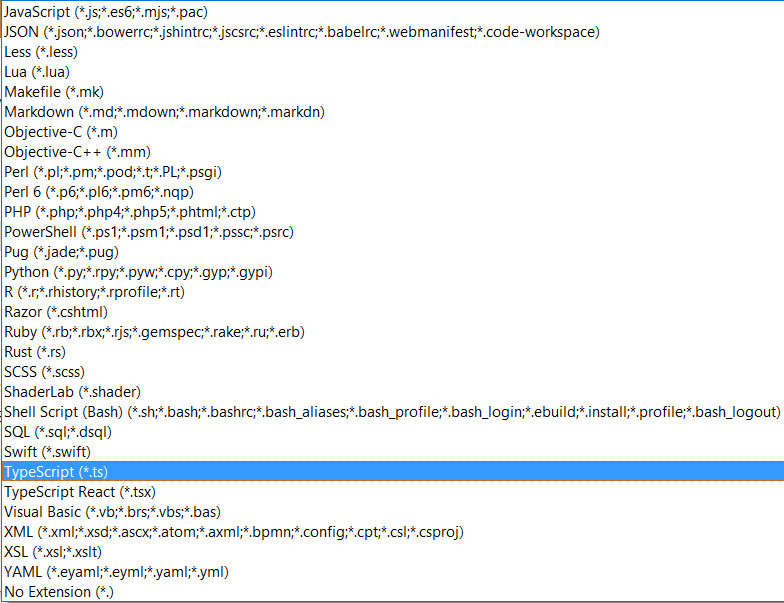
And save the file, we will see TypeScript as an option:

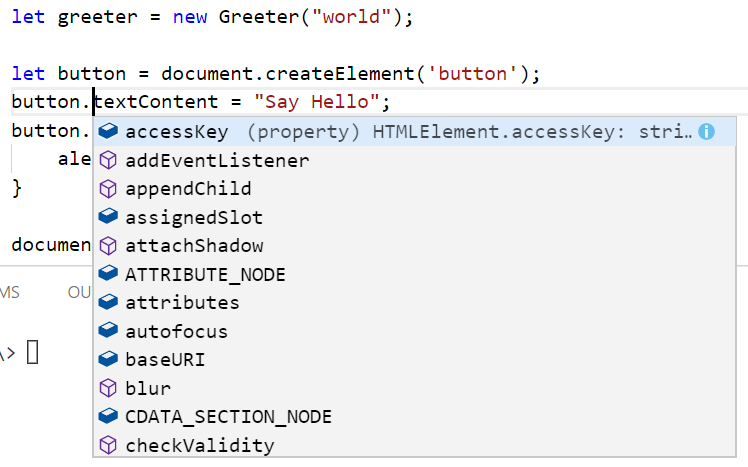
We can see Visual Studio Code has TypeScript Intellisense:
Visual Studio Code does not include the TypeScript Compiler (tsc). To install it using the Visual Studio Code terminal, type:
npm install -g typescript
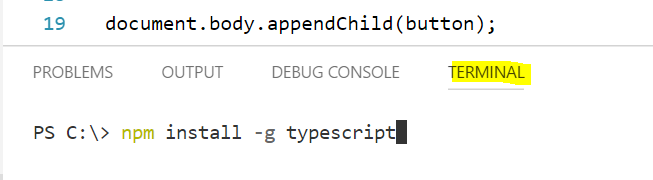
You will see TypeScript install:
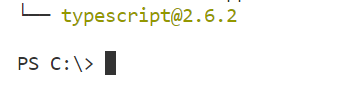
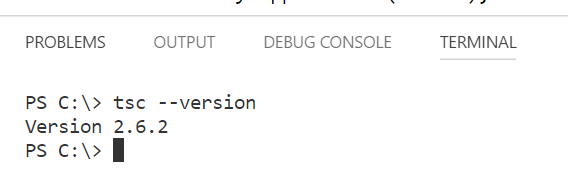
You can now see which version of TypeScript is installed by entering tsc –version:
Now, create a new file:
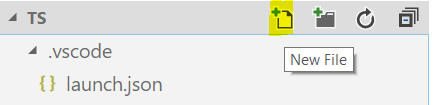
Name the file tsconfig.json and add the code:
{
    "compilerOptions": {
        "target": "es5",
        "module": "commonjs",
        "sourceMap": true
    }
}
Now, from the Tasks build menu, select Run Build Task:
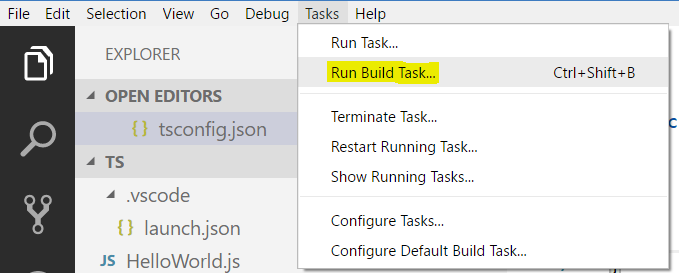
And select tsc: build – tsconfig.json:

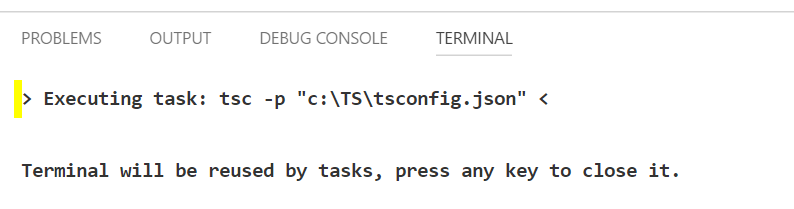
The terminal will execute the TypeScript compiler tsc:
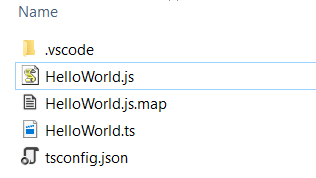
Which will compile and produce JS files based on the TS files:
You can also simply type the tsc command to transpile the ts file directly.

Explore AI, agents & Microsoft technology.
I share practical ideas, tutorials, and videos about AI, AI agents, Microsoft technologies, and the Power Platform.
Subscribe on YouTube →
Great article on setting up TypeScript in Visual Studio Code! The step-by-step guide and screenshots make it easy to follow. Installing TypeScript with npm and configuring tsconfig.json is made clear. Thanks for sharing this helpful tutorial!