SmartLists in Dynamics GP are a way to view data through the Dynamics GP user interface.
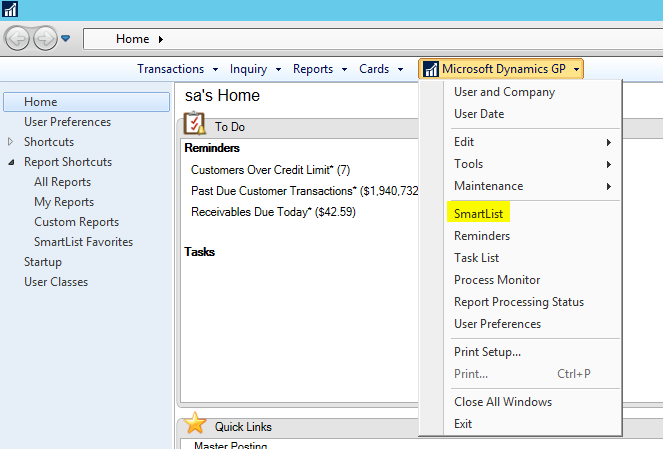
To view the list of SmartLists, go to Microsoft Dynamics GP and select SmartList:
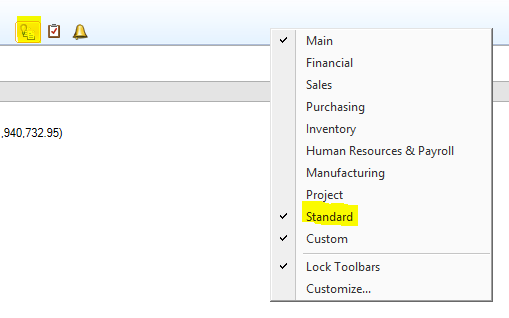
You can also access SmartLists through the lightbulb icon in the Standard GP menu:
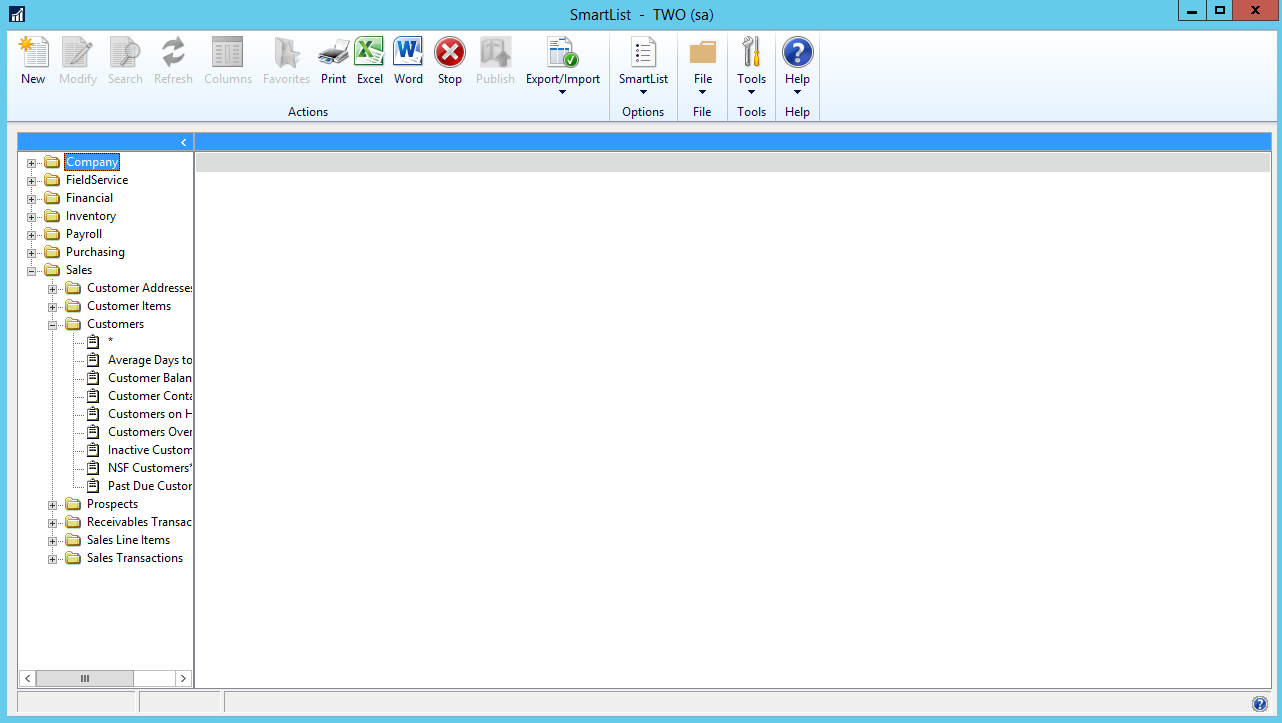
Expand the pane to select a SmartList:
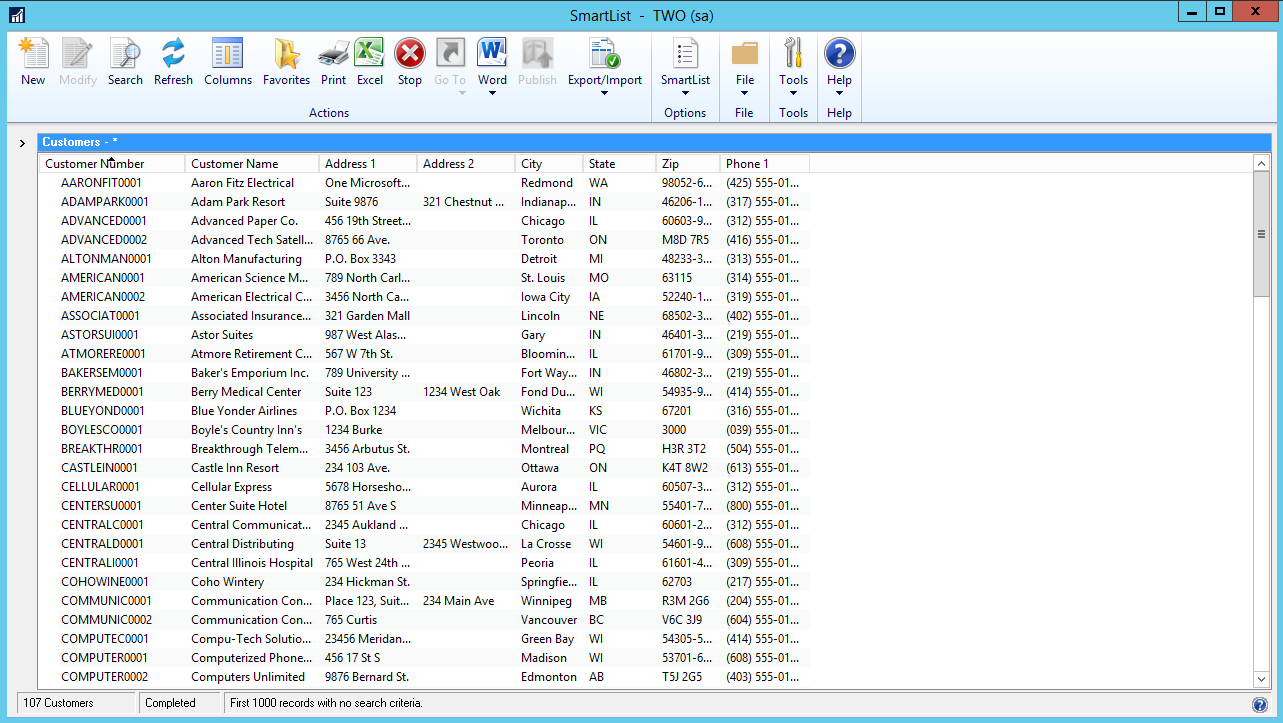
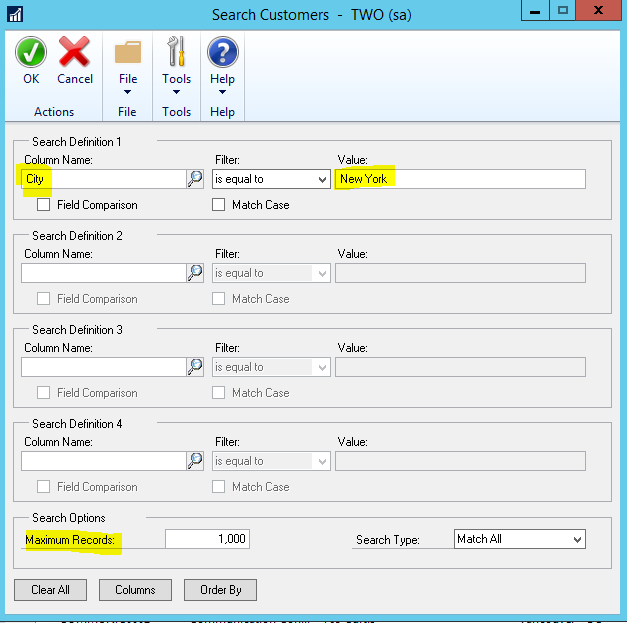
Click on Search to select the maximum number of records returned. Click on a field to filter the selection:
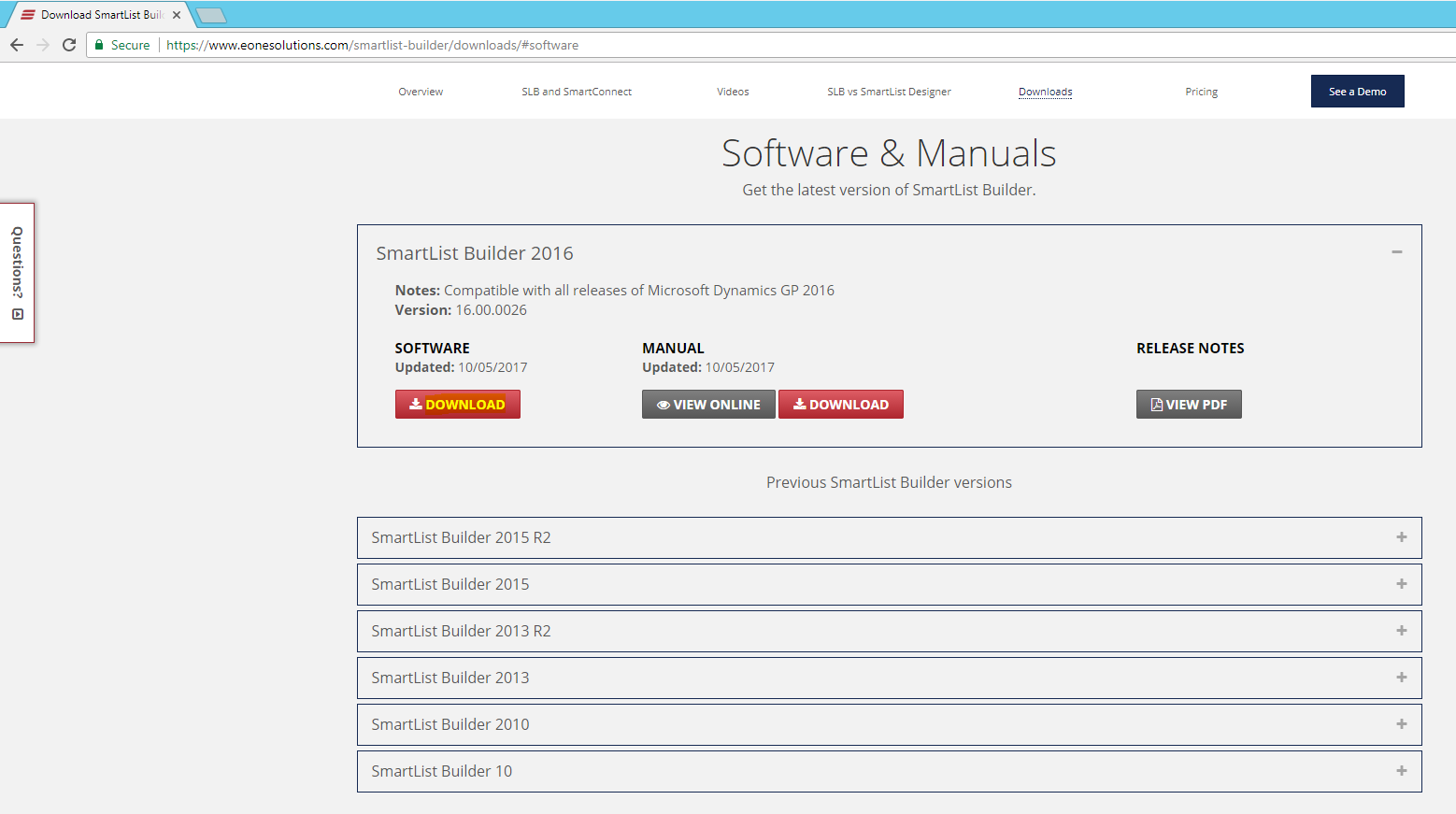
To create your own SmartLists, go to eOne Solutions website and download SmartList Builder: https://www.eonesolutions.com/smartlist-builder/downloads/
Select Download:
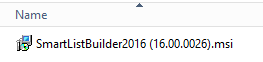
Run the msi:
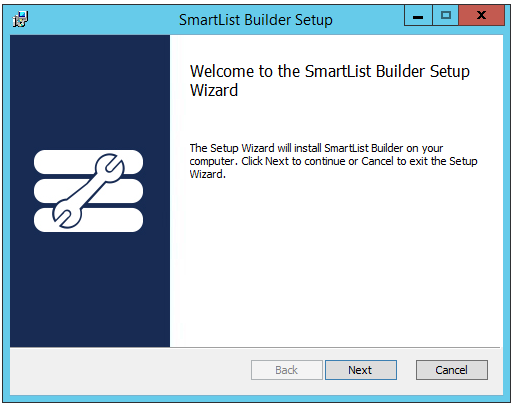
Click Next:
Click Next:
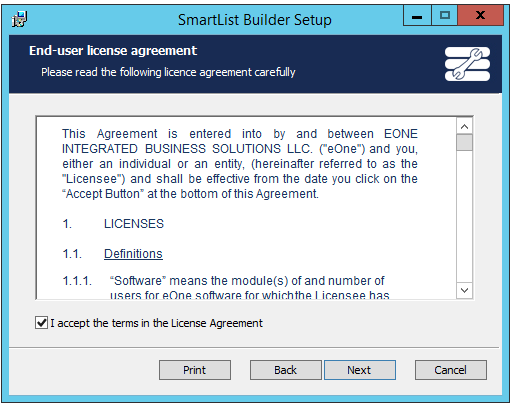
Click Next:
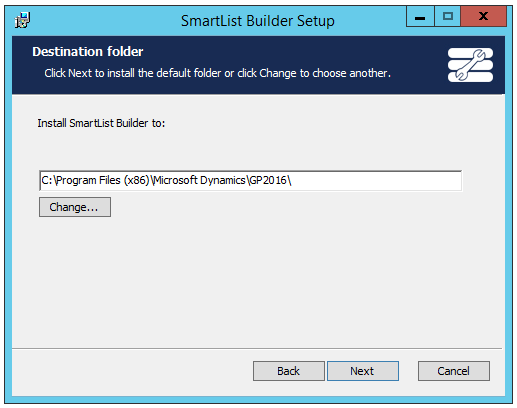
Click Install:
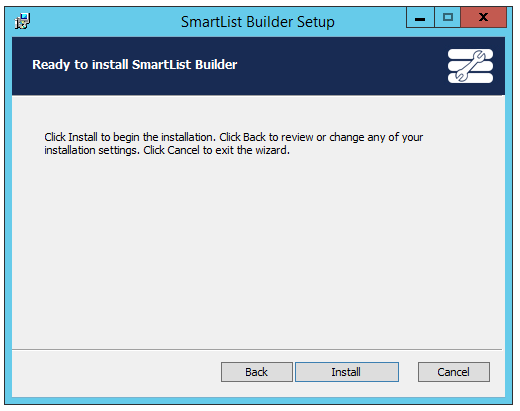
Click Finish:
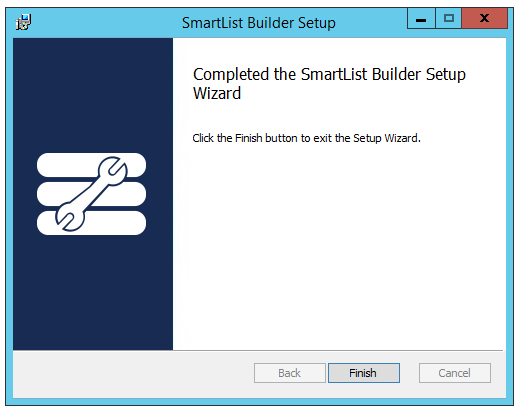
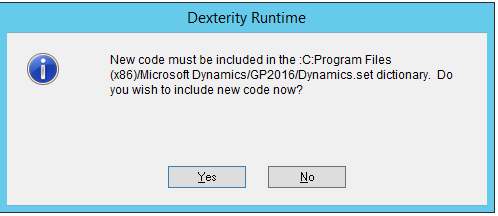
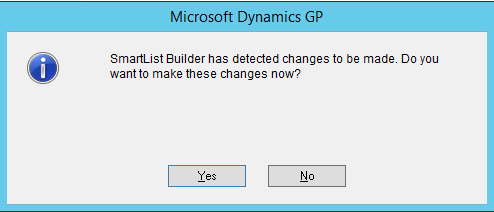
Start Dynamics GP. You will see this message. Click Yes:
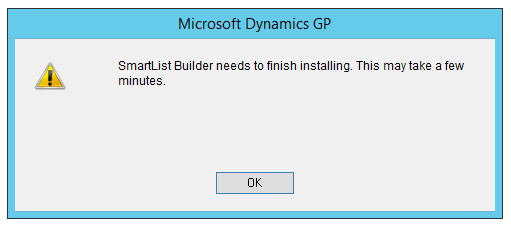
You will see this message. Click OK:
Now in the Dynamics.set file, you will see 2 SmartList records:
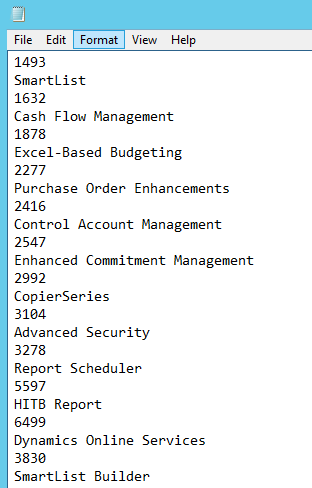
1493
SmartList
3830
SmartList Builder
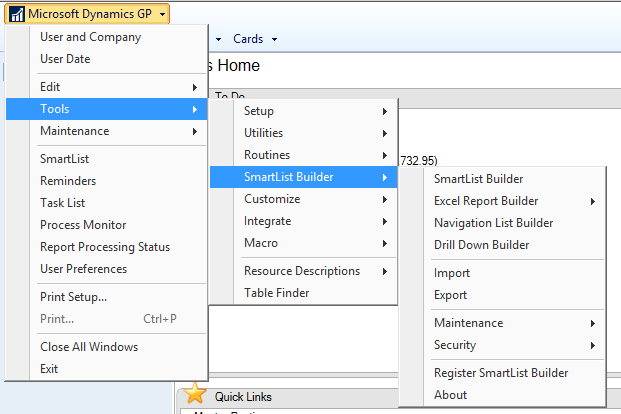
You will see this new SmartList Builder menu option:
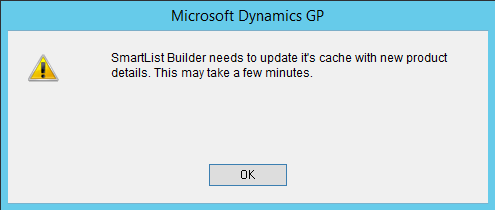
Click on SmartList builder. You may see this message. Click OK:
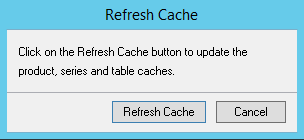
Click on Refresh Cache:
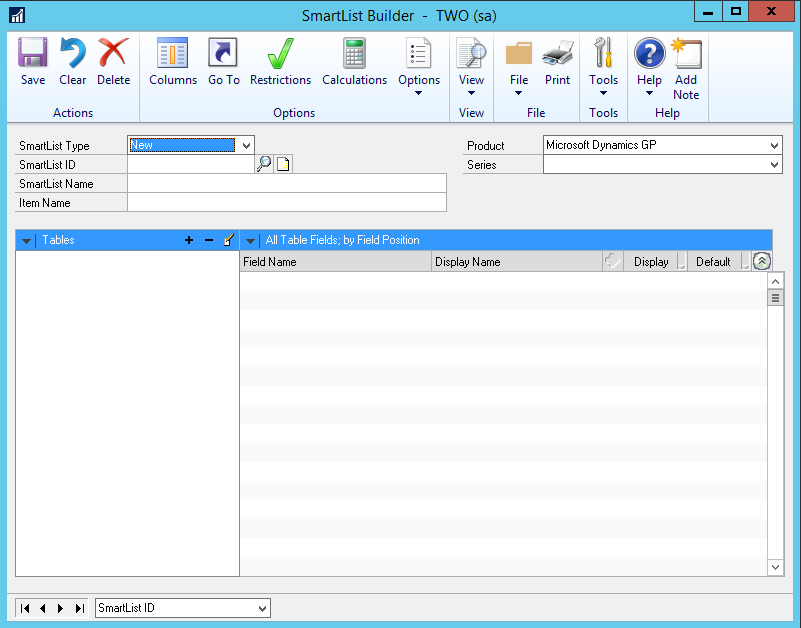
Once complete, you will see this:
You can also select an existing SmartList:
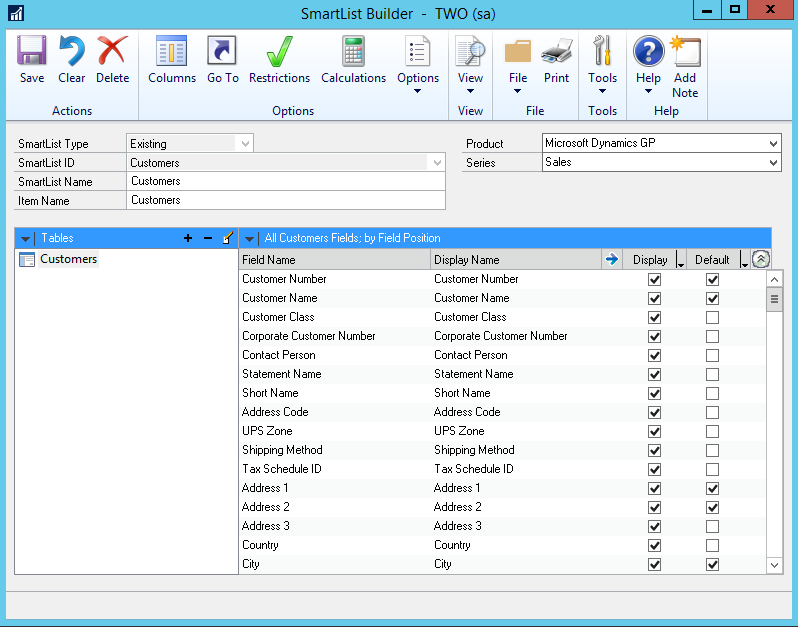
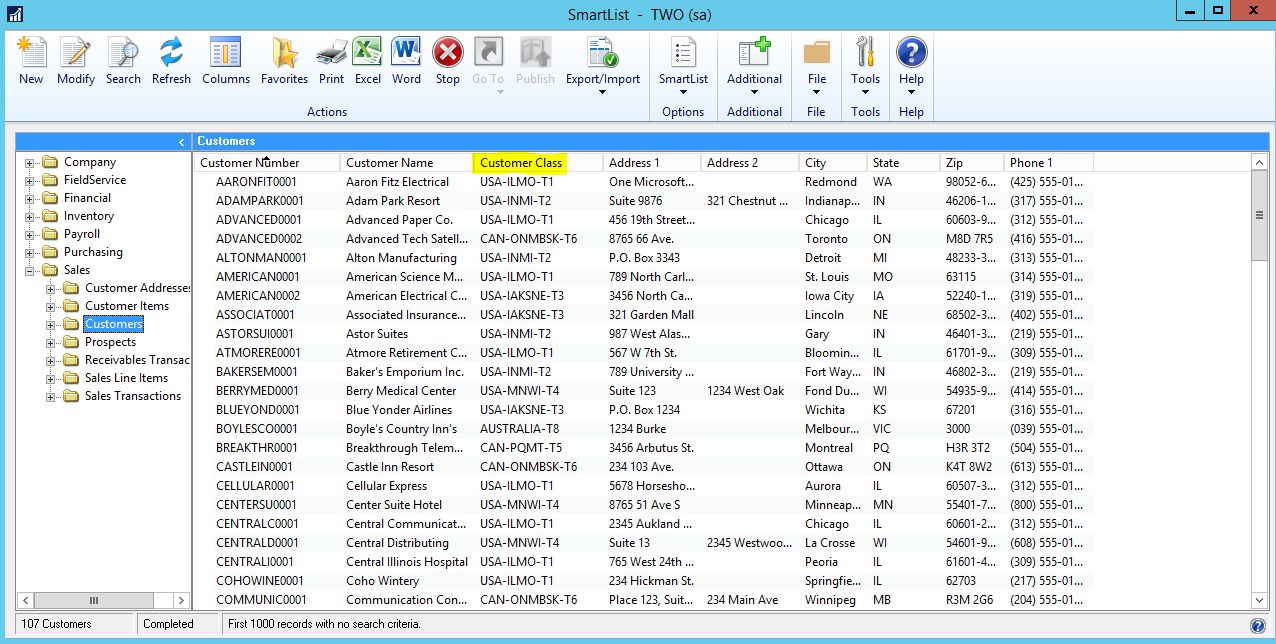
Make an update, such as checking Customer Class as a default. Now go back to Dynamics GP->SmartLists. You will see:
Click on the SmartList to see the update:

Explore AI, agents & Microsoft technology.
I share practical ideas, tutorials, and videos about AI, AI agents, Microsoft technologies, and the Power Platform.
Subscribe on YouTube →