To add a navigation link to a form, go through the following steps.
Edit the form you want to add the link. From the Home tab select Navigation:
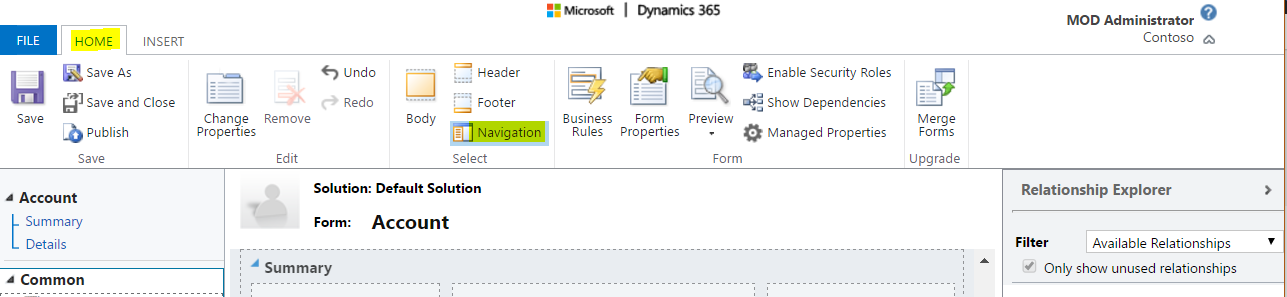
Then from the Insert tab, select Navigation Link:

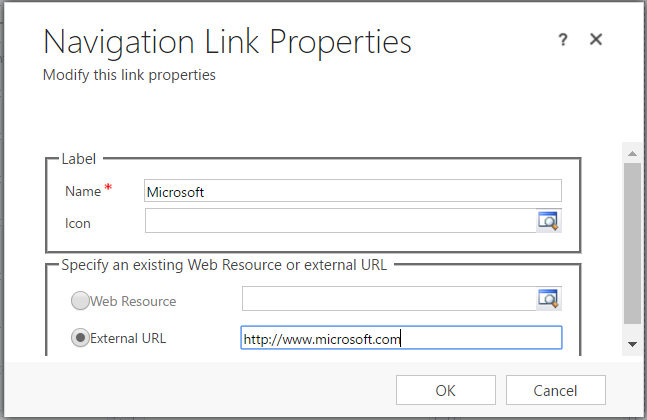
Enter details about the link. Here we will go to an external URL:
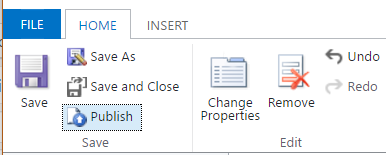
From the Home tab, save and publish the customization:
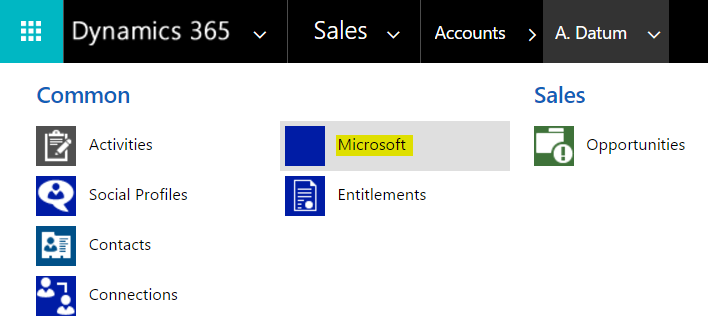
The new link will now appear in the Accounts form:

Keep learning. Keep building.
Explore AI, agents & Microsoft technology.
I share practical ideas, tutorials, and videos about AI, AI agents, Microsoft technologies, and the Power Platform.
Subscribe on YouTube →Carl de Souza Enterprise Architect at Microsoft · AI Technology Expert

Hello,
Could you please share how can we do this same thing from PowerPlatform?