Let’s look at how to open an SSRS RDL Report in Visual Studio 2017 and Visual Studio 2019.
First, download the Microsoft Reporting Services Project extension at:
We see this applies to Visual Studio 2017 and 2019:
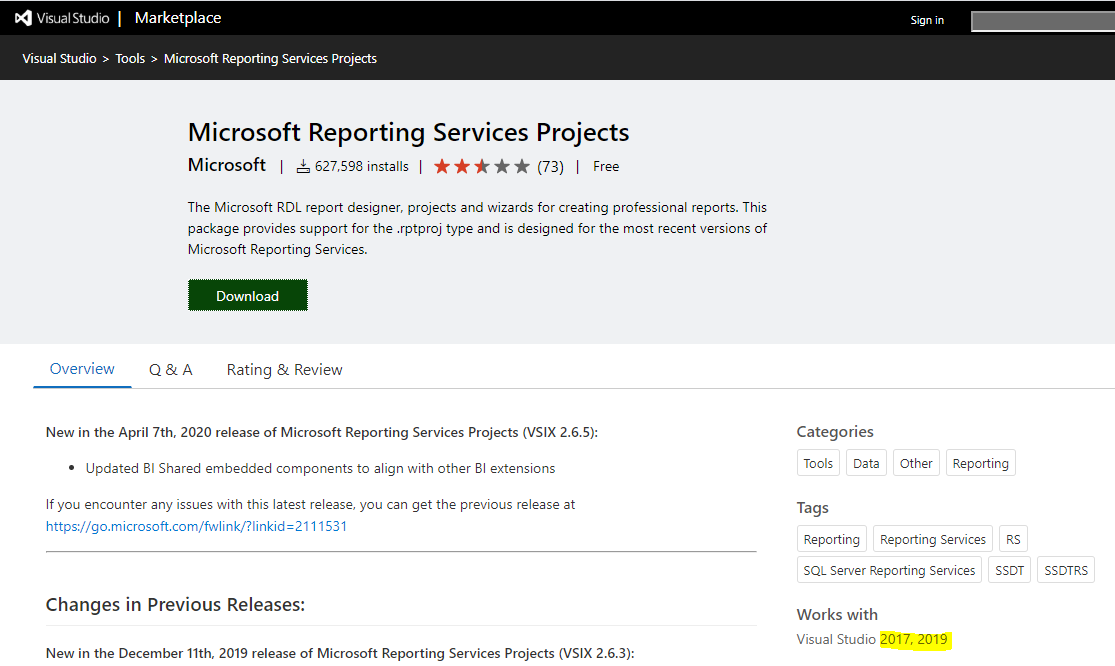
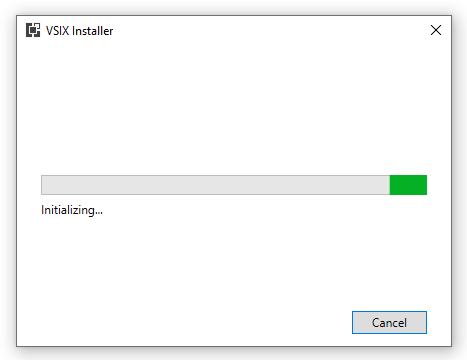
You will see the file downloaded. Open it:

You will see:
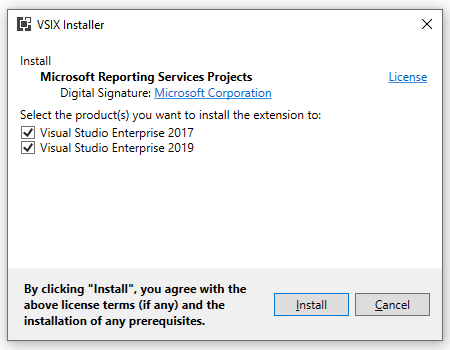
Be sure to close any Visual Studio instances running. Click Install:
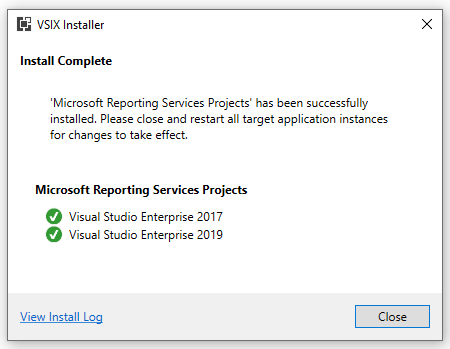
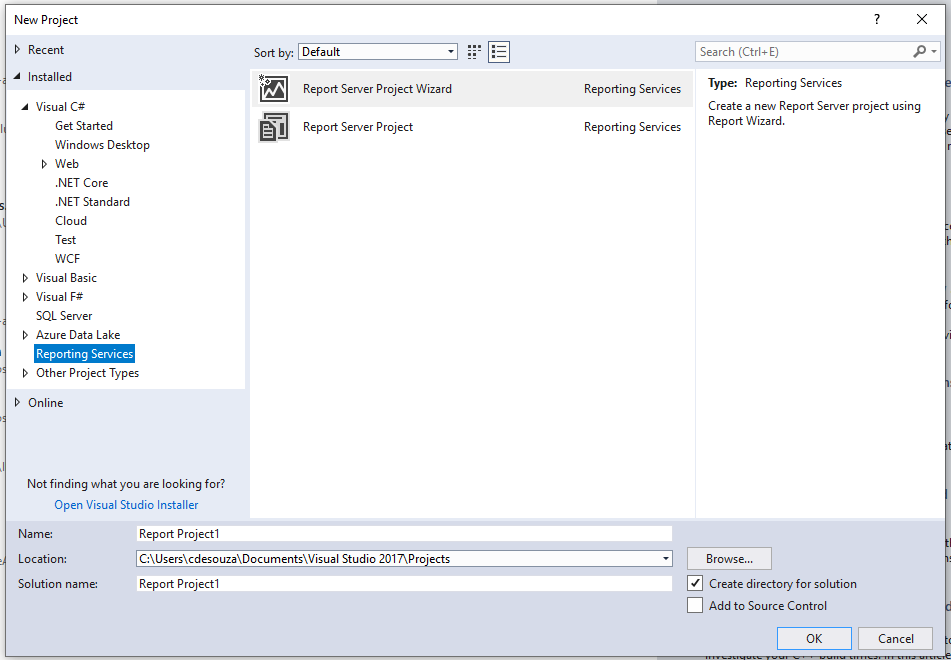
We can now create Report Server Projects in Visual Studio.
In Visual Studio 2017:
In Visual Studio 2019:
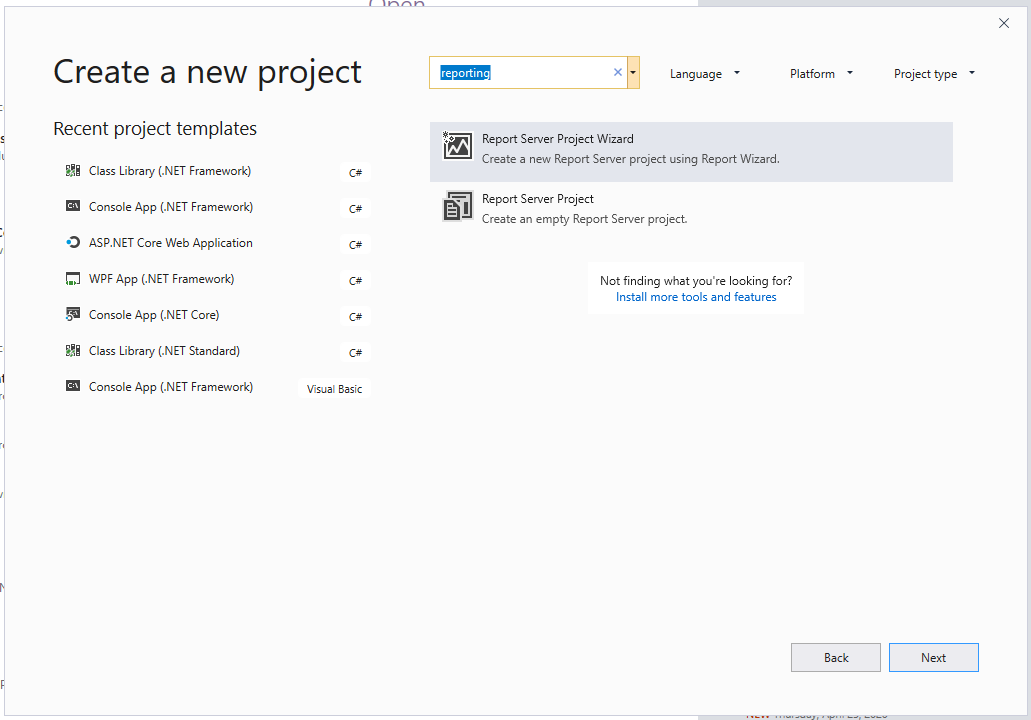
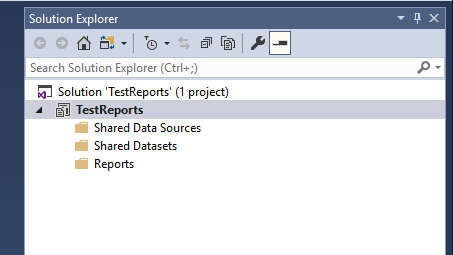
Once created, we see:
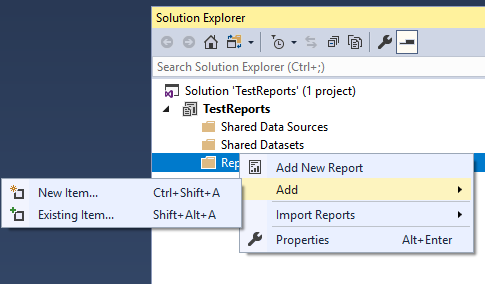
From here, we can add or create RDL reports:

Keep learning. Keep building.
Explore AI, agents & Microsoft technology.
I share practical ideas, tutorials, and videos about AI, AI agents, Microsoft technologies, and the Power Platform.
Subscribe on YouTube →Carl de Souza Enterprise Architect at Microsoft · AI Technology Expert

Hi,
I am using VS community 2019 and followed your steps by installing Microsoft Reporting Services Project.
I am able to create a new Report, but I am struggling with the Data Connection which I can’t find Embedded Connection Type = Microsoft Dynamics 365 Fetch as I can find it in VS community 2015.
Are there any changes or how do I need to set the connection so that I can create a report with FetchXML ?
Thanks