To install AX 2009, download the installation media and run the setup.
Then go through the following steps:
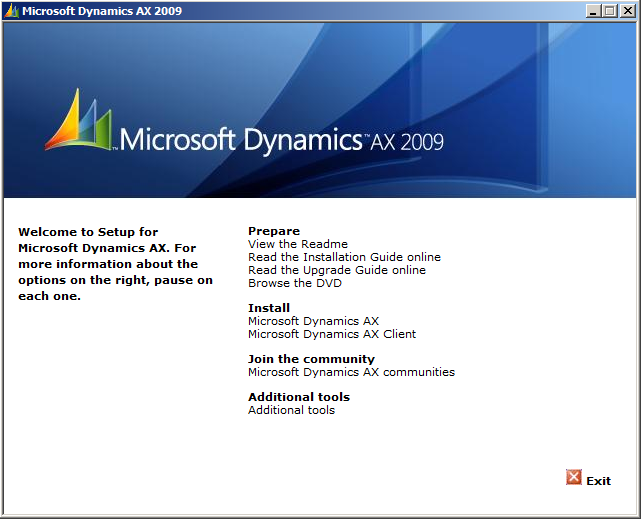
Select Microsoft Dynamics AX.
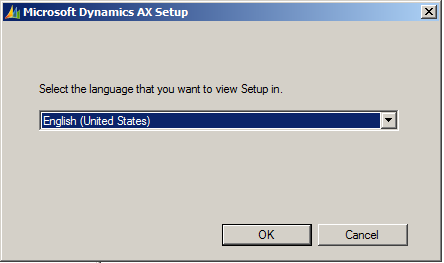
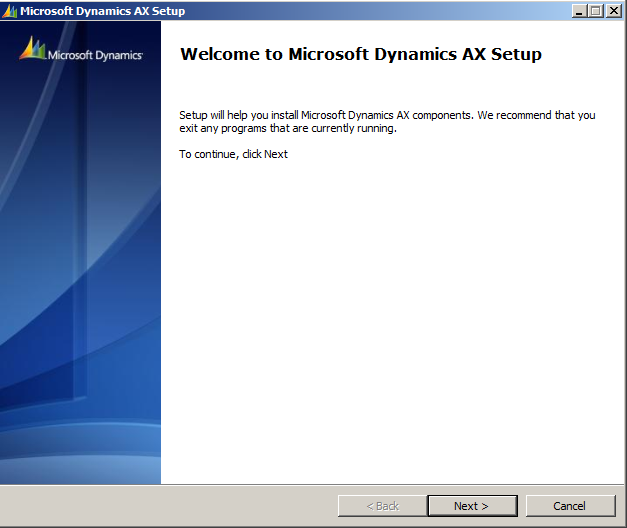
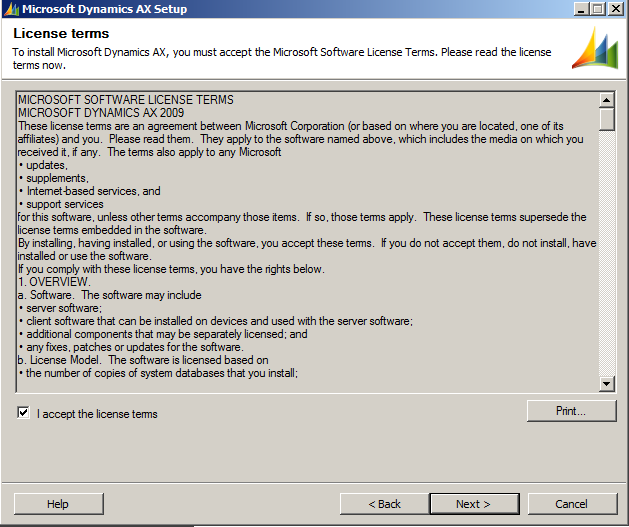
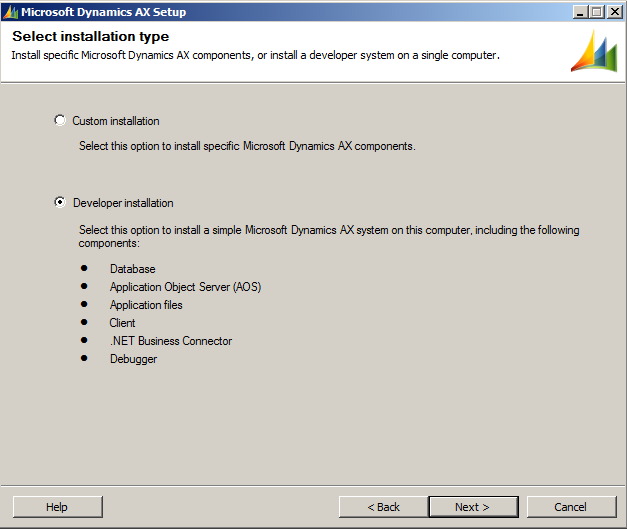
Select Developer installation:
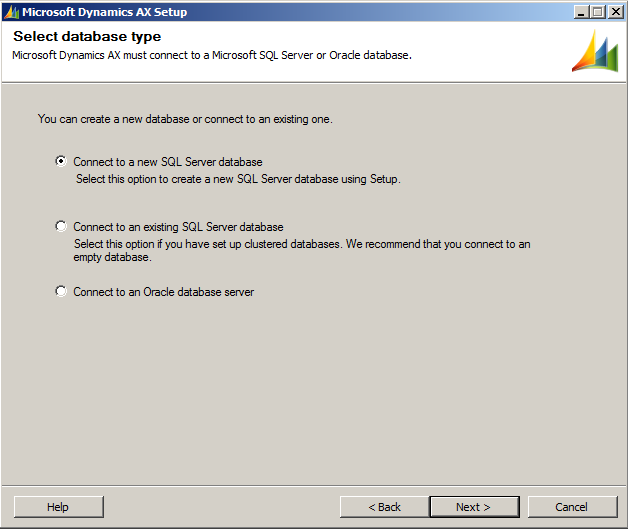
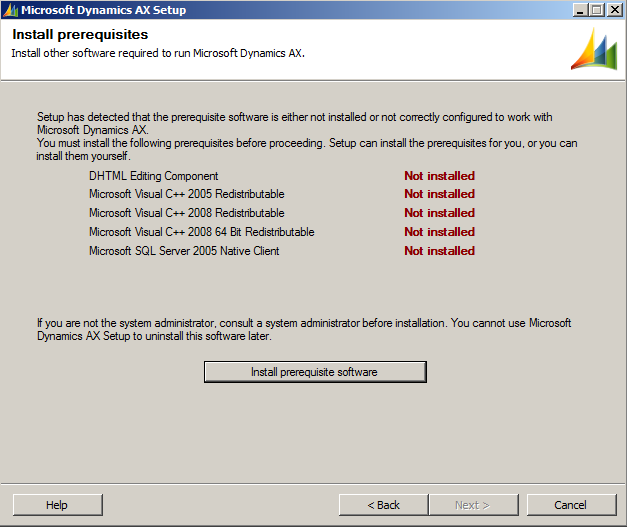
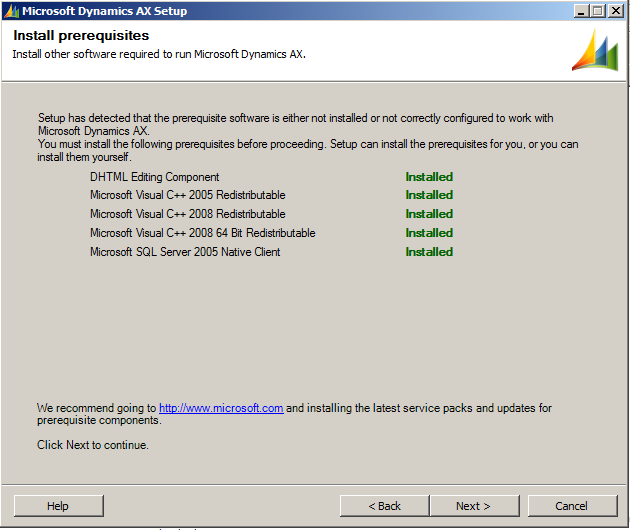
Select “Install prerequisite software”:
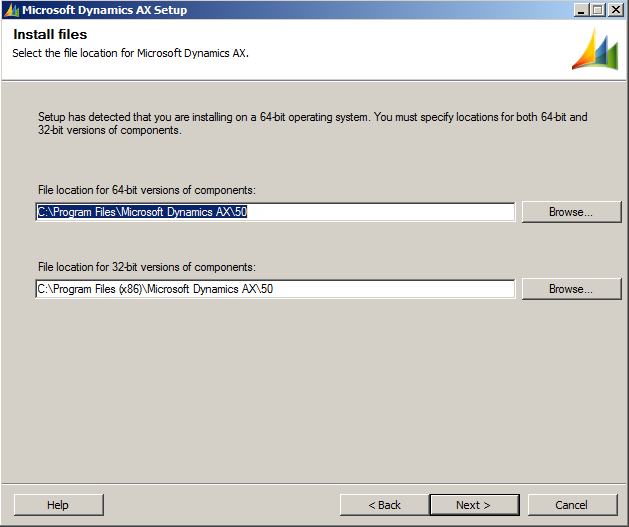
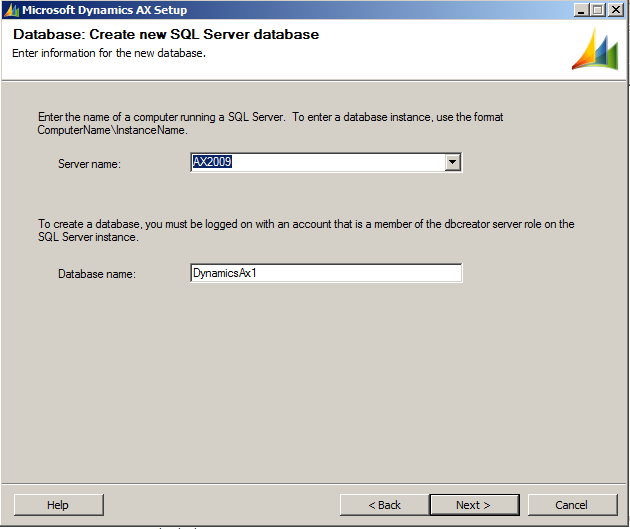
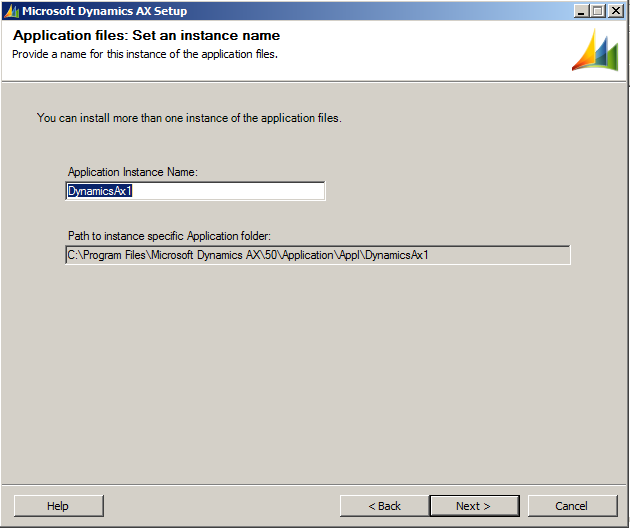
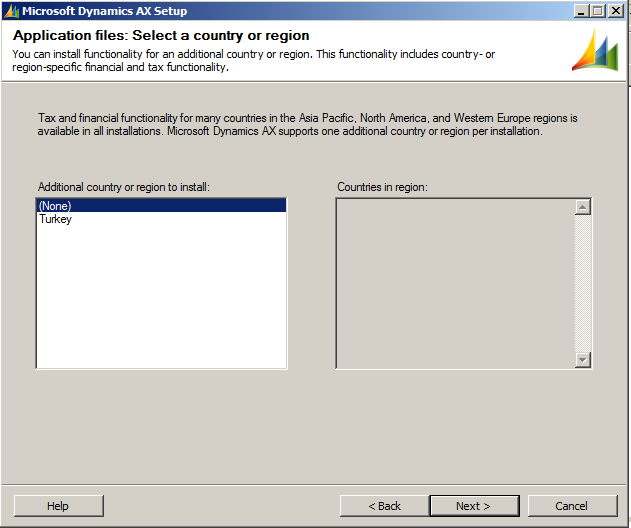
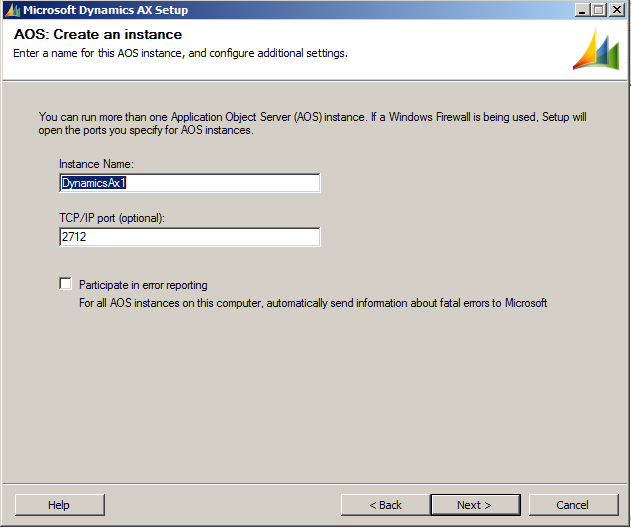
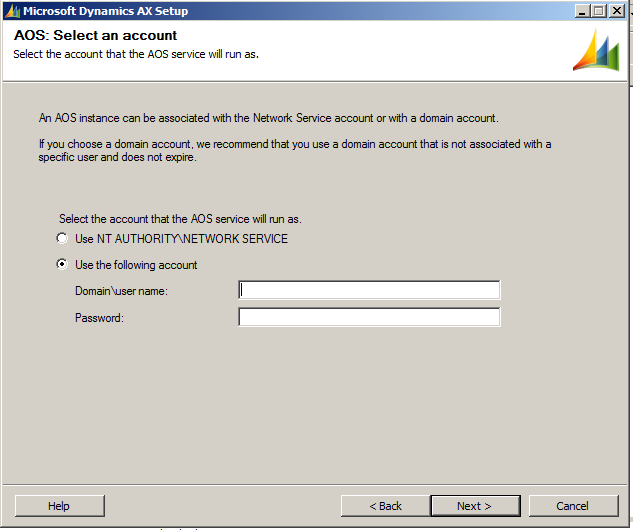
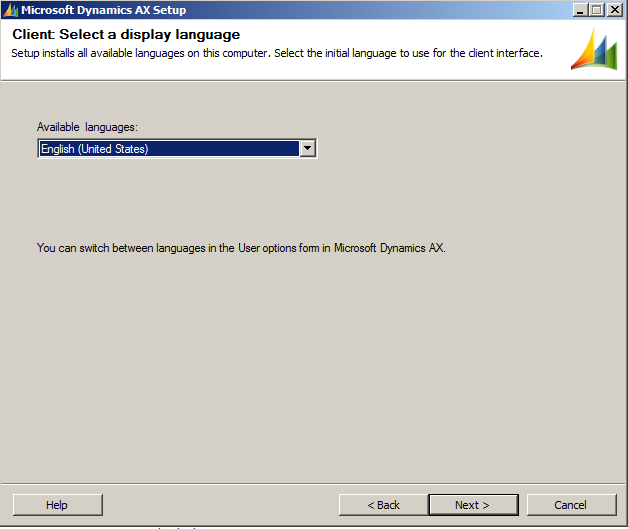
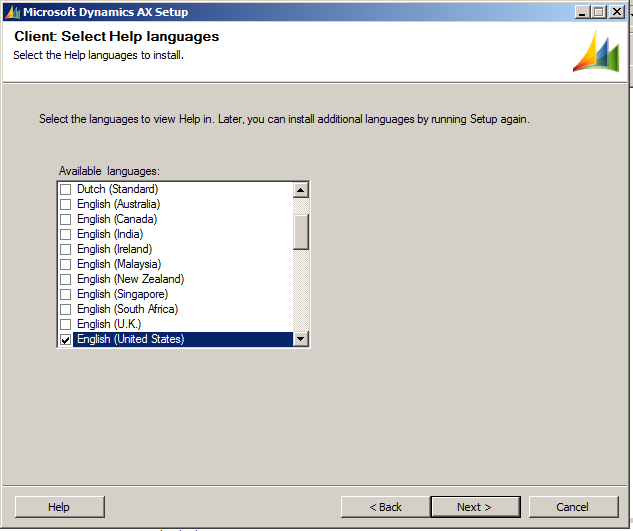
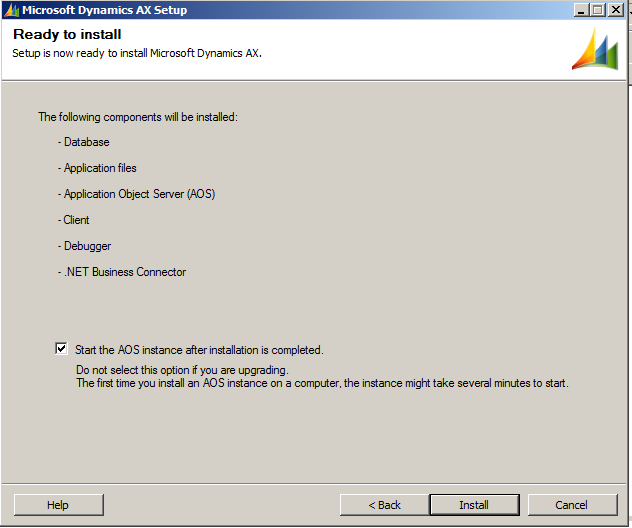
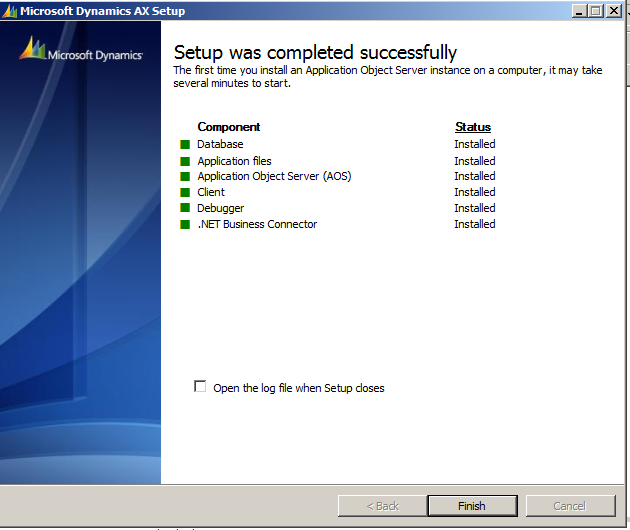
Start Dynamics AX:
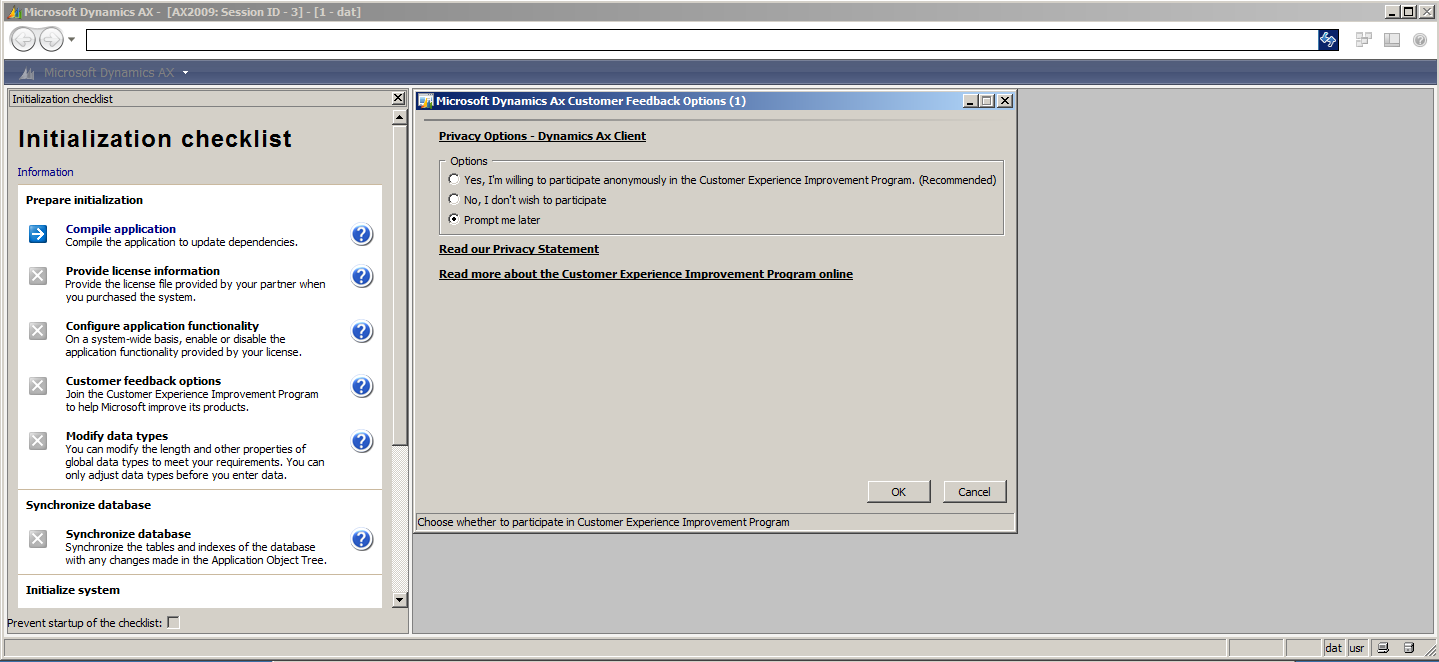
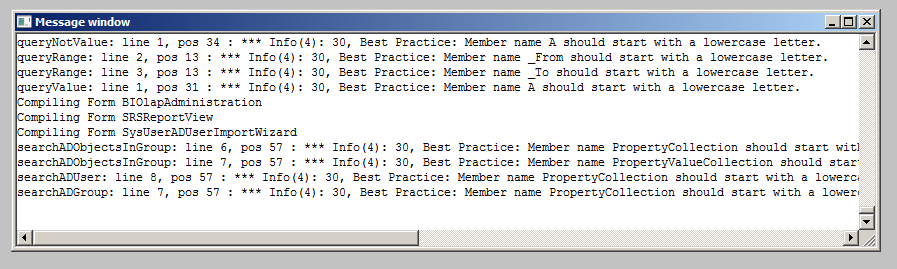
Compile the application:
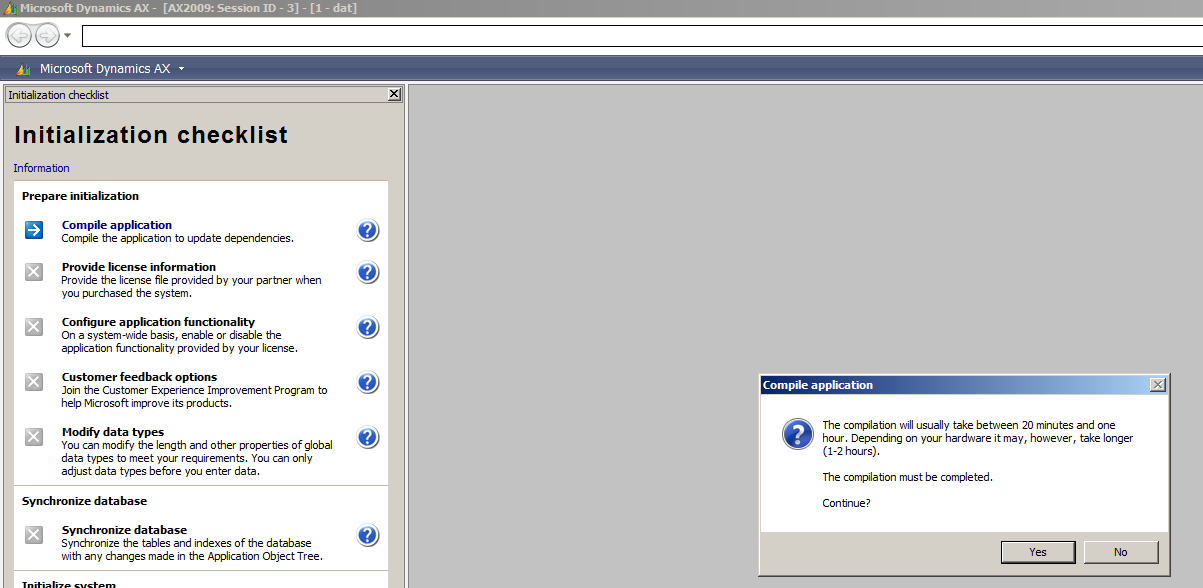
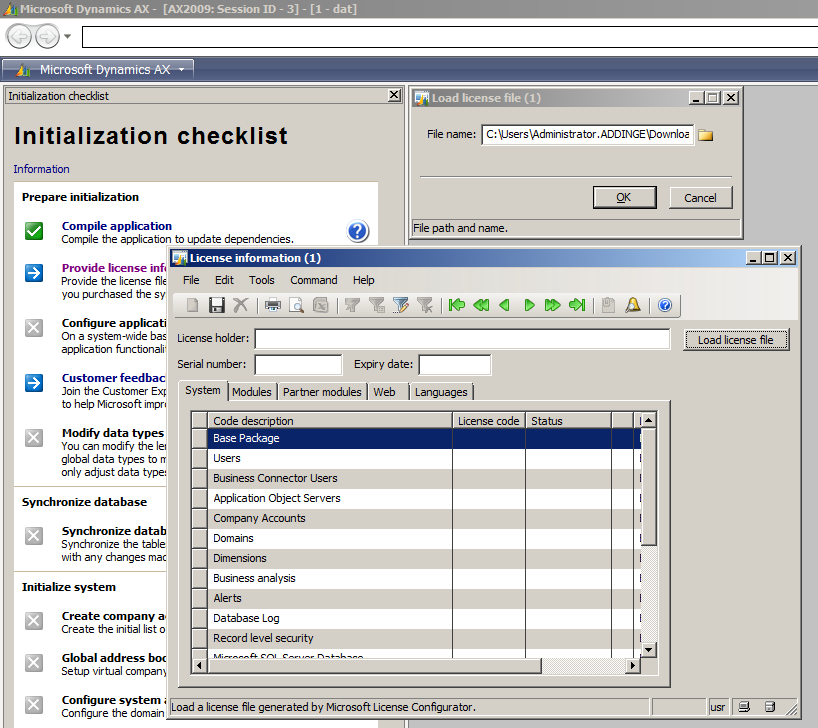
Select the license file:
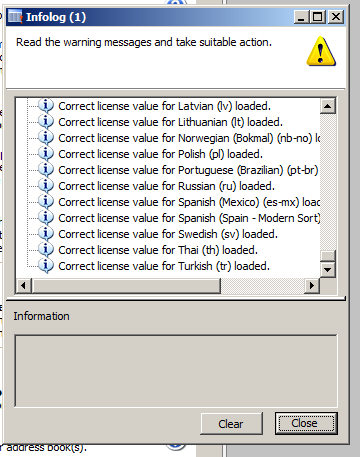
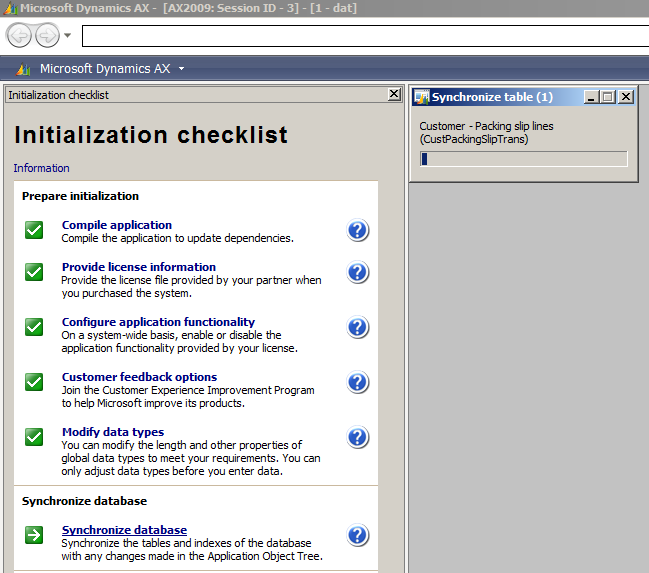
Click through the next few options to synchronize the database:
Create company accounts:
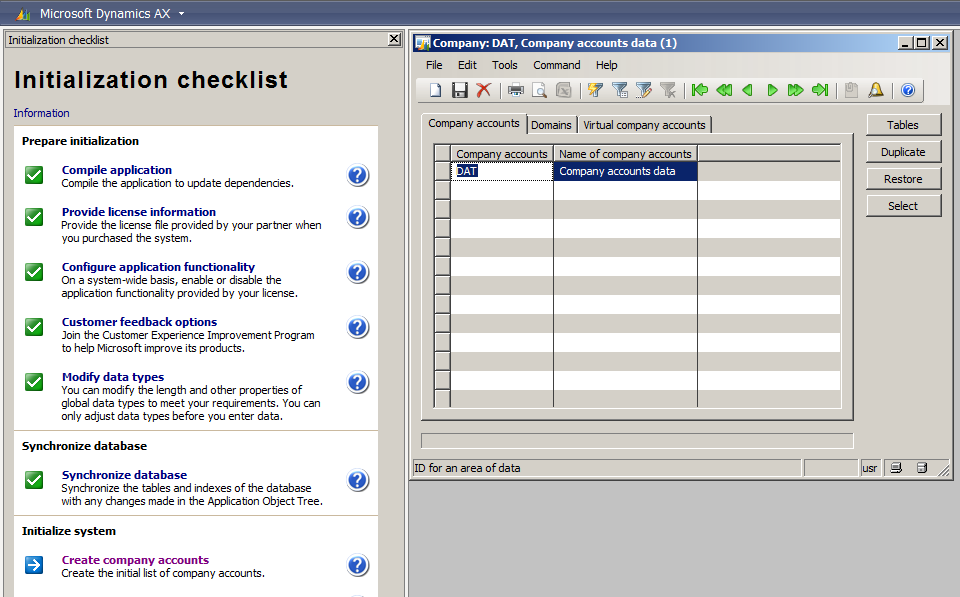
To install the demo data, download from PartnerSource:
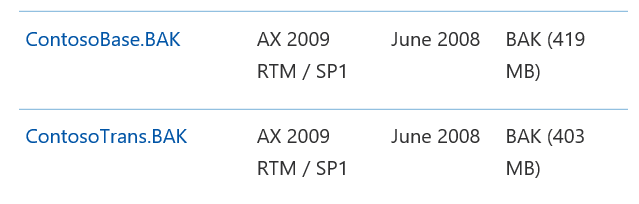
Stop the AOT:

Restore database. In this case I am selecting the demo file with Transaction data:
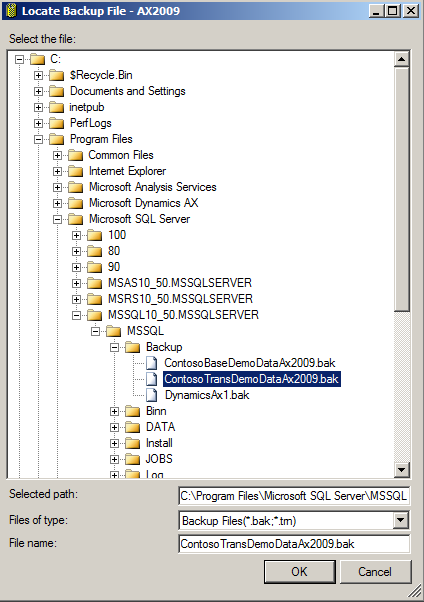
Restore this over the original Dynamics AX database that was created.
Next, install the Dynamics AX client:
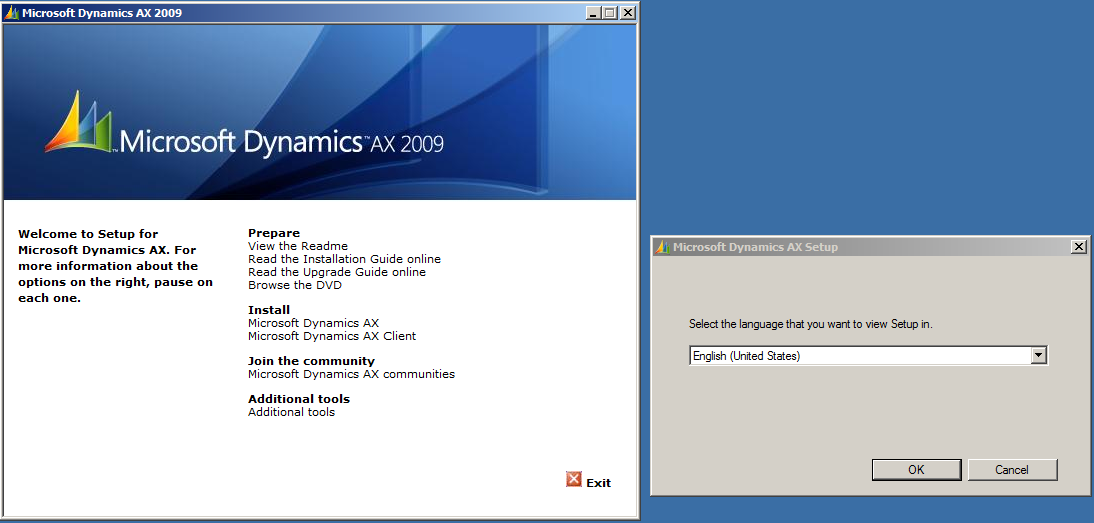
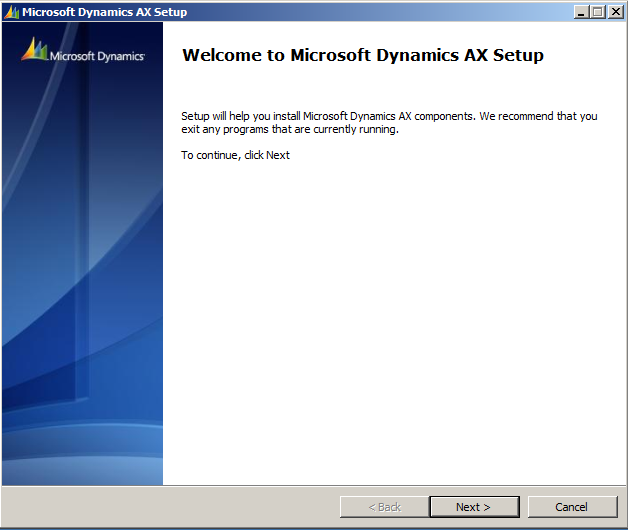
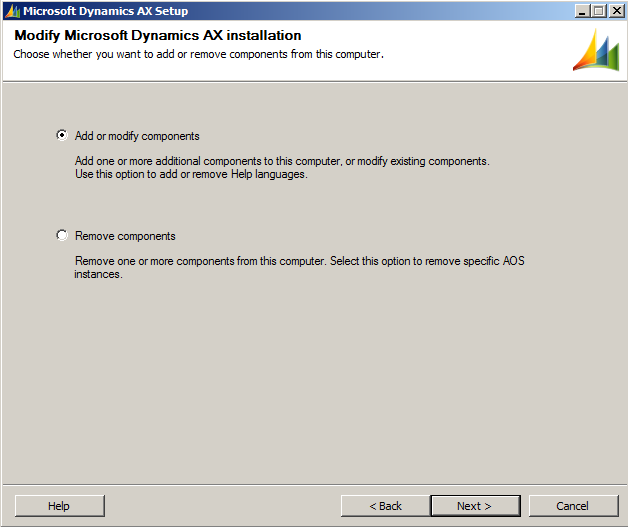
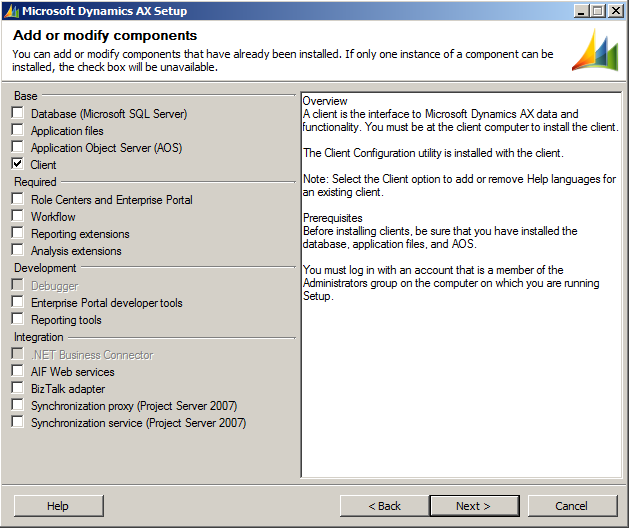
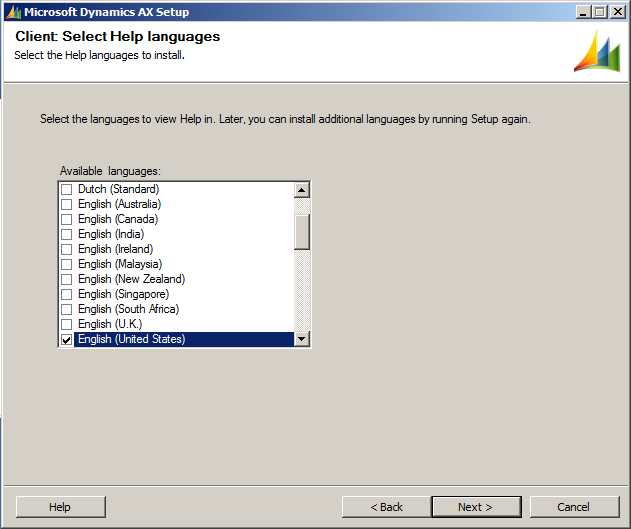
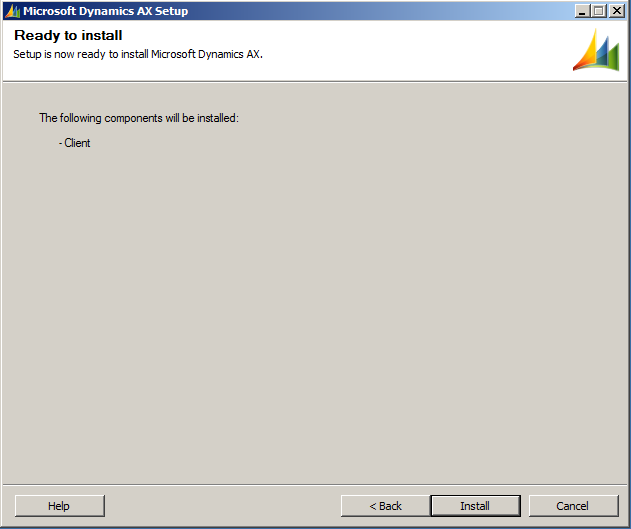
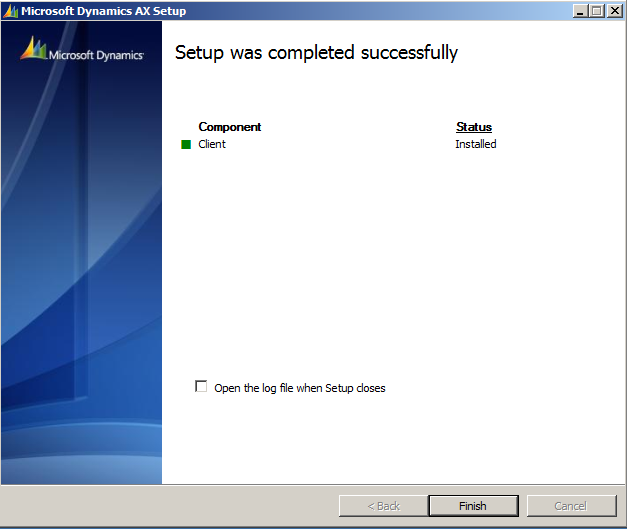
Select Microsoft Dynamics AX 2009:

You may be prompted to enter telephone dialing information. Enter and click OK. The Dynamics AX client will then open:
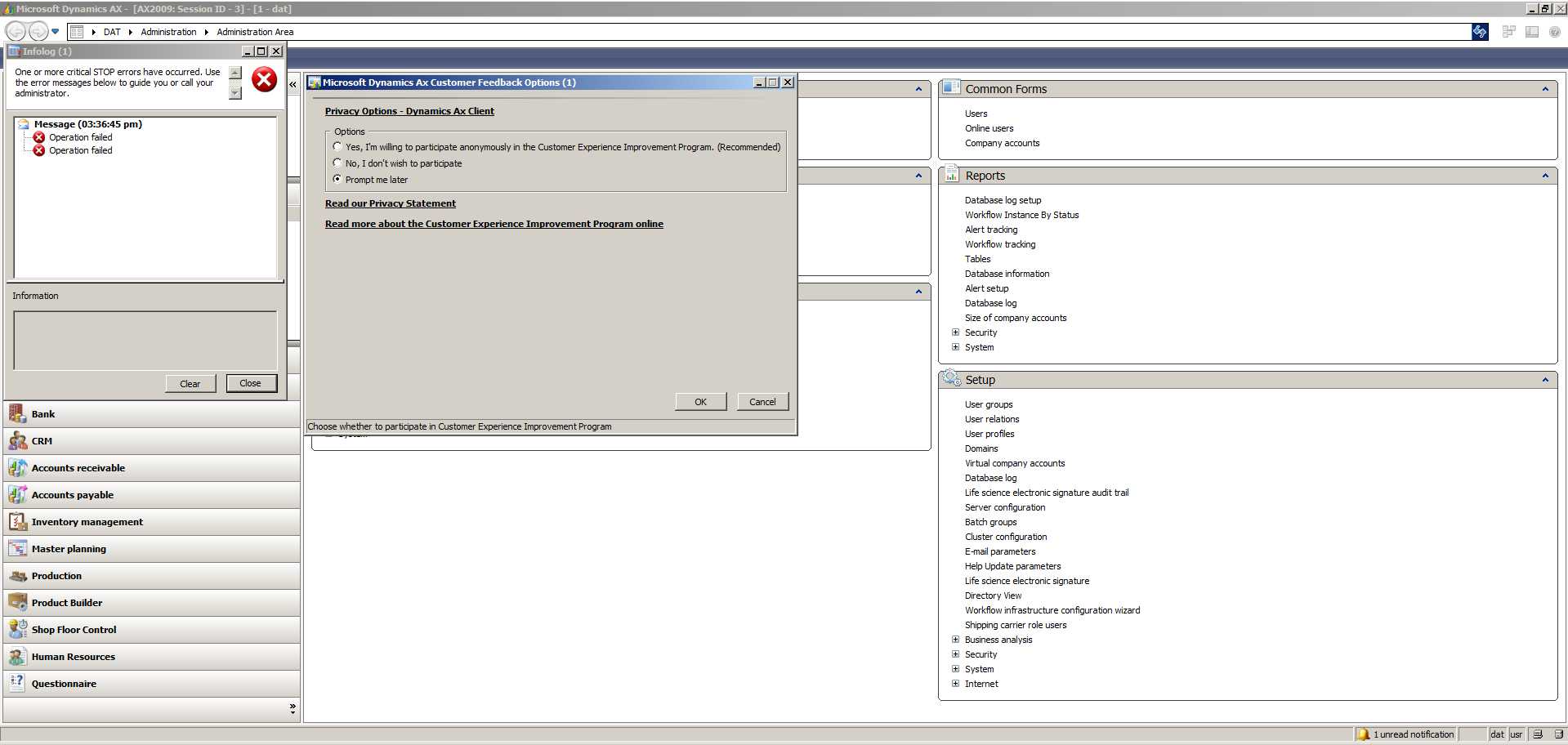
Click OK to any error messages. You will now see the Dynamics AX client.
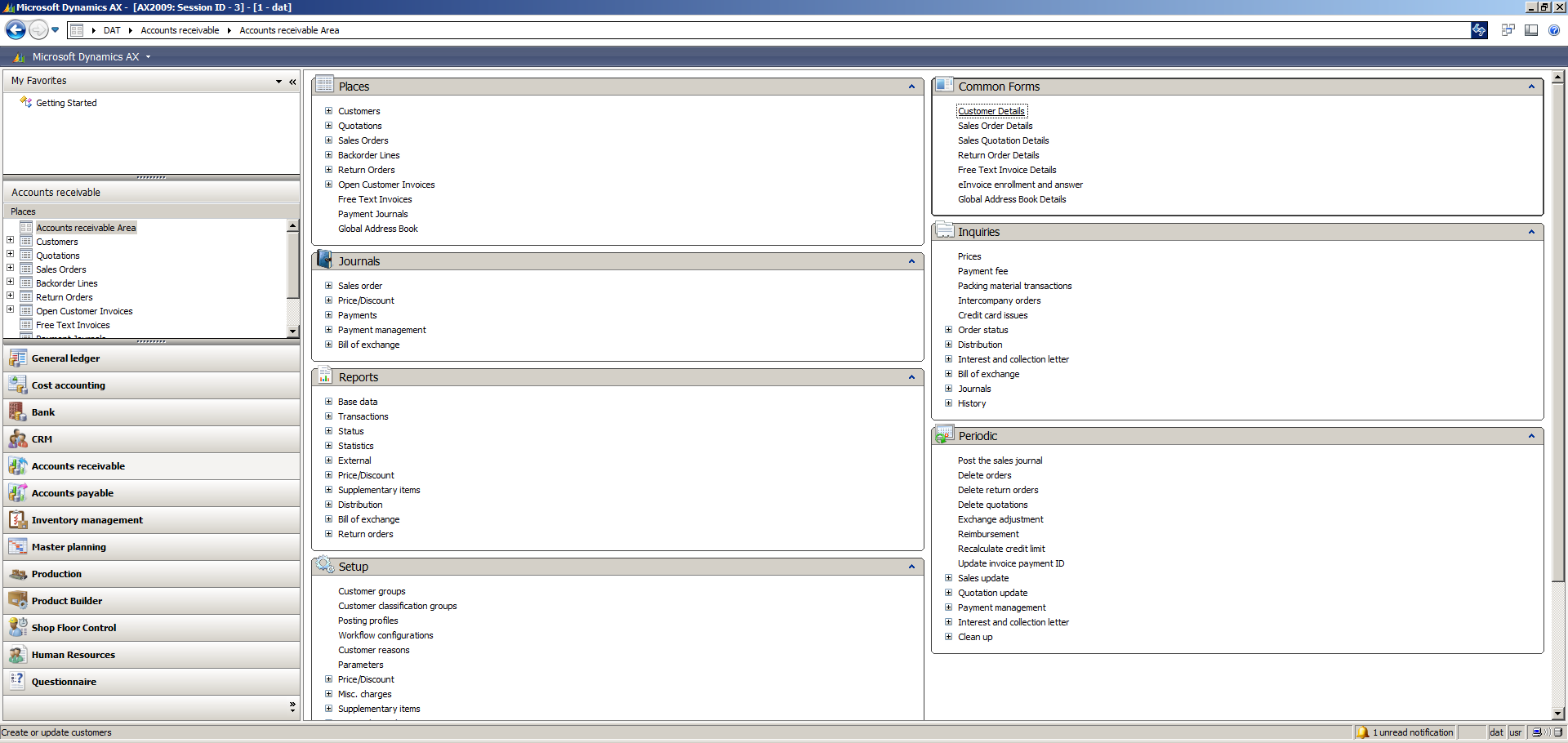
Select the Dynamics AX company:
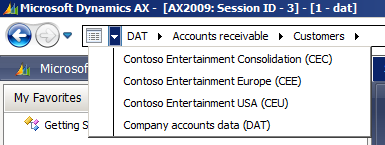
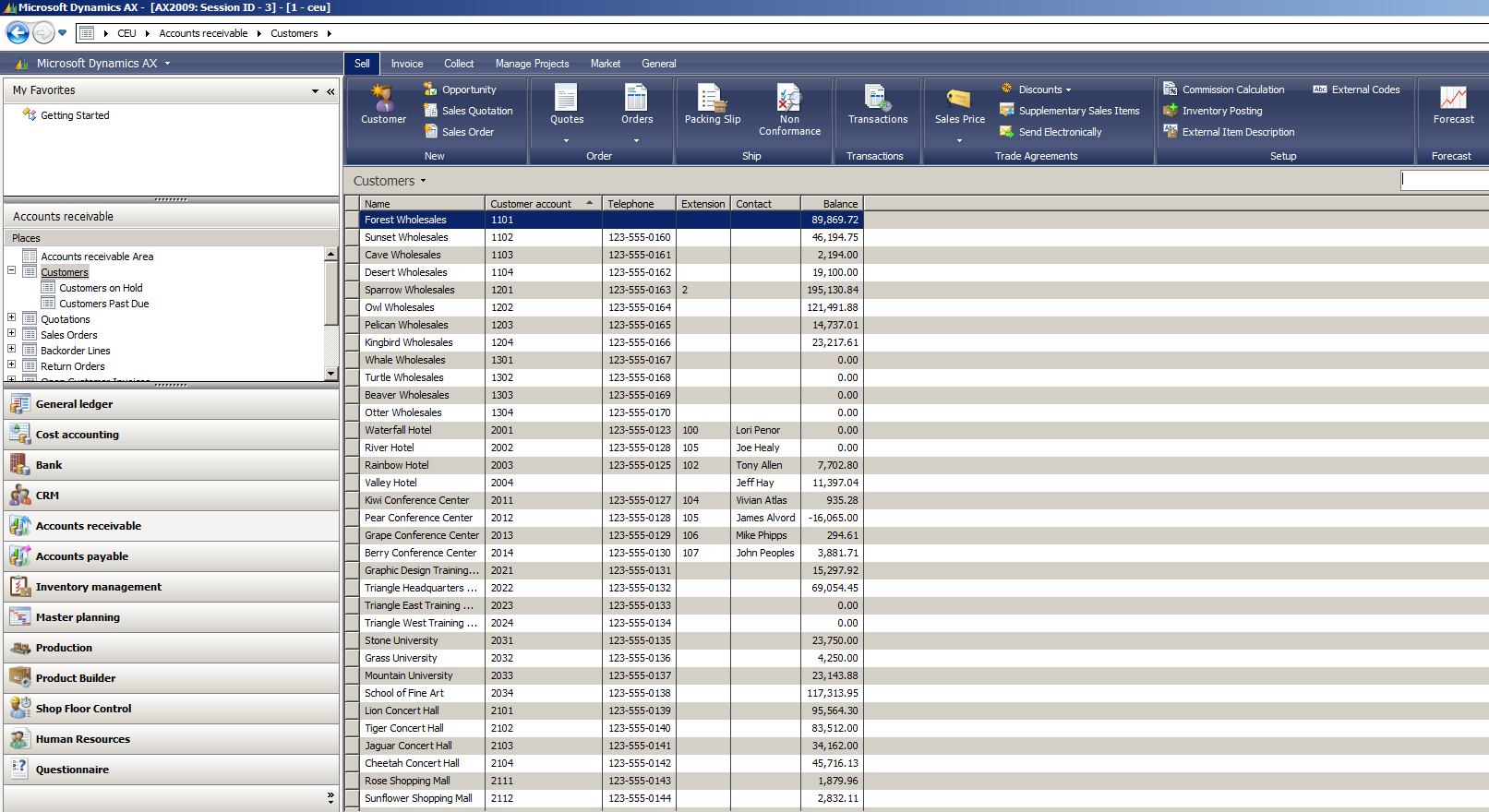
You will now see the Contoso demo data:
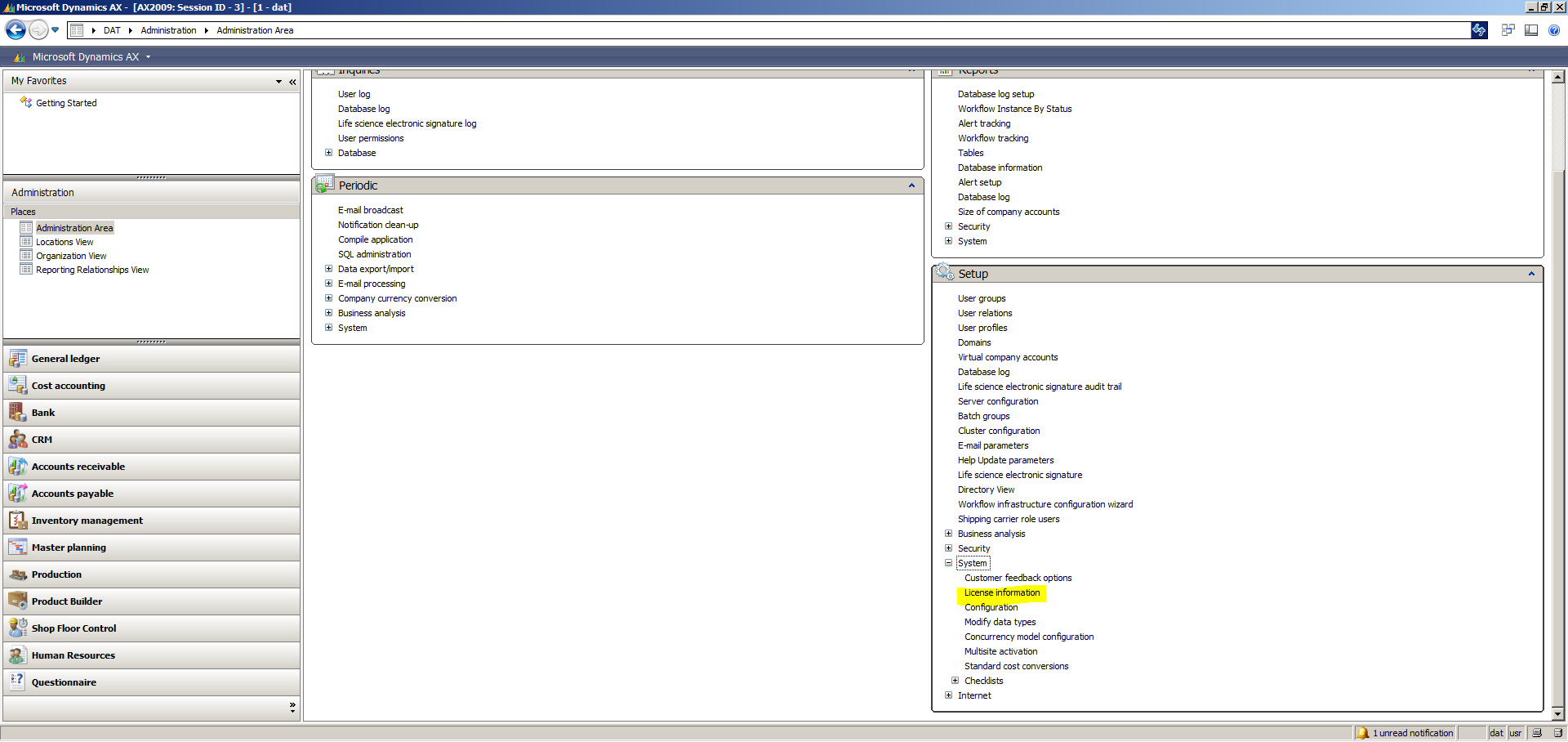
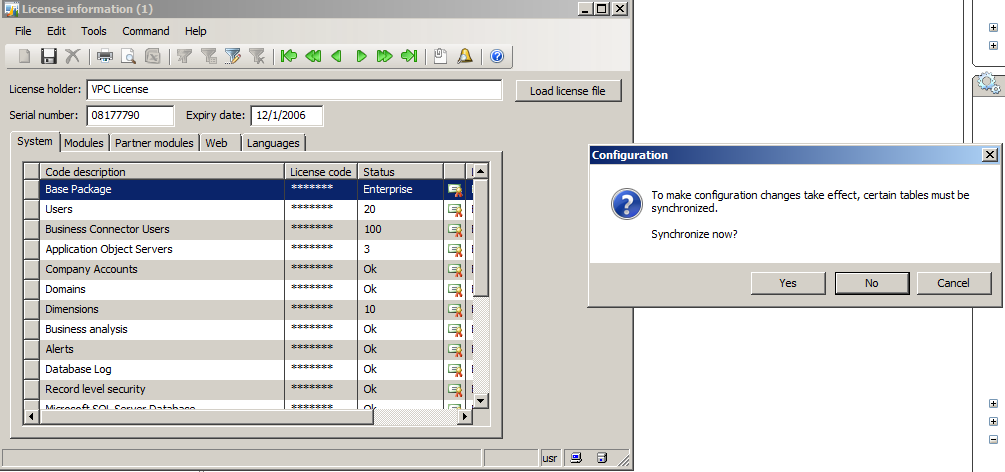
Re-add the license information:
It may prompt you to resynchronize. Click Yes:
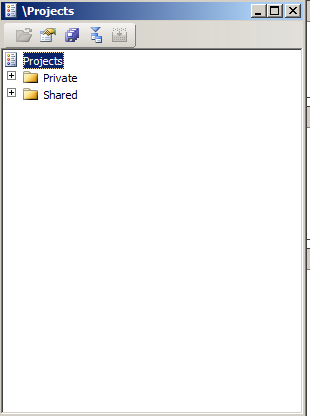
Restart Dynamics AX. You should now be able to see your projects by clicking CTRL-SHIFT-P:
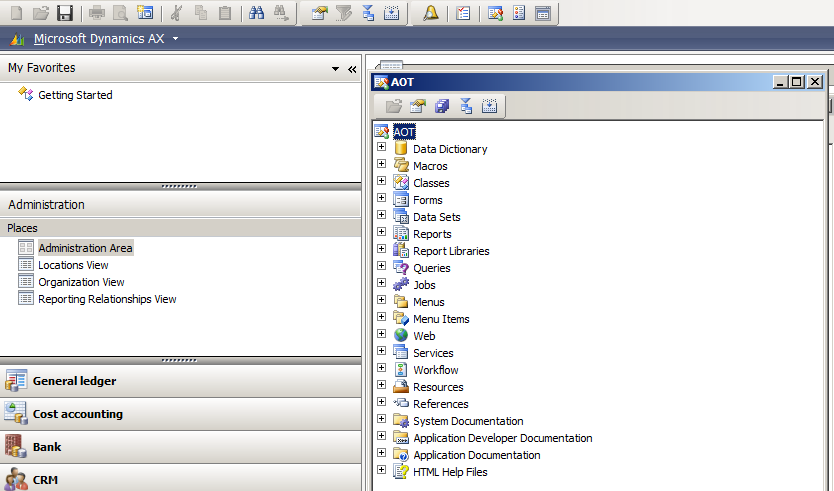
And the AOT by CTRL-D:

Explore AI, agents & Microsoft technology.
I share practical ideas, tutorials, and videos about AI, AI agents, Microsoft technologies, and the Power Platform.
Subscribe on YouTube →
Hi, i need the iso of dynamics ax 2009, ¿Can you provide it to me?