Excel templates in Dynamics 365 are a way to easy create custom Excel reports you can run when needed.
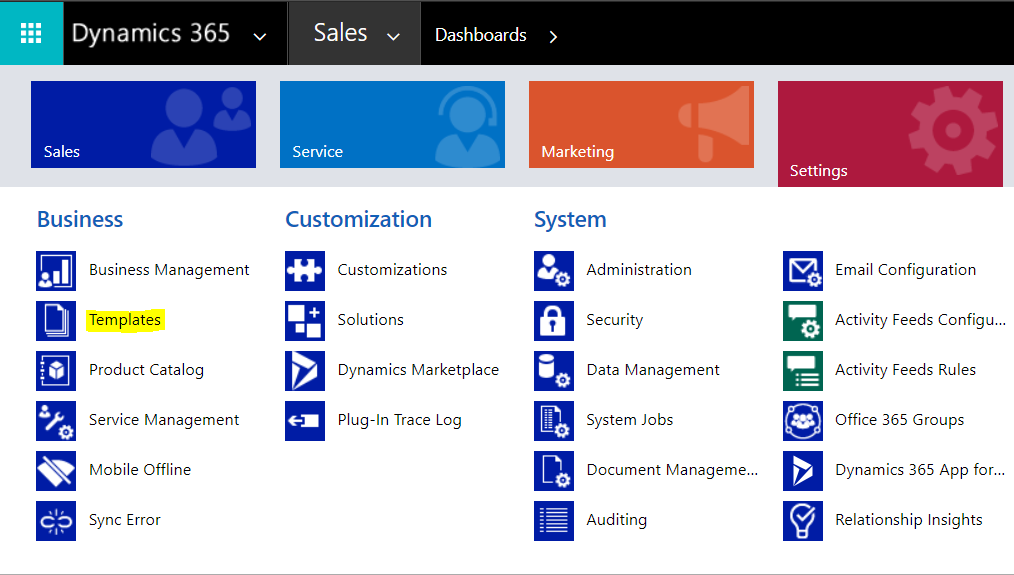
To create an Excel template, go to Settings->Templates:
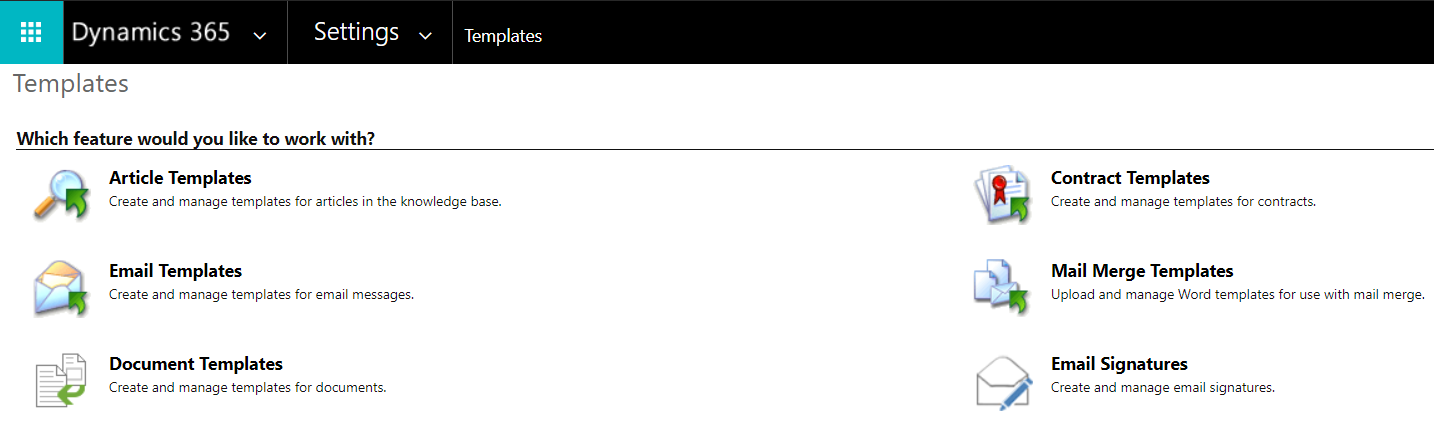
You will see the page. Select Document Templates:
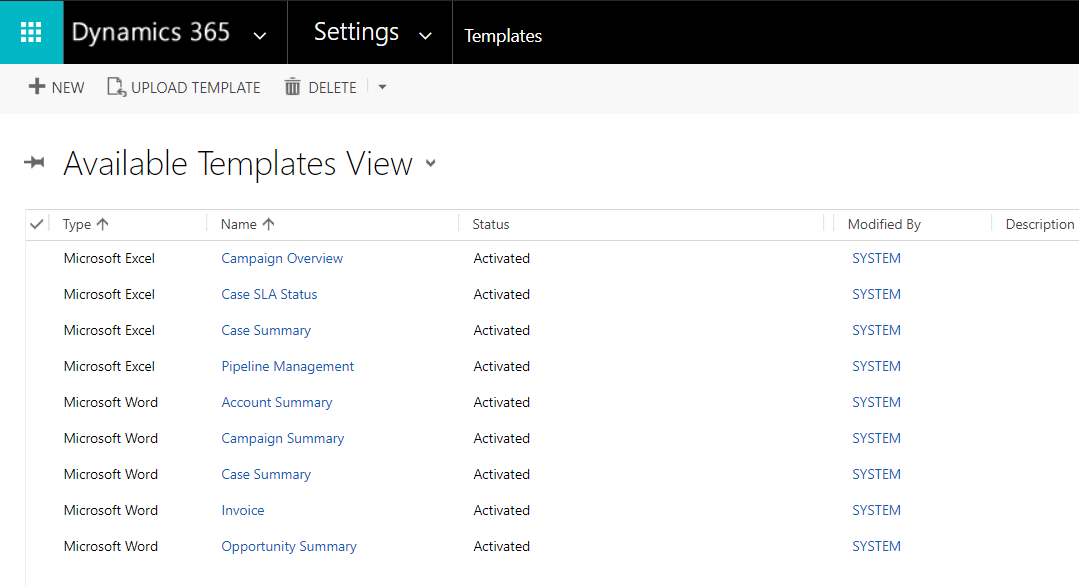
Here you will see the available templates view:
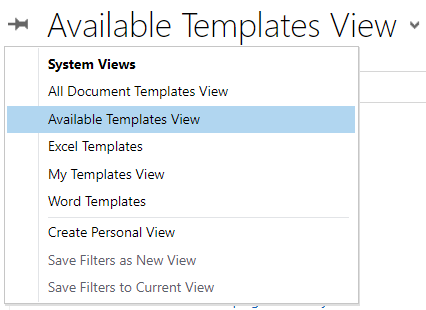
With the option to change the view:
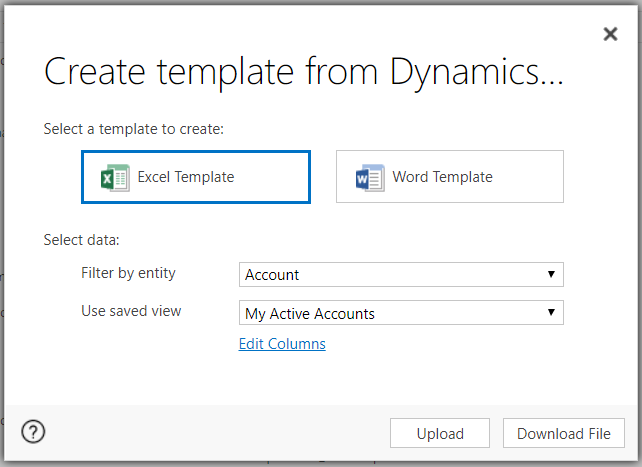
Select New. You will have the option to select Excel Template and Word Template. You can also access this screen by going to a view and selecting Excel Templates:
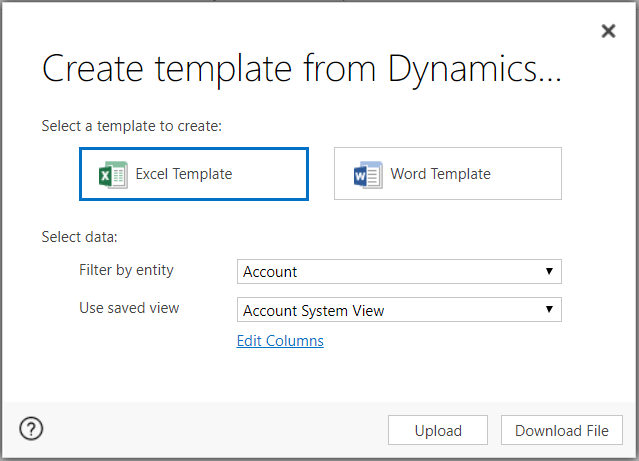
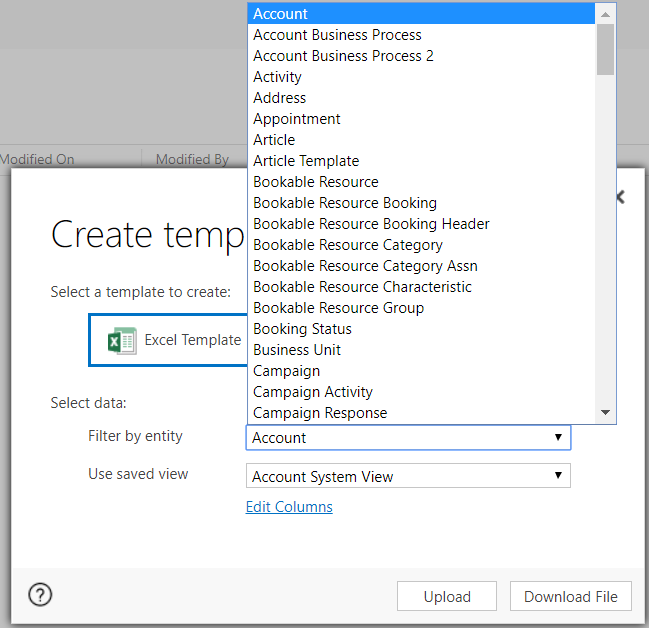
Once open, you can select the Entity to apply to the template:
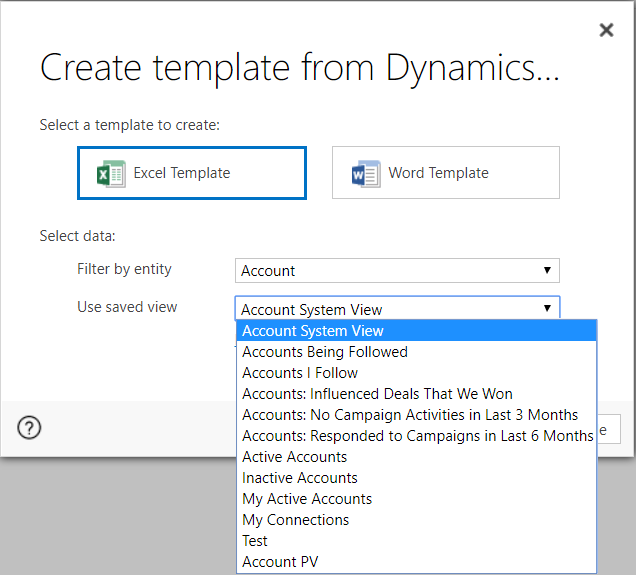
And the view:
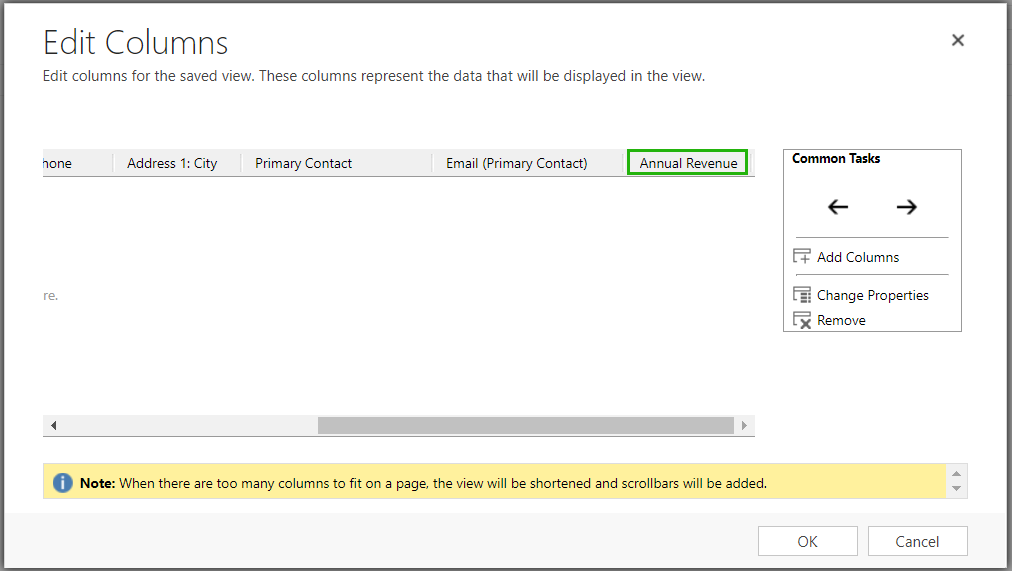
Edit Columns and add a column for Annual Revenue:
Click Download. This will download the spreadsheet:

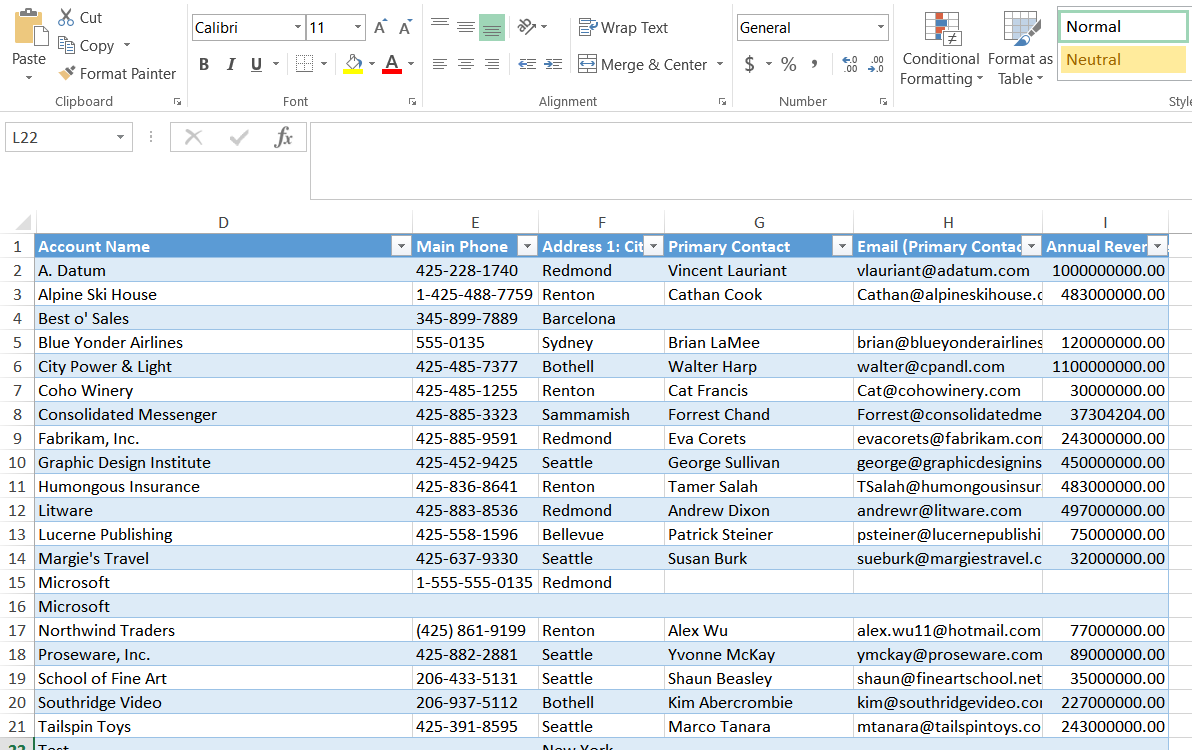
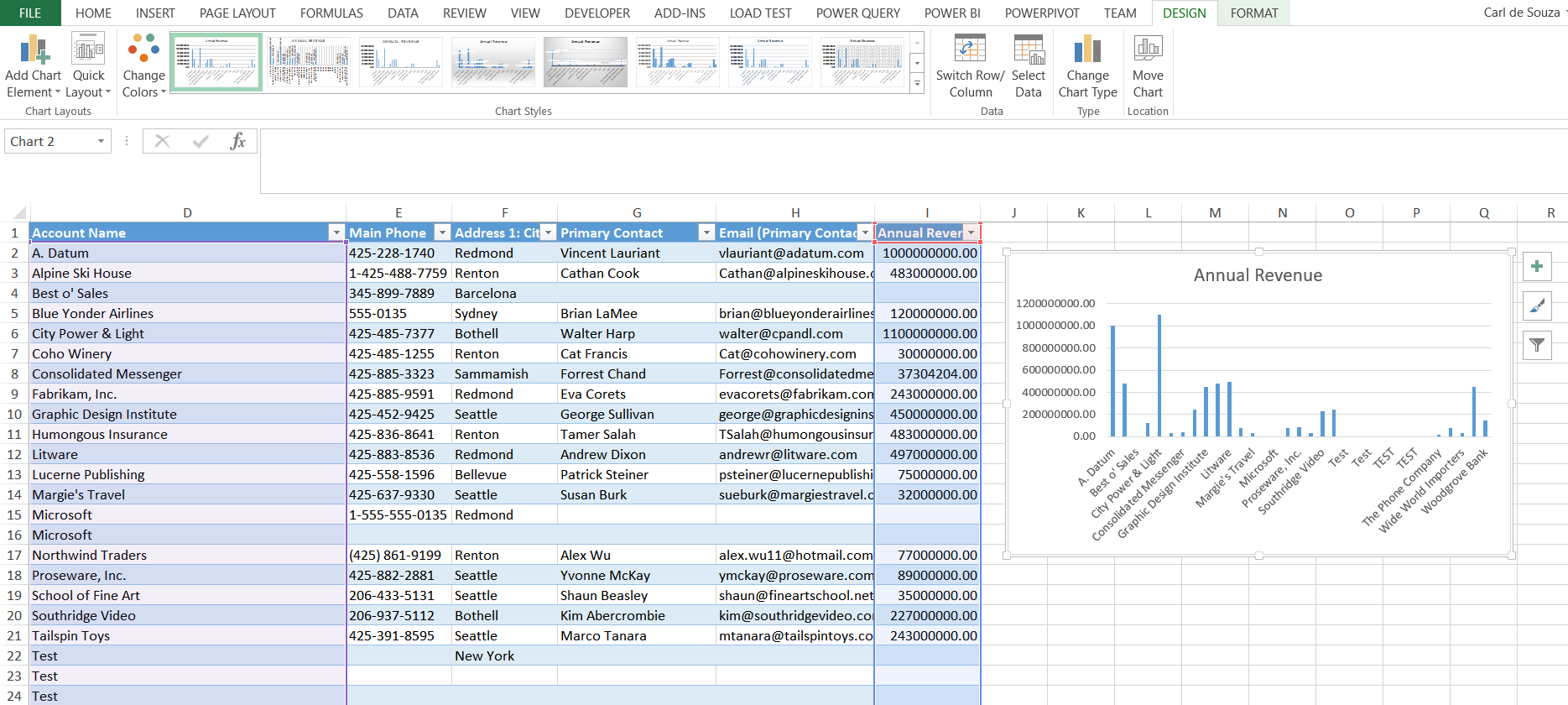
Edit the spreadsheet, select the Account Name and Revenue and add a bar chart:
Now in Dynamics 365 click on Excel Templates:

Then select Excel Template and Upload:
Drag the updated spreadsheet:
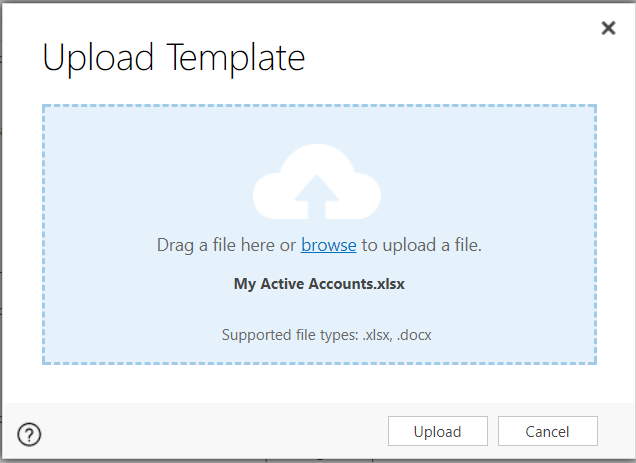
Spreadsheet template is now uploaded and active:
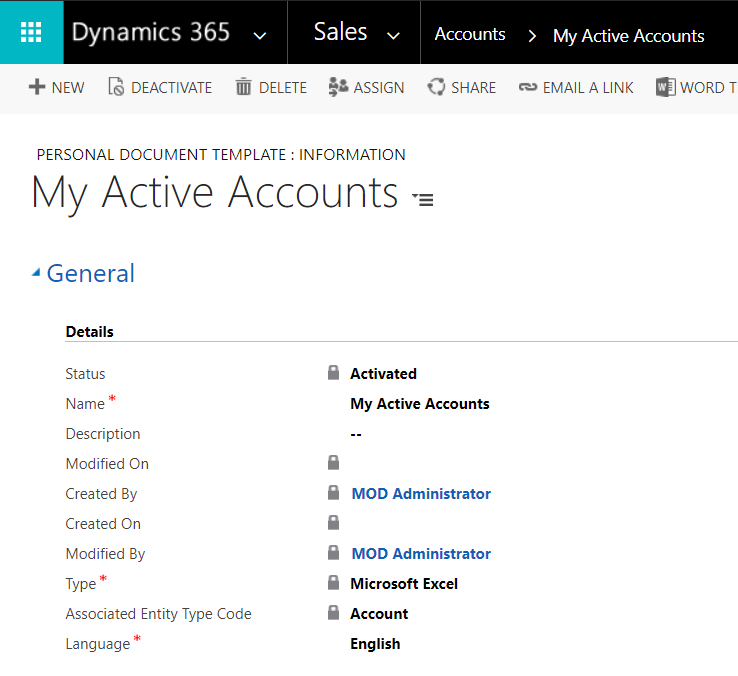
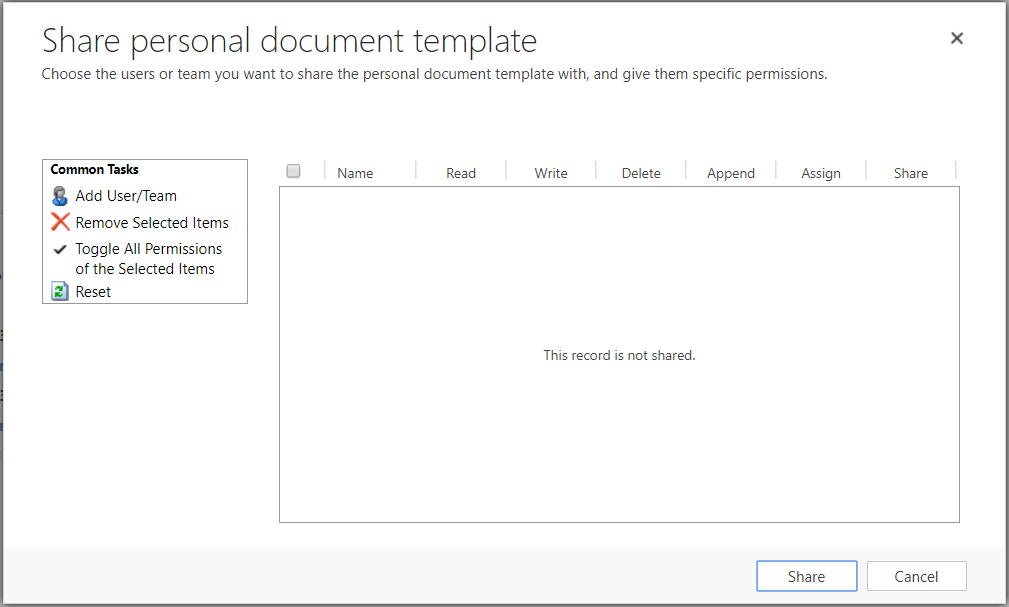
You have the ability to deactivate the template uploaded. Click on Share to share your template:
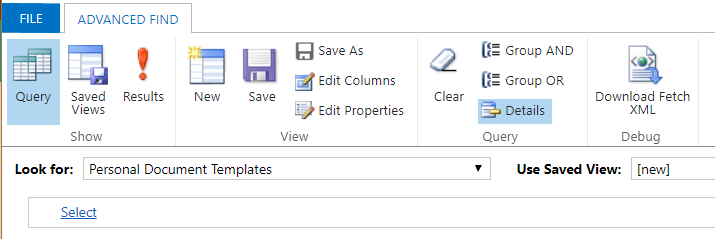
If you want to see your personal document templates, click on Advanced Find:
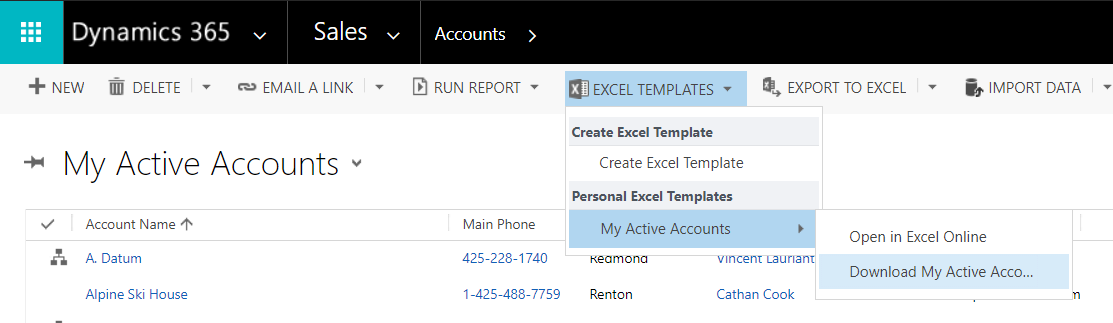
Now back to the My Active Accounts view you will see the new template under Excel Templates:
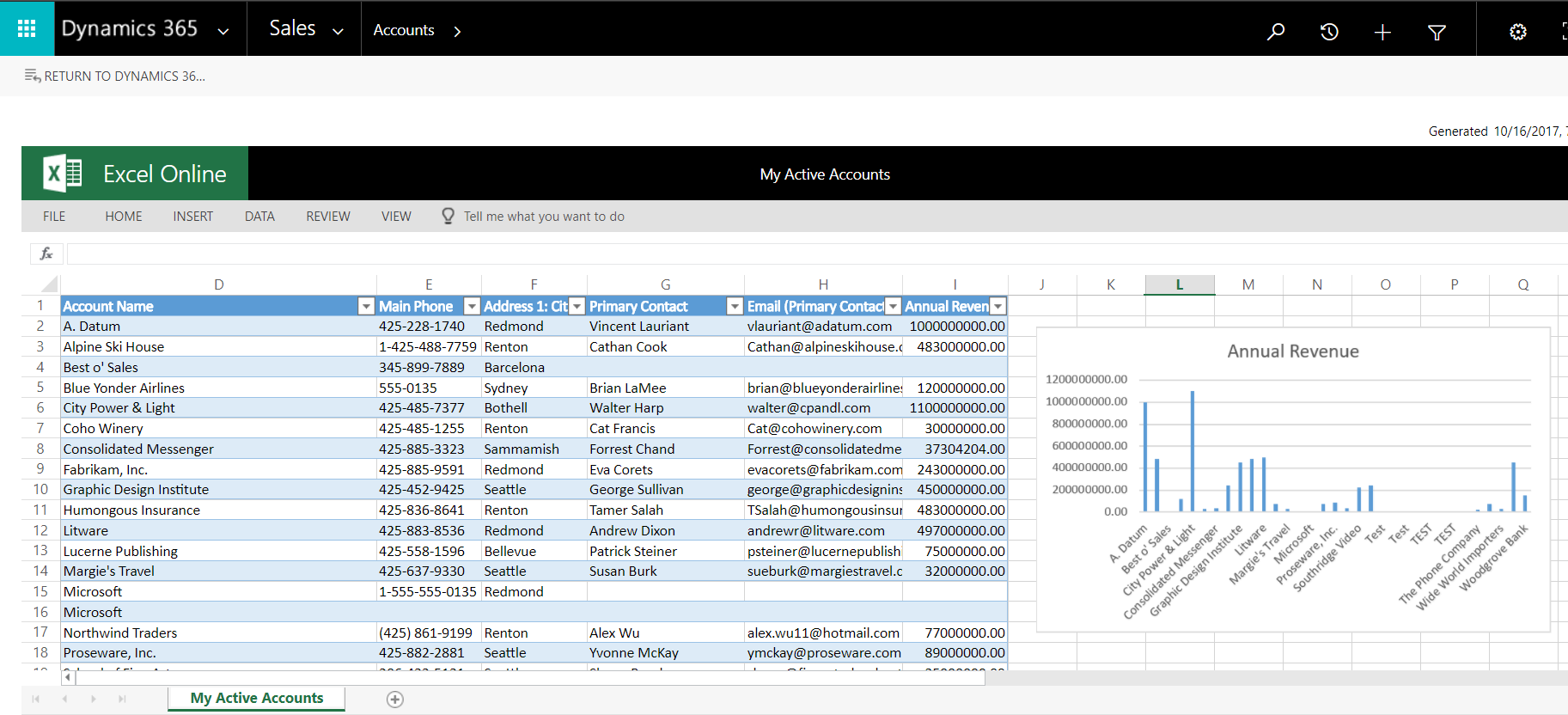
Open the spreadsheet to see the chart with live data:

Explore AI, agents & Microsoft technology.
I share practical ideas, tutorials, and videos about AI, AI agents, Microsoft technologies, and the Power Platform.
Subscribe on YouTube →
Hi Carl de Souza.
I have a question regarding the Excel Template feature in a Model Driven App. I see that it is there available as well and would like to utilize it.
Is there additional license required except Power App per User for using this feature in the Model Driven app?
Thanks for your help