In this post, we will look at Dynamics 365 Business Units, Teams, and Security, and how they work.
Let’s first look at an organization, that only has a root business unit. The organization wants to create business units for the East and West operations. We will create 2 child business units (East, West) off the parent root business unit, and then assign teams to the child business units.
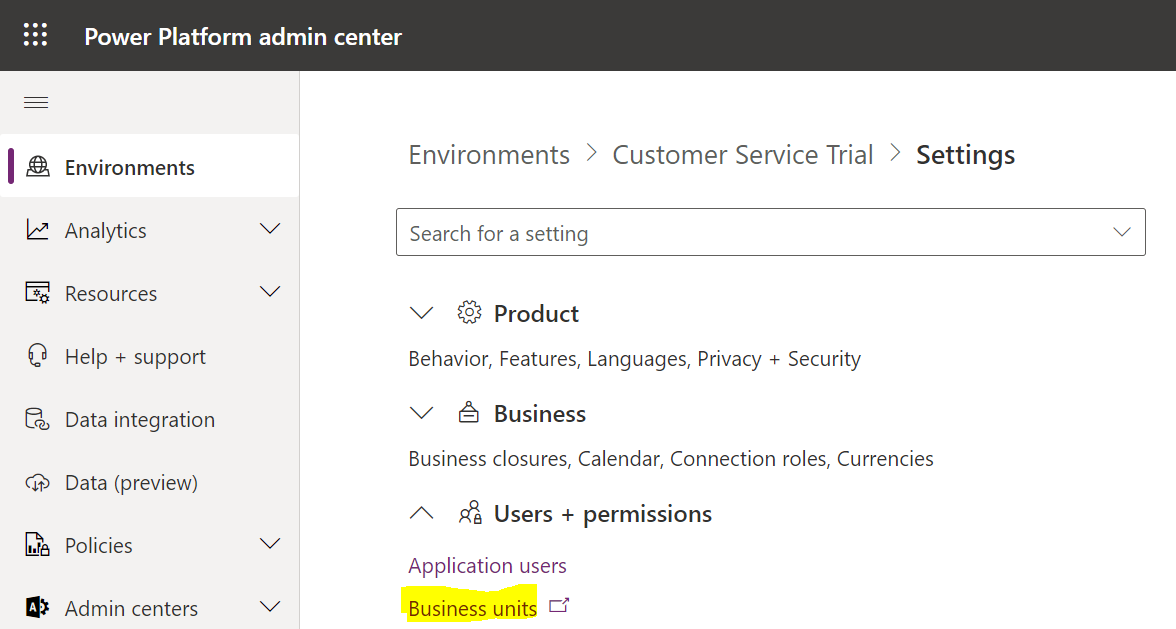
Let’s create a new business unit. Go to the Power Platform Admin Center, select your Org, then Settings->Users + Permissions->Business Units:
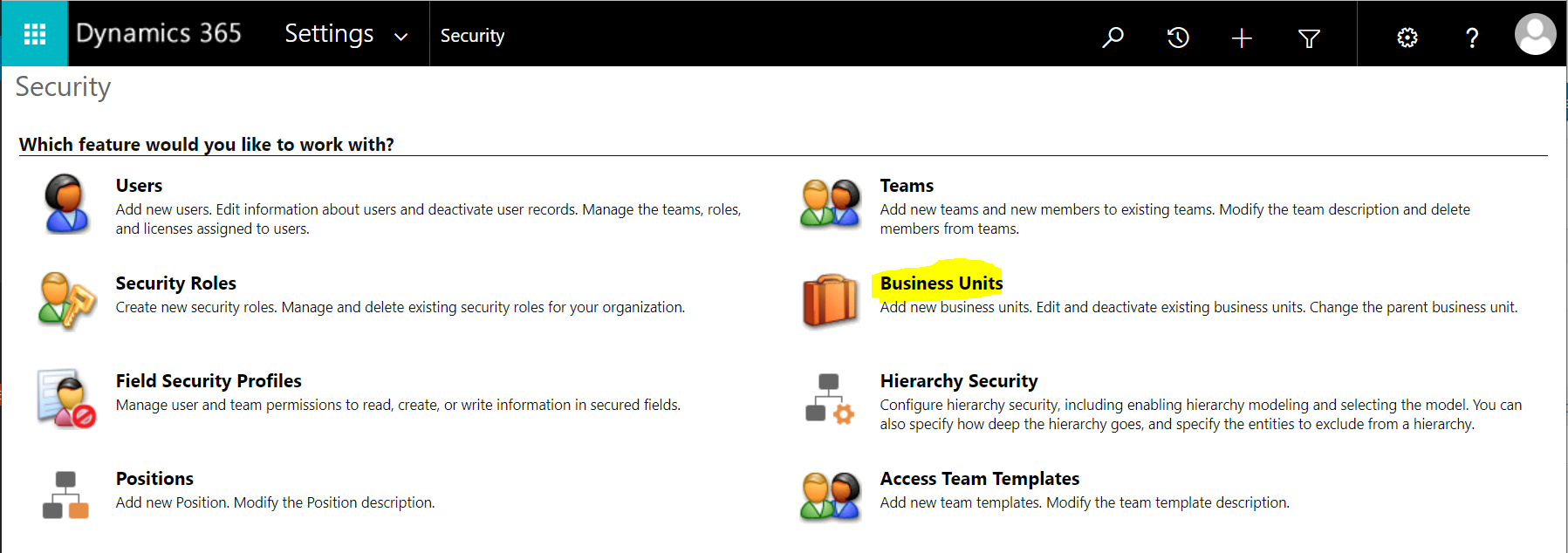
Or, go to Settings->Security, and select Business Units:
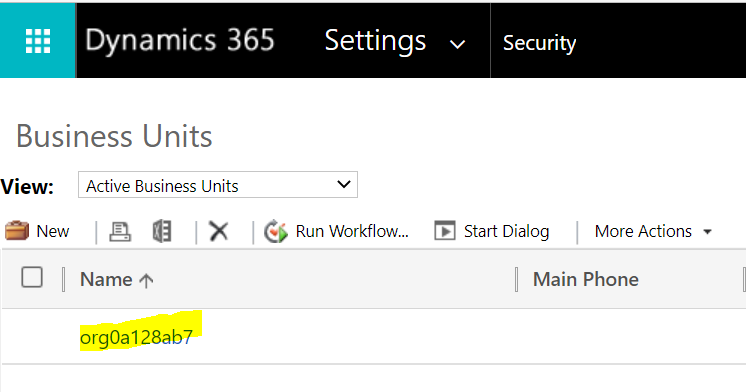
We see our single, root business unit:
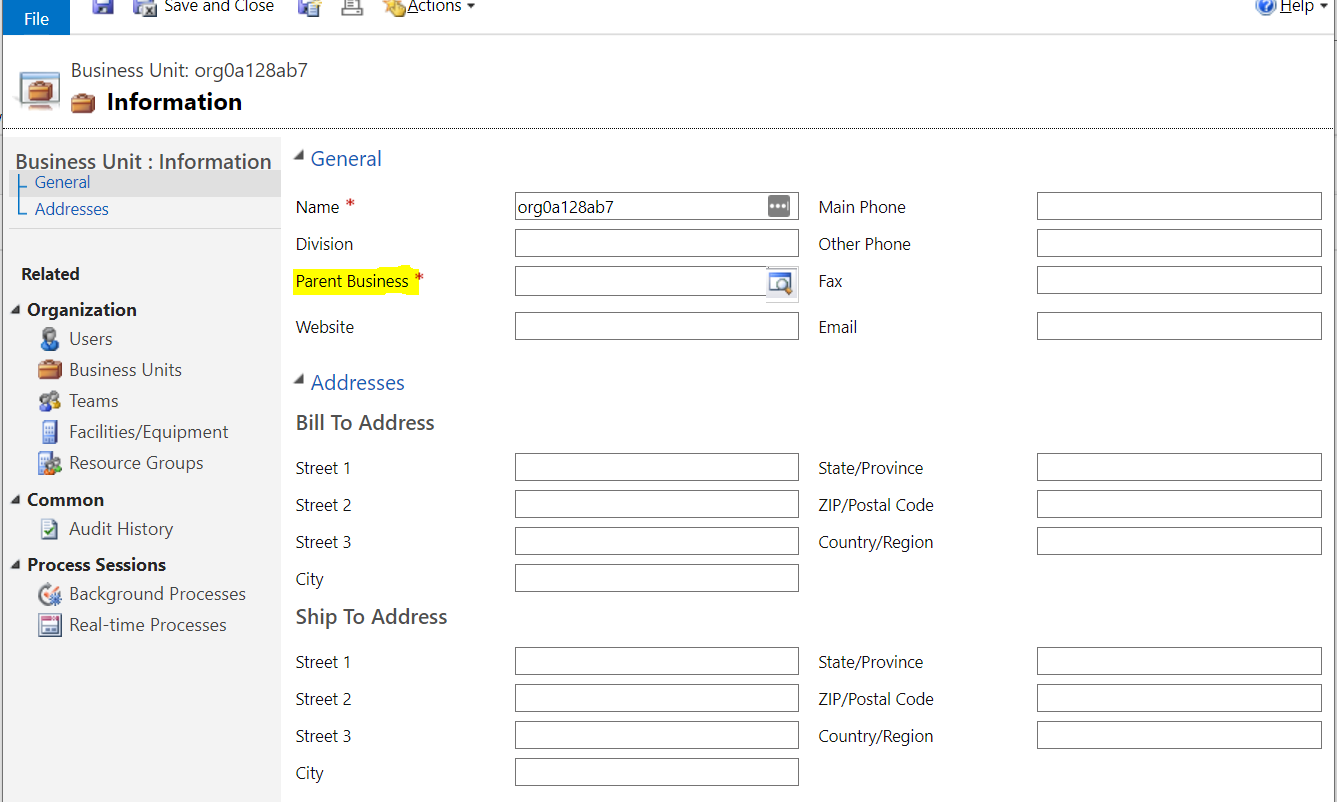
We can see there is no parent business unit, showing it is the root BU:
Let’s create a new BU, called Contoso East, and a new one called Contoso West:
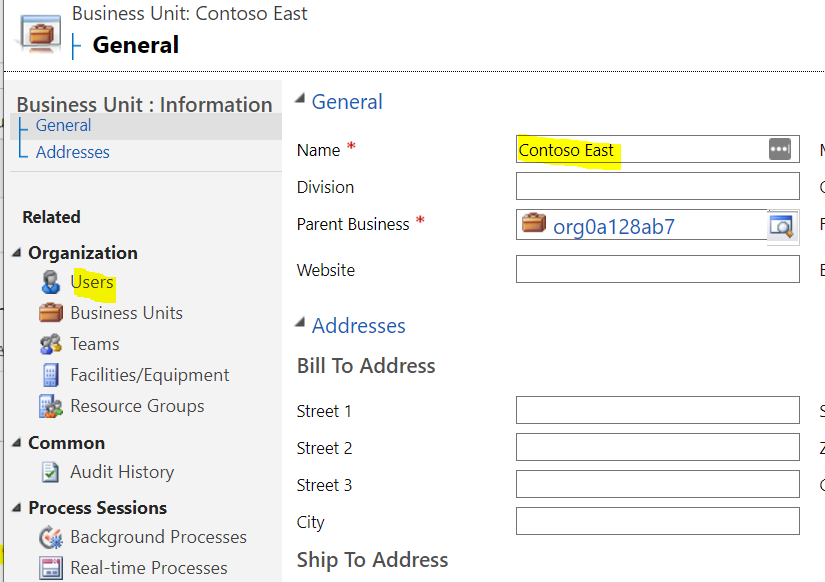
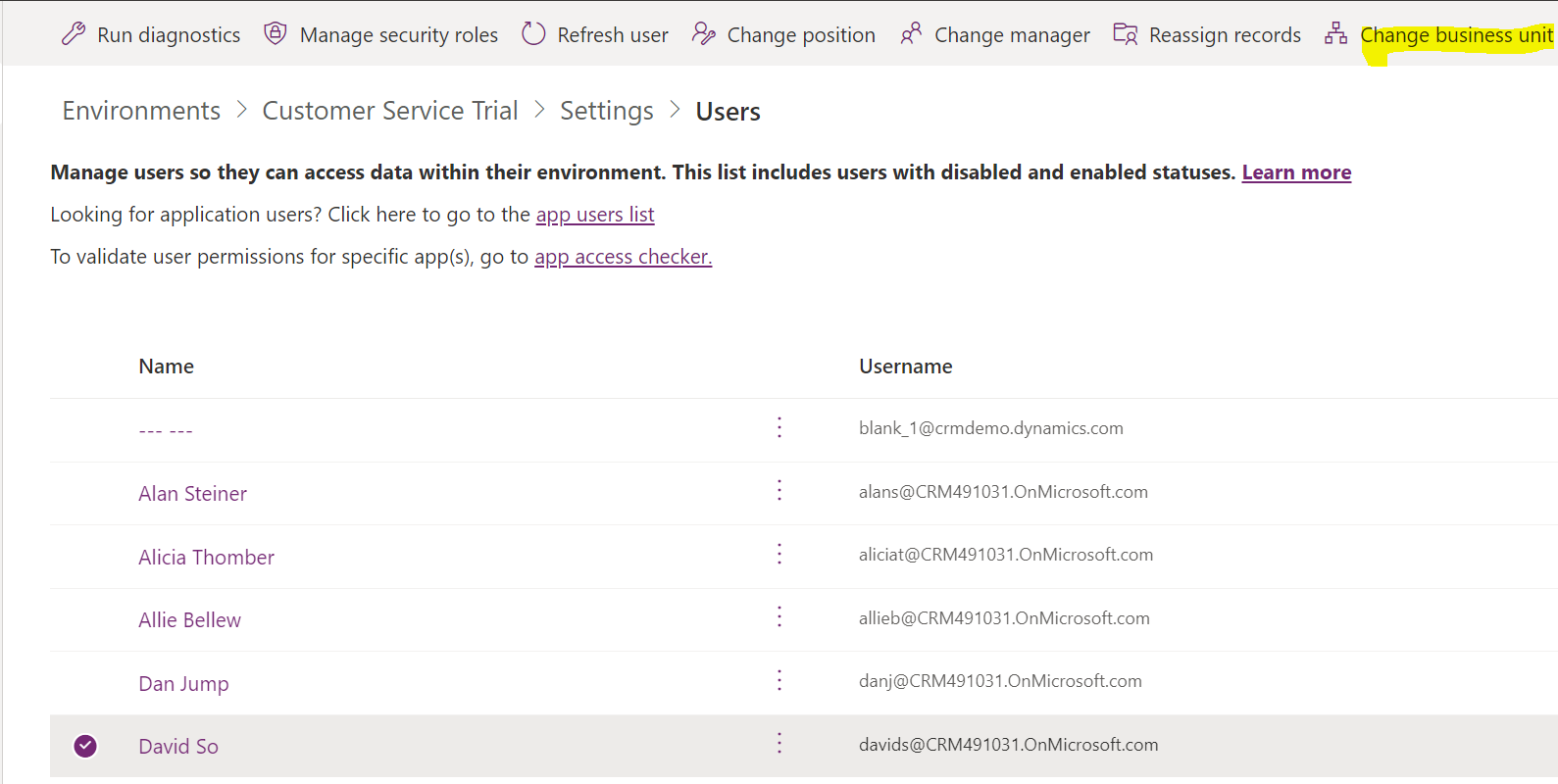
Let’s assign some users to the org. In the Power Platform Admin Center, select the user and select Change Business Unit:
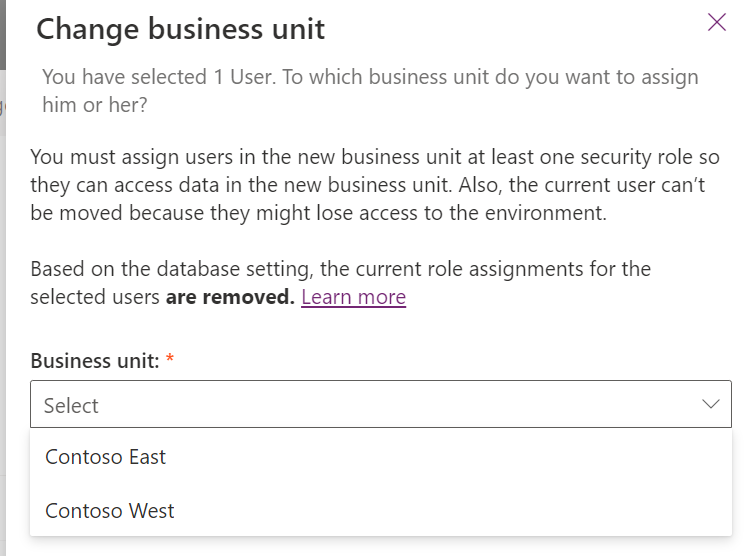
Note the message, then select the Business Unit and click Save:
We have 2 salespeople, David So in Contoso East, and Alicia Thomber in Contoso West.
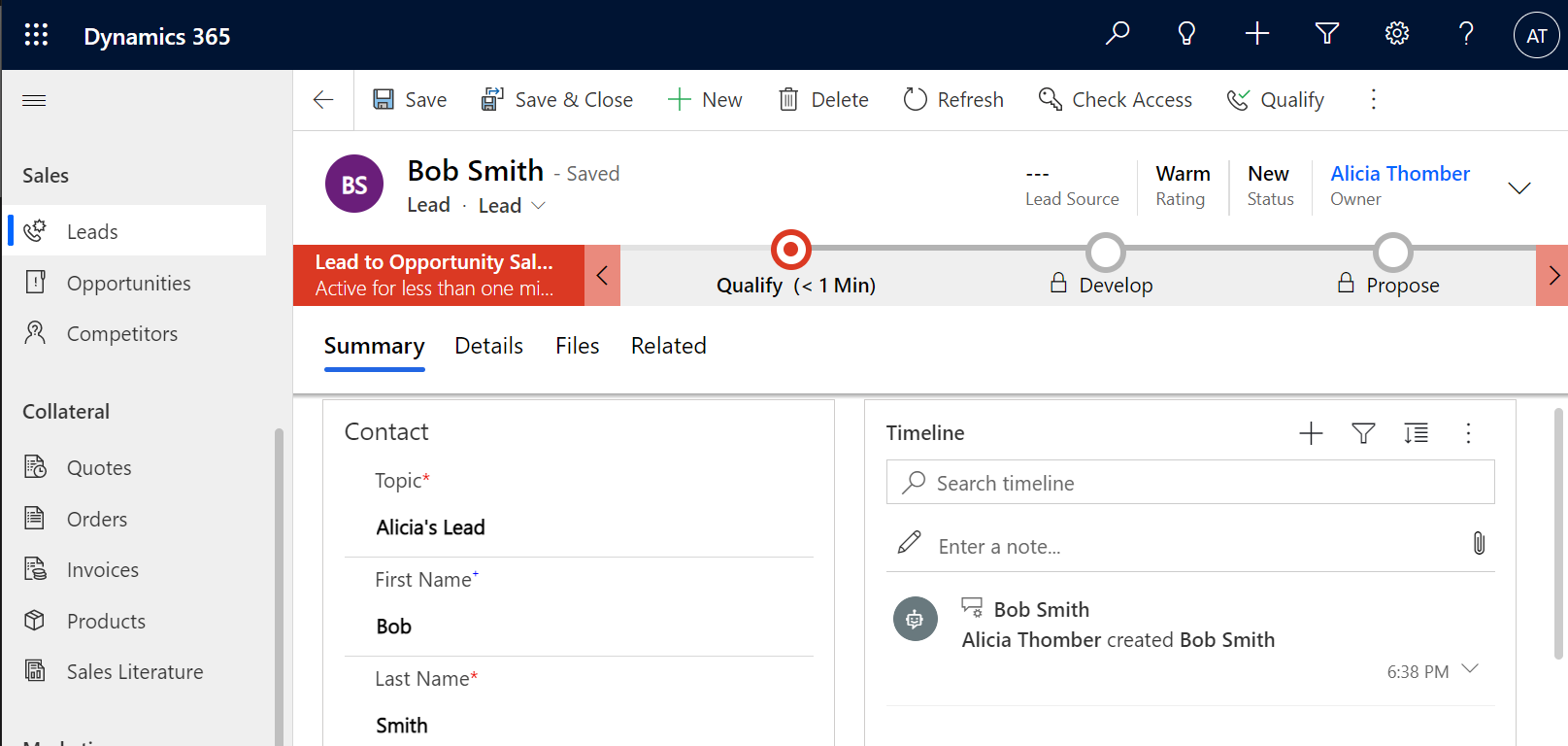
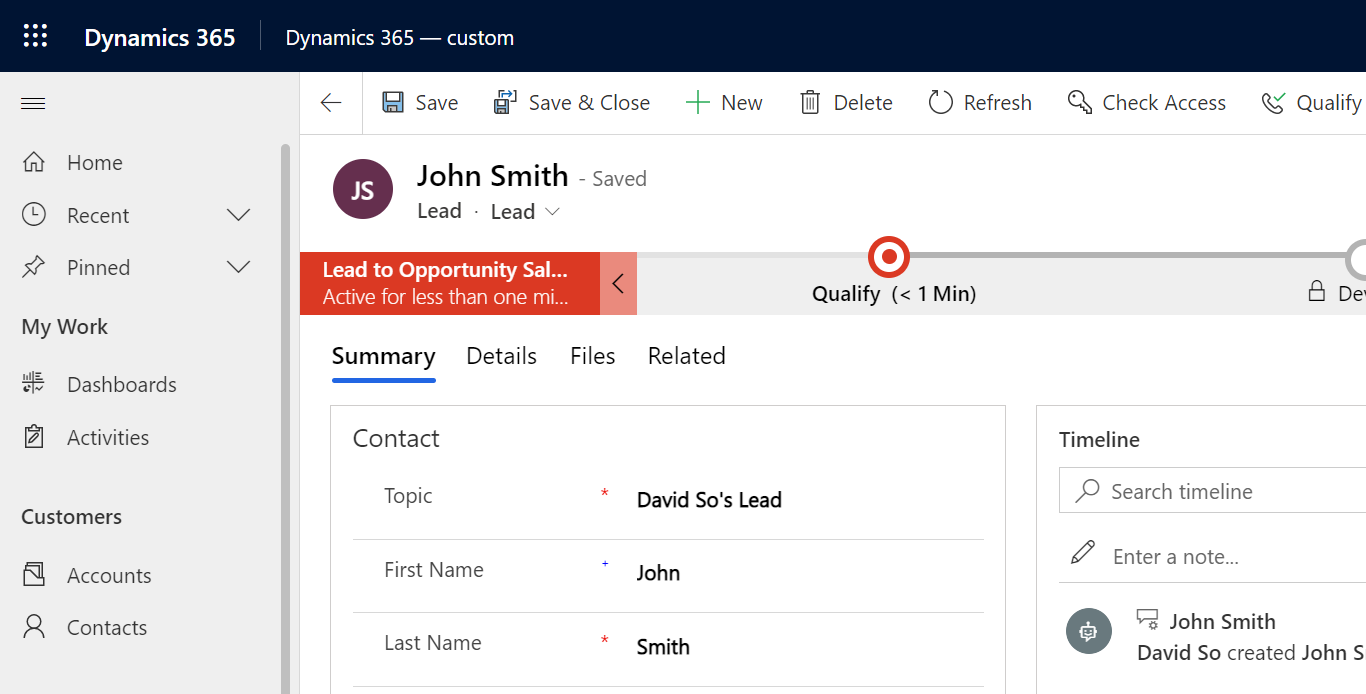
Now, let’s look at what happens when these two use the system. Let’s save Alicia and David enter a Lead into D365:
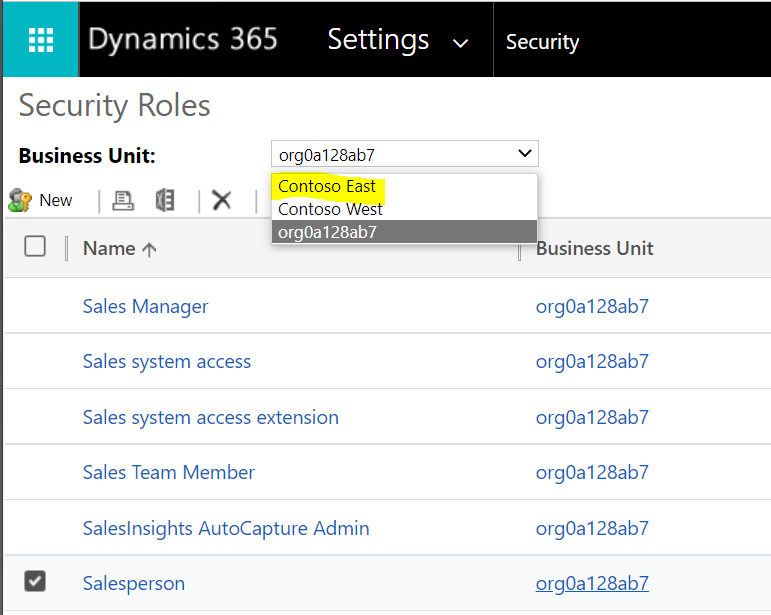
Now let’s look at the security roles for the Contoso East business unit, for the Salesperson role that they are assigned:
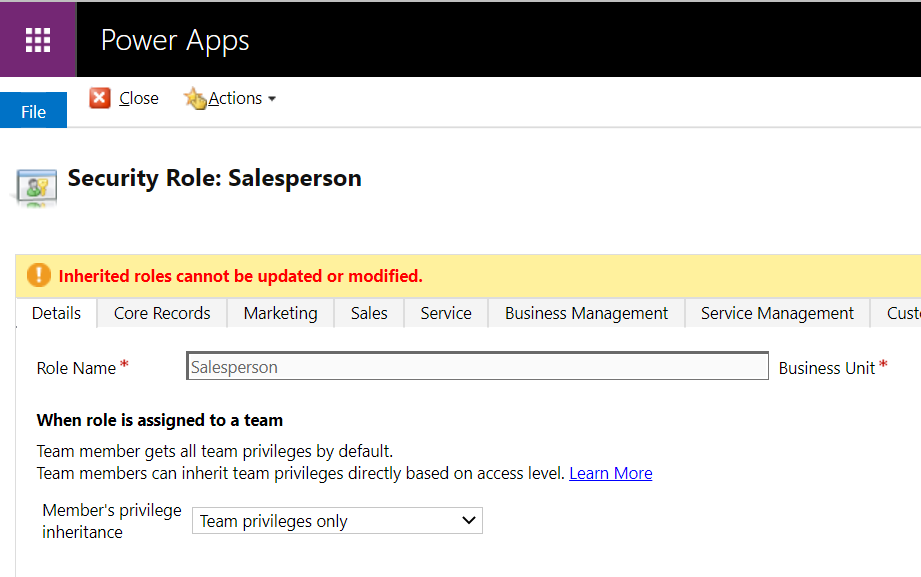
On selecting the role, with Contoso East selected, we see the message “Inherited roles cannot be updated or modified”:
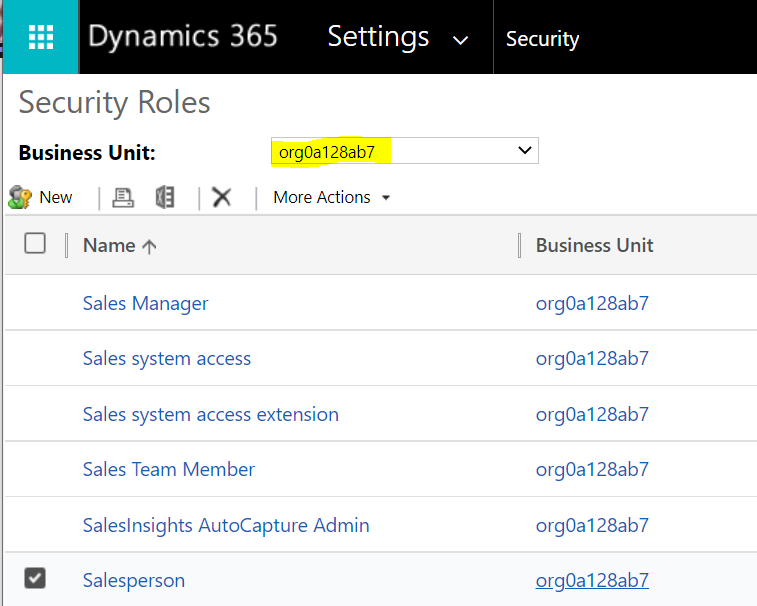
Let’s change the Salesperson role at the root business unit level:
We will change it so Leads are viewable to the Business Unit level only (it previously defaulted to Organization):
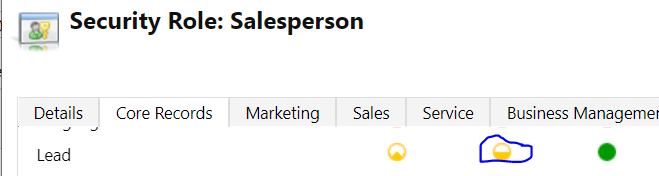

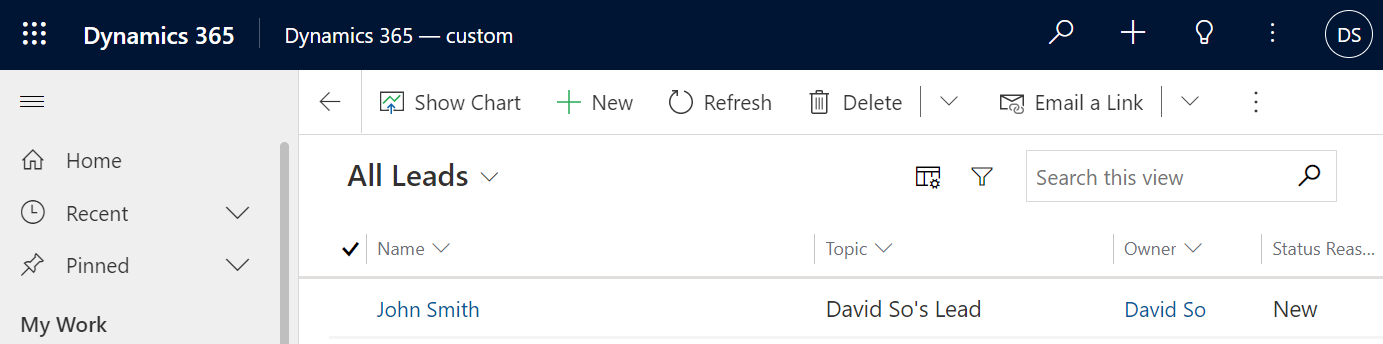
Now, when each user goes into Leads, they will only see Leads for their business unit. Below, David can only see the leads in his BU, and not Alicia’s Lead:
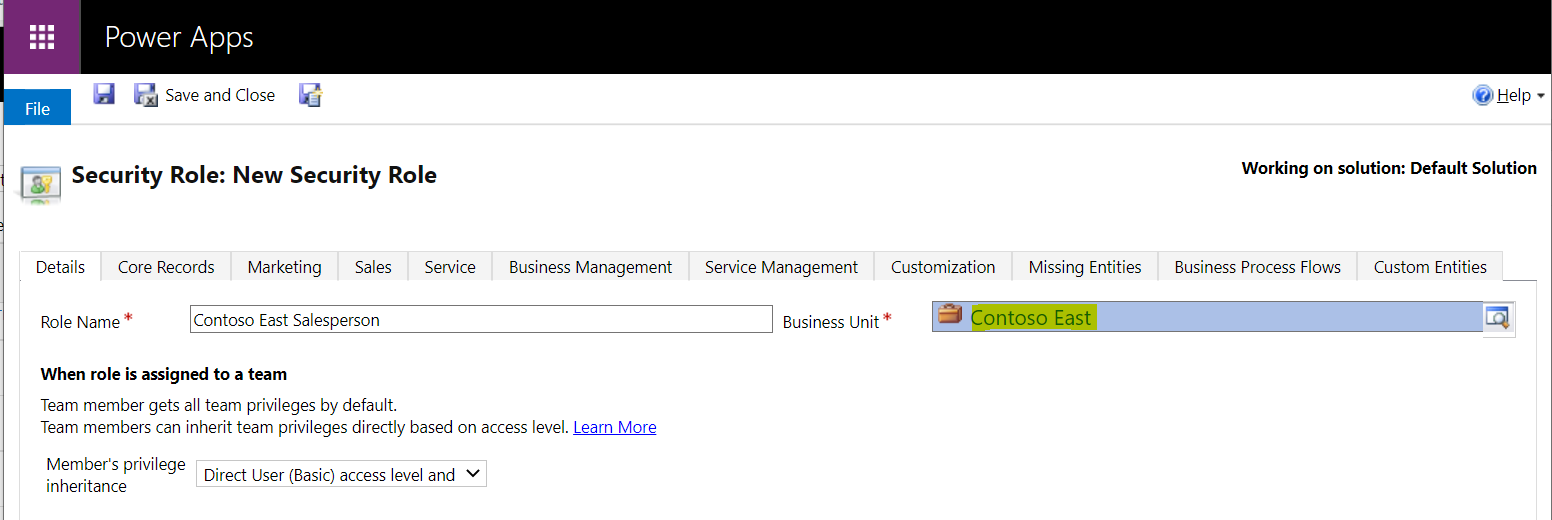
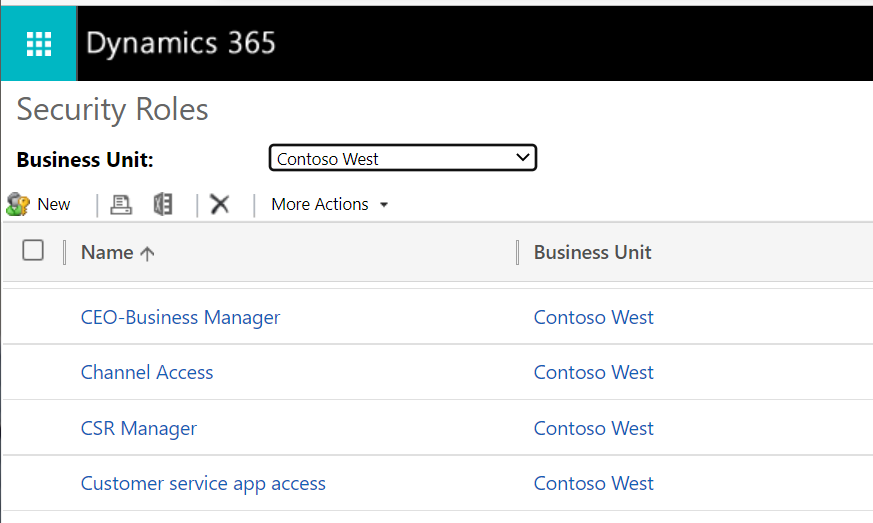
Also note, if we create a security role for a Salesperson in Contoso East, it will only appear in the Contoso East BU:
Not in Contoso West or the root BU:
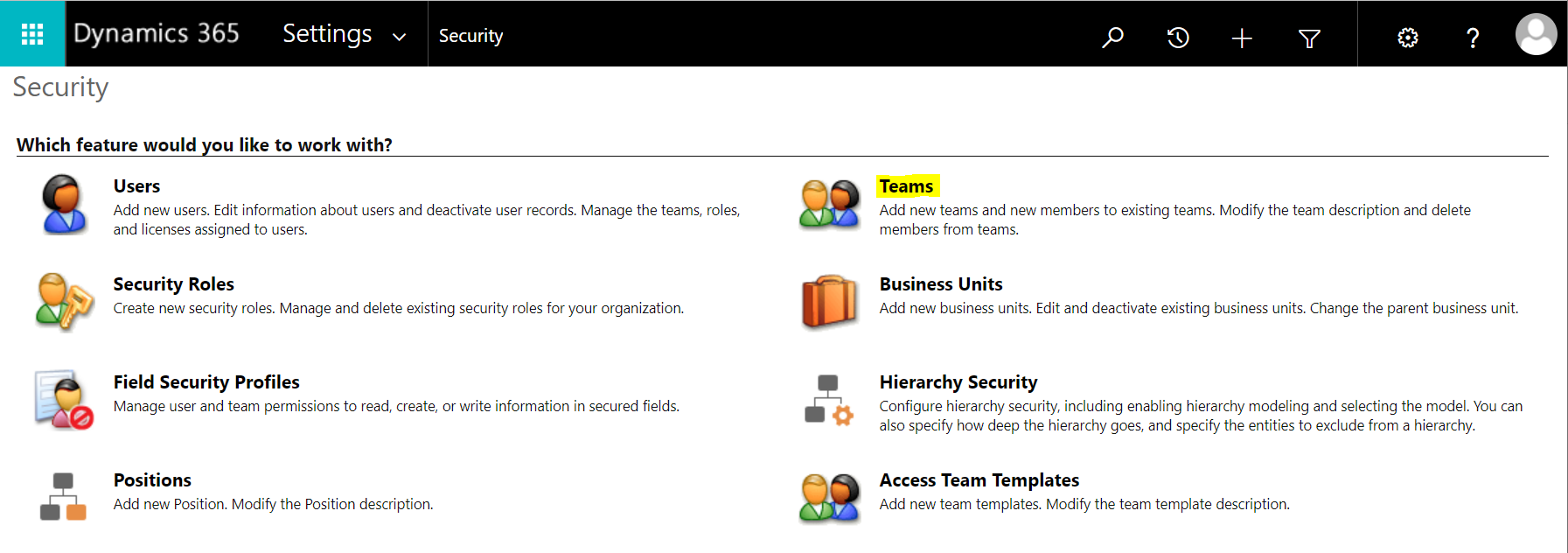
Now, let’s say users across 2 business units to view the same information. Here, we can use Teams, or we can use a setting in Modern Business Units. First, let’s go to Security->Teams:
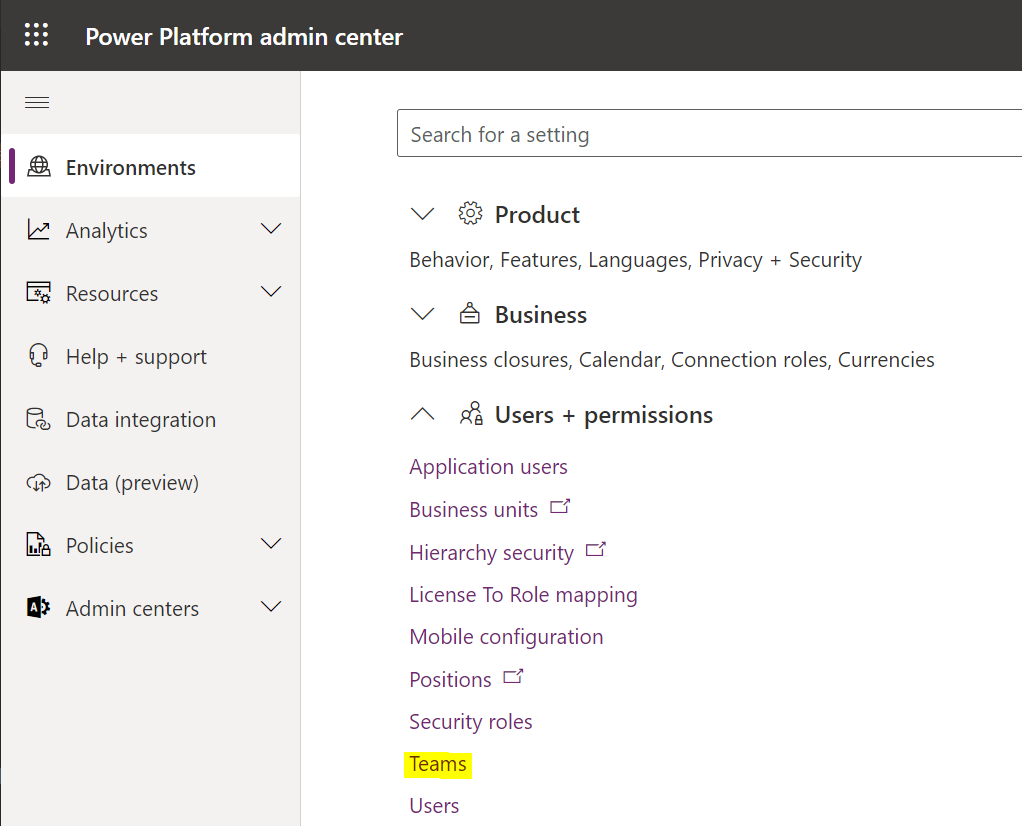
Or here:
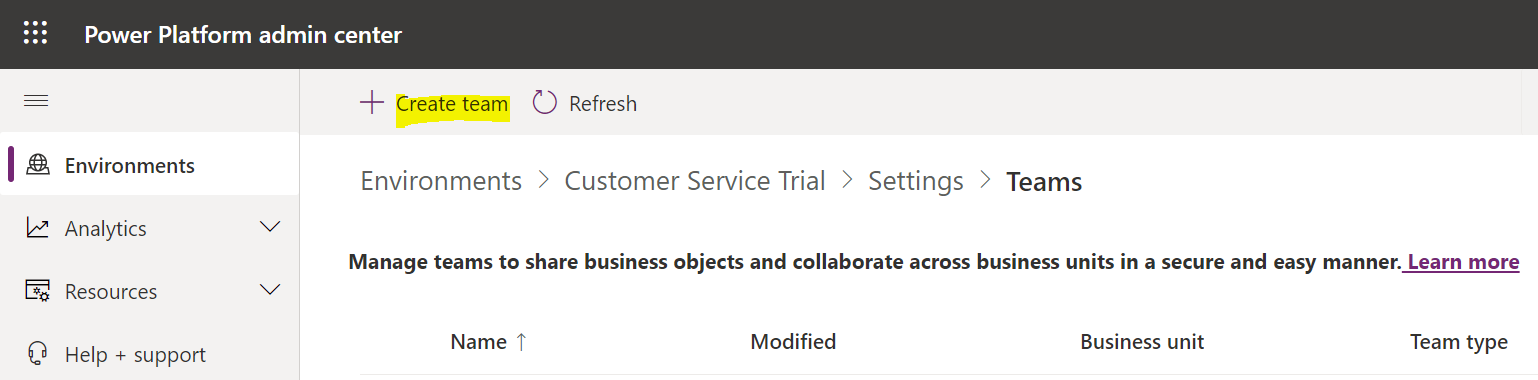
We see the message “Manage teams to share business objects and collaborate across business units in a secure and easy manner”. Click Create Team:
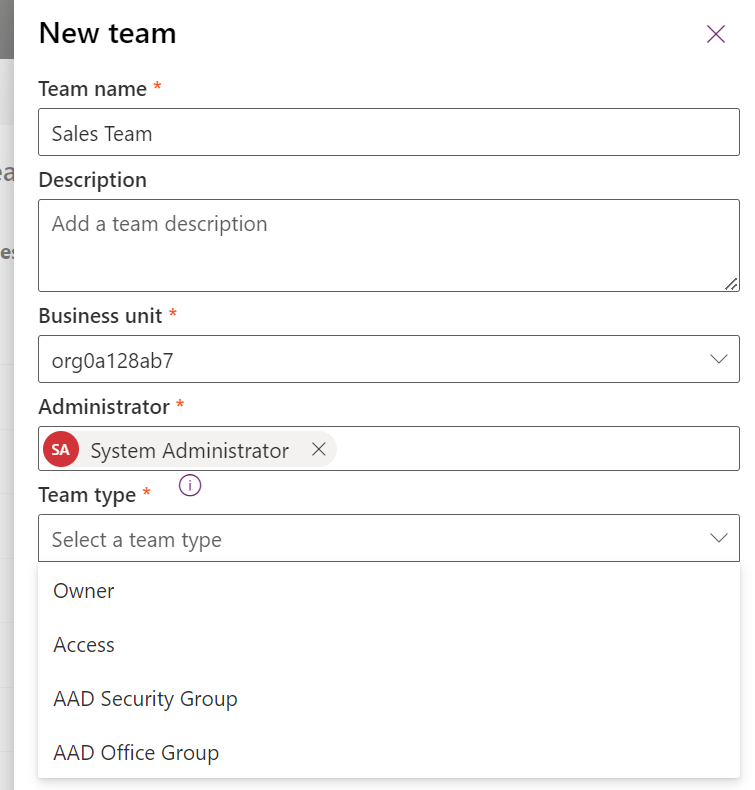
Enter the team details, and click Next. We will select the root business unit, and Team type = Owner:
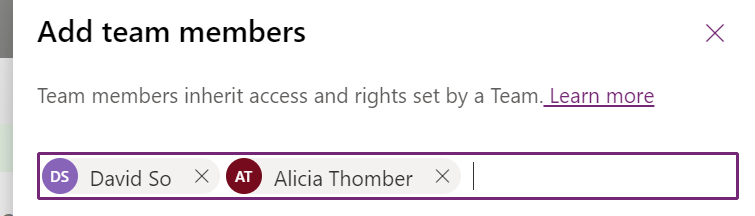
Click next, then add team members. We will add David (Contoso East) and Alicia (Contoso West):
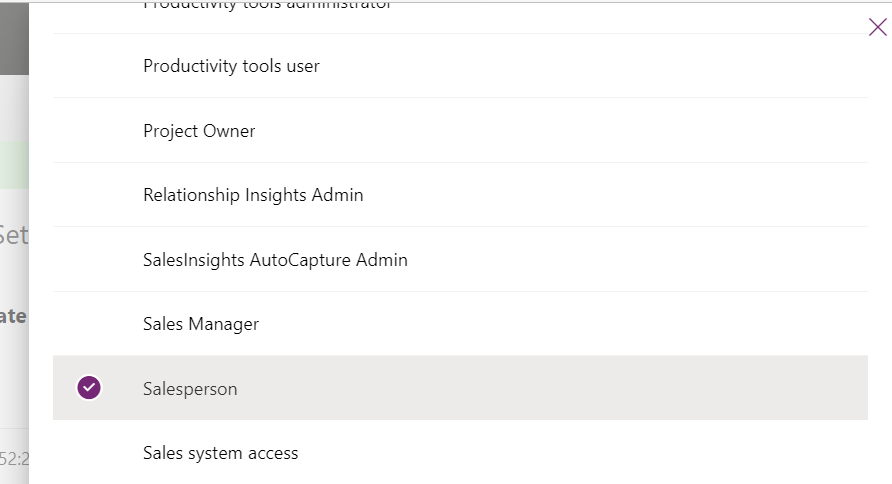
And set the security roles to the team. We will set the role to Salesperson:
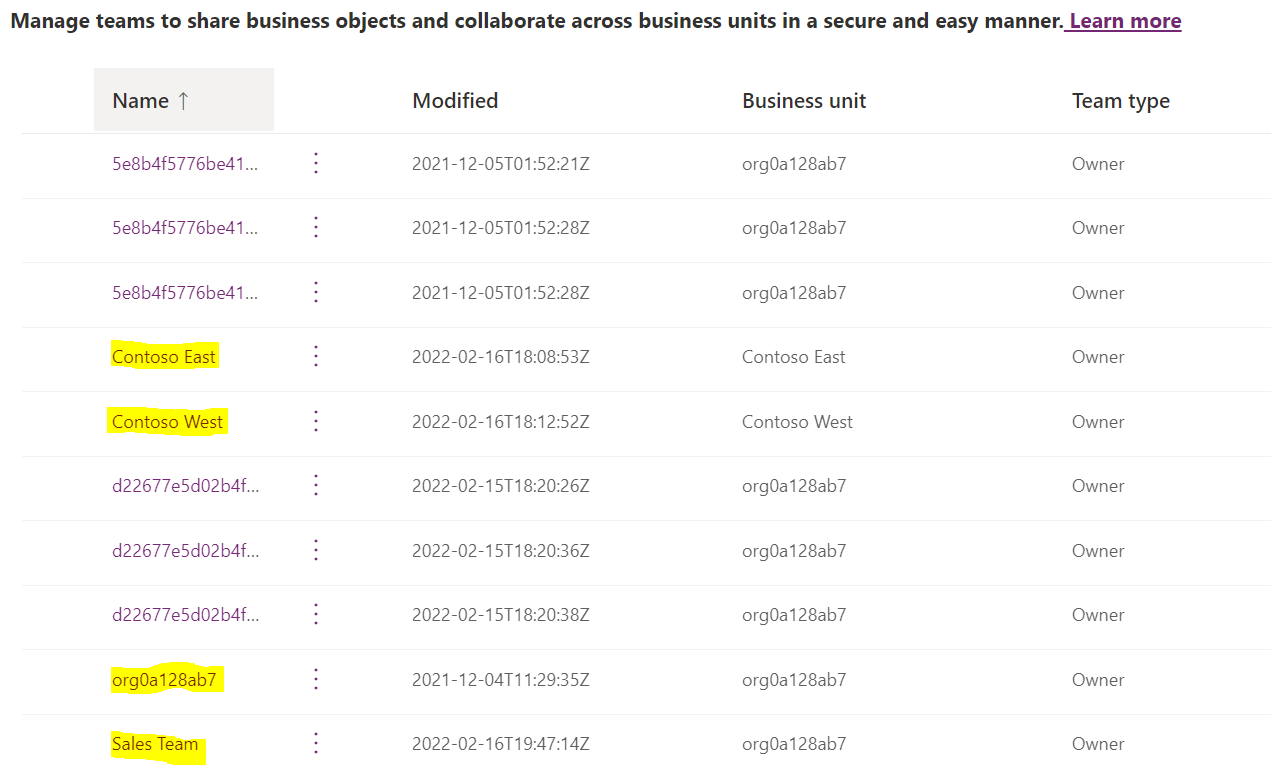
The team is created. Note, the teams also show the automatically created teams for the business units (root, Contoso East, Contoso West) and the new Sales Team:
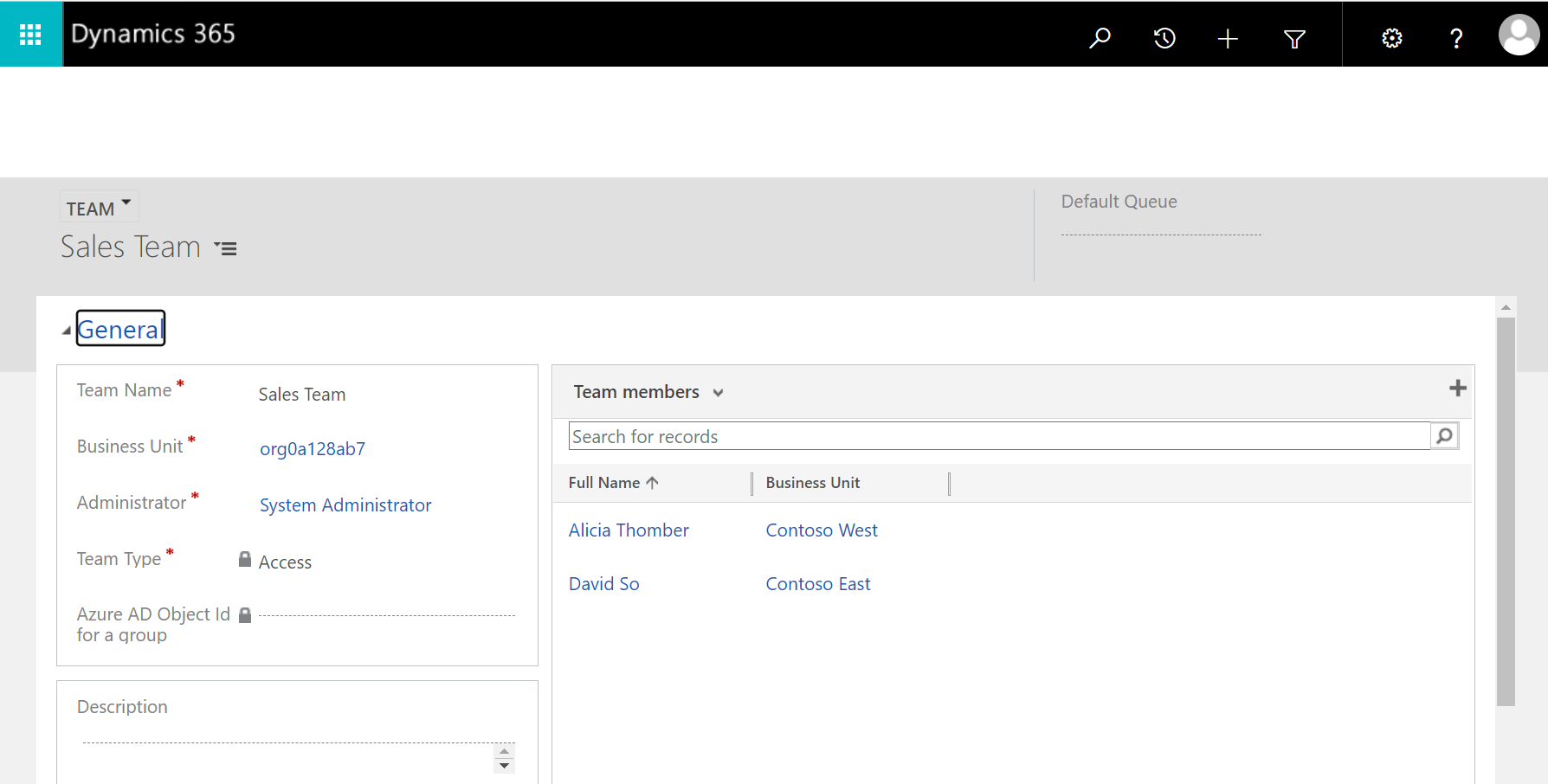
If we open the team, we see it looks like this:
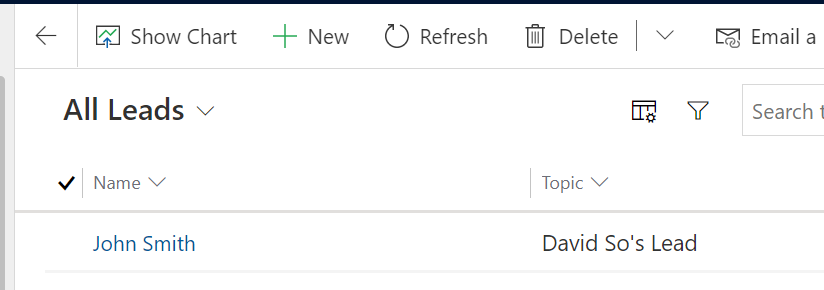
At this point, the sales people can only see leads in their business unit, e.g. David can only see:
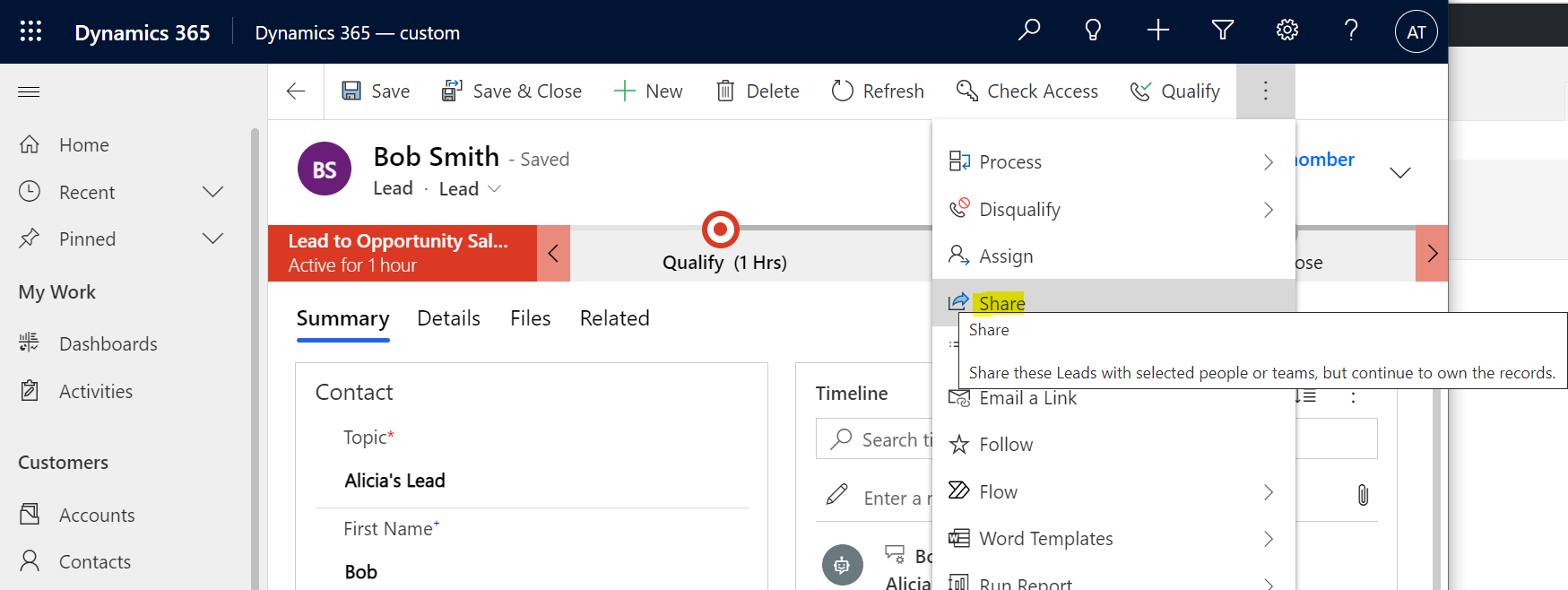
Now, let’s say we want Alicia to share records with the team:
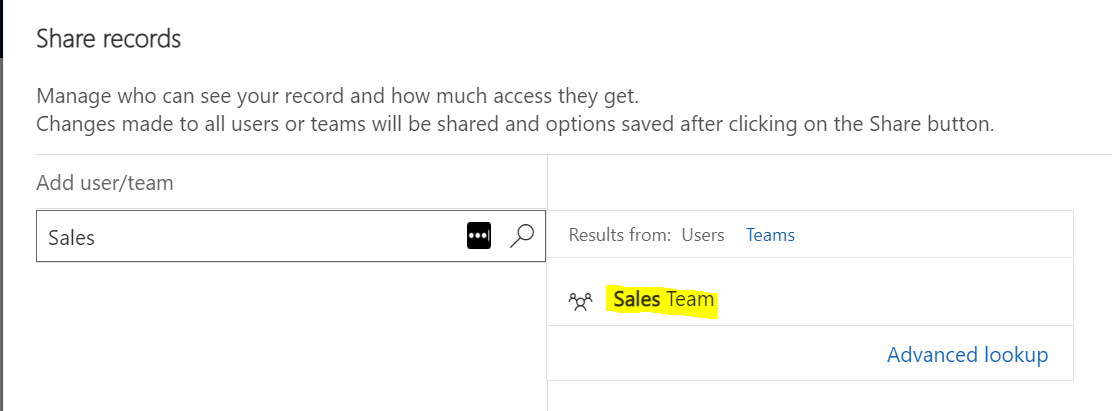
Select the Sales team:
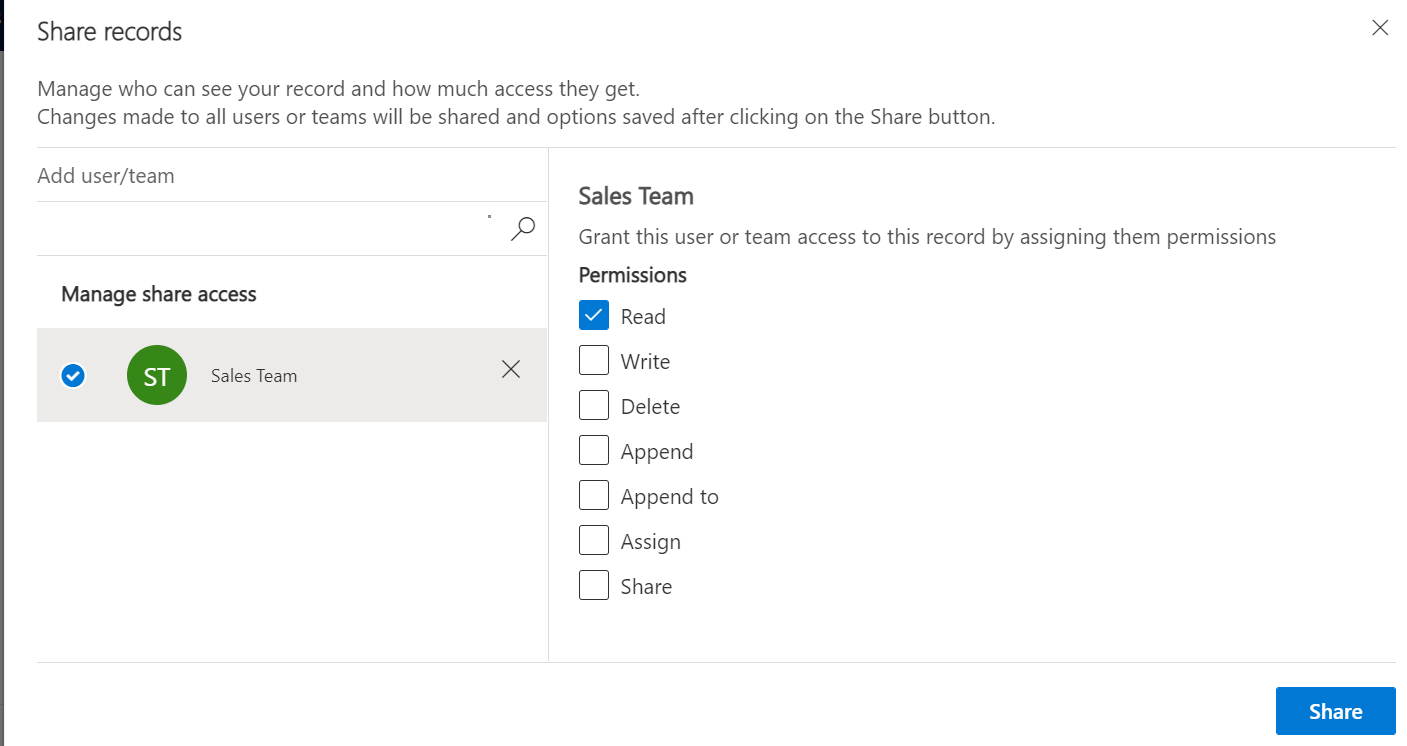
Now give appropriate access, and click Share:
David now sees Alicia’s Lead:
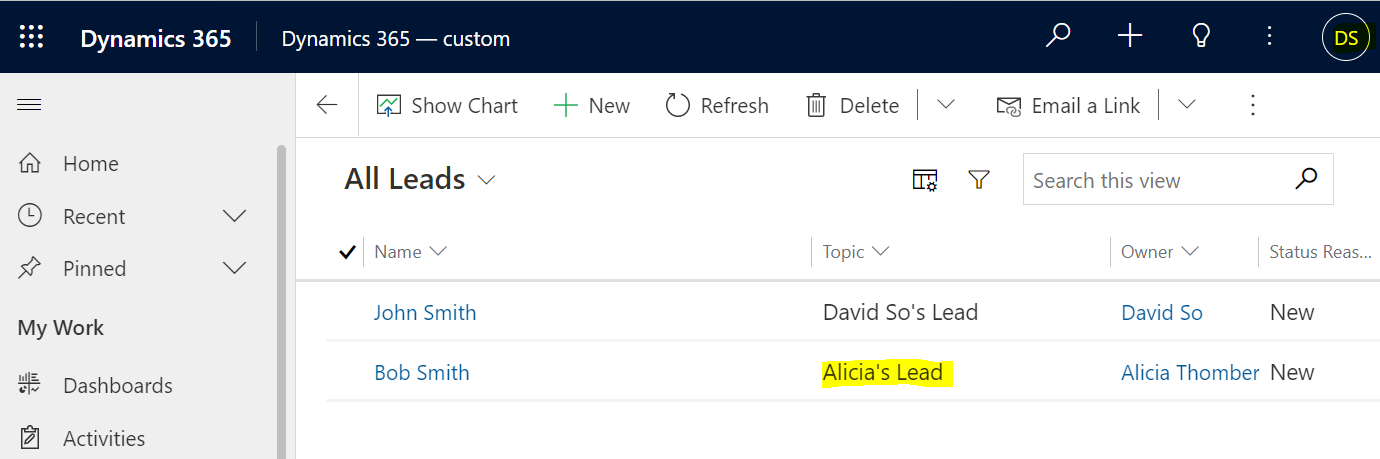
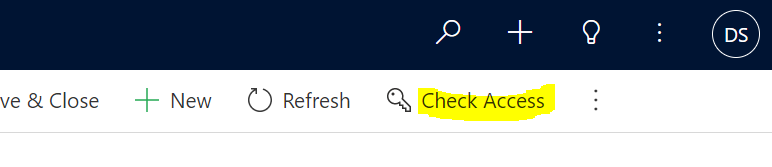
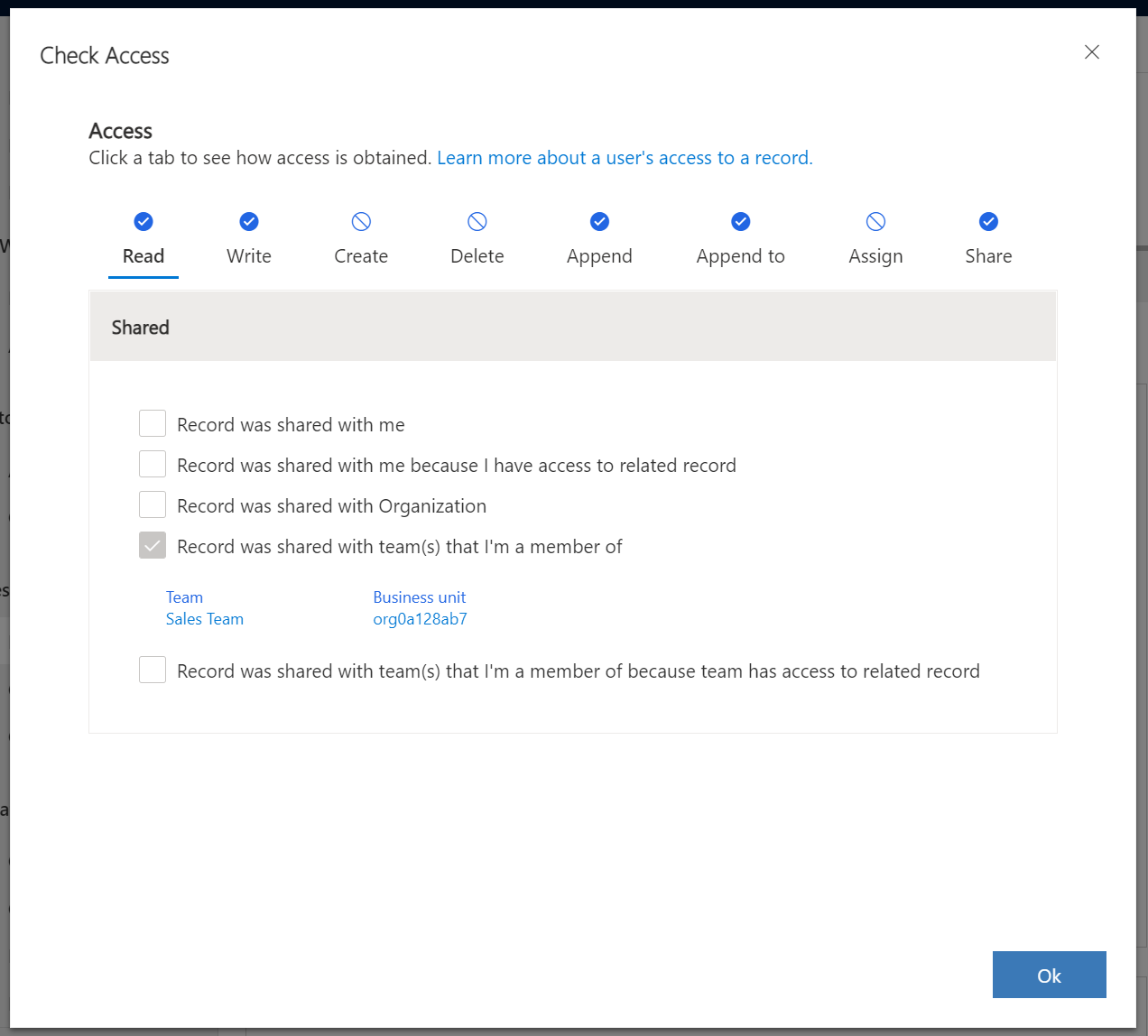
And what’s useful is David can see how he can see this record by clicking on Check Access:
We can see it is because he is a member of the Sales Team:
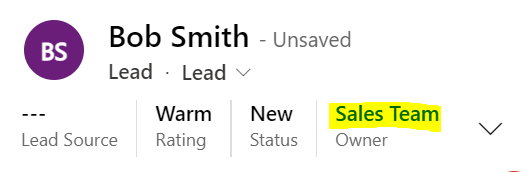
Note also, we can change the owner of the record to be the Sales Team:
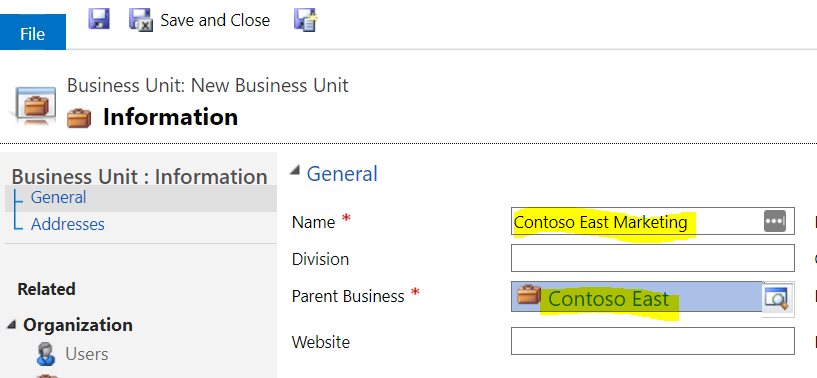
Now, let’s look at Parent-Child Business Units. We will create a new Business Unit, Contoso East Marketing:
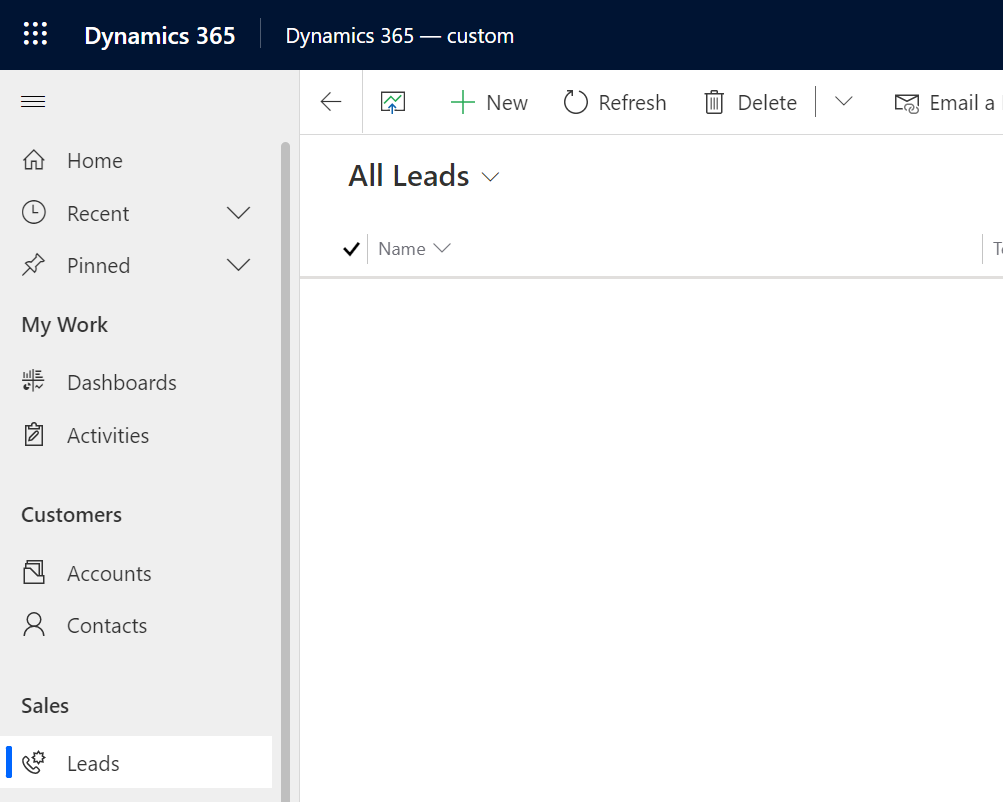
When Jeff logs in, he sees no Leads:
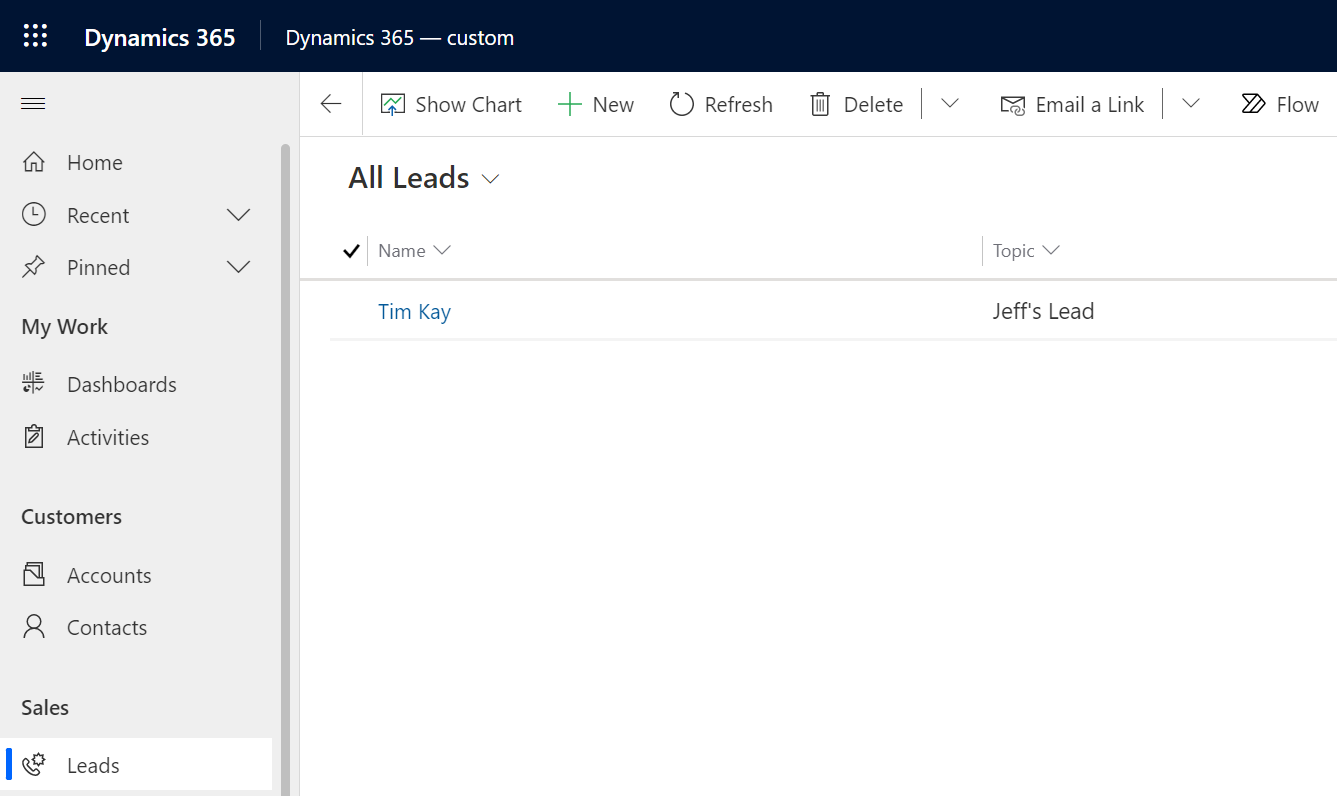
Now, Jeff creates a lead:
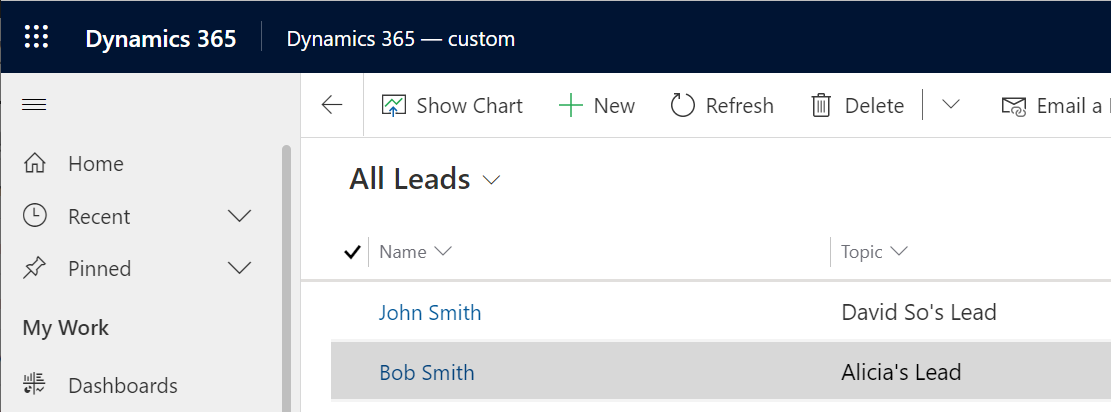
With the Salesperson role for Leads set to Organization, we see that David can see his lead and Alicia’s lead (through the Sales Team), but not Jeff’s new lead:
Let’s change the Salesperson role for leads to be Parent-Child:

Now, David can see the child business unit lead, Jeff’s lead, as he is in the Parent business unit:
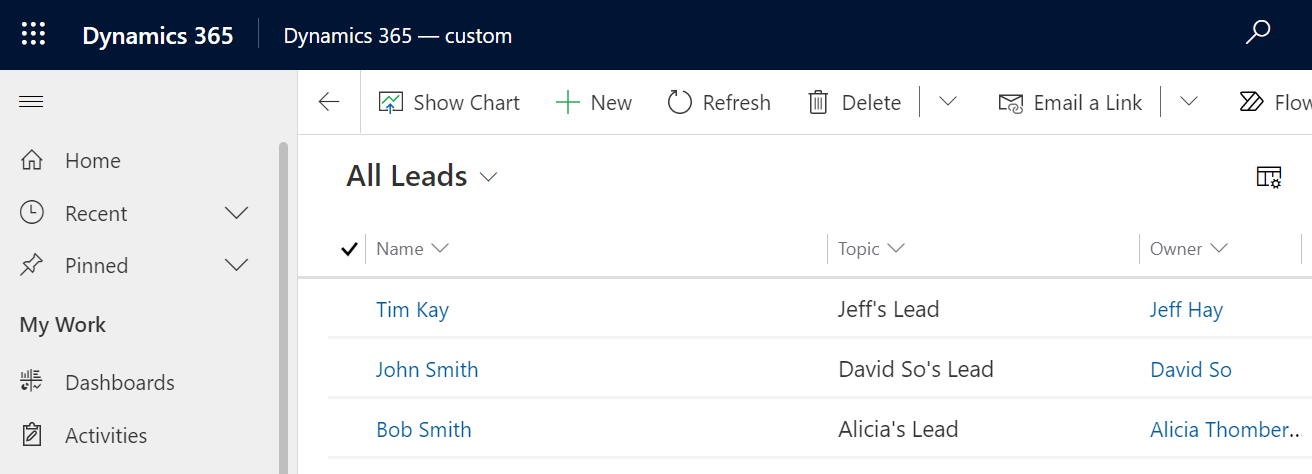
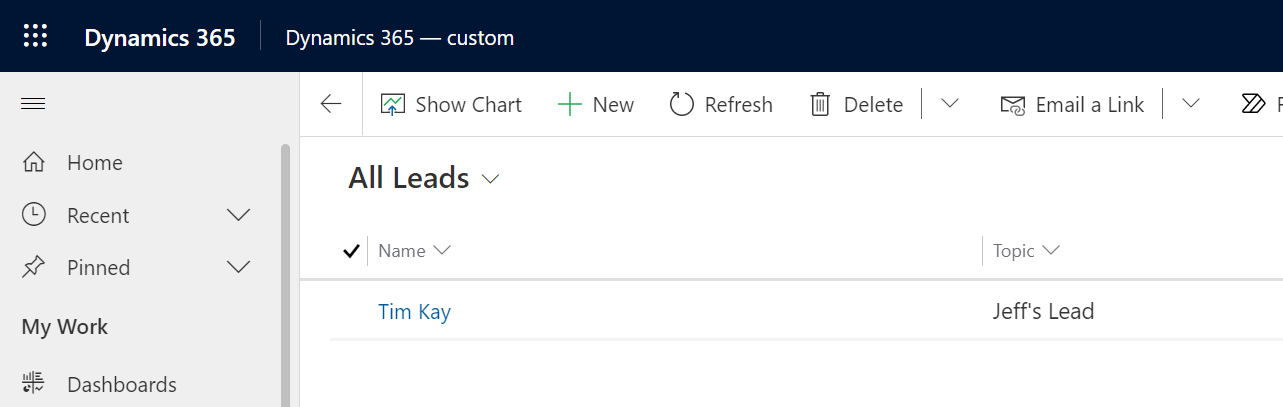
Jeff can only see his own lead as he is the child of the Business Unit:
Let’s look at another example.
Adding Users and Changing Business Units
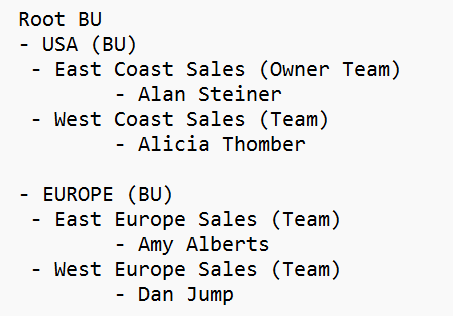
Let’s now look at the scenario below:
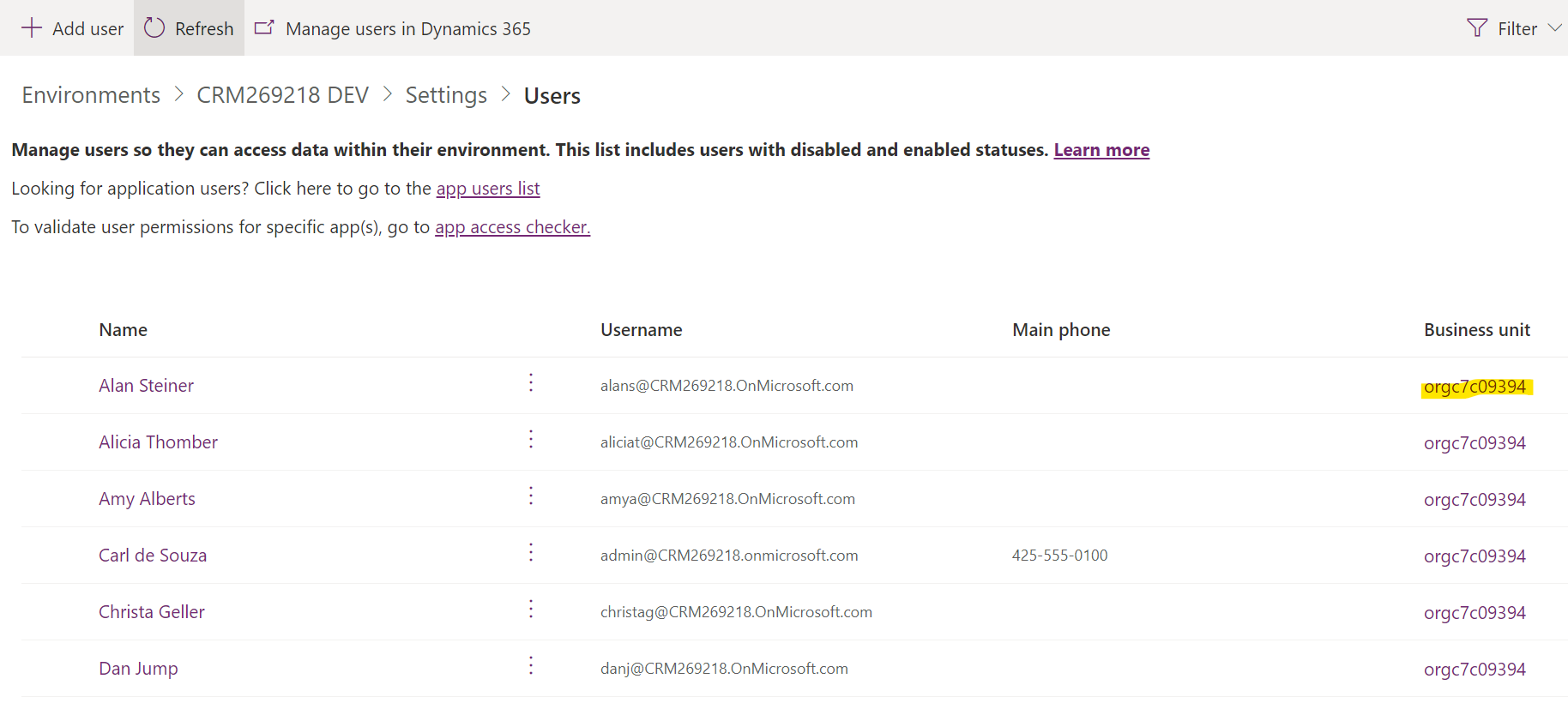
When adding users to a Dynamics 365 org, you are adding them to the default business unit:
To change the business unit, select the User and from the toolbar click “Change Business Unit”:
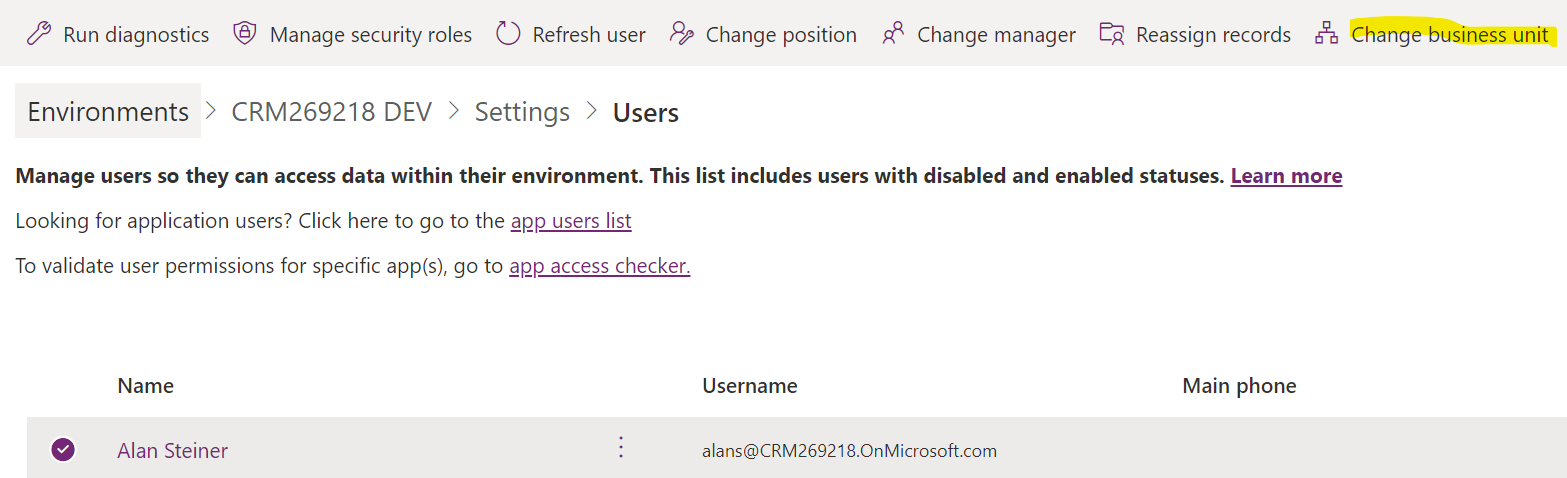
Select a business unit and click Save. Note the option “Move records to new business unit”. As an example, Alan Steiner has created a case below:
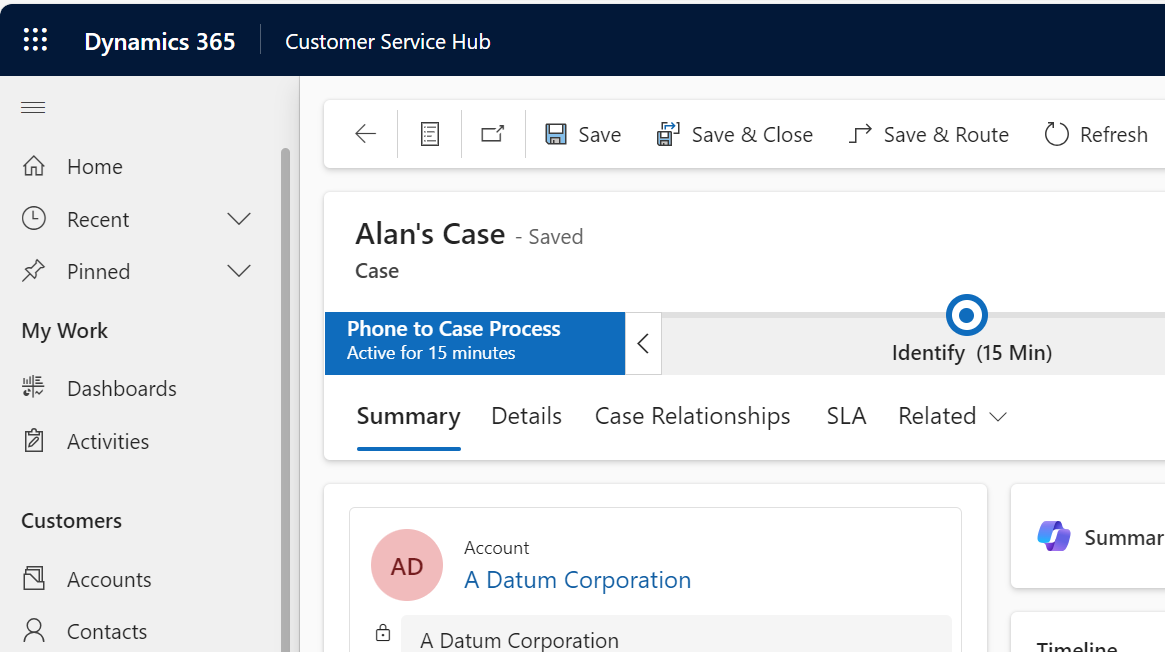
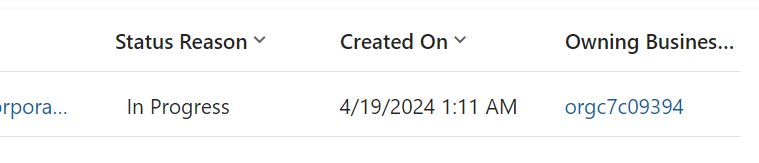
We can see through Advanced Find that the owning business unit is the root business unit (Alan’s current BU before moving):
After the move, Alan’s business unit has changed:

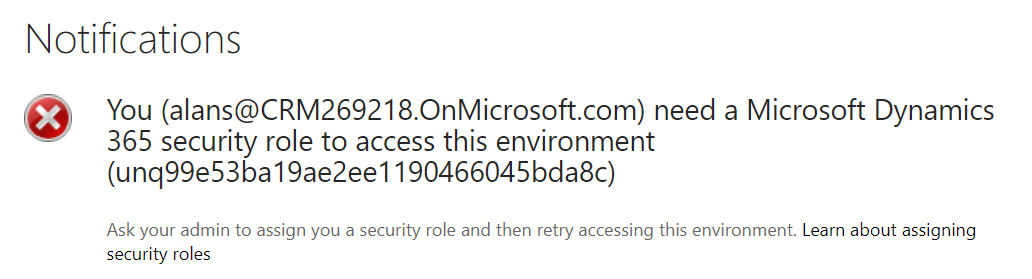
And if Alan were to try to look at his cases records, he would now get the error that he does not have security roles:

And:
Once we add back his security role, we see the case record now has the owning business unit of his new BU (USA):

And Alan is still the owner of the record as he started:

Now let’s change the Customer Service Representative role in the root business unit to be business unit level, not organization level:

Alan can now only see the cases in his business unit, which in his case is just the one case he created:

Teams
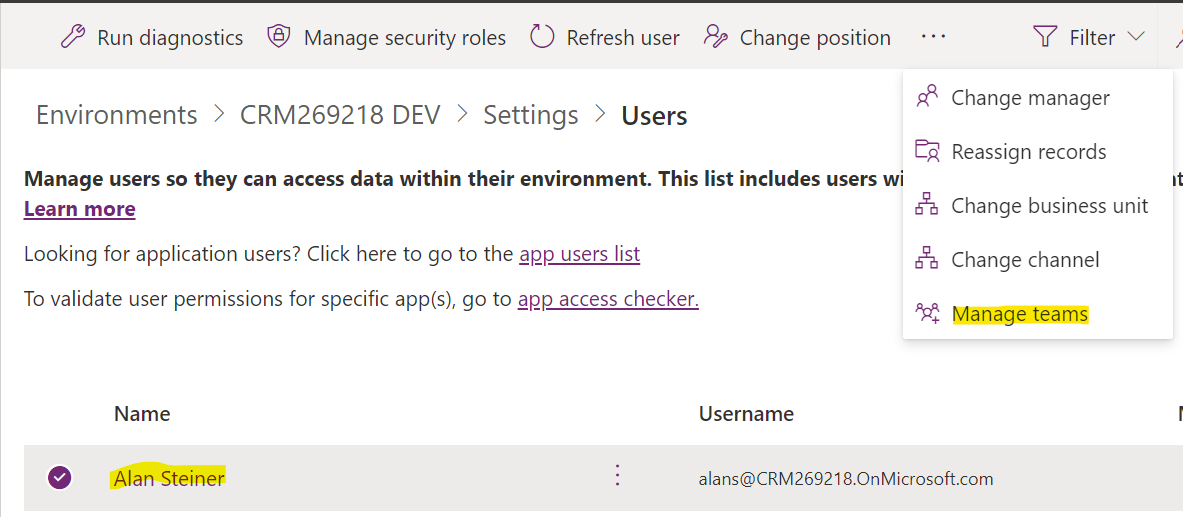
If you find a user is assigned a role but they appear to have higher privileges, check the teams they belong to by going to the user and selecting Manage Teams:
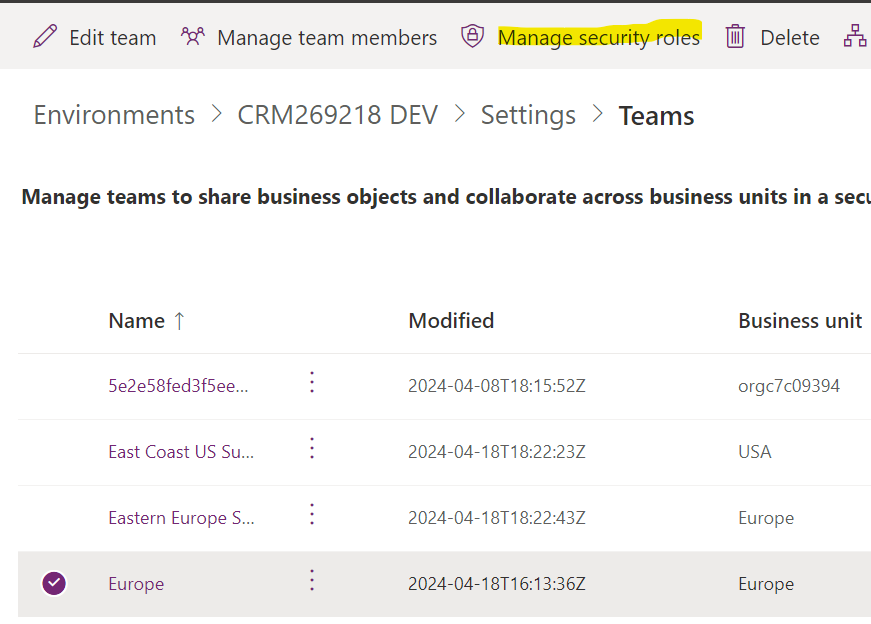
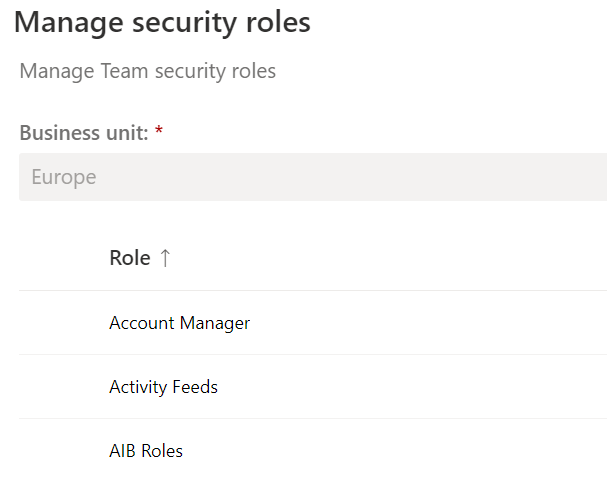
Then for each team, go to the team and select Manage Security Roles and ensure that team does not have higher privilege roles assigned:

Explore AI, agents & Microsoft technology.
I share practical ideas, tutorials, and videos about AI, AI agents, Microsoft technologies, and the Power Platform.
Subscribe on YouTube →
I have a question regarding applying security roles to Business Units. When you create or copy a new security role on a business unit, does that mean that the role is available to the business unit, but the role still needs to be applied to a user or team under the business unit to become active/effective ? We have an CRM environment where there are 195 security roles assigned to a business unit but the roles only seem to be effective when the role is applied to either a user or team.