In this post we will add an existing website project to Visual Studio Team Services.
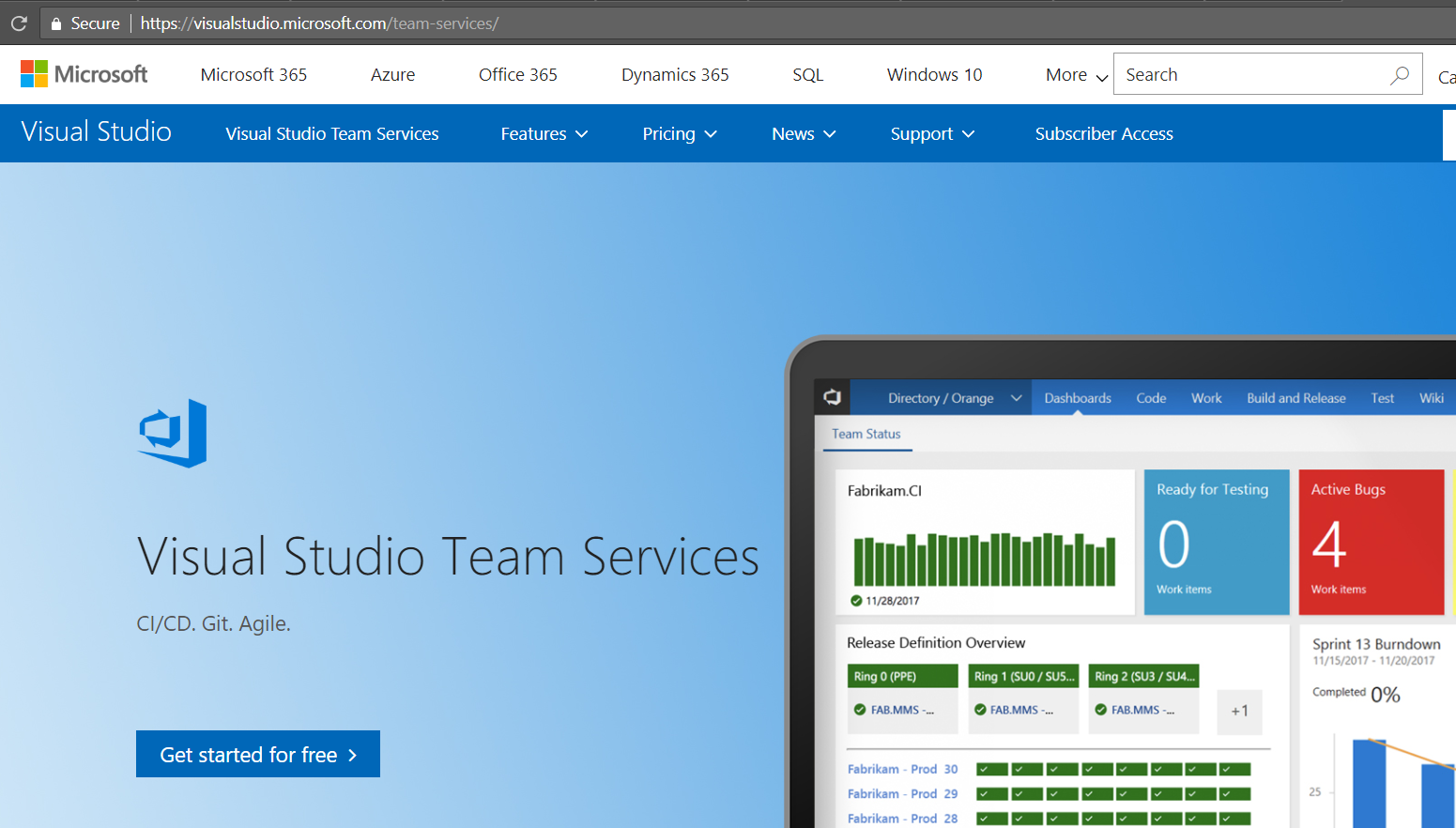
First, create a project in VSTS. Log into https://visualstudio.microsoft.com/team-services/:
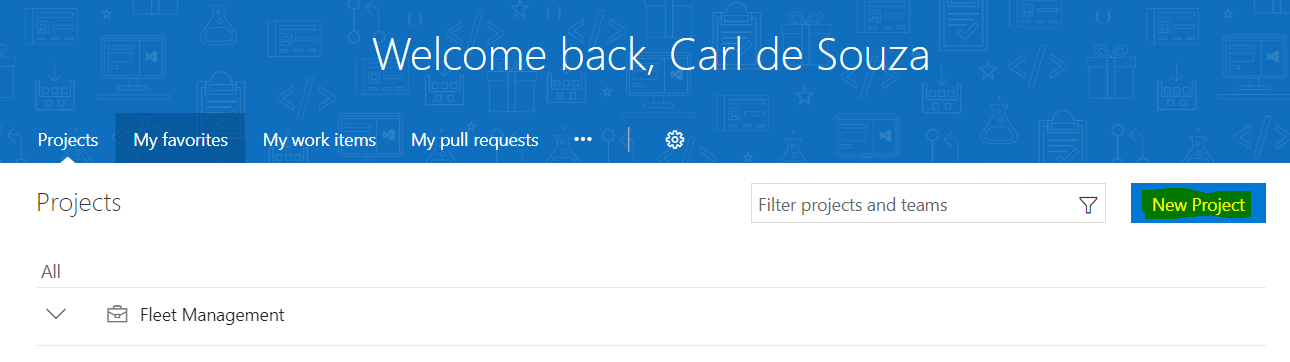
Select New Project:
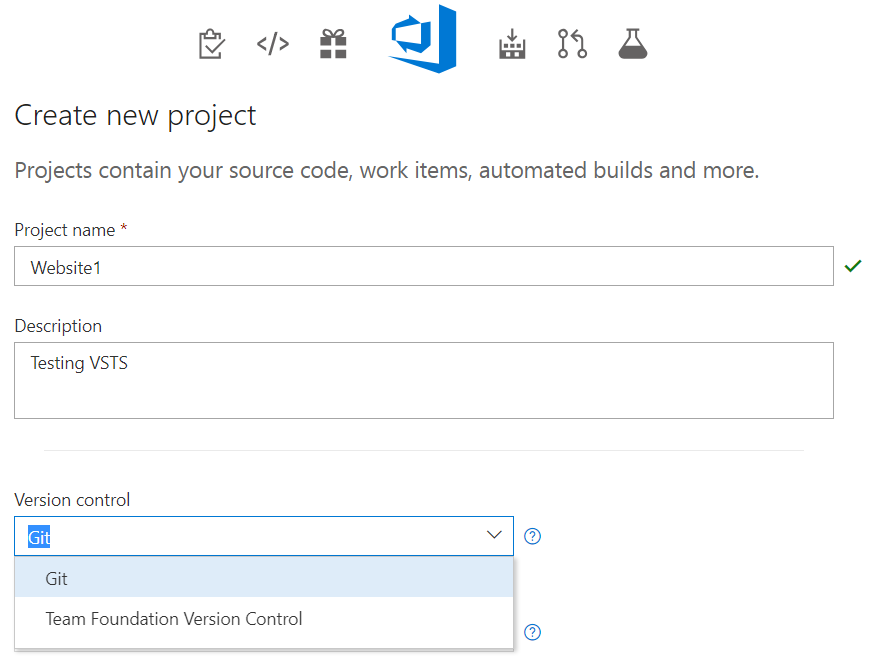
Enter the project details, and select the version control type:
- Git
- Team Foundation Version Control
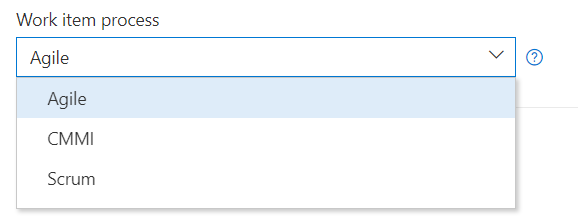
Select the Work Item Process:
- Agile
- CMMI
- Scrum
Click Create.
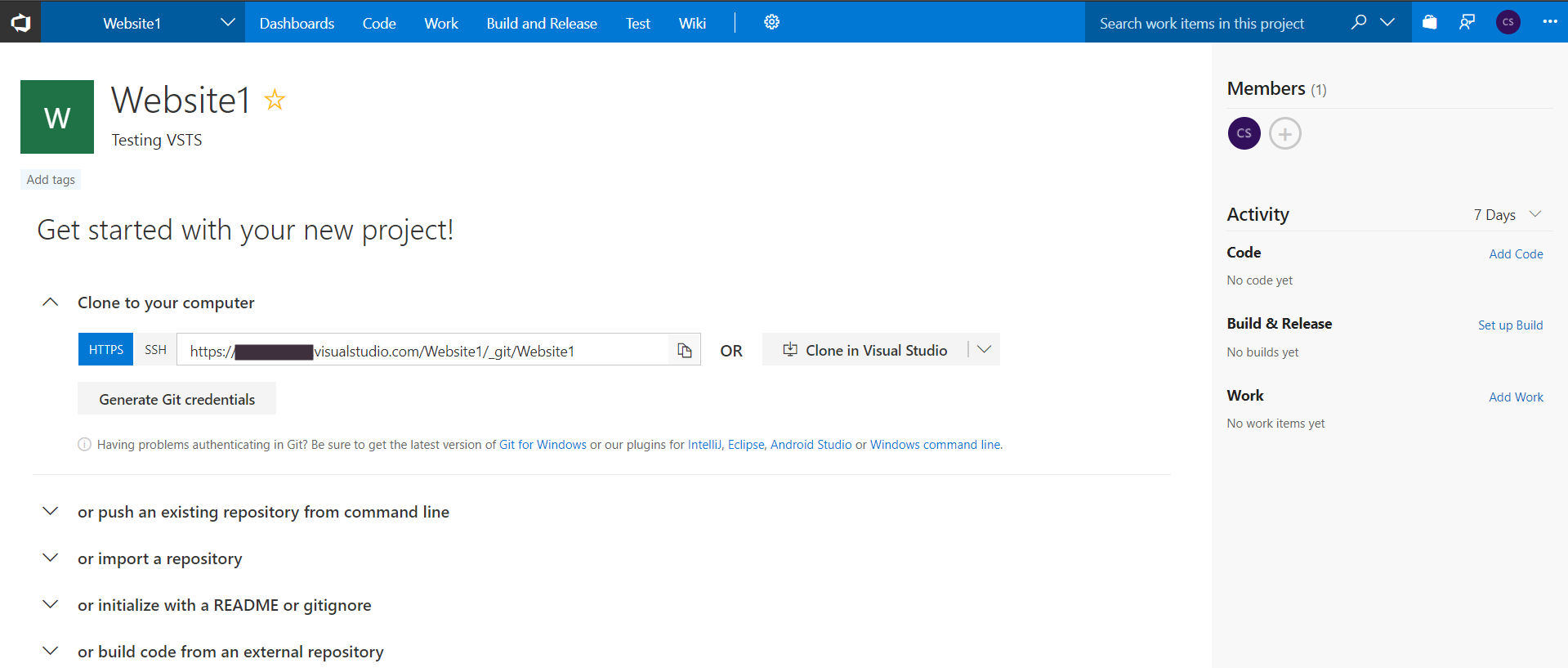
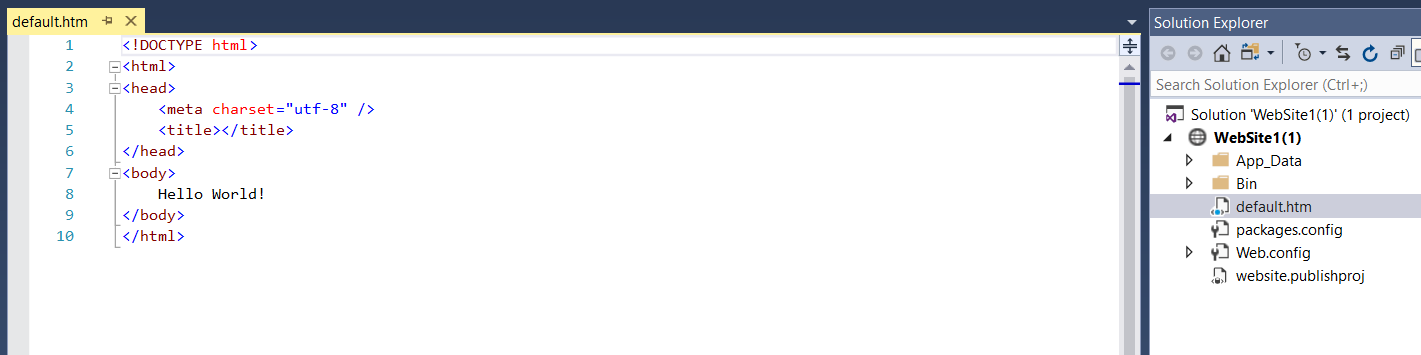
Now, open the project you created earlier in Visual Studio. We have a project that is a website:
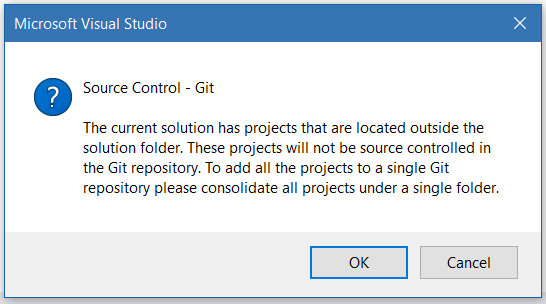
If we try to add this to source control, we will get the message The Current solution has projects that are located outside of the solution folder. These projects will not be source controlled in the Git repository”:
To resolve this, we will move the solution file to the Website folder:
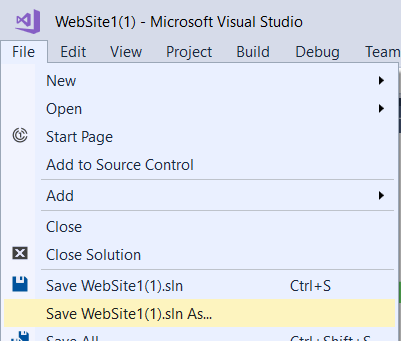
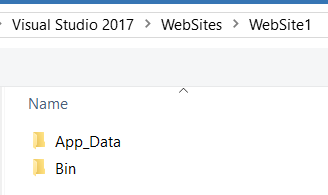
Save the solution. Now, right click to Add to Source Control:
Click on the Team Explorer tab. You will see options for Visual Studio Team Services and GitHub:
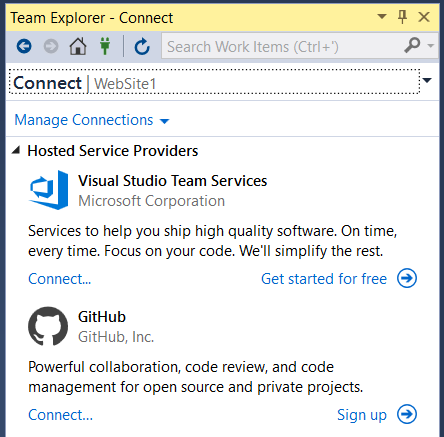
Click Connect and select the project, then Connect:
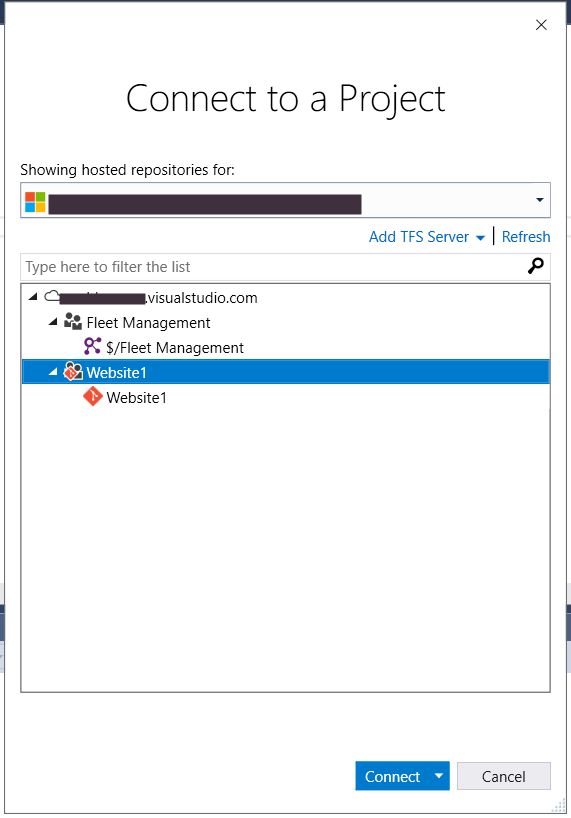
You should now see something like this:
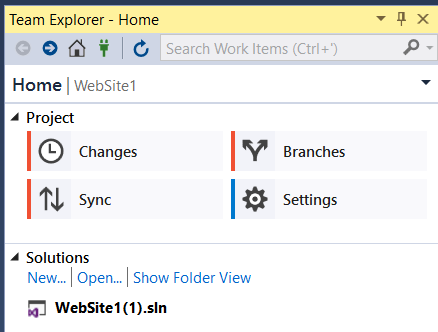
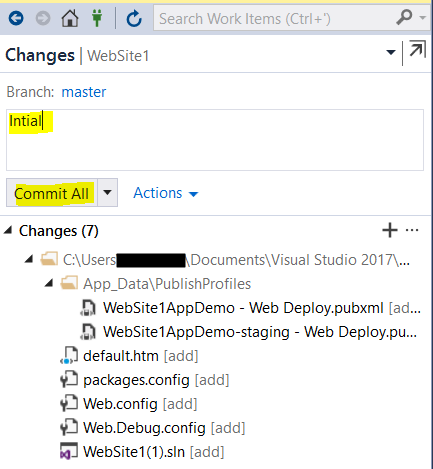
Go to Changes, enter a comment and click Commit All:
Click Sync:

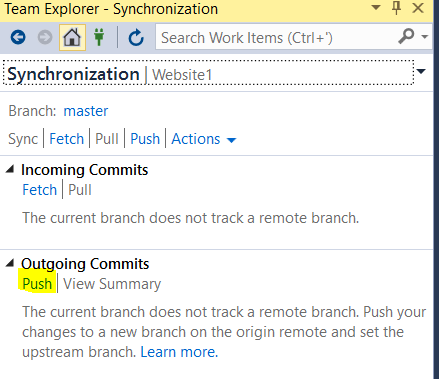
And Push:
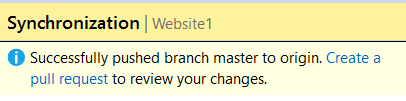
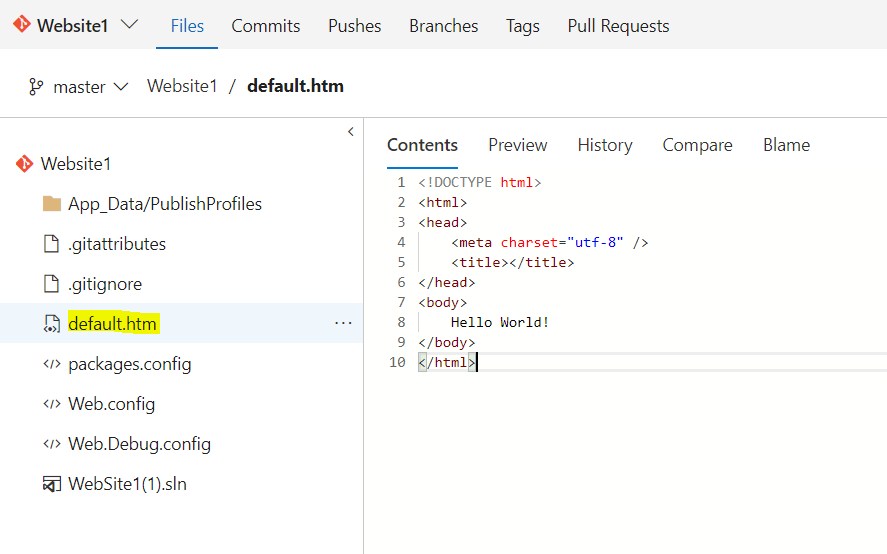
You will now see the code in VSTS:
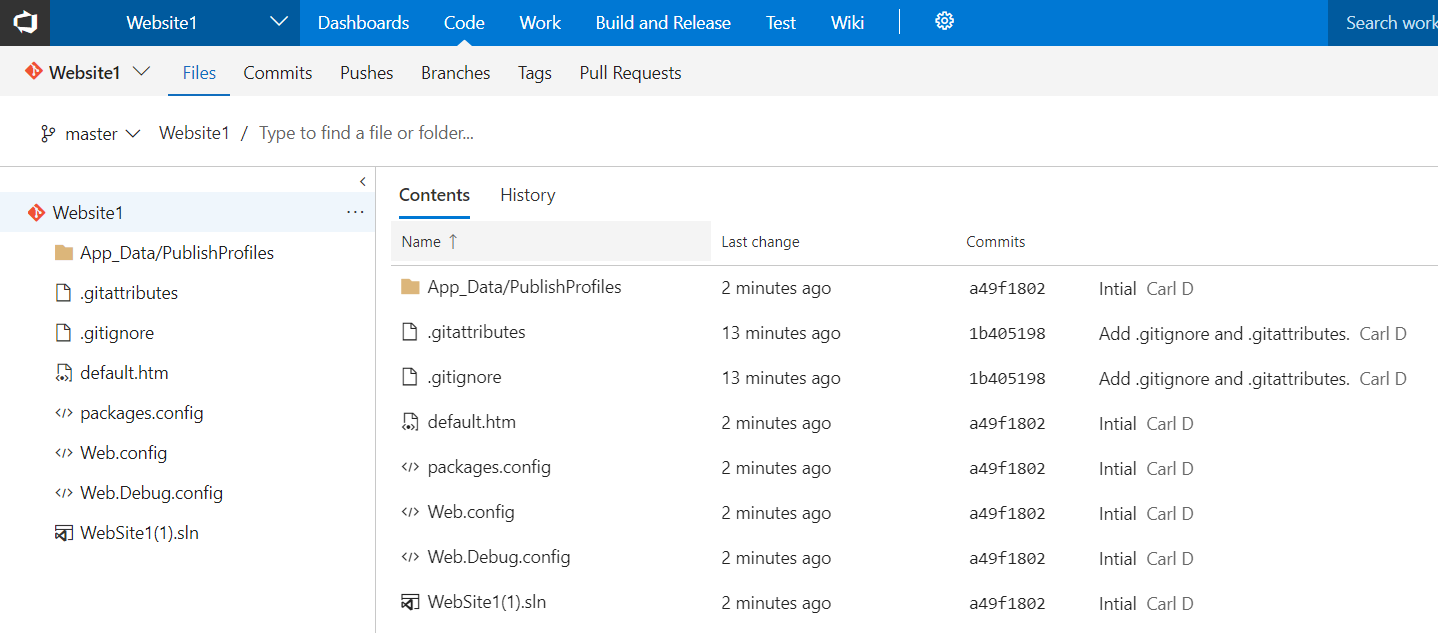
Select to view a file:

Explore AI, agents & Microsoft technology.
I share practical ideas, tutorials, and videos about AI, AI agents, Microsoft technologies, and the Power Platform.
Subscribe on YouTube →