Ever use Visual Studio Code and want to set the language of a file without having to save it?
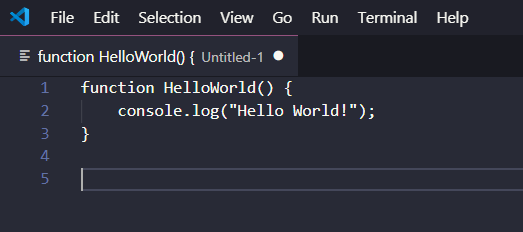
Let’s say we have copied some code from somewhere, or we are creating a new file from scratch. Below I have some JavaScript in a file, and the code is all the same color, i.e. VS Code has not recognized this file as JavaScript:
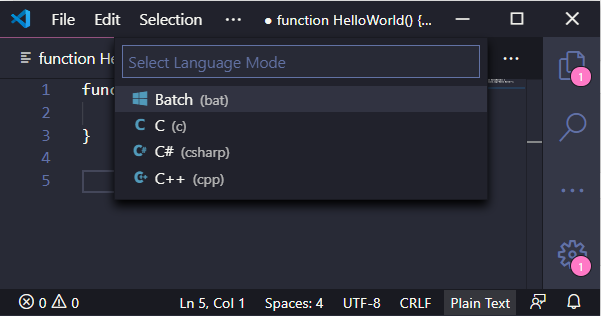
To change the language of the file, in the bottom right, select Plain Text. This will open the Select Language Mode bar:
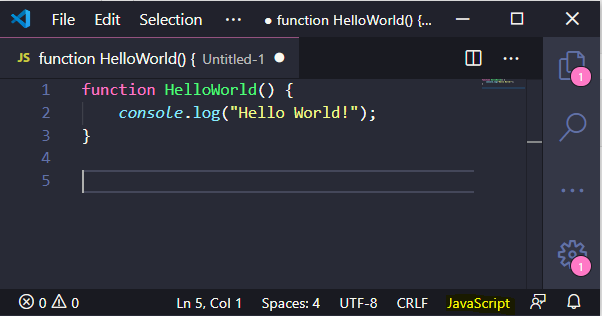
In selecting JavaScript, the file is now recognized:
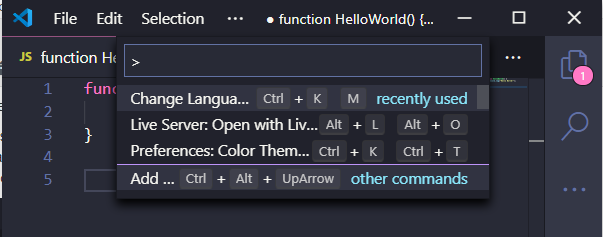
Alternatively, press ALT+SHIFT+P to bring up the Language Mode settings and do the same thing.

Keep learning. Keep building.
Explore AI, agents & Microsoft technology.
I share practical ideas, tutorials, and videos about AI, AI agents, Microsoft technologies, and the Power Platform.
Subscribe on YouTube →Carl de Souza Enterprise Architect at Microsoft · AI Technology Expert
Thank you so much. I am new with VS script. And this thing kind of escaped my field of view.