In Power BI, we have the ability to analyze report data in Excel.
There are several ways to access this functionality.
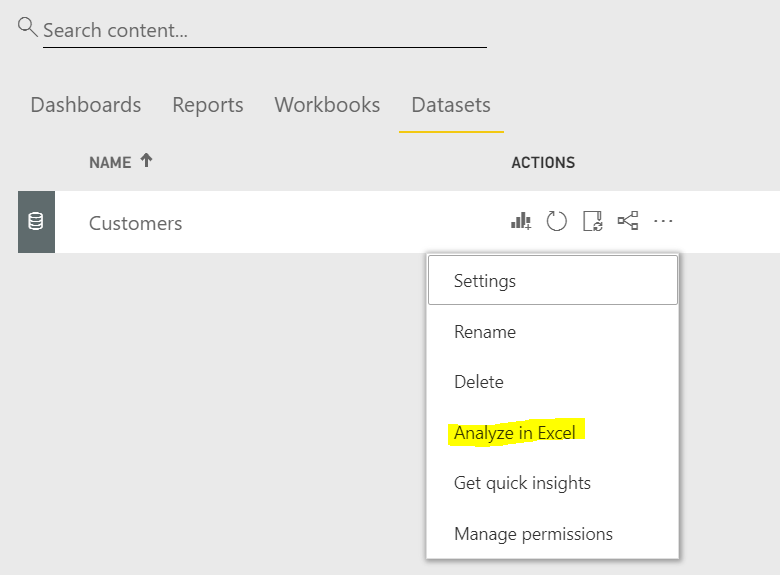
For example, select a data source and then Analyze in Excel:
Alternatively, select Reports and then Analyze in Excel:

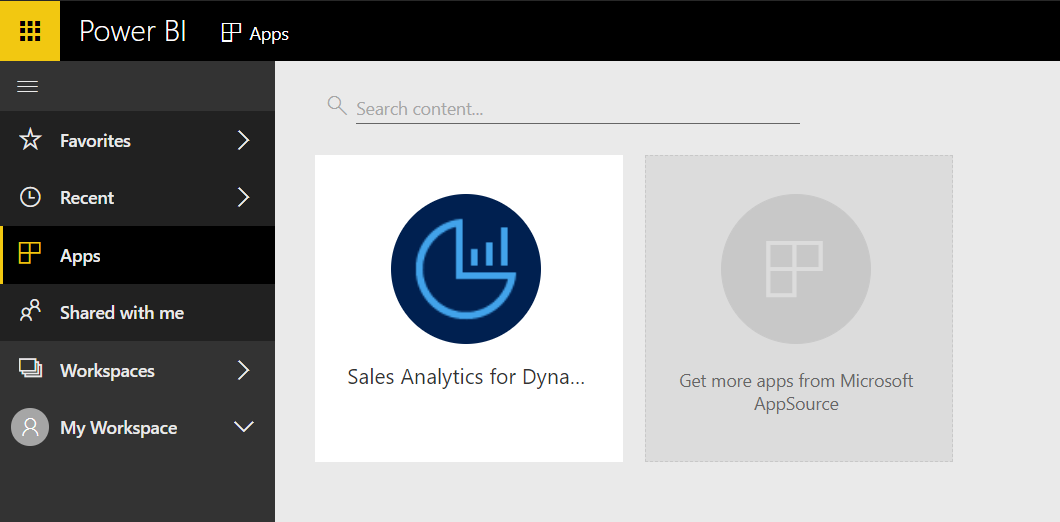
Or, go to Apps and select your app:
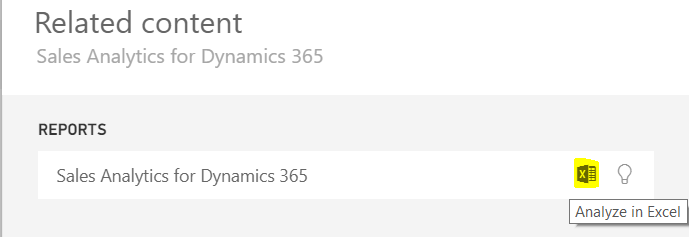
Select View Related:

Select the Analyze in Excel icon:
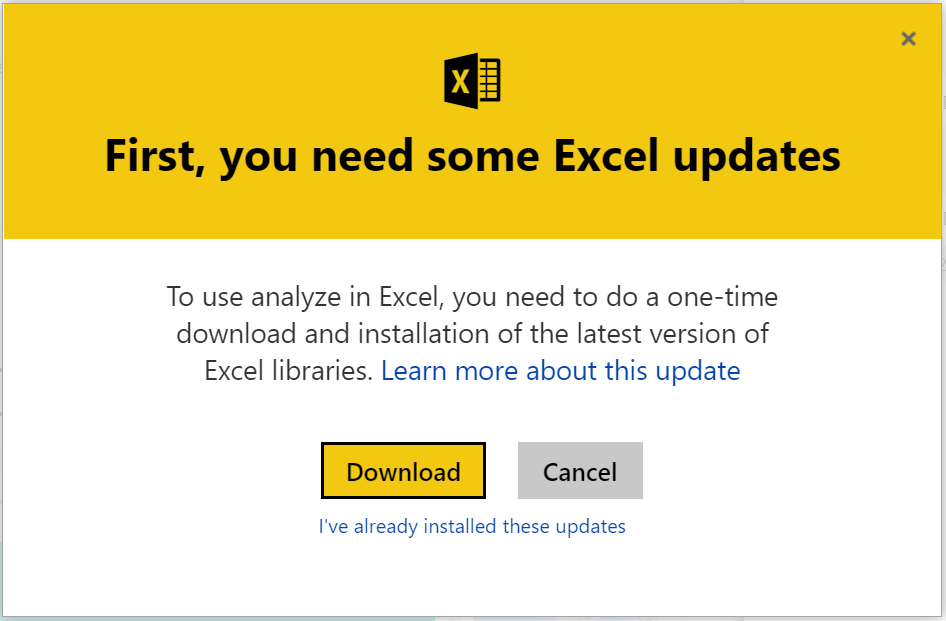
Once you select Analyze in Excel, you will see “First, you need some Excel updates”. Click Download:
This will download:

Open the file. Click Next:
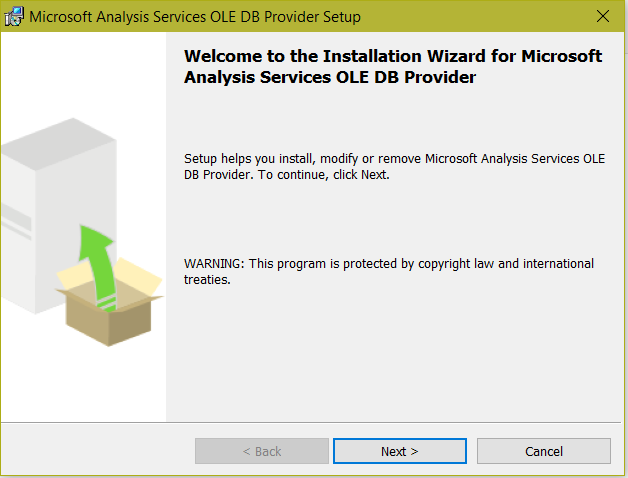
Click Next:

Click Install:
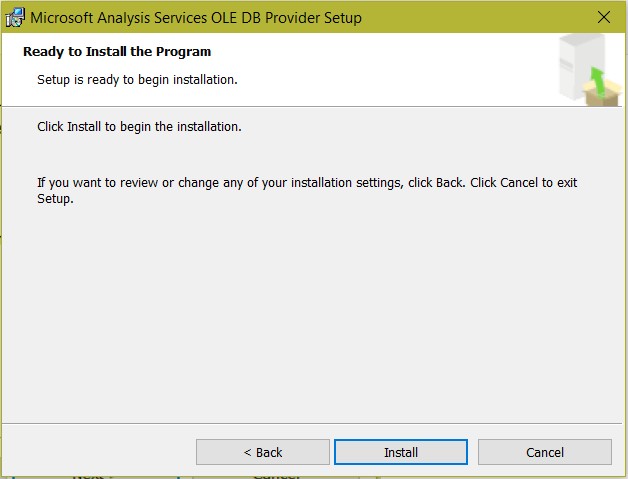
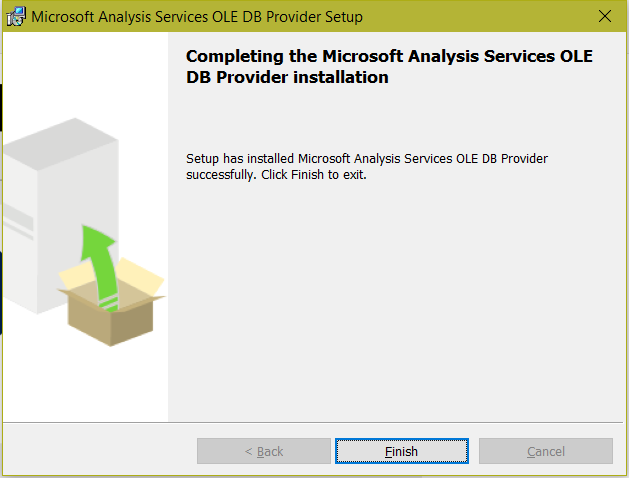
Click Finish:
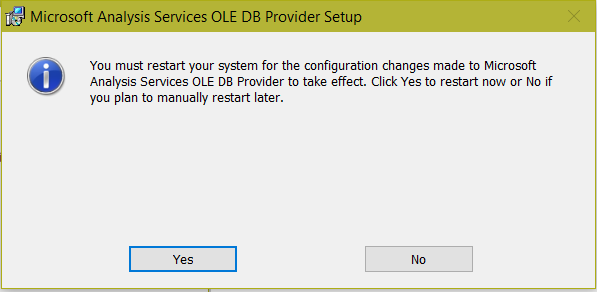
Restart your system:
Now go back to the data source and select to Analyze in Excel. This time select “I’ve already installed these updates”:
This will download an ODC file:

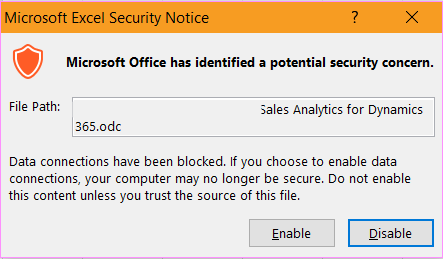
Click to open. You may see this message. Click Enable:
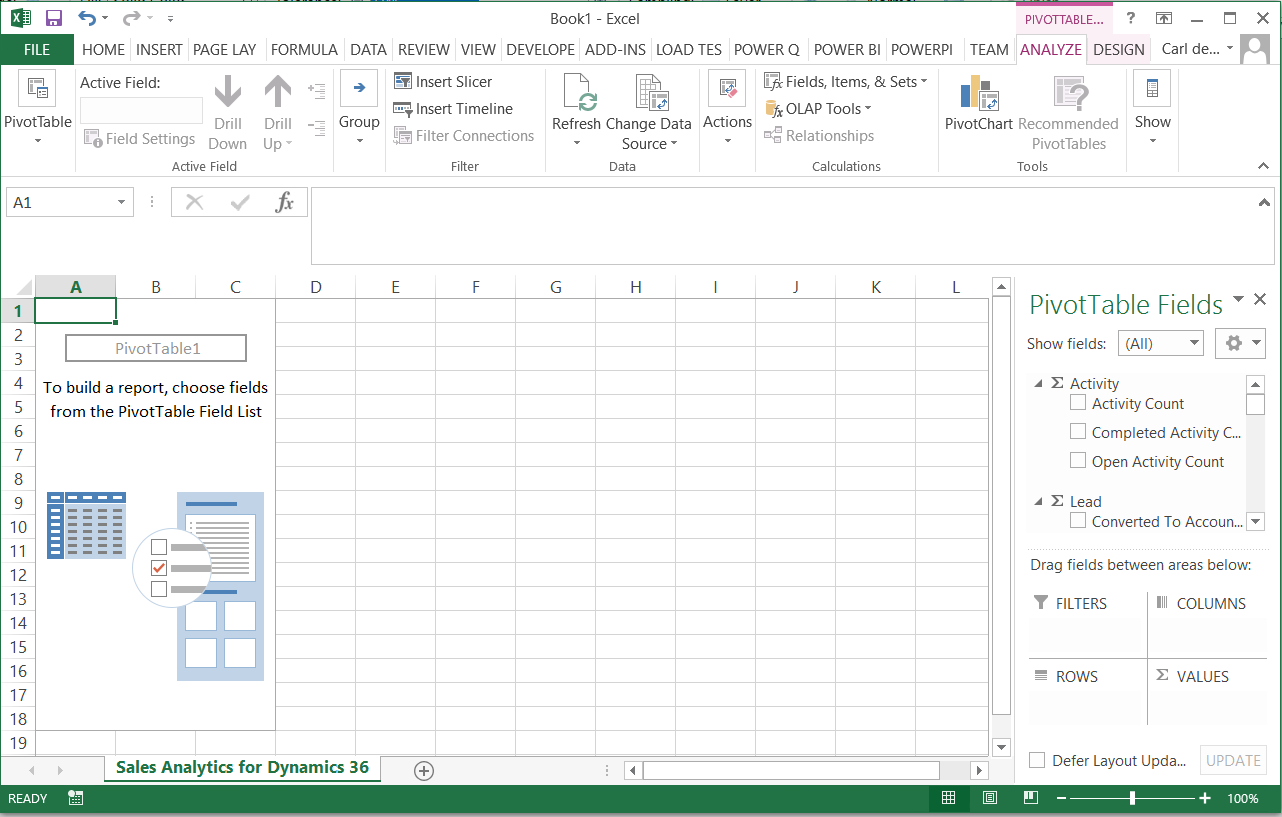
Excel will open:
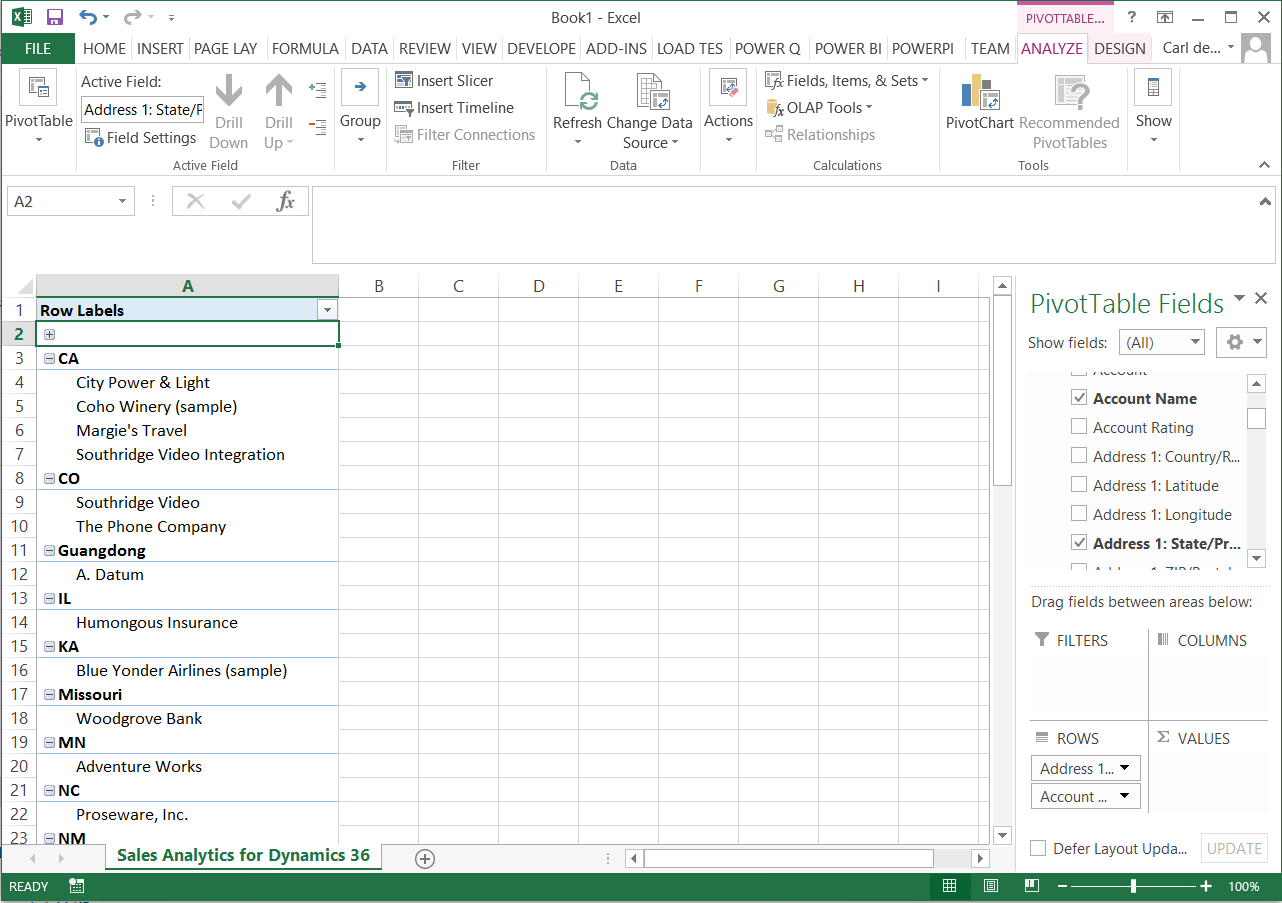
From here you can analyze your data in Excel:

Explore AI, agents & Microsoft technology.
I share practical ideas, tutorials, and videos about AI, AI agents, Microsoft technologies, and the Power Platform.
Subscribe on YouTube →