Dynamics 365 comes with tight Outlook integration. Here we will walk through configuring Outlook and Dynamics 365.
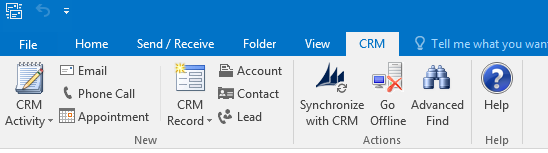
After installing the Dynamics 365 addin, you will see a CRM tab in Outlook:
To configure, go to File->CRM:
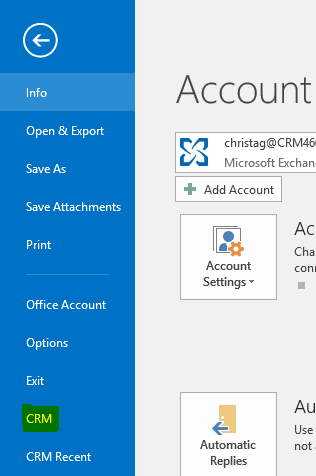
You will see this screen:
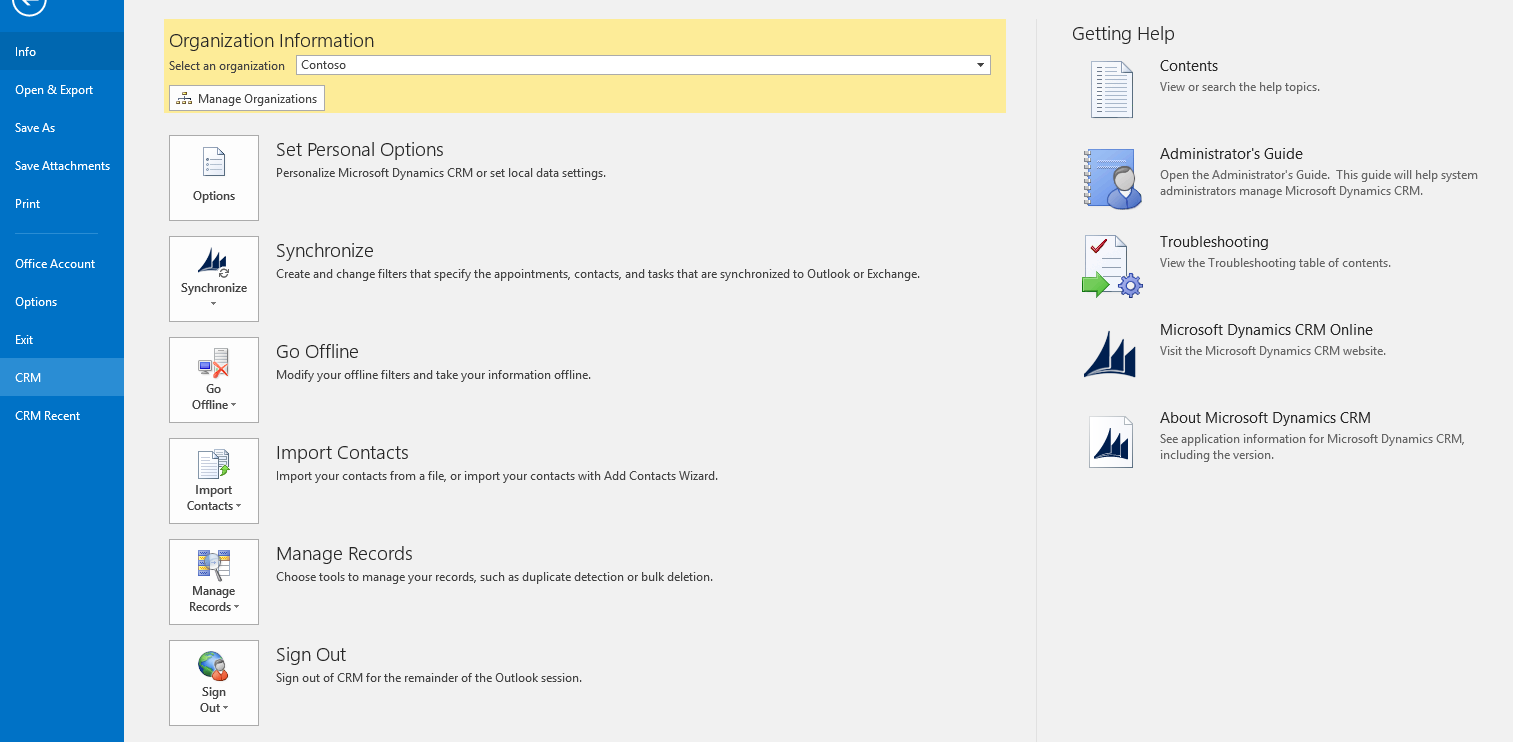
Open Set Personal Options:
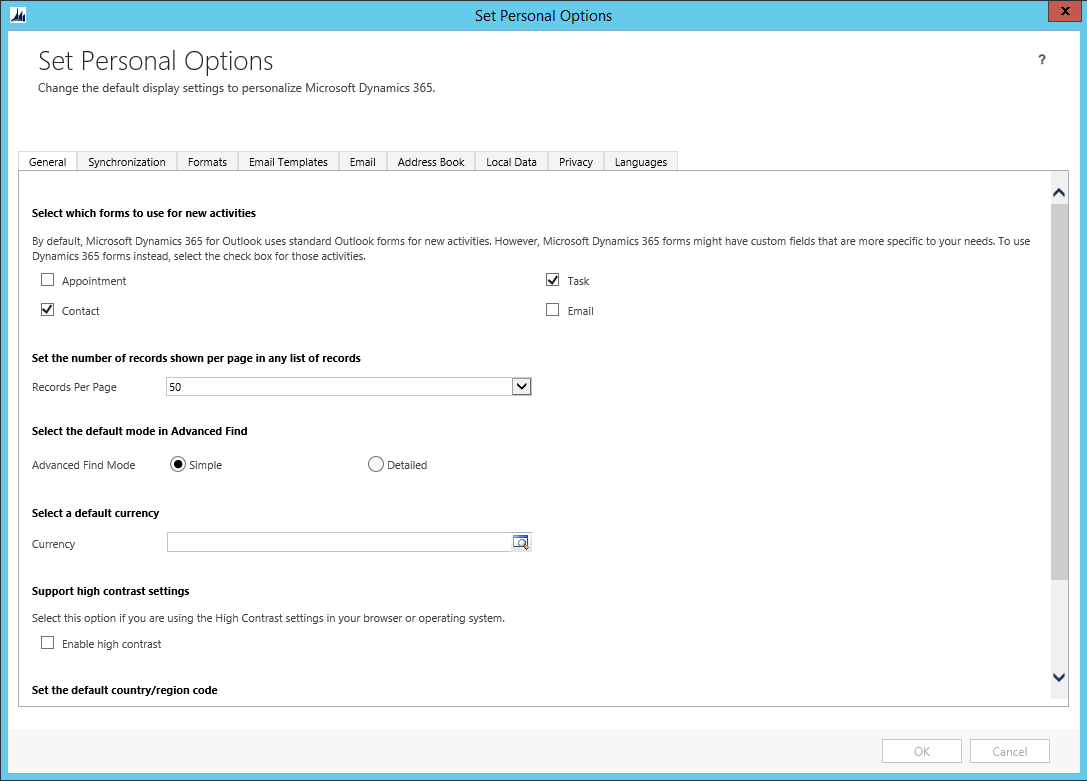
Click on the Synchronization tab. Note the automatic synchronization minutes (minimum is 15 minutes):
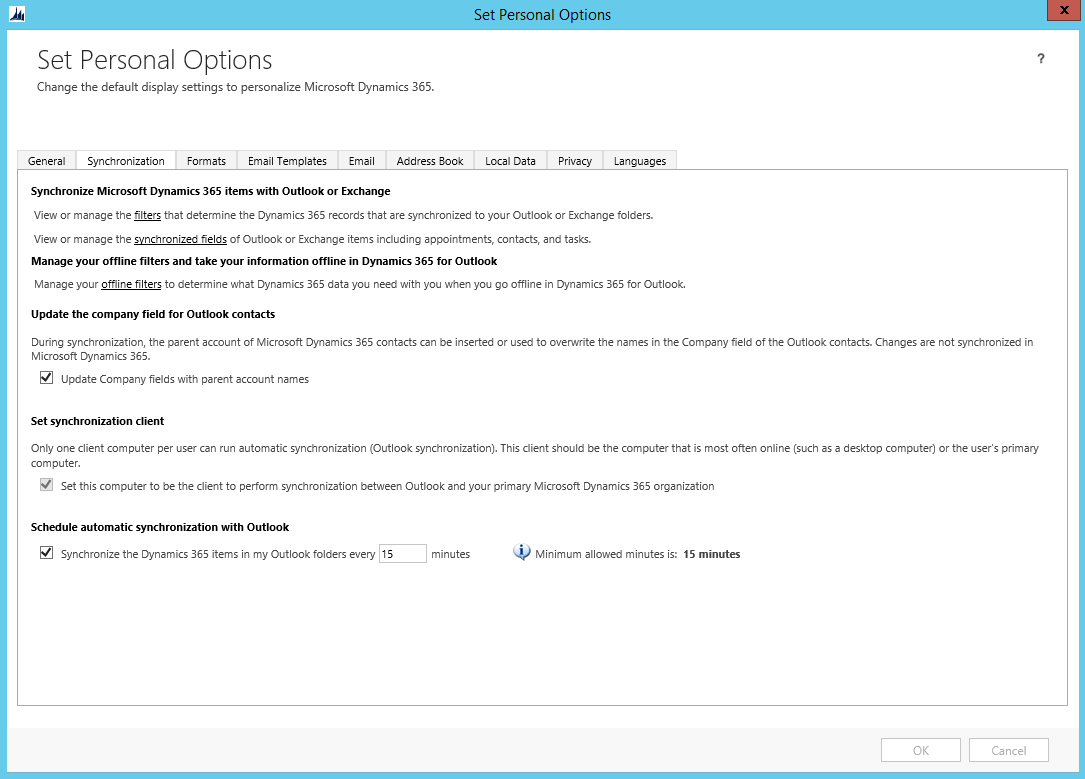
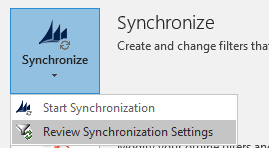
Selecting Filters will open the Synchronization Settings. You can also get to this by going to Synchronize->Review Synchronization Settings:
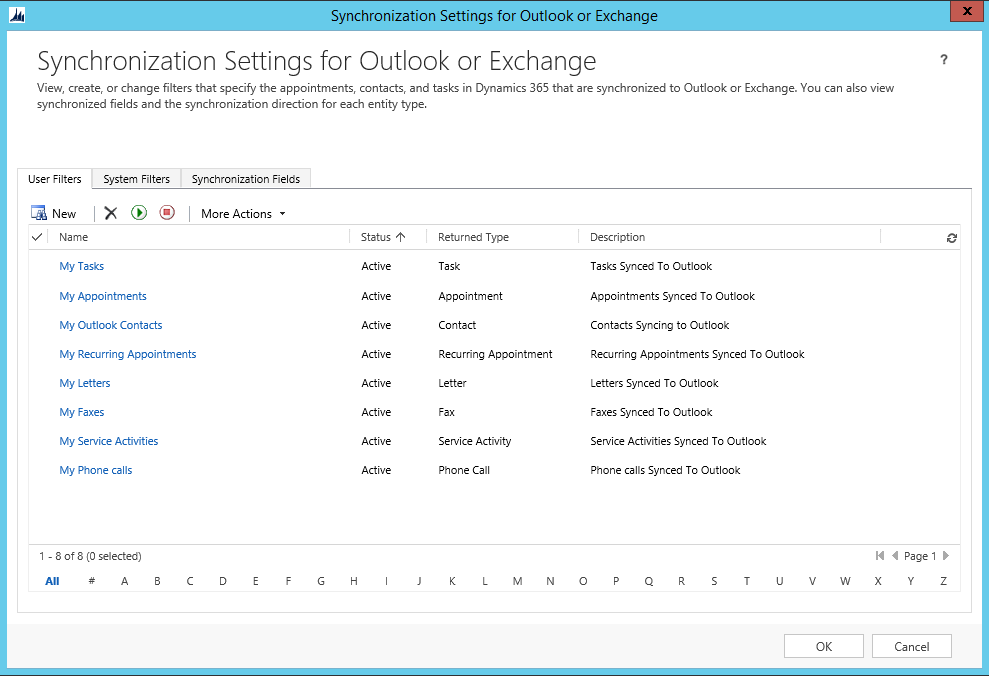
Selecting a current synchronization will open the filters applied:
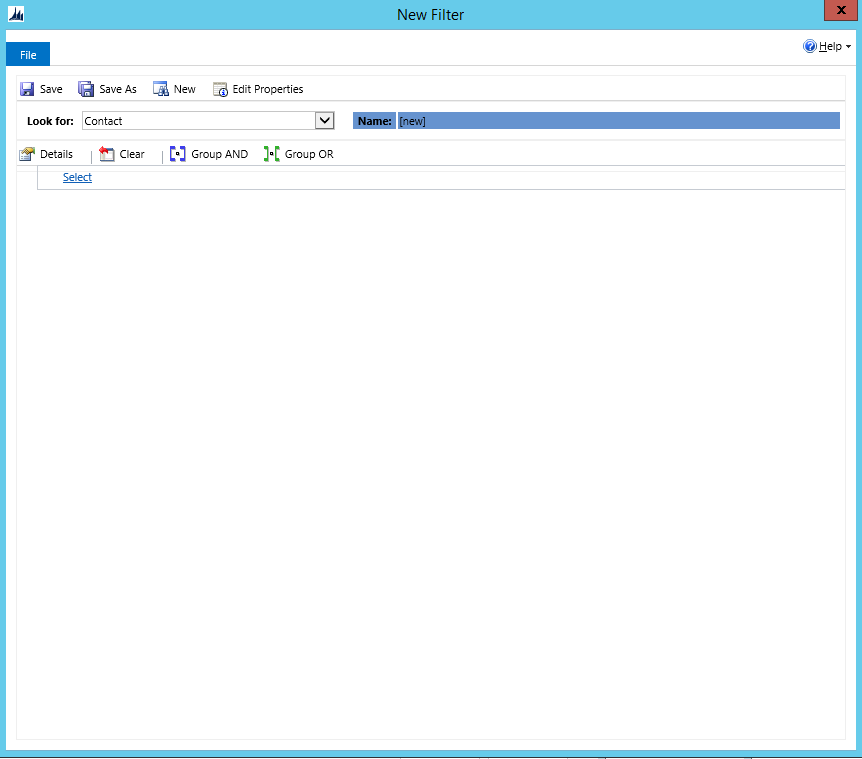
Note you can also set the Offline filters to determine which records will appear offline.
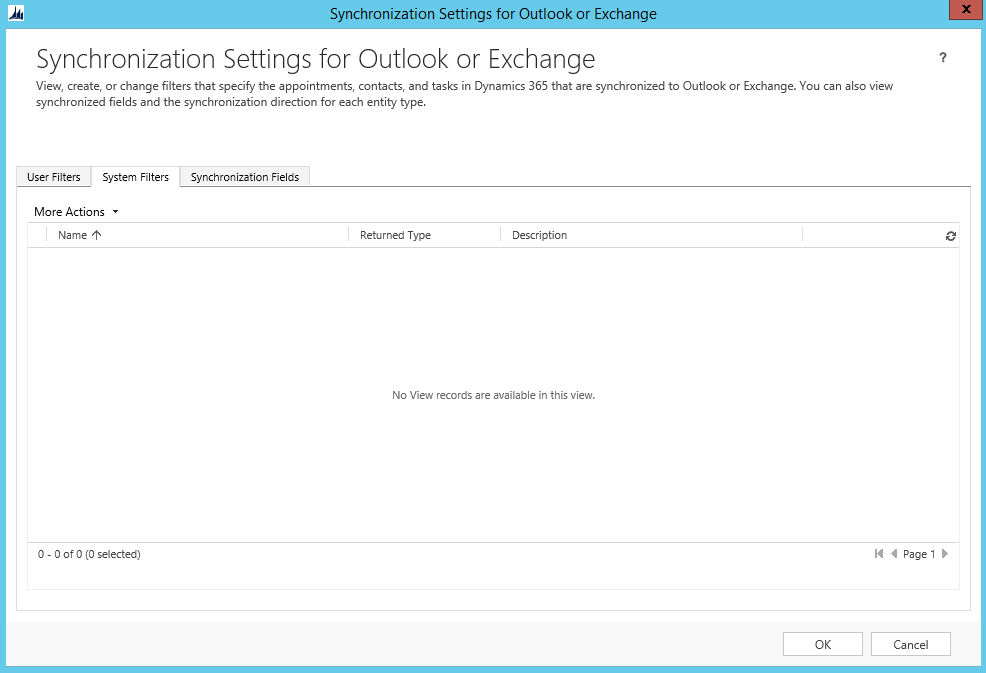
System Filters:
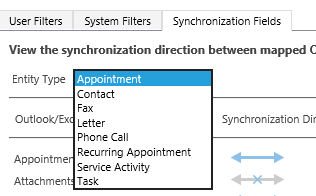
Click on Sychronization fields. You can choose the entity type:
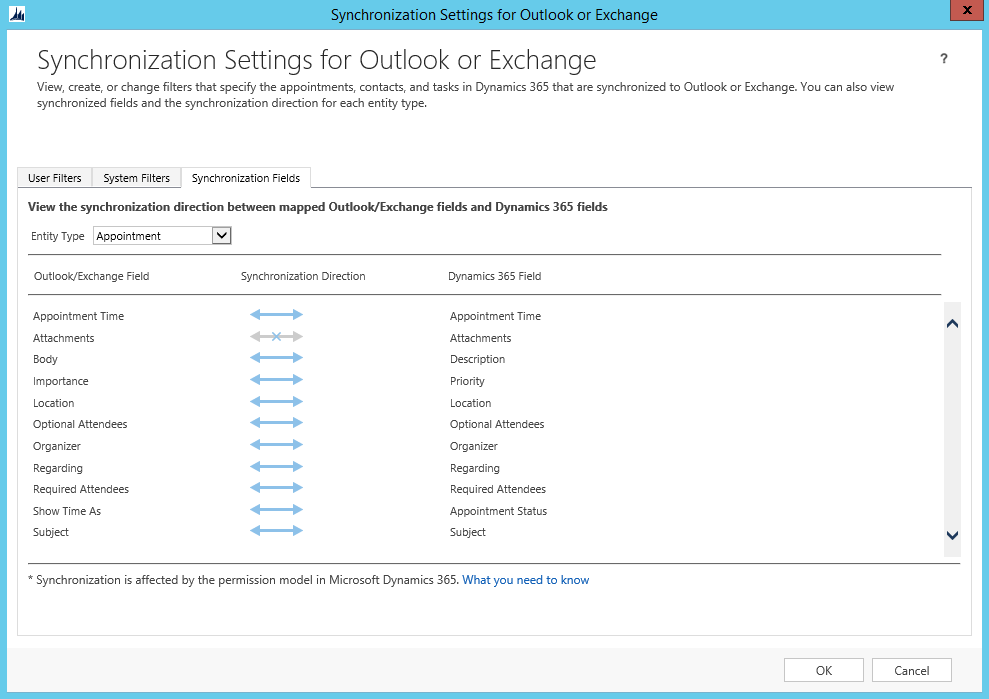
And the fields:
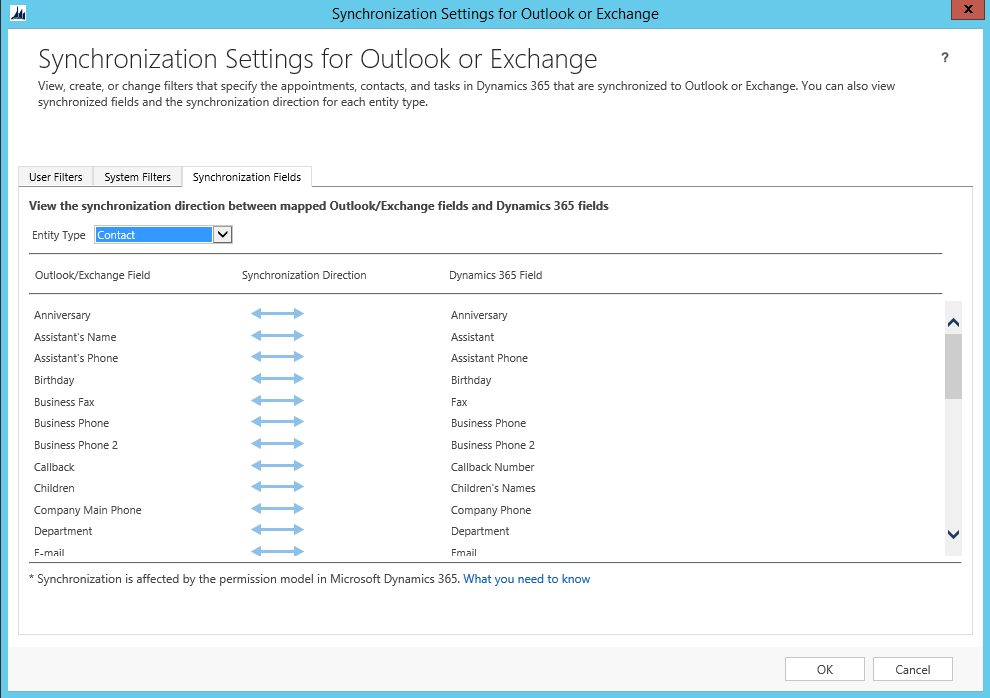
Select a different entity to see the different fields:
Synchronization is based on the permission model in Dynamics 365.
Note the other options in Set Personal Options.
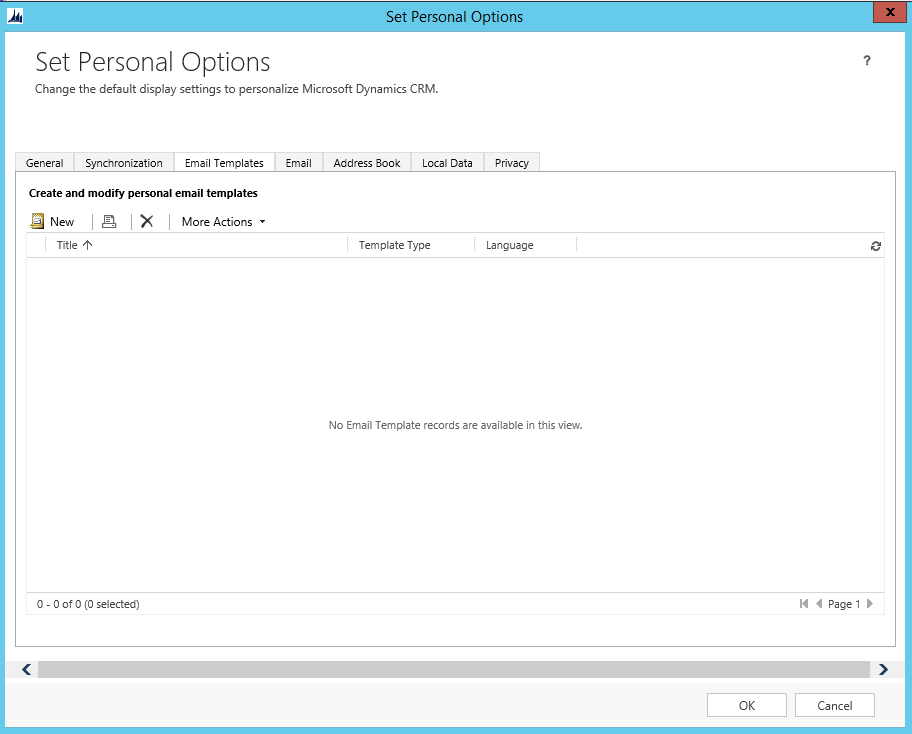
Email Template:
Email:
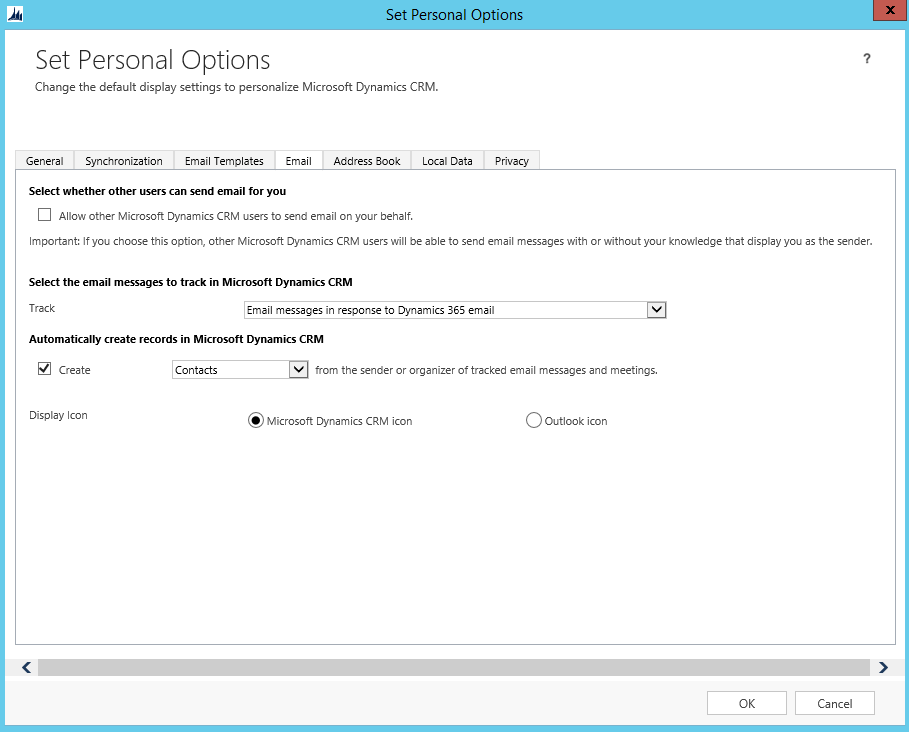
With options of what to track:

And Create:

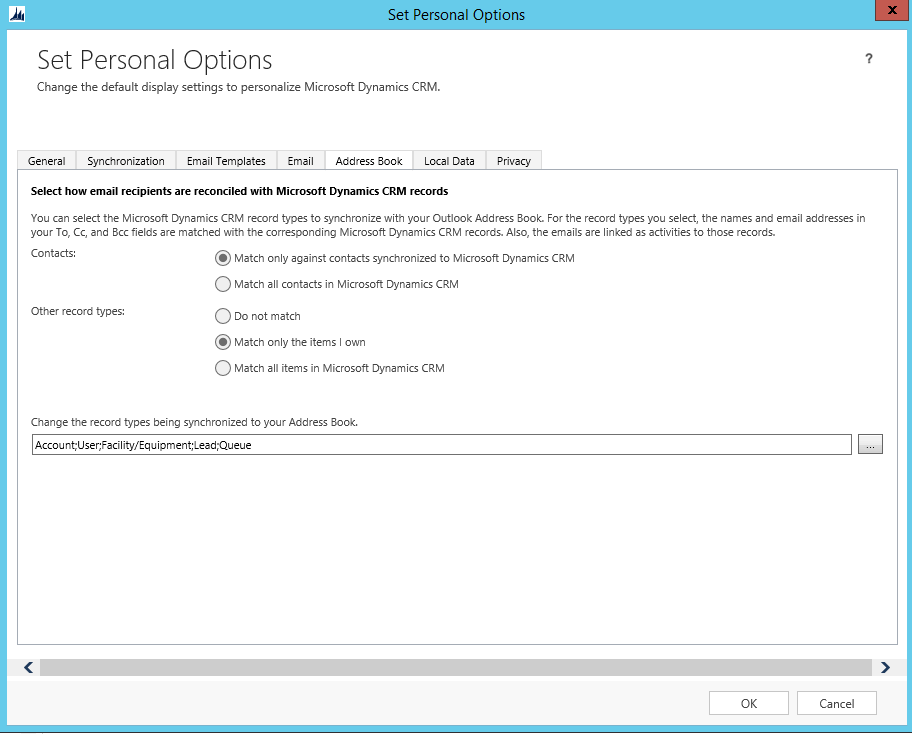
Address Book, with option to sync all contacts from Dynamics 365:
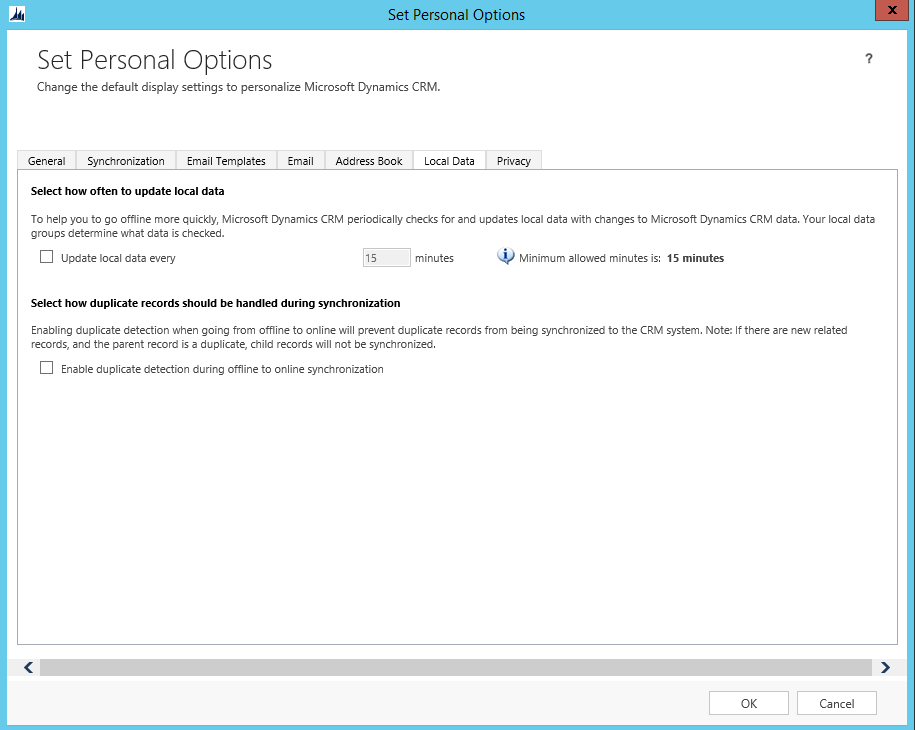
And how often to update local offline data:
Let’s go through a synchronization scenario.
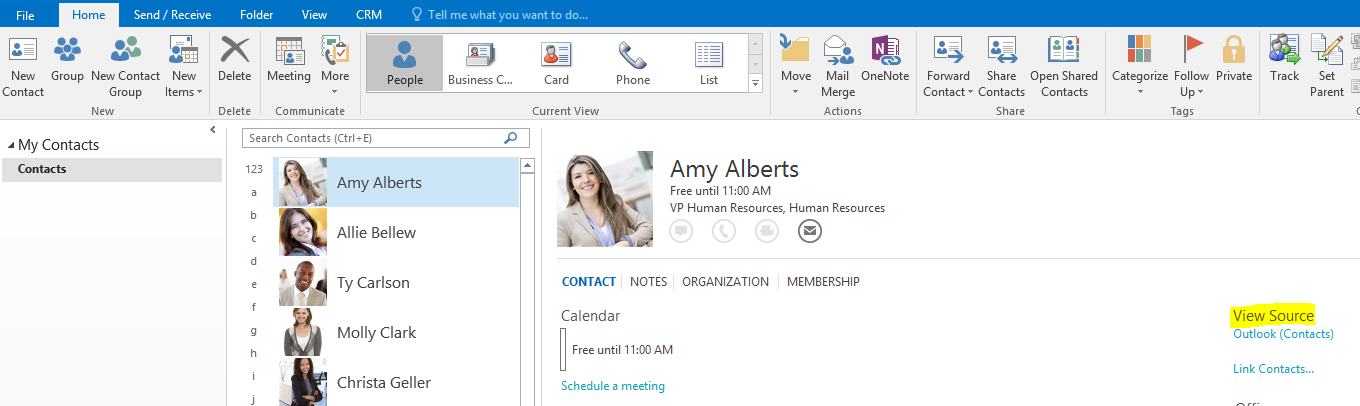
Go to Outlook and select People:
In Dynamics 365 for this user, there is one new Contact:
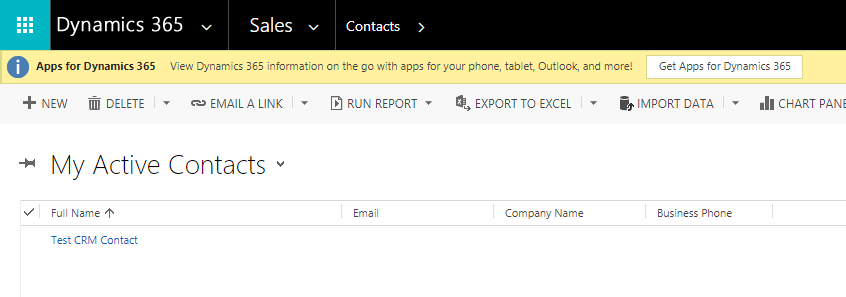
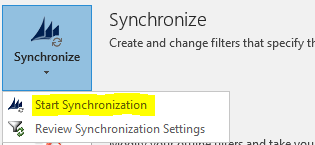
Note we are synchronizing the contacts the user owns. Start the synchronization manually by selecting Synchronizing->Start Synchronization:
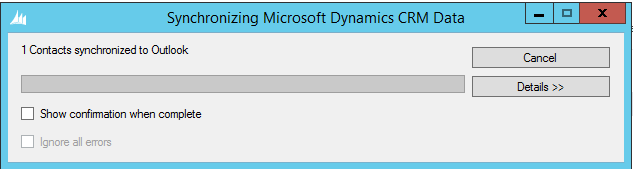
Click on People and you will see the new contact synchronized, with a Microsoft Dynamics CRM pane showing Dynamics 365 details:
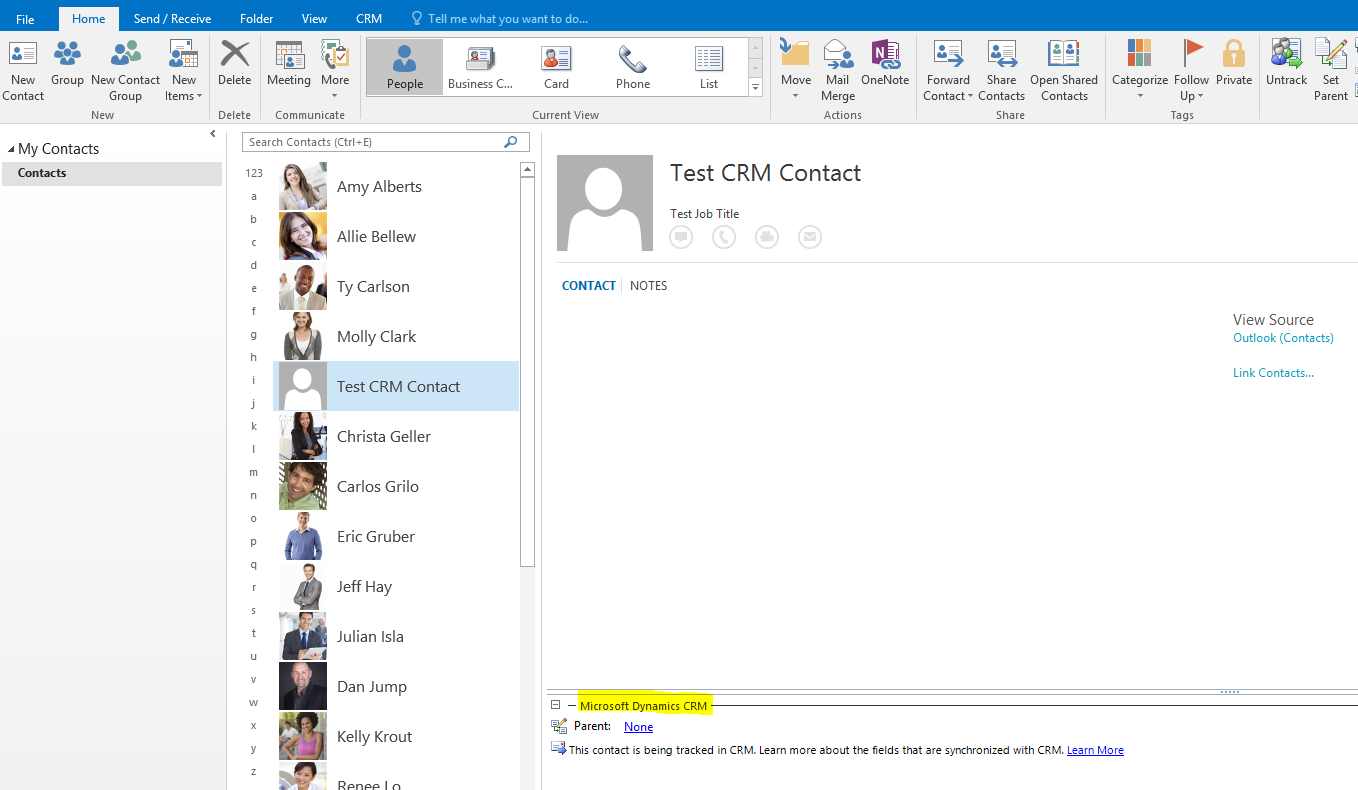
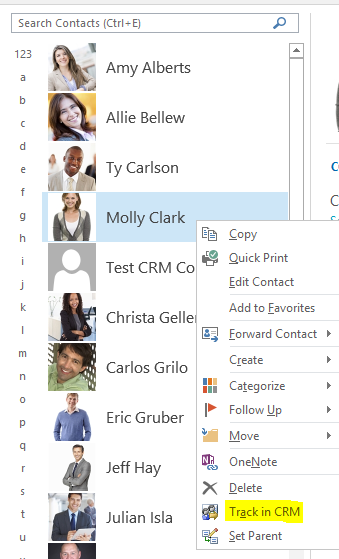
Select an existing contact and click Track in CRM:
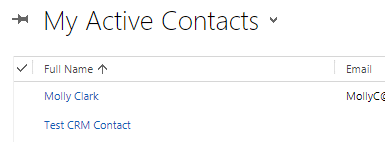
This contact will now appear in My Active Contacts in Dynamics 365:
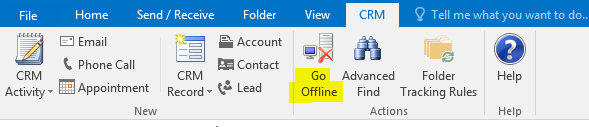
Select Go Offline from the CRM tab in Outlook:
You will see the message below:
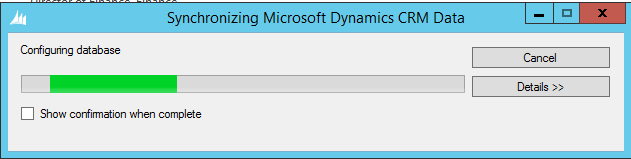
If you get the message regarding missing prvReadSolution:
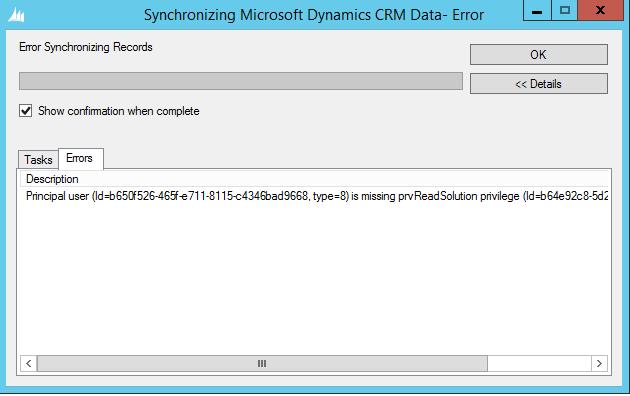
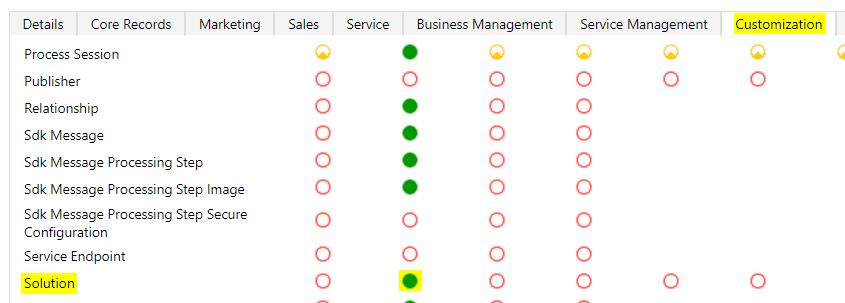
Ensure for the user’s security role, under the customization tab they have read access to solution:
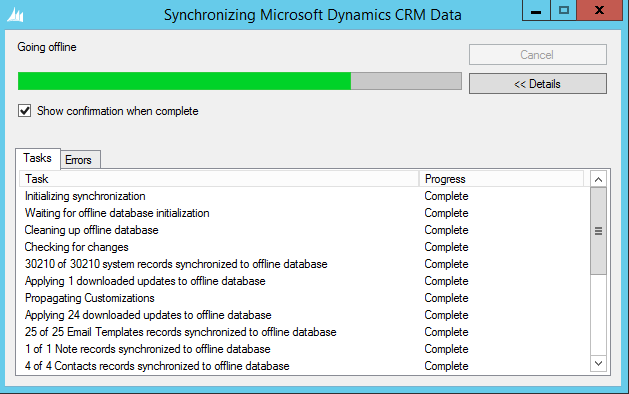
You will then see the records being synchronized:
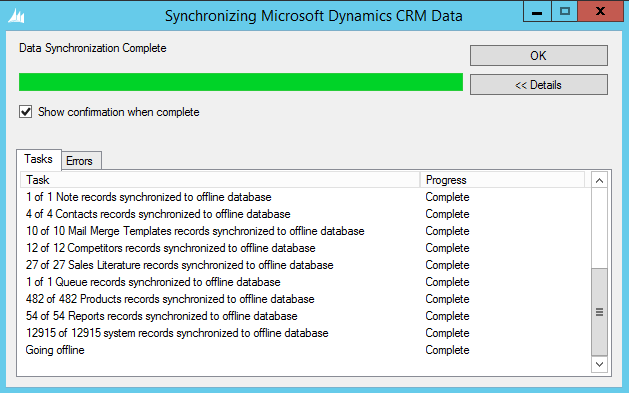
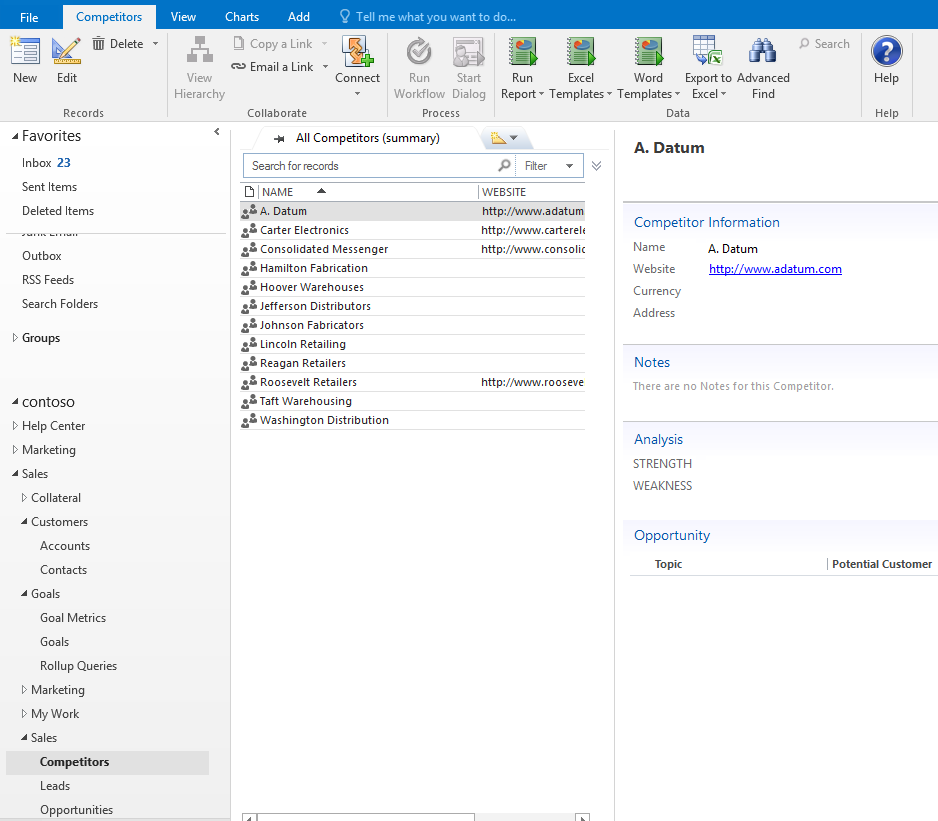
From here, you will be operating offline. Select a record type to view the records offline:
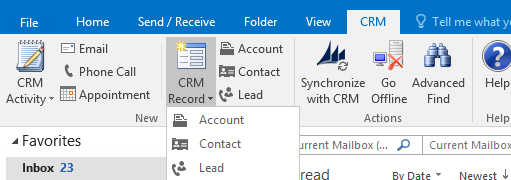
Click CRM Record->Lead to create a lead.
Enter lead information:
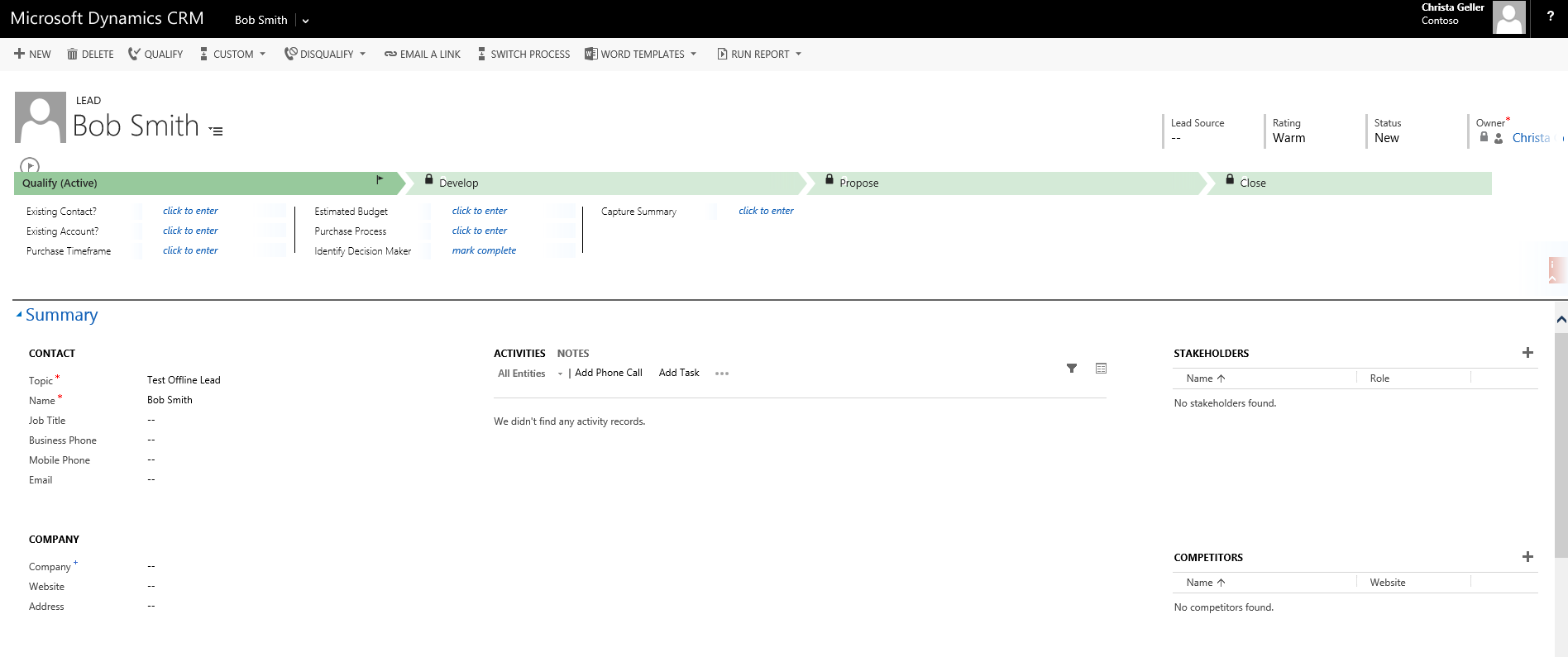
Going back online will sync the entity with Dynamics 365:

Opening an entity in Customizations, we can see there are 2 settings for Outlook:
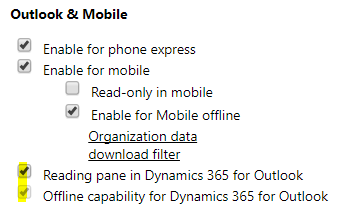
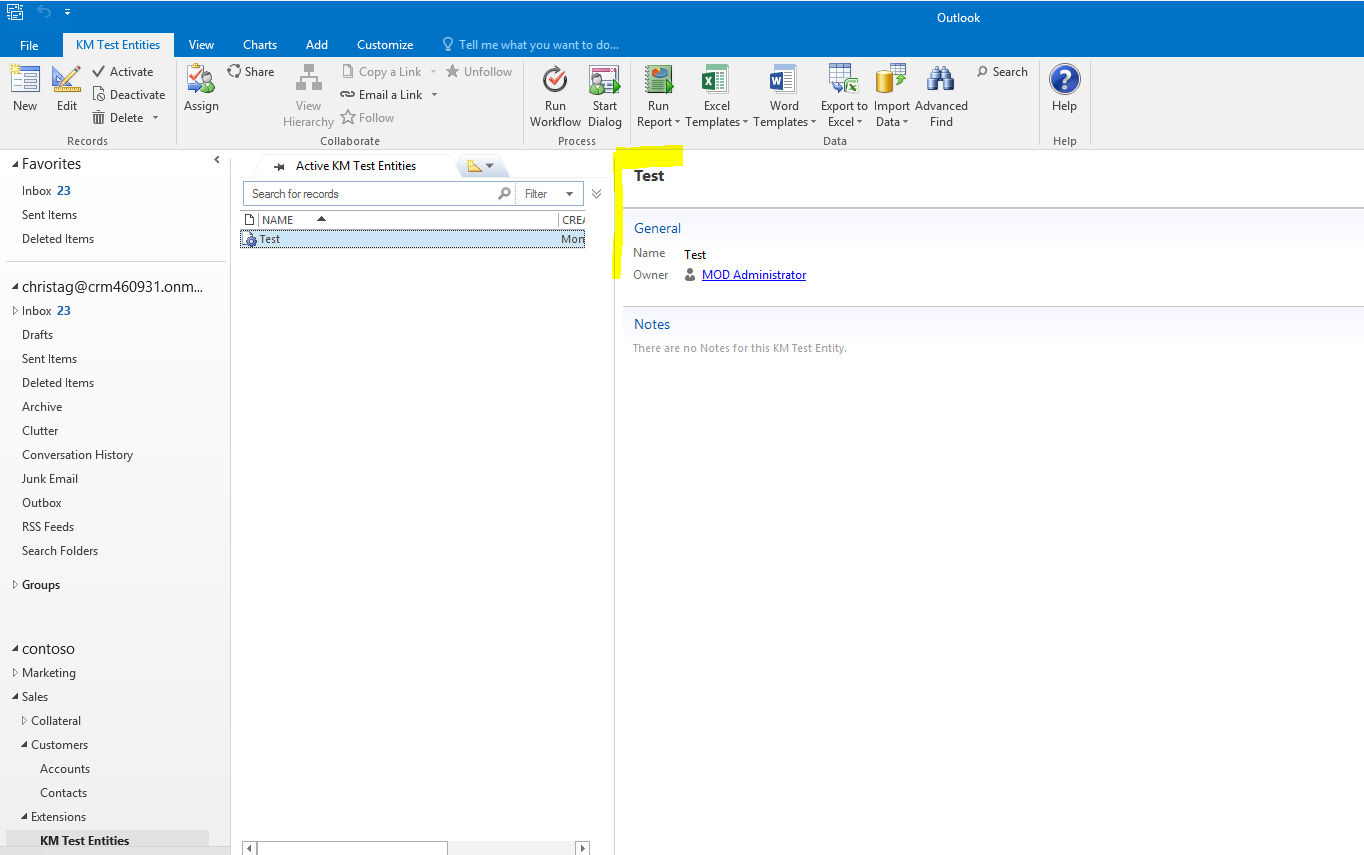
- Reading pane in Dynamics 365 for Outlook. This displays record information when the record is selected:
- Offline capability for Dynamics 365 for Outlook. This will sync records to offline if checked
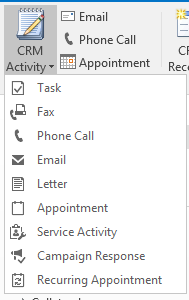
You can also create activities:
Set an email to Regarding a particular Dynamics 365 record:
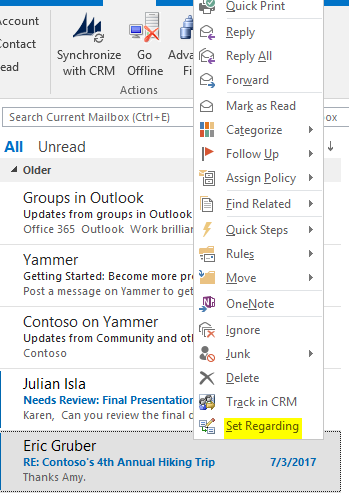
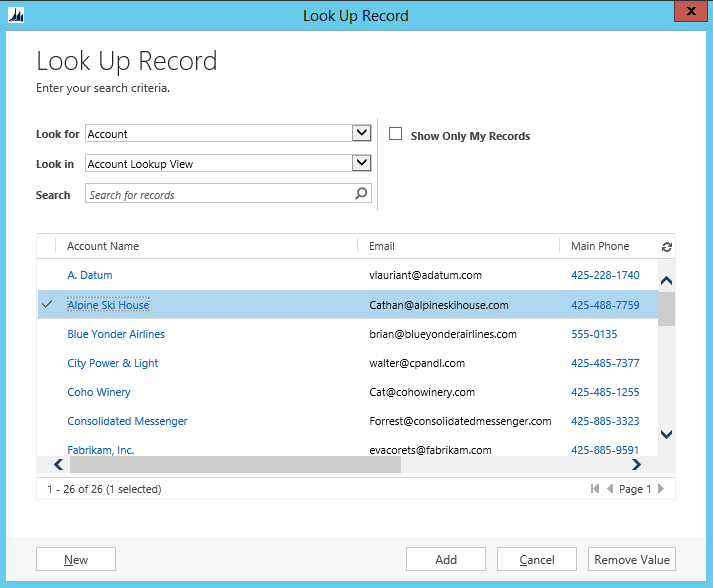
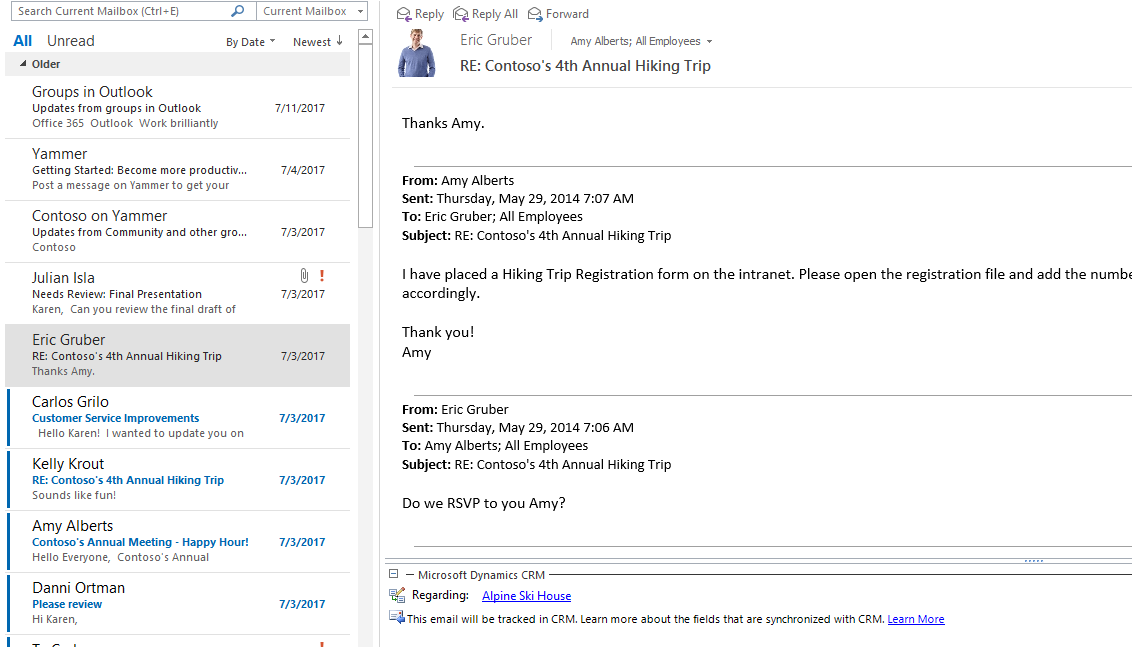
The record will be tracked in Dynamics 365:
Security Role
Under the user’s security role there are many Outlook options:
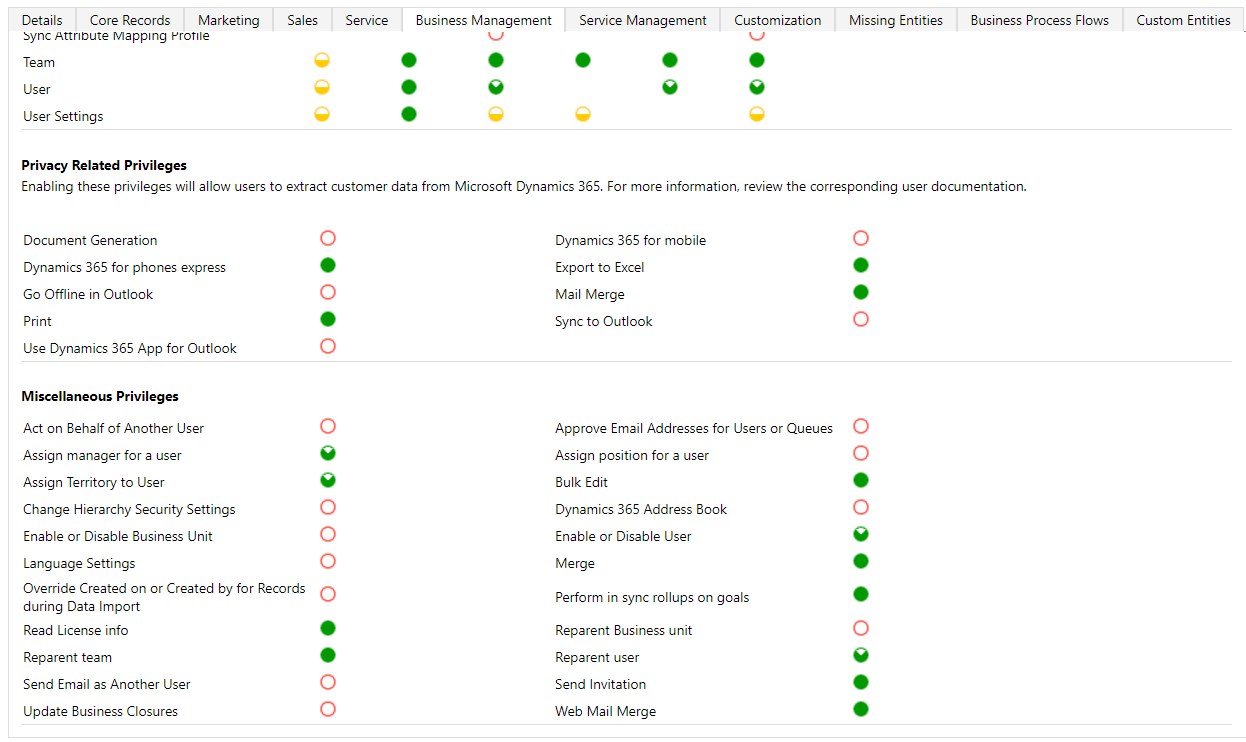
These include:
- Go Offline in Outlook
- Use Dynamics 365 App for Outlook
- Sync to Outlook

Explore AI, agents & Microsoft technology.
I share practical ideas, tutorials, and videos about AI, AI agents, Microsoft technologies, and the Power Platform.
Subscribe on YouTube →