Dynamics 365 security consists of several layers. These include:
- Business Units
- Security Roles
- Sharing
- Teams
Hierarchical security offers an additional security layer.
There are 2 types of hierarchical security:
- Manager hierarchy. In this case, the manager must be in the same business unit or parent business unit of a report to see the report’s data. You may want to use this if you restrict data access between business units.
- Positional hierarchy. This allows you to access data across different business units.
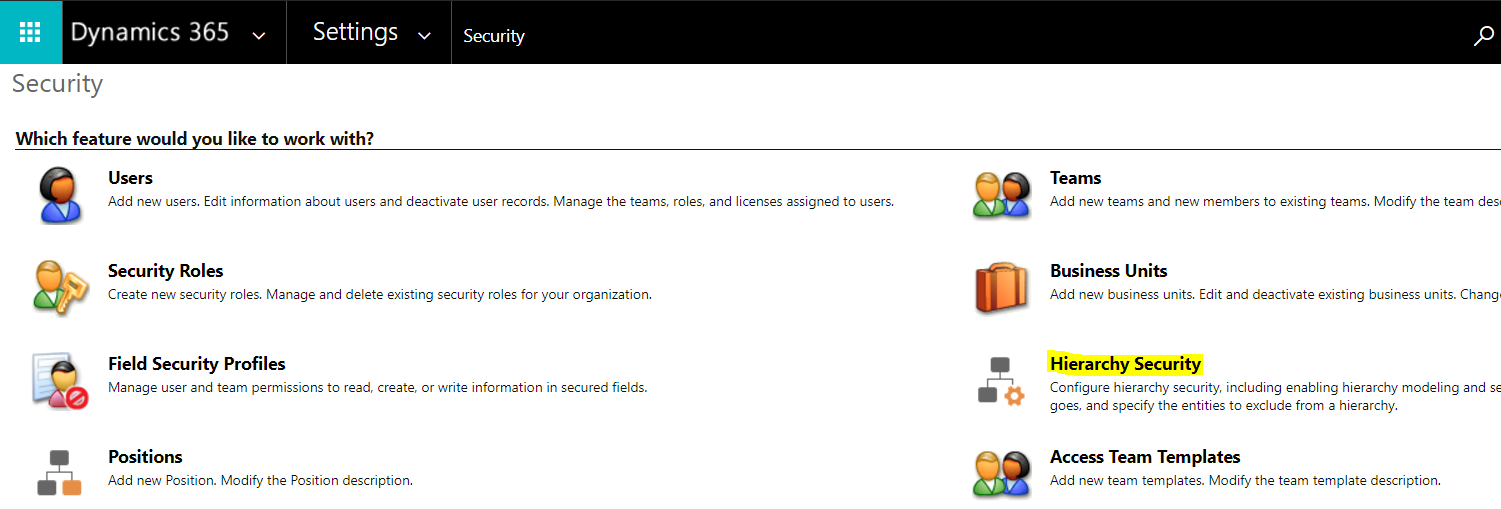
We will go through setting up hierarchical security. Go go Settings->Security and select Hierarchical security:
You will see the screen below:
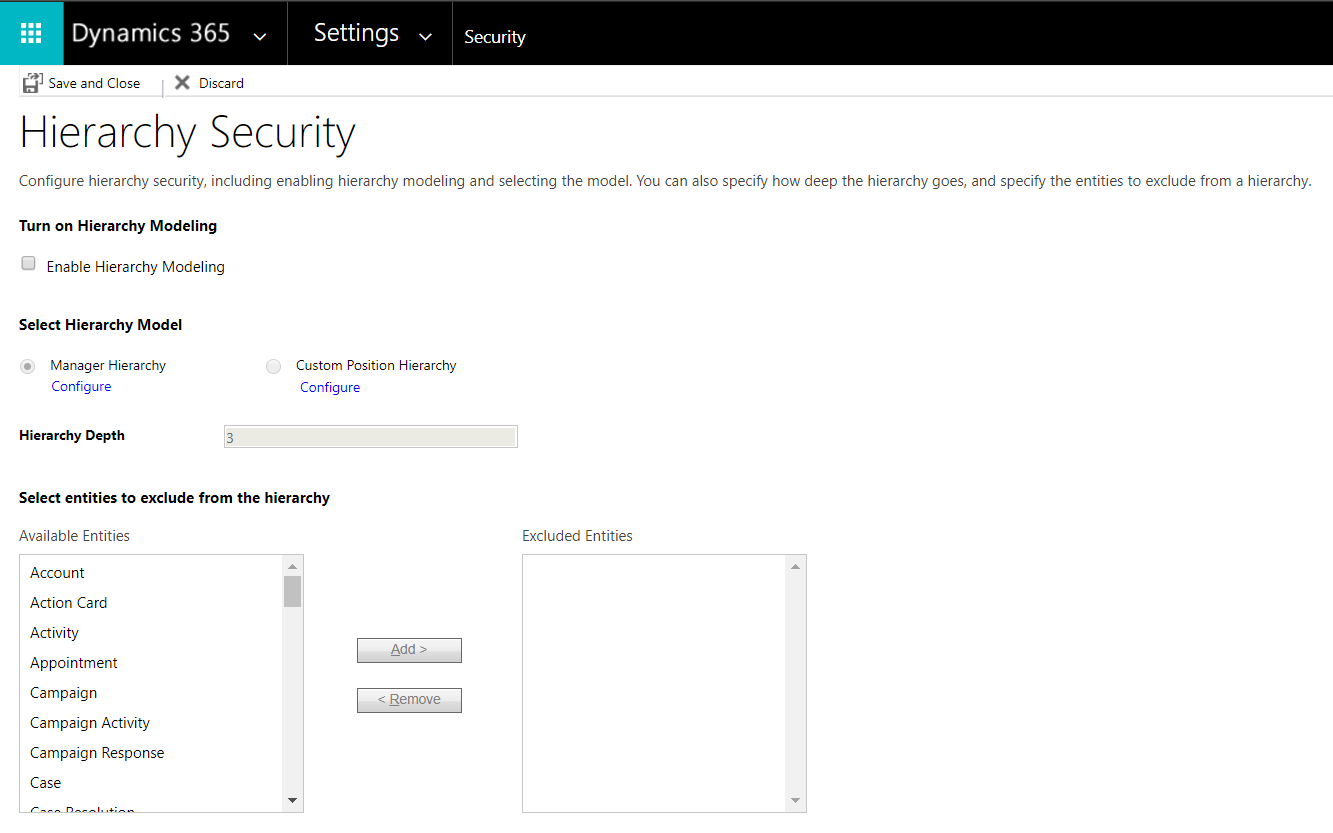
Select Enable Hierarchy Modeling and you will see the two options enabled:
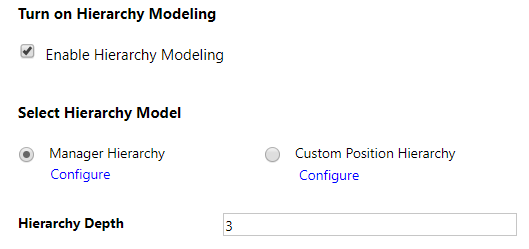
Note the hierarchy depth is set to 3.

We can click on Configure to select users to set up as hierarchical by assigning users managers.
Consider a scenario where you had an organization such as below, with fictional users in our system:
- Sales Director (Amy Alberts)
- Sales Manager (Alicia Thomber)
- Salesperson (Alan Steiner)
- Sales Manager (Alicia Thomber)
Assign each user a manager:
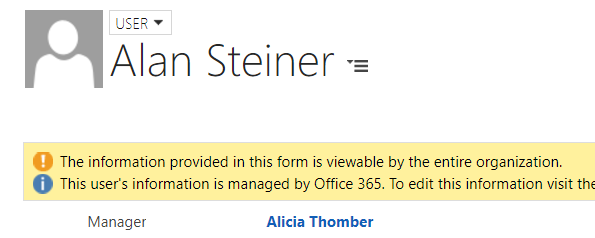
Users are now showing as hierarchical:
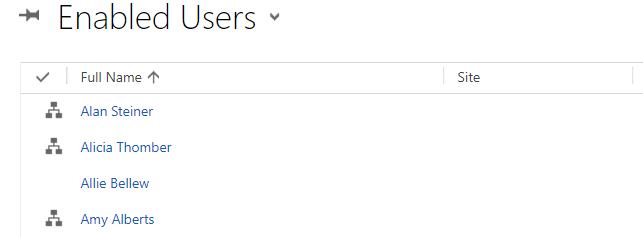
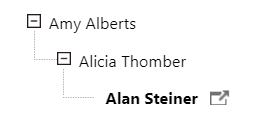
Now assume all these users are assigned the same Salesperson role, which allows them to only see their own Opportunity records:

Prior to updating the system to use hierarchy security, let’s say Alan creates a new Opportunity. Alan can see this in his view:

And he sees Open Opportunities as only his:

Let’s say Alicia creates a new Opportunity. Alicia can see this opportunity in her view:
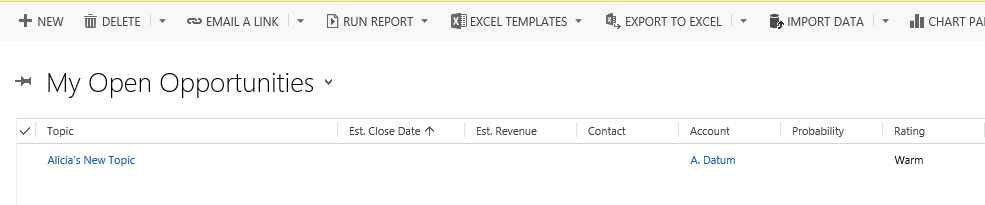
And the open opportunities view is restricted to what she is owner of:

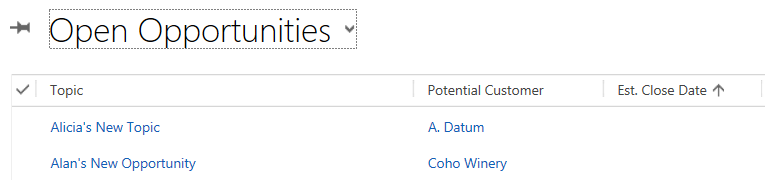
Now, when we enable hierarchical security, Alicia will see Alan’s opportunities as well as hers. Alicia can also update Alan’s opportunities:

Amy will be able to see Alicia and Alan’s opportunities as well. However Alan’s opportunities are read only.
For positional hierarchy, set to Custom Position Hierarchy below:
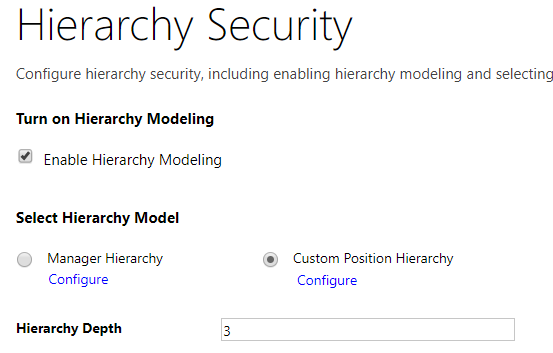
And click Configure. The positions window will open:
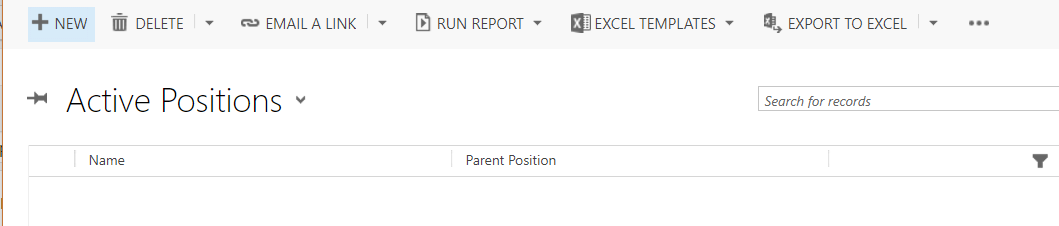
Enter each position until you get to a positional hierarchy:
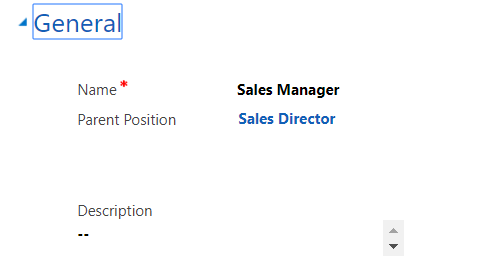
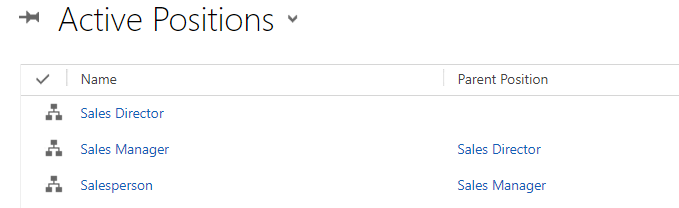
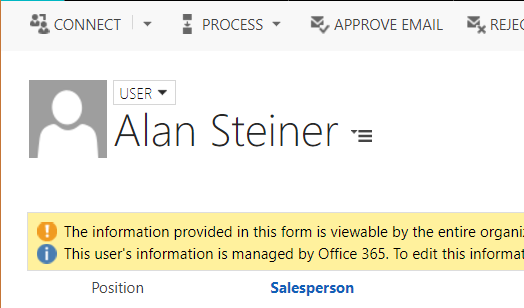
Now, ensure each user is set up with the correct positions:
This will produce the same results as above. The difference between positional and manager hierarchies is positional provides access across business units.

Explore AI, agents & Microsoft technology.
I share practical ideas, tutorials, and videos about AI, AI agents, Microsoft technologies, and the Power Platform.
Subscribe on YouTube →