In Dynamics 365, records can have photos attached to them. For example, let’s say we have a custom entity called Guests, which have the entity photo attached:
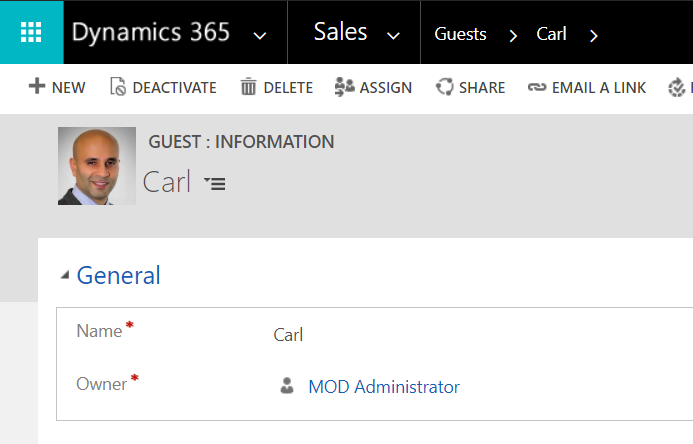
In this post, we will create a C# app to download all the images on this entity using C#.
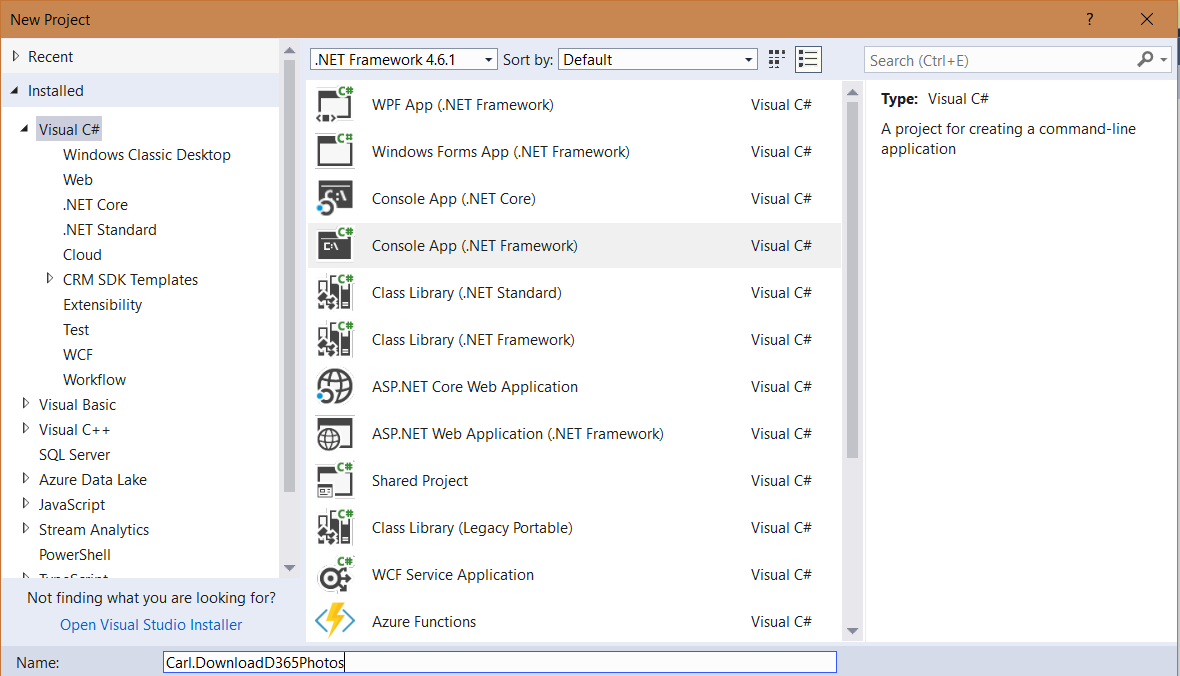
First, create a new console app in Visual Studio:
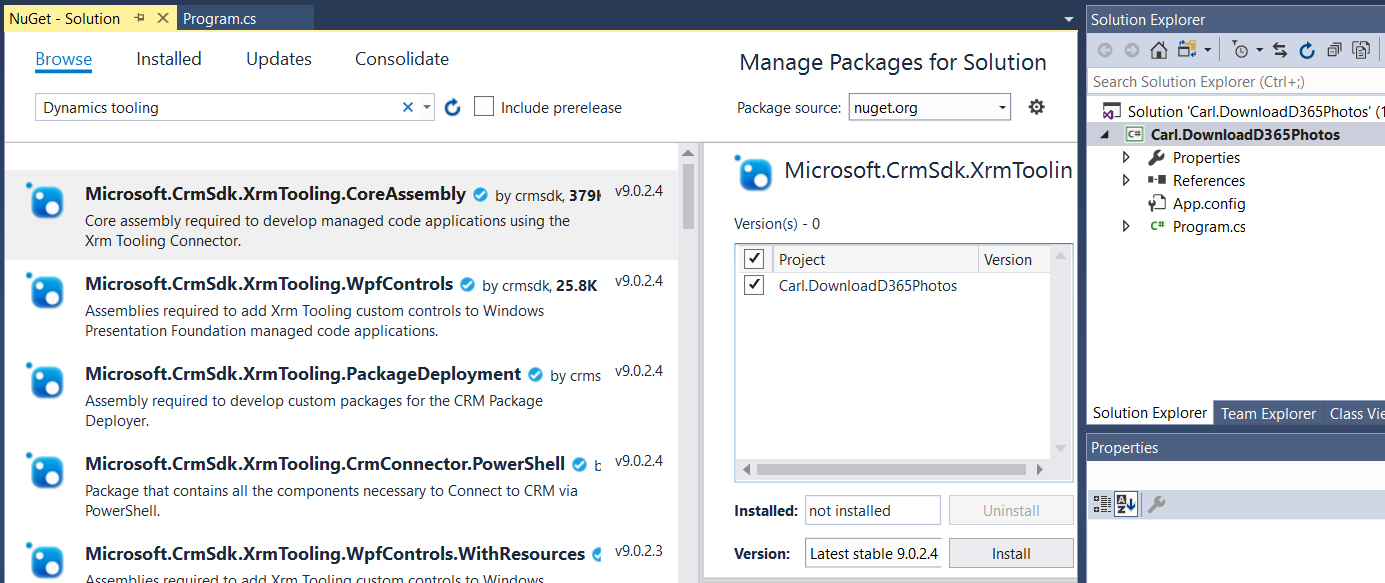
Install Xrm Tooling:
There are a few fields related to the entity image. These are:
- entityimage – The entity image itself
- entityimageid – The entity image guid
- entityimage_timestamp – The time the image was uploaded
- entityimage_url – The full URL to the image in Dynamics 365
- entityimageid – The guid associated with the image
In our example, our custom entity is called new_guest. Add the code:
[sourcecode language=”CSharp”] using Microsoft.Crm.Sdk.Messages;using Microsoft.Xrm.Sdk;
using Microsoft.Xrm.Sdk.Query;
using Microsoft.Xrm.Tooling.Connector;
using System;
using System.Collections.Generic;
using System.IO;
using System.Linq;
using System.Text;
using System.Threading.Tasks;
namespace Carl.DownloadD365Photos
{
class Program
{
static void Main(string[] args)
{
try
{
var connectionString = @"AuthType=Office365; Url=https://yourinstance.crm.dynamics.com/;Username=admin@yourinstance.onmicrosoft.com;Password=yourpassword";
CrmServiceClient conn = new CrmServiceClient(connectionString);
IOrganizationService service;
service = (IOrganizationService)conn.OrganizationWebProxyClient != null ? (IOrganizationService)conn.OrganizationWebProxyClient : (IOrganizationService)conn.OrganizationServiceProxy;
string query =
String.Format(@"<fetch mapping=’logical’>
<entity name='{0}’>
<attribute name=’new_name’ />
<attribute name=’entityimage’ />
<attribute name=’entityimage_timestamp’ />
<attribute name=’entityimage_url’ />
<attribute name=’entityimageid’ />
</entity>
</fetch>", "new_guest");
EntityCollection images = service.RetrieveMultiple(new FetchExpression(query));
foreach (Entity record in images.Entities)
{
string photoName = record["new_name"] + ".jpg" as string;
string entityimage_url = record["entityimage_url"] as string;
String file = String.Format("{0}", photoName);
byte[] image = record["entityimage"] as byte[];
var fs = new BinaryWriter(new FileStream(file, FileMode.Append, FileAccess.Write));
fs.Write(image);
fs.Close();
Console.WriteLine(file);
}
Console.ReadLine();
}
catch (Exception ex)
{
// Handle exception
}
}
}
}
[/sourcecode]
Run the code. You will see the files downloaded to your directory:

I AM SPENDING MORE TIME THESE DAYS CREATING YOUTUBE VIDEOS TO HELP PEOPLE LEARN THE MICROSOFT POWER PLATFORM.
IF YOU WOULD LIKE TO SEE HOW I BUILD APPS, OR FIND SOMETHING USEFUL READING MY BLOG, I WOULD REALLY APPRECIATE YOU SUBSCRIBING TO MY YOUTUBE CHANNEL.
THANK YOU, AND LET'S KEEP LEARNING TOGETHER.
CARL

record[“entityimage”] as byte[];
this retrieves only the partial image and not the full image.
Example: record[“entityimage_url”] as string; retrieves the url and when you run this in broswer,we will see a partial image
instead if we add ‘&Full=true’ to the above url, we will be able to get the complete image.
How can we get the full image data in byte format in D365 Plugin*C#)?
set the image property in powerapps tables for the image column : show full image check box yes
Hello Mr.de Souza
I want to create image entity for systemuser with c#. I realized that there is built a record in imagedescriptor table.
When I want to create in this table or just in systemuser entity I get error. Would you please help me?