The Dynamics CRM SDK for 2016 comes with many samples to get you up and running. One of the samples is the QuickStart projects. These projects are applications that will connect to Dynamics CRM and perform certain operations in Visual Studio projects.
To run these samples, after installing the SDK, go to the folder SDK\SampleCode\CS\QuickStart. Note – I am running the C# sample.
To run the QuickStart using WinForms, first open the app.config file:
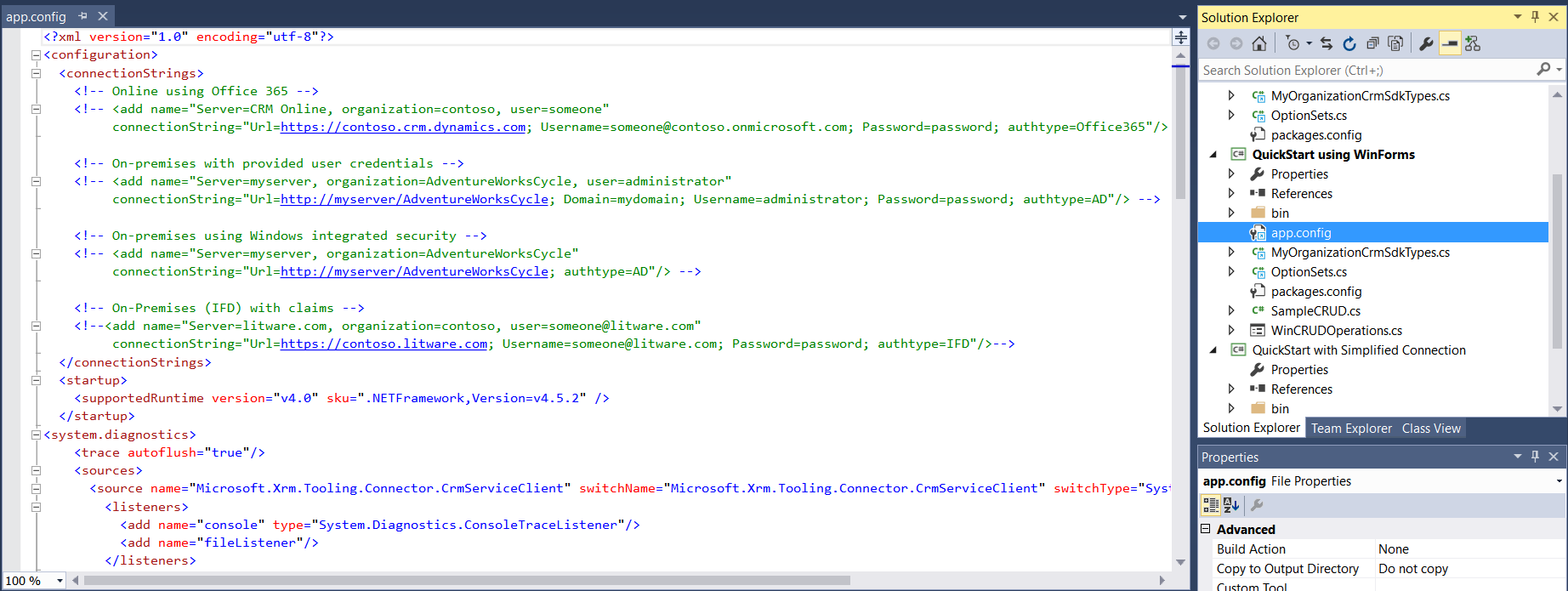
Uncomment the connection method for your CRM instance (On premise, Online, IDF):

The “name” is just a label, the “connectionString” is details to connect to your CRM server.
Run the application by pressing F5.
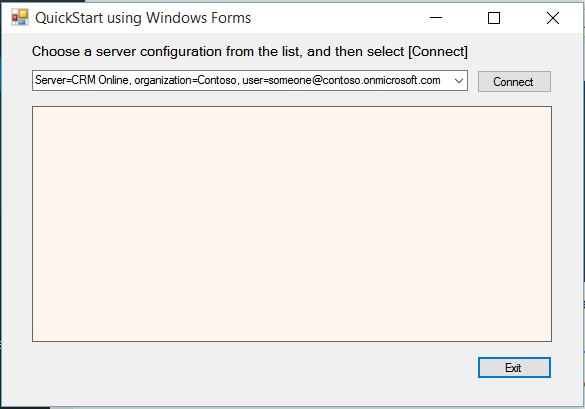
You will see the following if you are able to connect successfully:
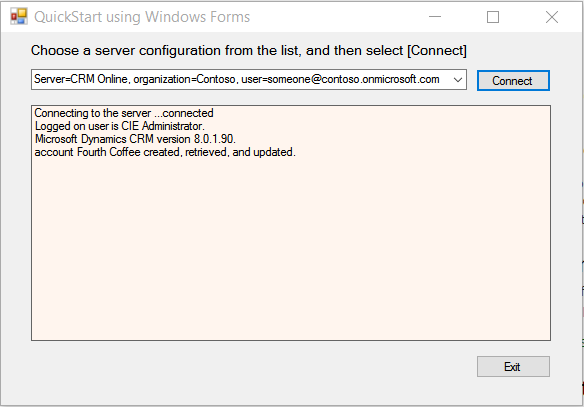
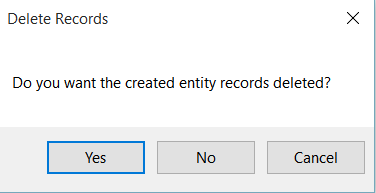
Press Yes to delete the record that was created.

Explore AI, agents & Microsoft technology.
I share practical ideas, tutorials, and videos about AI, AI agents, Microsoft technologies, and the Power Platform.
Subscribe on YouTube →
Gracias, un trabajo excelente me ayudo
Saludos