Adding a submenu to a USD hosted control is simple. To do this, first create a menu.
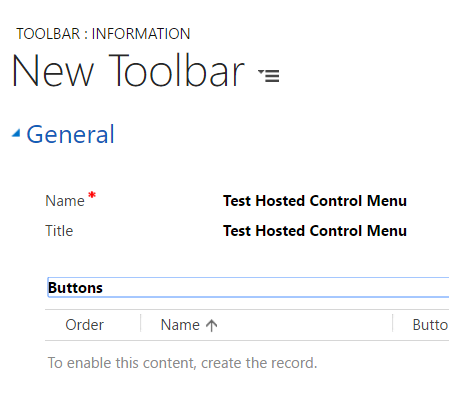
Go to the USD configuration and go to Toolbars. Create a new toolbar and save to unlock the Buttons:
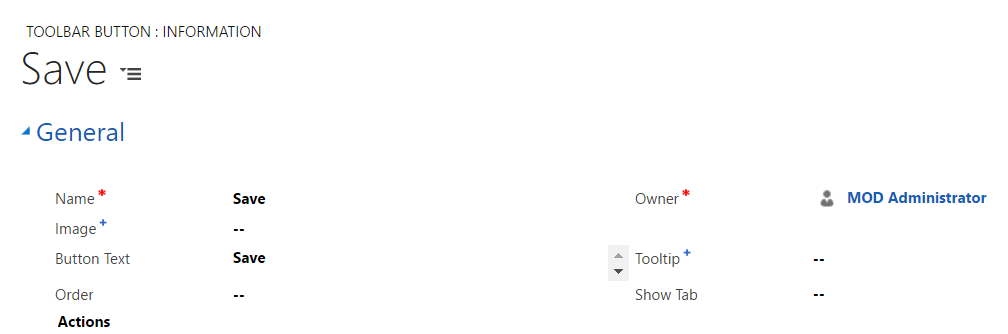
Add a new button and name it Save.
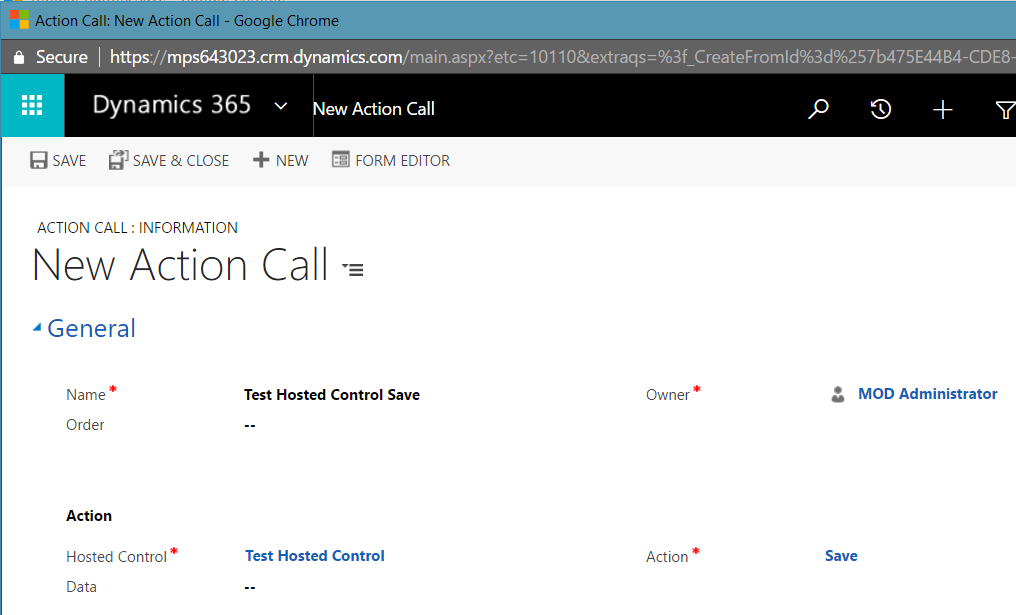
Add a new Action and name it Test Hosted Control Save. The Action here on the Test Hosted Control will be Save.
We now have:
- A toolbar with a button. The toolbar is not associated with any hosted control
- A button with an action, “Save”
- The action which calls “Save” on the hosted control
The next step is to associate the Hosted Control with the toolbar. Let’s do this.
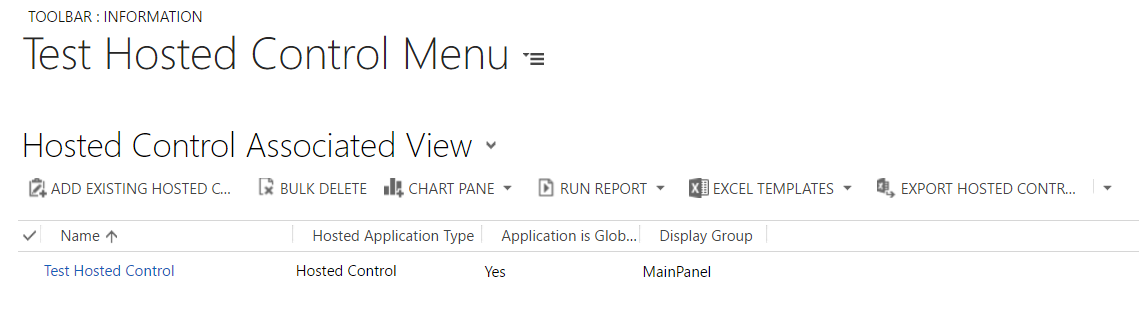
Go to the Toolbar and select Test Hosted Control:
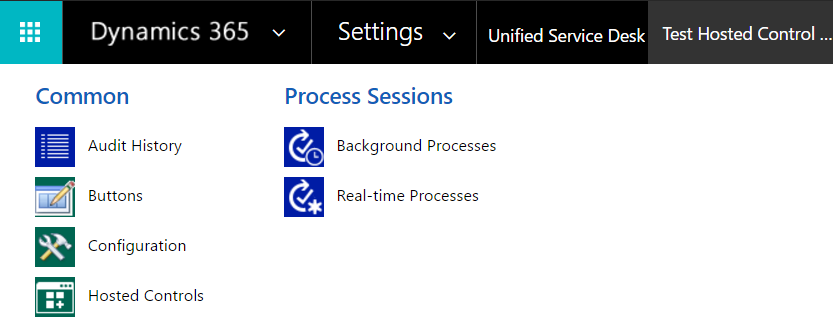
Add the hosted control “Test Hosted Control”:
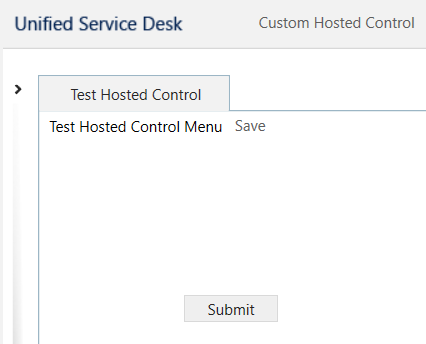
Restart USD and click on the Custom Hosted Control menu. You will see the new Save button:
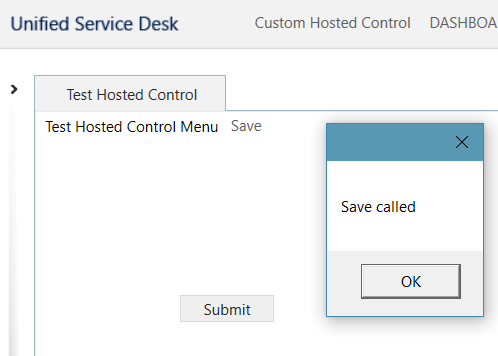
Press the Save button. You will see the Save action in our custom control has been invoked.

Explore AI, agents & Microsoft technology.
I share practical ideas, tutorials, and videos about AI, AI agents, Microsoft technologies, and the Power Platform.
Subscribe on YouTube →